

Roughly 1.4 billion smartphones are sold worldwide each year, and a huge share of those buyers face the same quiet panic on day one: everything I care about is still on the old phone. Contacts, chat threads, two-factor codes, that one photo of a grandparent. The good news is that Android has never made this easier. The bad news is that “easy” depends entirely on which method you pick, which brand you own, and whether you prepared before wiping the old device.
This guide walks through what actually works in practice, where transfers quietly fail, and how to check your work before you factory-reset anything.
Start With the Built-In Setup Wizard
The most reliable transfer path is the one Google builds into first-time setup. When a new Android phone boots for the first time, the setup wizard offers to copy apps, accounts, contacts, photos, and some settings from an old device. You can do this over a cable or wirelessly, depending on the manufacturer and Android version. (Android (operating system)))
A few practical notes from experience:
- Use the cable if you have one. A USB-C to USB-C cable between two phones moves large photo libraries dramatically faster than a wireless handshake. Wireless transfer is convenient but can stall on a 40 GB camera roll.
- Do the transfer before you sign into anything else. If you skip the copy step during setup, you can usually find it later in Settings under backup or device-transfer options, but the wizard does the cleanest job.
- Keep both phones charged and on Wi-Fi. A transfer that dies at 80 percent is a headache you do not want.
The wizard pulls from your Google account backup, so the quality of the result depends on whether your old phone was actually backing up in the first place. Check that first.
Make Sure the Old Phone Is Backing Up
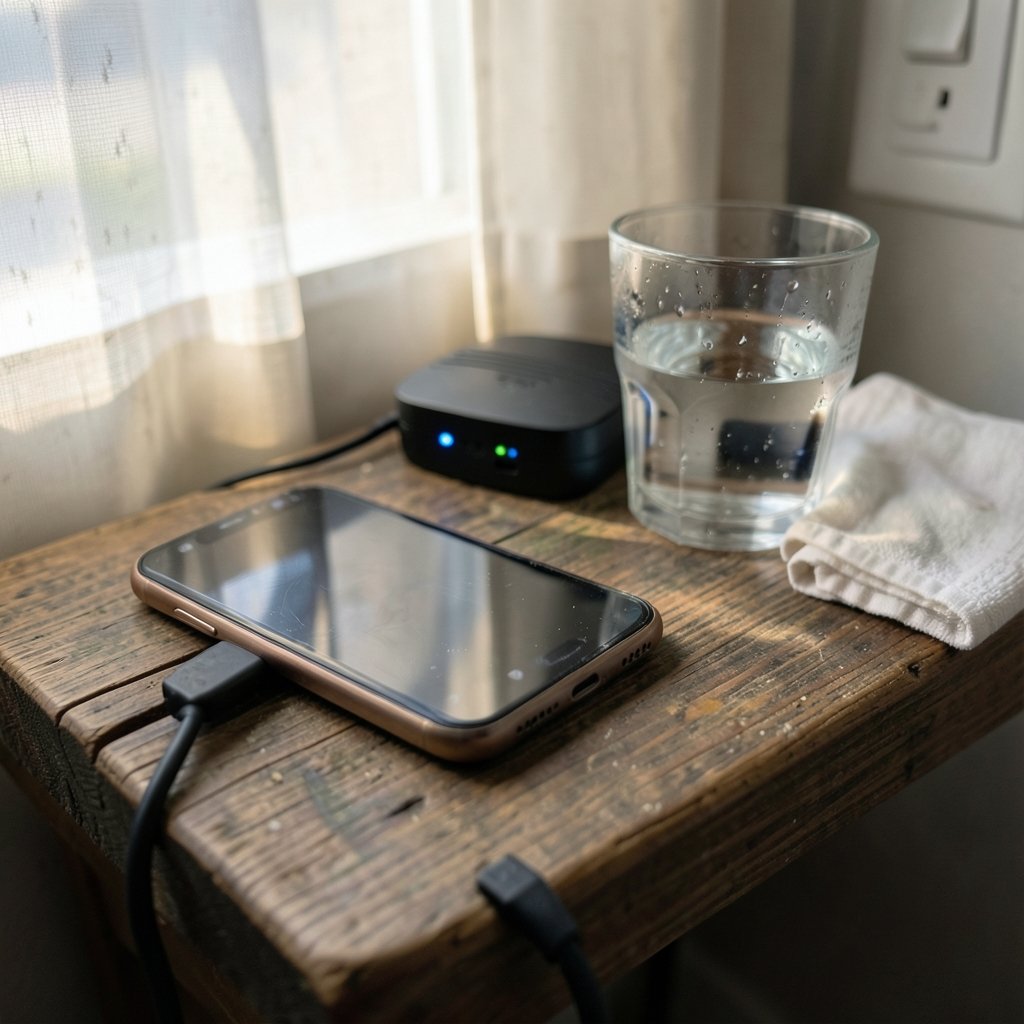
Android’s backup service stores app data, call history, device settings, and SMS where supported to your Google account, and that backup is restorable during setup on the new device. Which data types are included has shifted over time and varies by manufacturer, so verify it yourself rather than assuming. (Back up or restore data on your Android device)
On most phones, the path looks like this:
- Open Settings.
- Search for Backup (or go to System, then Backup).
- Confirm Back up to Google Drive is switched on.
- Tap Back up now and wait for it to finish.
- Note which Google account is selected. This is the single most common mistake: people back up to a personal account and then set up the new phone with a work account.
Photos deserve special attention. Google Photos is the primary photo and video route for most people, syncing to the cloud so the library appears on the new device after sign-in. Storage quota terms have changed repeatedly over the years, so check your current plan before assuming a large library will sync for free. If you are switching ecosystems entirely, it is worth reading up on Android vs iPhone security key differences before you commit, since account and encryption models affect what transfers cleanly.
Use the Manufacturer’s Tool for a Deeper Copy
Google’s wizard is good. The manufacturer tools are often better, because they copy more.
Samsung Smart Switch is the best-known example, and other brands ship equivalents. Capabilities and cable or wireless support vary by model and generation, so check your specific device’s documentation rather than trusting a tutorial from three years ago.
| Tool | Typical strength | Watch out for |
|---|---|---|
| Google setup wizard | Accounts, apps, contacts, settings | Depends on a healthy cloud backup |
| Samsung Smart Switch | Deep copy including some app data and home layout | Best results with a cable |
| Google Photos | Photos and videos | Requires storage quota and time to sync |
| WhatsApp in-app transfer | Chat history | Separate step, not covered by phone tools |
A realistic workflow uses two or three of these together. The wizard gets you a working phone. The manufacturer tool fills gaps. Google Photos handles media. WhatsApp handles itself.
Move WhatsApp Chats Separately
WhatsApp has its own official migration tool for moving chat history between Android devices, and separately between Android and iPhone. This is not covered by your phone’s transfer wizard, and skipping it is how people lose years of conversations.
The practical sequence:
- On the old phone, open WhatsApp and confirm a backup exists (Settings, Chats, Chat backup).
- Back up to Google Drive and let it complete fully.
- Install WhatsApp on the new phone and sign in with the same number.
- Restore when prompted.
Do this before you wipe the old phone, and do not uninstall WhatsApp on the old device until you have confirmed the chats appear on the new one. Current supported paths and version requirements change, so check the official WhatsApp help pages for your exact situation.
Handle the Things That Never Transfer
Here is the part nobody warns you about. A meaningful chunk of your digital life will not move automatically, no matter which tool you use.
- Authenticator apps. Two-factor codes often need manual migration or re-enrollment. Google Authenticator has an export feature, but many banking and enterprise authenticators require you to re-register each account. Plan for this before wiping the old phone, or you may lock yourself out of accounts you need to finish the transfer.
- Banking and financial apps. Most require fresh device registration and often a call or SMS verification.
- DRM-protected content. Downloaded movies and some streaming downloads do not move.
- App logins. Many apps transfer the app but not the session, so you will re-enter passwords. A password manager makes this painless.
- Secure folders and encrypted vaults. These are usually device-bound by design.
The smart move is to write down every account that uses two-factor authentication, confirm you have recovery codes, and only then proceed. If you are setting up a phone for a parent or grandparent, the same logic applies but with more patience; a simplified device helps, and our guide to the best cell phone for seniors covers which models make this easier.
Transfer Contacts, Messages, and Call History
Contacts are the least dramatic transfer and the most important. If contacts live in your Google account, they appear automatically after sign-in. If they were saved to the SIM card or to the phone’s local storage, they will not.
To check:
- Open Contacts.
- Look for an account label next to each entry.
- If you see “Phone” or “SIM” instead of your Google account, export or move them before switching.
SMS and call history depend on the backup you made earlier and on manufacturer support. Some phones include them in the Google backup, others do not. If message history matters to you, use the manufacturer tool with a cable and verify afterward.
Verify Before You Wipe the Old Phone
This is the step people skip, and it is the one that saves them. Never factory-reset the old device on transfer day.
Run this checklist on the new phone while the old one still works:
- Open the last ten photos you took. Do they exist?
- Search contacts for five people you message often.
- Open your three most-used apps and confirm you are logged in.
- Check WhatsApp for a recent conversation.
- Open your banking app and confirm it works.
- Test your authenticator codes.
- Confirm your alarm, Wi-Fi passwords, and saved payment methods came across.
Only after all of that should you consider wiping the old phone. Better still, keep it powered off in a drawer for a week. It costs nothing and it is the cheapest insurance you will ever buy.
What to Do If the Transfer Fails
Transfers fail more often than the marketing suggests. Common causes and fixes:
- The cable is charge-only. Many bundled cables carry power but no data. Try a different cable before assuming the software is broken.
- The phones are on different Wi-Fi networks. Wireless transfer needs both devices on the same network.
- Storage is full on the new phone. A 256 GB phone with a 200 GB photo library will not fit everything.
- The backup is stale. A backup from eight months ago restores eight-month-old data. Back up immediately before transferring.
- The Google account is wrong. Sign out and sign back in with the account that holds the backup.
If a specific app’s data refuses to move, reinstall it and sign in manually. Most apps store data server-side anyway, so the local copy matters less than you think.
Think About the Next Transfer Now
The people who suffer least during a phone switch are the ones who set things up well two years earlier. A few habits make every future transfer trivial:
- Save every contact to your Google account, never to the SIM.
- Turn on Google Photos backup and watch your storage.
- Use a password manager so app logins are a copy-paste, not a reset marathon.
- Keep a list of accounts with two-factor authentication and store recovery codes somewhere safe.
- Back up WhatsApp on a schedule, not only when switching phones.
If you are also upgrading accessories alongside the phone, it is worth checking which wireless chargers for iPhone and Android actually deliver enough wattage for a modern device, since a slow charger makes long transfers feel endless.
Conclusion
Transferring data to a new Android phone is not one task. It is four: the setup wizard for the foundation, the manufacturer tool for depth, Google Photos for media, and app-specific tools like WhatsApp’s for the things that live outside the phone’s own backup. Get those four right, verify everything while the old phone still works, and the whole process takes an afternoon instead of a week of recovery.
The single most valuable habit is boring: back up before you switch, not after. Everything else follows from there.
Frequently Asked Questions
How long does it take to transfer data to a new Android phone?
It depends almost entirely on volume and method. A cable-based transfer of a modest library can finish in under 30 minutes. A wireless transfer of a large photo and video collection can take several hours. Budget a full afternoon and keep both phones plugged in.
Can I transfer data without a cable?
Yes. The setup wizard supports wireless transfer, and Google Photos syncs over Wi-Fi once you sign in. Wireless is slower for large media libraries but perfectly workable for contacts, apps, and settings.
Will my WhatsApp chats move automatically?
No. WhatsApp uses its own migration tool and its own backup, separate from your phone’s transfer wizard. Back up chats on the old phone, then restore during sign-in on the new one, and confirm the messages appear before wiping anything.
Why did my photos not transfer?
The most common reasons are a full cloud storage quota, Google Photos backup being switched off on the old phone, or a photo library larger than the new phone’s free storage. Check the backup status on the old device first.
Do I need to move my authenticator app manually?
Usually yes. Many authenticator apps and banking apps are tied to the specific device and require re-enrollment. Export or re-register your two-factor accounts before wiping the old phone, and keep recovery codes accessible.
Can I still transfer data after I have already set up the new phone?
In most cases yes. You can restore from a Google backup or run the manufacturer’s transfer tool afterward, though results are cleaner during initial setup. If you already signed in, look for backup and restore options in Settings.



