Learning how to transfer WhatsApp from Android to iPhone matters most in the hour before you switch phones, when years of chats, photos and voice notes sit on the old handset. The good news is that the move is now a supported, official process, and you do not need a paid tool to do it. The answer, in short, is to use Apple’s Move to iOS app during iPhone setup, choose WhatsApp when prompted, and sign in to WhatsApp on the iPhone with the same phone number afterwards.
Key takeaways
- Use Move to iOS during iPhone setup. It is the official route for moving WhatsApp chats and media from Android to iPhone.
- Back up WhatsApp on Android first, even though a Google Drive backup will not restore directly to an iPhone.
- The iPhone must be new or freshly erased to use Move to iOS, so plan the transfer before you finish setting it up.
- Keep both phones charged, connected to power and close together, and leave them alone until the transfer finishes.
- Sign in with the same phone number on the iPhone, then check chats and media before you erase the Android phone.
Why Android and iPhone backups do not match
WhatsApp on Android backs up to Google Drive. WhatsApp on iPhone backs up to iCloud. Those two systems do not read each other’s backups, so restoring a Google Drive backup on an iPhone does not work. That is the detail that catches most switchers out, and it is why a simple backup and restore is not the answer here.
Move to iOS bridges that gap. The app, made by Apple for Android, creates a direct connection between the two phones and moves selected data across, including WhatsApp when you choose it. It runs during iPhone setup, on the Apps and Data screen.
If your iPhone is already set up, you cannot add Move to iOS afterwards in the normal way. You would need to erase the iPhone and start setup again, after backing up anything already on it.
Before you start: the pre-transfer checklist
Work through this list before you touch Move to iOS. A few minutes of preparation prevents most failed transfers.
- Update WhatsApp on both phones to the latest version available in Google Play and the App Store.
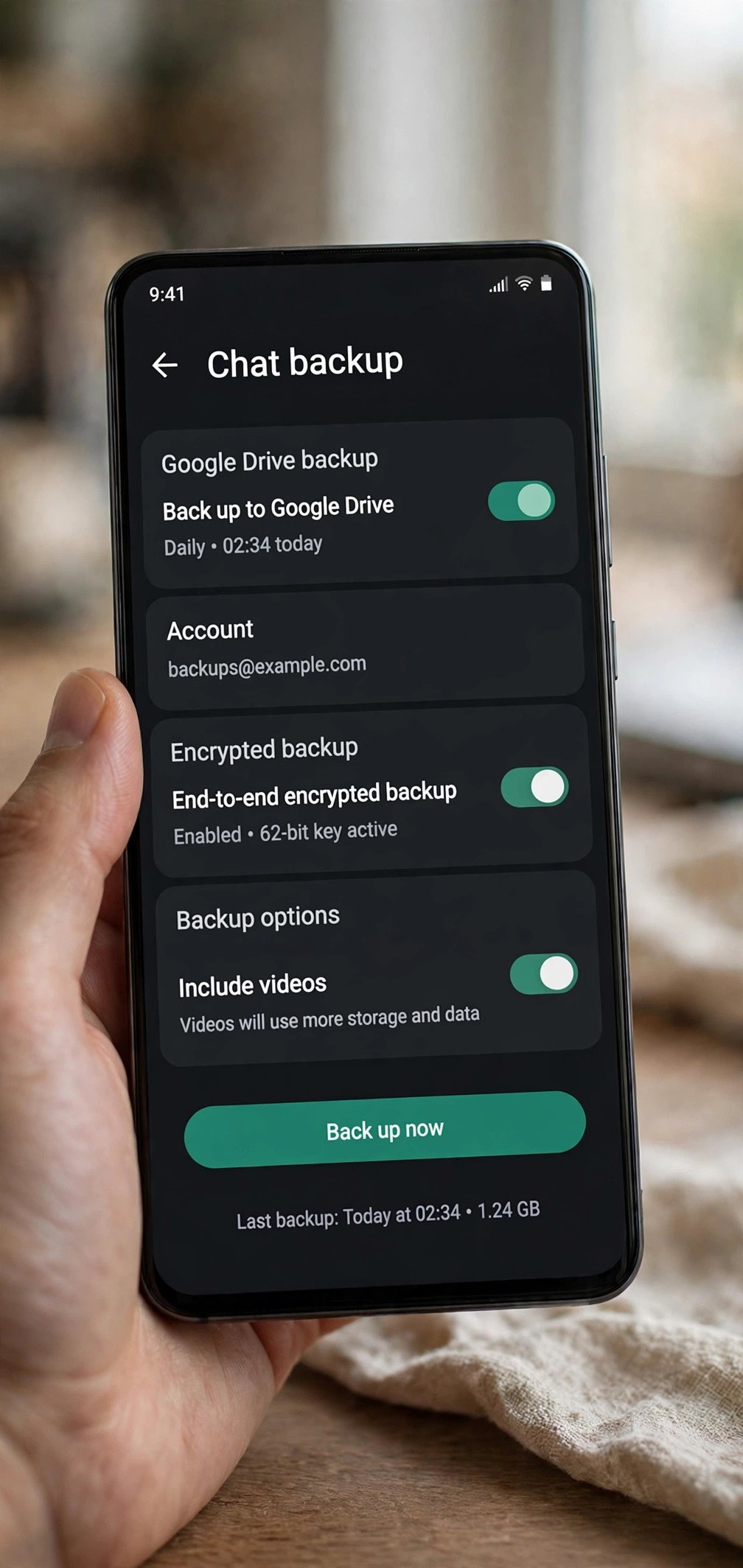
- Back up WhatsApp on Android in Settings, then Chats, then Chat backup, and wait for it to finish.
- Charge both phones, keep them plugged in, and place them close together.
- Check that the iPhone has enough free storage for your WhatsApp chats and media.
- Install Move to iOS on the Android phone from Google Play.
- Do not start setting up the iPhone beyond the Apps and Data screen until you are ready to transfer.
The phone number matters more than most people expect. WhatsApp accounts are tied to a number, so you must sign in on the iPhone with the same number you used on Android.
How to transfer WhatsApp with Move to iOS
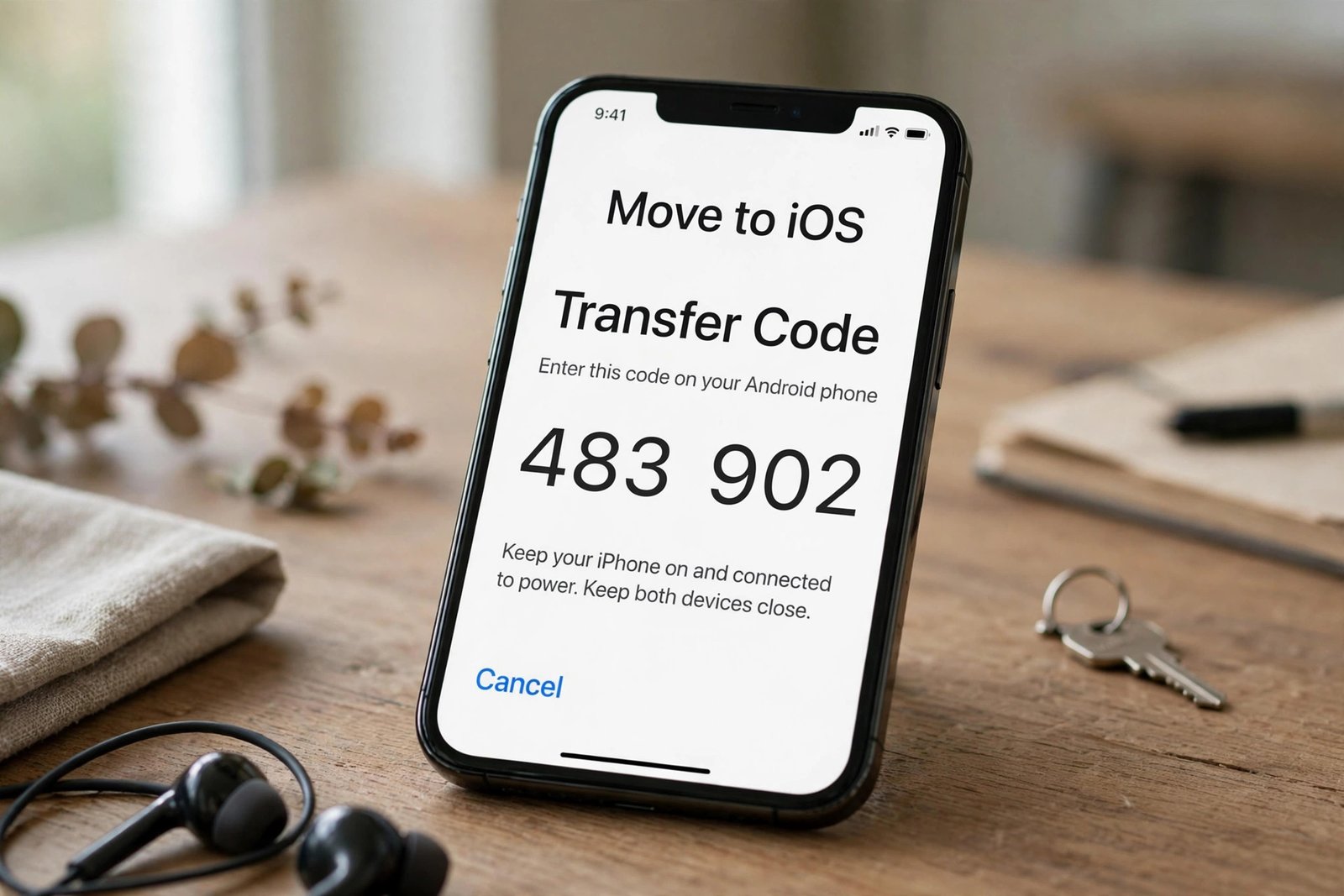
Start the iPhone setup and stop at the Apps and Data screen. Choose Move Data from Android, then tap Continue. The iPhone will show a code. Open Move to iOS on the Android phone, agree to the terms, tap Continue, and enter the code shown on the iPhone.
Choose what to transfer on the Android phone. Select WhatsApp from the list, then tap Start on the Android phone and wait for WhatsApp to prepare your chats for export. This step can take a while if you have years of media, so leave both phones alone, keep them close together, and do not lock the Android phone or switch apps.
When the preparation finishes, the transfer itself begins. Wait for the loading bar on the iPhone to finish, then tap Done on the Android phone and Continue on the iPhone. Finish the remaining iPhone setup steps, then install WhatsApp from the App Store if it is not already installed. Open WhatsApp, sign in with the same phone number, and follow the prompts to complete the transfer.
Check the result before you do anything else. Open a few long chats, check that photos and videos open, and look for recent conversations at the top of the list. Only erase or sell the Android phone once you are satisfied that the chats and media you care about are on the iPhone.
Comparison table
| Method | Cost | What it moves | Risk |
|---|---|---|---|
| Move to iOS during iPhone setup | Free | Chats and media, with the official process | Low, if the iPhone is new or freshly erased |
| Google Drive backup, restored on iPhone | Free | Nothing directly, backups do not cross platforms | High, it will not restore to iPhone |
| Paid third-party transfer tools | Paid | Chats and media, depending on the tool | Medium, check privacy and reviews first |
| Email a chat to yourself | Free | One chat at a time, as a text file | Low, but incomplete and not a restore |
| Starting fresh on iPhone | Free | Nothing from Android | None, but all chat history stays behind |
Table: The main ways to move WhatsApp from Android to iPhone, compared by cost, completeness and risk.
What moves, and what may not
Move to iOS is designed to move your WhatsApp chats and media, including photos, videos and voice messages in those chats. Your profile, groups and chat history should appear on the iPhone once you sign in with the same number.
Some items need a separate check. Your WhatsApp backup settings will need to be set up again on the iPhone, using iCloud rather than Google Drive.
After the transfer, open WhatsApp on the iPhone, go to Settings, then Chats, then Chat Backup, and switch on iCloud backup. Check that the first backup completes.
If the transfer stalls or fails
A stalled transfer is usually a connection or power problem, not a lost chat history. Check first that both phones are still charged, close together and connected, and that neither phone has locked or restarted. Moving them apart or using the Android phone during the transfer can interrupt it.
If the transfer fails, start again from the beginning rather than trying to resume halfway through. Erase the iPhone if setup has already finished, reinstall Move to iOS on Android if needed, and repeat the steps with both phones plugged in and undisturbed.
If the same failure repeats, try the basics before you look for another method. Restart both phones, update WhatsApp and Move to iOS, free up storage on the iPhone, and check your Wi-Fi connection.
After the switch: protect your chats on iPhone
Once your chats are on the iPhone, set up iCloud backup straight away. Open WhatsApp, go to Settings, then Chats, then Chat Backup, and choose a backup frequency that fits how often you chat.
Keep the Android phone for a few days, even after a successful transfer. That gives you time to spot a missing chat or a photo that did not open, while the original is still available.
For the next steps, how to back up WhatsApp chats on iPhone covers iCloud backup in detail. If a message seems to be missing, how to recover deleted messages on iPhone explains what can and cannot be recovered. And if you are still choosing a handset, how to choose a smartphone will help you pick a model with enough storage for years of chats and media.
FAQs
Do I need to factory reset my iPhone to transfer WhatsApp?
Yes, if the iPhone is already set up. Move to iOS only runs during iPhone setup, on the Apps and Data screen. Back up anything already on the iPhone first, then erase it and start setup again.
Will my Google Drive WhatsApp backup work on iPhone?
No. Android backs up to Google Drive and iPhone backs up to iCloud, and those backups do not restore across platforms. Keep the Google Drive backup as a safety copy on Android, but use Move to iOS for the actual transfer.
What is transferred from Android to iPhone?
Your WhatsApp chats and media move across, including photos, videos and voice messages in those chats, once you sign in with the same number. Check a few long chats to confirm they arrived intact.
How long does the transfer take?
It depends on how much WhatsApp data you have. A small chat history can take a few minutes, while years of photos and videos can take much longer. Keep both phones charged, plugged in and close together, and do not use either phone until the transfer finishes.
Can I transfer WhatsApp back from iPhone to Android later?
Yes, WhatsApp and Android both support moving chats in the other direction, using the transfer option during Android setup. The steps differ, so follow the current guidance for that direction.
Conclusion
Transferring WhatsApp from Android to iPhone is a setup job, not a backup job. Back up on Android first, use Move to iOS during iPhone setup, choose WhatsApp, sign in with the same number, and check your chats before you erase the old phone. Do it in that order, with both phones charged and undisturbed, and years of conversations arrive intact. Set up iCloud backup on the iPhone straight after the transfer, so your chats are protected on the new phone from day one.