

Quick Answer: How do I use GeForce Now step by step for beginners?
To use GeForce Now, create a free NVIDIA account, download the GeForce Now app on your PC, Mac, phone, or TV, sign in, and link the game stores where you already own titles. Then search for a supported game in the app and press Play to stream it from NVIDIA’s servers. The free tier works for testing, while paid memberships unlock longer sessions, RTX hardware, and higher resolutions. Before committing, compare the membership tier, your internet speed, the supported game list, your region’s server availability, controller support, and queue times at peak hours.
GeForce Now is different from a console or a gaming PC because the heavy hardware lives in a data center, not in your room. You are essentially renting a powerful rig by the hour and watching the video feed over the internet. That distinction shapes everything about setup, from how you link store accounts to why your home Wi-Fi suddenly matters more than your graphics card.
Cloud gaming has quietly become one of the fastest-growing corners of the games industry, and NVIDIA’s service sits at the center of it. The appeal is simple: a laptop with integrated graphics can suddenly run demanding titles at high settings, as long as the connection holds up. The catch is equally simple: the experience lives or dies on your network. This guide walks through the whole process in plain language, flags the mistakes beginners make most often, and explains what to check before paying for anything. (Best 3d printer for beginners)
What GeForce Now Actually Is (and What It Is Not)
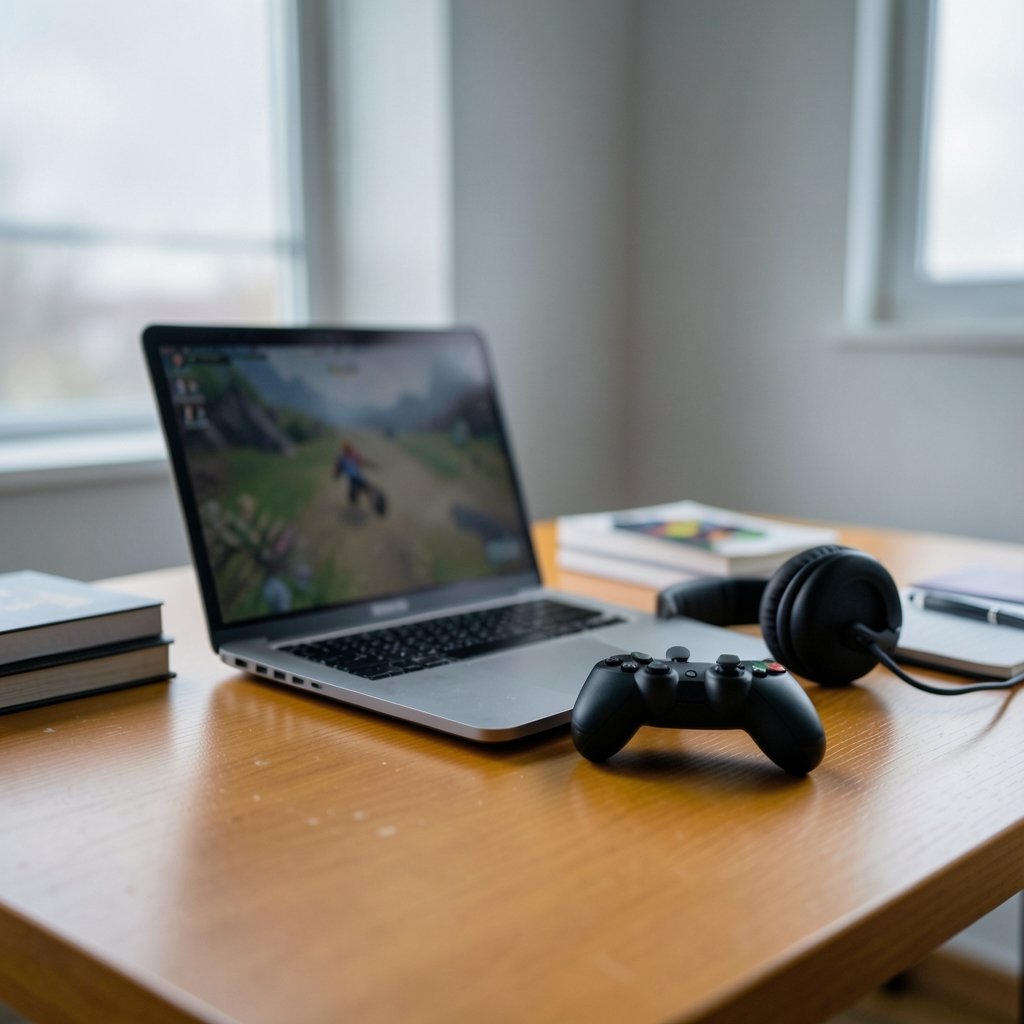
GeForce Now is a cloud streaming service that connects you to remote gaming rigs. You sign in, pick a game, and NVIDIA streams the video to your screen while your inputs travel back to the server. Two things make it unusual. First, it does not sell you a library of games. Second, it works with titles you already own on stores like Steam, Epic Games Store, GOG, and Ubisoft Connect, plus a rotating catalog of games you can play without buying them.
What it is not: a game subscription like a Netflix for games, and not a replacement for owning titles. If a publisher has not opted a game into the service, owning it on Steam will not help. That single rule trips up more beginners than anything else. According to NVIDIA’s official GeForce Now materials, the service streams games from supported stores and rotates its catalog over time, so the library is a moving target rather than a fixed list.
Step 1: Check Your Internet Before You Download Anything
Before touching any software, test the connection. NVIDIA has historically recommended roughly 15 Mbps for 720p at 60 frames per second and around 25 Mbps for 1080p at 60 fps, with 4K requiring more and sitting behind the top membership tier. Those exact numbers shift, so confirm them on the official system requirements page.
Speed is only half the story. Stability matters just as much. A 200 Mbps connection that drops packets will stutter worse than a steady 50 Mbps line. Practical checks that actually work:
- Run a speed test at the time of day you normally play, not at 6 a.m.
- Use a wired Ethernet connection if a cable can reach your setup. It is the single biggest upgrade most beginners can make.
- If you must use Wi-Fi, sit closer to the router or switch to the 5 GHz band.
- Close background downloads and cloud backups during sessions.
A common beginner mistake is blaming the service for lag when a family member is streaming 4K video in the next room. Bandwidth is shared, and the weakest link sets the ceiling.
Step 2: Create Your NVIDIA Account and Pick a Tier
Head to the official site and sign up for a free NVIDIA account. You can start on the free tier, which is genuinely useful for testing whether your connection and region are up to the job. Expect session limits of around one hour, standard rather than RTX rigs, and possible queues at busy times.
Paid tiers remove most of those limits. Priority and Ultimate memberships offer longer sessions, RTX hardware, higher resolutions, and priority access when servers are crowded. Tier names, prices, and session lengths have changed repeatedly over the years, so treat any figure you read online as provisional and verify it on NVIDIA’s membership page on the day you sign up.
| Tier | Session Length | Hardware | Best For |
|---|---|---|---|
| Free | About 1 hour | Standard rigs | Testing your connection |
| Priority / Performance | Several hours | RTX-capable | Regular casual play |
| Ultimate | Longest sessions | Top-tier RTX | 4K and high frame rates |
If you are unsure, spend a week on the free tier first. It costs nothing and tells you more about your network than any review can.
Step 3: Install the App on the Right Device
Download the GeForce Now app for Windows or macOS from NVIDIA’s site, or grab the mobile app for Android and iOS. Supported TVs, streaming sticks, and Chromebooks have their own versions. Install it, launch it, and sign in with the NVIDIA account you just created.
The app is lightweight. It is a thin client, which is the whole point: your device only needs to decode video and send inputs, not render game worlds. A five-year-old laptop handles it fine. If you are also weighing hardware purchases for other hobbies, the same “buy for the job, not the hype” logic applies to picks like the best ukulele for beginners or the best 3D printer for beginners, where matching the tool to the actual task beats chasing specs.
Step 4: Link Your Game Store Accounts
Inside the app, open Settings and find the Connections area, where you link store accounts such as Steam, Epic, and Ubisoft Connect. Menu labels vary slightly between app versions, so look for anything mentioning accounts or connections. Once linked, GeForce Now scans your library and shows which owned games are supported.
Two things to know here. First, linking is read-only in practice; NVIDIA is checking ownership, not taking your library. Second, a linked account does not guarantee access. Publishers opt games in and out, and titles have been removed and later restored over the years. If a specific game matters to you, search for it in the app before subscribing.
Step 5: Find a Game and Start Streaming
Use the search bar to look up a title, or browse the catalog. Supported games show a Play button. Click it, and the service spins up a remote rig, loads the game through the linked store, and streams it to your screen. First launches take longer because the session has to initialize; later ones feel quicker.
Once in-game, open the overlay (usually a keyboard shortcut or a controller button combo) to check your stream stats. Look at latency, packet loss, and frame rate. If latency sits high, drop the resolution or frame rate target in settings. Beginners often max everything out of pride and then wonder why aiming feels floaty. Smooth beats sharp in most fast-paced games.
Step 6: Sort Out Controls and Region
Keyboard and mouse work for supported titles, and most modern Xbox and DualShock-style controllers connect without fuss. Bluetooth controllers add a little input lag, so wired or a dedicated dongle is preferable for competitive games.
Region matters more than people expect. NVIDIA runs servers in select locations, and availability varies by country. Check the official server locations page to see what is near you. A distant server adds latency no settings can fix. Some games are also region-restricted by publishers, so a title that works in one country may be blocked in another.
Common Mistakes Beginners Make
The same handful of errors show up again and again. Avoiding them saves hours of frustration.
- Assuming every owned game works. Check the supported list first; publisher opt-in is mandatory.
- Testing on bad Wi-Fi and concluding the service is broken. Try wired before judging.
- Buying the top tier immediately. Start free, upgrade only if queues or session limits actually bother you.
- Ignoring the overlay stats. They tell you exactly where the problem is.
- Playing on a monitor with heavy “game mode” processing disabled. Many TVs add input lag unless game mode is switched on.
- Forgetting that cloud saves depend on the store. Most stores sync saves automatically, but confirm per title.
One more subtle trap: expecting mods to work. Many games run fine with Steam Workshop content, but heavy script mods can behave unpredictably on remote rigs. If modding is central to how you play, test before you commit.
Is GeForce Now Worth It for a Beginner?
For the right person, yes. If you own a modest laptop, travel often, or want to try demanding games without buying a console or a gaming PC, the value is obvious. The service turns hardware into a monthly cost and removes the upgrade treadmill entirely. If you have a fast, stable connection and live near a server region, the experience can feel surprisingly close to local play.
For the wrong person, it frustrates. Competitive shooter players chasing every millisecond of latency will notice the difference. People with data caps will burn through them quickly, since streaming a game consumes bandwidth like streaming video, only more so. And anyone whose favorite games are not supported should walk away regardless of how good the tech is. The same fit-for-purpose thinking applies across beginner tech decisions, whether you are picking the best iPhone right now or setting up smart home devices for beginners: the specs matter less than whether they match your actual daily use. (Ai video generator from images a beginners guide)
A Realistic First-Week Plan
Beginners who succeed tend to follow a simple sequence. Day one: test the connection and create a free account. Day two: install the app and link one store. Day three: stream a single-player game for an hour and watch the overlay stats. Day four: try a controller and adjust resolution. Day five: play at peak evening hours to see how queues feel. By the end of the week you will know whether a paid tier earns its keep for you, and you will have avoided paying for a guess.
Conclusion
Using GeForce Now comes down to a short, repeatable loop: check your connection, create an account, install the app, link your stores, find a supported game, and press play. The technology is genuinely beginner-friendly, and the free tier means nobody has to gamble money to find out if it works for them. The variables that decide the outcome are not mysterious either: internet stability, server distance, catalog support, and the membership tier you choose. Get those four right, and a modest laptop becomes a gaming rig. Get them wrong, and no amount of tweaking will save the session. Start free, test honestly, and upgrade only when the limits start to pinch.
Frequently Asked Questions
Do I need to own games to use GeForce Now?
Not always. The service includes a rotating catalog of games playable without purchase, alongside titles you already own on linked stores. The free catalog changes over time, so check what is available in your region before assuming a specific game is included.
Can I use GeForce Now on a Chromebook or smart TV?
Yes, in many cases. NVIDIA provides apps for supported TVs, streaming devices, and Chromebooks alongside Windows, macOS, Android, and iOS. Check the device compatibility list on the official site, since supported hardware changes over time.
Why does my stream stutter even though my internet is fast?
Speed and stability are different things. Packet loss, an overloaded Wi-Fi channel, or a busy household network causes stutter that a speed test will not reveal. Try a wired connection, close background downloads, and check the in-app overlay for packet loss before blaming the service.
How much data does cloud gaming use?
Streaming games consumes data at a rate similar to or higher than HD video streaming, and higher resolutions use more. Households with monthly data caps should estimate usage before committing to long sessions, especially at 1080p or above.
Can I play with friends on GeForce Now?
Yes, for supported multiplayer titles. The game runs on NVIDIA’s servers but connects to the same online services as any other copy, so crossplay and friend lists work as the game allows. Just confirm the specific title is supported first.
What happens when my session time runs out?
The stream ends and you return to the app, where you can start a new session, possibly after a queue on busier tiers. Save your progress before the timer expires; most games autosave, but a manual save near the end of a session is a sensible habit.



