

Roughly 7 in 10 people worldwide carry an Android phone, yet most of them still pick up the handset to read a text that just pinged while they were typing on a Windows PC. That small friction, repeated dozens of times a day, is exactly the gap Phone Link was built to close. Microsoft’s bridge between phone and desktop lets notifications, messages, calls, and recent photos surface right on the Windows 11 screen, so the phone can stay in a pocket or on a charger across the room.
The catch is that Phone Link is one of those features that works beautifully once it’s configured and frustrates people endlessly when it isn’t. Pairing fails, permissions get denied, messages won’t sync, and iPhone owners discover the experience is noticeably thinner than what Android users get. This guide walks through the whole process in plain language, flags the traps that trip people up, and explains what each feature actually does in practice.
What Phone Link Actually Is
Phone Link is a Microsoft app built into Windows 11 that connects a smartphone to a PC over Bluetooth and Wi-Fi. It was originally called “Your Phone” before Microsoft renamed it, and the rename is why older tutorials can leave readers confused about whether they’re dealing with two different tools. They’re the same thing.
On the phone side, the companion app is called Link to Windows on most Android devices. On Samsung phones it’s often preinstalled, which is one reason Samsung users tend to have the smoothest experience. iPhone owners install a separate app from the App Store, and that version has historically offered a narrower set of features.
The main claim is fewer context switches. Instead of getting past a phone lock screen to check a two-factor code, reply to a colleague, or grab a screenshot, everything lands in a single desktop window. For anyone who spends the workday at a keyboard, that saves real time.
What You Need Before You Start
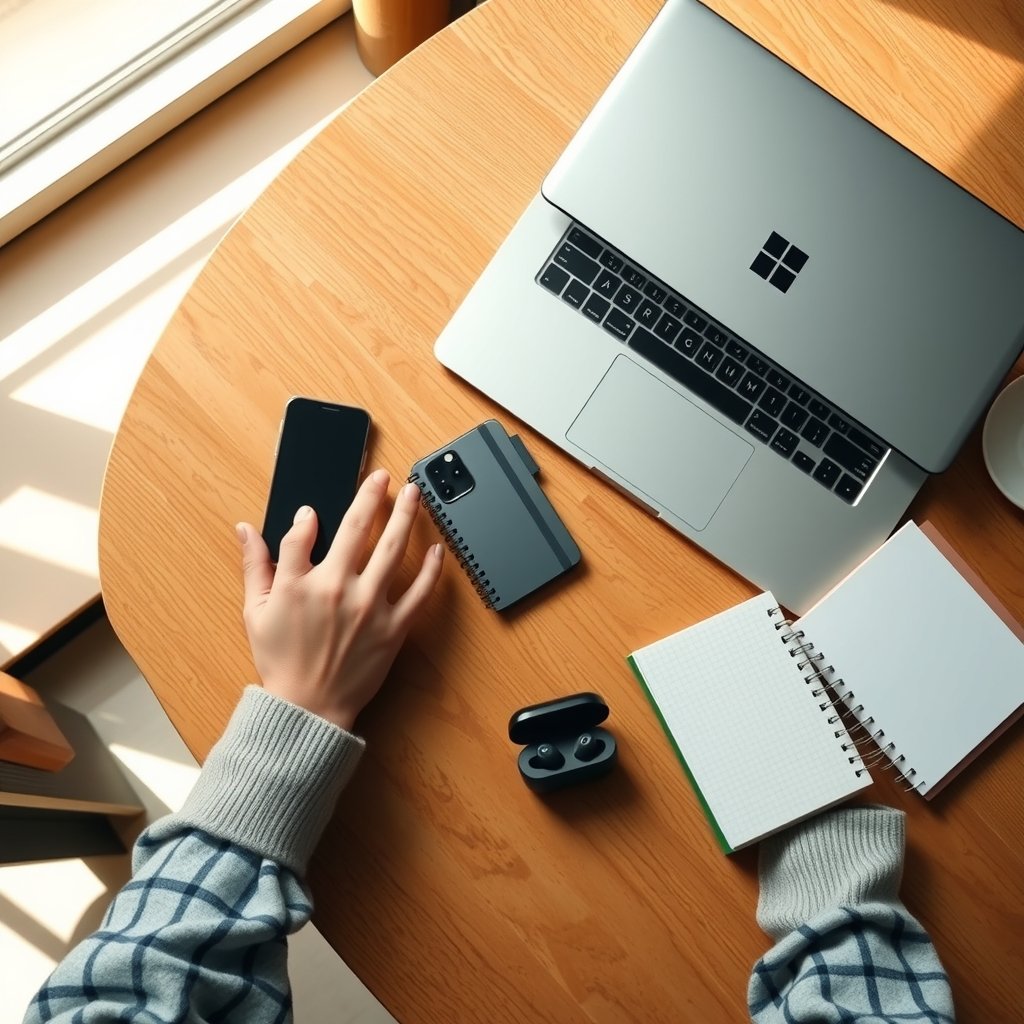
Setup fails most often because one small prerequisite is missing. Before touching either device, confirm the following:
- A Microsoft account signed in on the Windows 11 PC
- Bluetooth enabled on both the PC and the phone
- Both devices on the same Wi-Fi network for features that rely on local transfer
- The phone running a reasonably current version of Android or iOS
- Windows 11 updated, since Phone Link receives updates through the normal Windows update channel
A quick check of Windows update status is worth doing first. It’s the same habit that keeps other built-in tools healthy, and if you’ve ever needed to know the undo shortcut key for Windows and Mac after a mis-click in Settings, you already know how fiddly configuration screens can be.
Step-by-Step: Pairing Your Phone
The pairing flow is short, but the order matters. Doing it out of sequence is the single most common reason people give up.
- On the PC, open the Start menu and type Phone Link. Launch the app.
- Choose your phone type: Android or iPhone.
- A QR code appears on screen. Keep that window visible.
- On the phone, install Link to Windows (Android) or Phone Link (iPhone) from the official app store.
- Open the phone app and choose the option to scan a QR code, then point the camera at the PC screen.
- Approve the permissions the phone requests. These typically include notifications, contacts, messages, photos, and call access.
- Wait for the PC to confirm the connection, then sign in with the same Microsoft account on both devices if prompted.
If the QR scan stalls, close both apps and try again with the phone held closer to the screen. Bluetooth pairing problems are frequently caused by the phone being connected to a different Bluetooth device at the same time, such as wireless earbuds. Disconnecting those temporarily resolves it more often than people expect. The same logic applies to audio gear in general, and it’s why choosing the best earbuds for phone calls and meetings usually involves checking how gracefully they hand off between devices.
Notifications: The Feature You’ll Use Most
Once paired, Phone Link mirrors phone notifications into a panel on the desktop. This is the quiet workhorse of the whole system. Messages, calendar alerts, delivery updates, and app notifications all appear without touching the handset.
Two practical tips make this far more useful:
Trim the noise. By default, every app that can notify you on the phone may try to notify you on the PC. Open Phone Link settings and disable categories you don’t care about, especially social apps that fire constantly. A mirrored notification stream that’s too loud gets ignored within a day.
Dismiss in one place. Clearing a notification in Phone Link clears it on the phone too. That two-way sync is the part people underrate, because it means you’re not left with a phone full of stale alerts at the end of the day.
One caveat: notifications only flow while the connection is alive. If the PC sleeps or the phone wanders out of Bluetooth range, the stream pauses. It resumes when the link re-establishes, but anything that arrived in the gap may not appear.
Messages, Calls, and Photos
These three features behave quite differently depending on which phone you carry, and pretending otherwise sets people up for disappointment.
| Feature | Android experience | iPhone experience |
|---|---|---|
| Read and send SMS | Yes, full conversation view | Limited; replies are constrained |
| Notification mirroring | Yes | Yes, but narrower |
| Make and receive calls on PC | Yes, with Bluetooth and supported versions | Not generally available |
| Access recent photos | Yes, recent camera roll | Limited |
| Message history in app | Yes | Typically not synced |
Messaging on Android is the standout. Conversations appear in a chat window, and replies sent from the PC go out through the phone’s SIM. Group threads work, and images can be dragged in. On iPhone, the app can surface notifications and allow some interaction, but the full conversation view that Android users get has not been part of the experience.
Calls work on many Android phones, letting the PC act as a speakerphone and dialer. This is genuinely useful during long work sessions, and it pairs naturally with a decent headset. Audio quality depends heavily on the Bluetooth connection, so if calls sound choppy, moving the phone closer to the PC is the first fix to try.
Photos is the feature that surprises people most. Recent shots from the phone camera appear in the app, ready to drag into a document or email. Historically the app has shown only the most recent batch of photos rather than the entire library, so treat it as a quick-access window rather than a backup tool. Anyone who needs full photo management should use a proper cloud service instead.
Fixing the Problems Everyone Hits
Phone Link troubleshooting follows a predictable pattern. Almost every failure traces back to one of five causes.
Bluetooth is on but not paired properly. Toggling Bluetooth off and on, on both devices, forces a fresh handshake. Do this before reinstalling anything.
The Microsoft account doesn’t match. If the PC is signed in with a work account and the phone with a personal one, the link may connect but features will misbehave. Verify both.
Permissions were denied during setup. This is the sneaky one. If notification access was blocked on the phone, the app will look connected while showing nothing. Dig into the phone’s app permissions and re-enable them.
The phone is aggressively managing battery. Android manufacturers often kill background apps to save power, which severs the link. Exempting Link to Windows from battery optimization fixes a huge share of “it keeps disconnecting” complaints.
Windows needs an update or a restart. Boring, but effective. A restart clears stuck background services that hold the Bluetooth connection open.
If the app itself seems corrupted or behaves erratically after an update, a clean reinstall of both the PC app and the phone app is the reliable reset. While you’re in maintenance mode, it’s also worth running a scan with one of the best free virus removal tools for Windows so that odd behavior isn’t misattributed to the app when malware is the real culprit.
Privacy and Security Considerations
Phone Link routes messages and notifications through Microsoft’s cloud services, which means the data passes through Microsoft’s infrastructure rather than staying purely local. That’s not unusual for cross-device sync, but it’s worth understanding before enabling message mirroring on a shared or work PC.
A few sensible habits:
- Don’t leave Phone Link signed in on a public or shared computer. Anyone at that machine can read incoming messages.
- Review which apps can push notifications. A banking app’s alerts appearing on a desktop screen in an open office is a real leak vector.
- Unlink old devices. If you replace a phone, remove the old one from the linked devices list rather than leaving a dormant connection.
- Treat the PC as part of your phone’s security perimeter. If the PC is compromised, mirrored messages are exposed too. Basic hygiene like knowing how to check whether a link is safe before clicking applies doubly when those links arrive on a desktop.
For people in shared living situations or offices, the notification mirroring feature is the one to configure most carefully. It’s genuinely convenient and genuinely revealing.
Getting More Out of It
A few smaller features reward a bit of exploration. The app can show battery level and signal strength for the phone, which is handy when the handset is charging in another room. Some Android devices support dragging files between phone and PC directly. And the app integrates with Windows notifications, so you can respond to a text from the notification popup without opening the full window.
Keyboard habits make the whole thing faster. Learning a handful of Windows keyboard shortcuts everyone should know means you can jump to the app, dismiss alerts, and switch windows without reaching for the mouse. Small efficiencies compound when you’re using the tool all day.
It’s also worth being realistic about scope. Phone Link is not a phone emulator. It doesn’t run mobile apps on the desktop, and it won’t replace a proper file transfer tool for large media libraries. It’s a notification and communication bridge, and judged on that basis it’s genuinely good.
Conclusion
Phone Link on Windows 11 is one of those features that quietly earns its place once it’s working. The setup takes a few minutes, the prerequisites are modest, and the payoff is a workday with far fewer reach-for-the-phone interruptions. Android users get the fuller experience by a wide margin, with messaging, calls, and photo access all functioning well. iPhone users get a useful but narrower slice, mainly notifications and limited interaction.
The failures people complain about are almost always fixable. Matching Microsoft accounts, granting notification permissions properly, and exempting the phone app from battery optimization solve the overwhelming majority of connection problems. Bluetooth toggling and a restart handle most of the rest.
The honest summary is that Phone Link rewards a careful first setup. Spend ten minutes getting the permissions and account details right, and the tool fades into the background where it belongs, quietly syncing messages and calls while the phone stays where it should: out of reach, charging, and out of the way.
Frequently Asked Questions
Does Phone Link work with both Android and iPhone?
Yes, but the experiences differ substantially. Android phones get messaging, notification mirroring, call handling on supported devices, and recent photo access. iPhone support has historically been limited to notifications and narrower interaction, without the full conversation view or call features. The gap has narrowed slightly over time but remains significant.
Why do my phone notifications stop appearing on the PC?
The most common cause is Android battery optimization killing the Link to Windows app in the background. Exempting the app from battery restrictions usually fixes it. Other causes include Bluetooth dropping out, the PC going to sleep, or notification permissions being revoked after a system update.
Do I need Bluetooth and Wi-Fi both turned on?
Bluetooth is essential for the initial pairing and for call features. Wi-Fi helps with features that transfer data, such as photos, and generally improves reliability. Running both on both devices is the recommended configuration and avoids most intermittent connection issues.
Can I send and receive calls from my PC?
On many Android phones, yes. The PC can act as a speakerphone and dialer, provided Bluetooth is paired and the phone supports the feature. Call audio quality depends on the Bluetooth link, so keeping the phone reasonably close to the PC matters. iPhone users generally cannot use this feature.
Is Phone Link safe to use on a work computer?
It depends on your organization’s policies. Phone Link syncs messages and notifications through Microsoft’s cloud, and anyone with access to the signed-in PC could read mirrored content. On shared or work machines, check with IT first and avoid enabling message mirroring if the device isn’t exclusively yours.
What should I do if the QR code won’t scan during setup?
Close both apps and reopen them, hold the phone closer to the screen, and increase screen brightness. Disconnect the phone from any active Bluetooth devices such as earbuds or a car system, since those can block the pairing handshake. If it still fails, restart both devices and try again with a fresh QR code. (Sync across your devices)
