
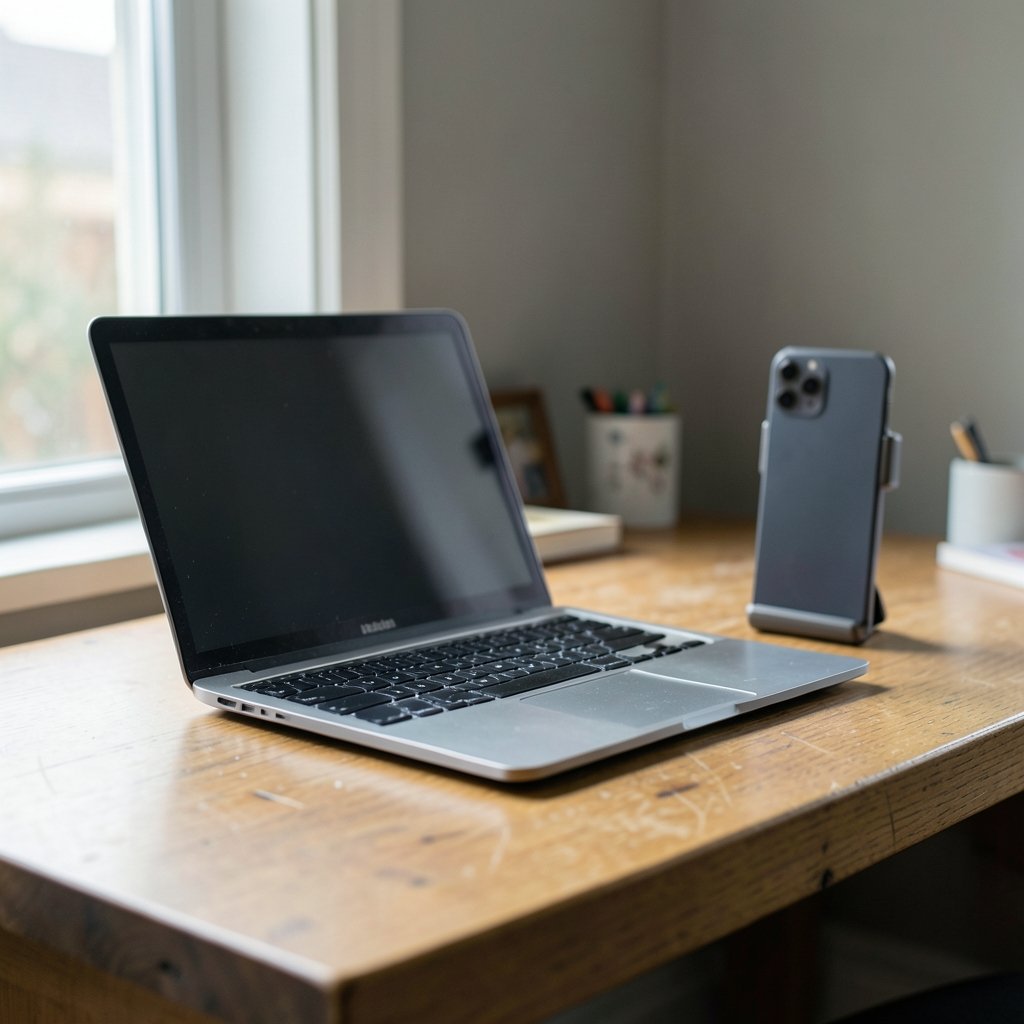
In June 2022, Apple did something quietly brilliant at its Worldwide Developers Conference: it turned millions of iPhones already sitting in people’s pockets into high-quality Mac webcams. The feature, called Continuity Camera, shipped later that year alongside macOS Ventura and iOS 16. For anyone who has stared into the grainy, washed-out lens of a built-in MacBook camera during a video call, this mattered. Apple’s own laptop webcams have long been serviceable but unremarkable, while a modern iPhone packs a far larger sensor and better low-light performance. The pitch was simple: why buy a dedicated webcam when the best camera you own is already in your bag?
This guide walks through the whole process, from checking compatibility to fixing the setup when it refuses to cooperate. It also covers the trade-offs nobody mentions until you’re mid-meeting with a frozen video feed.
What Continuity Camera Actually Does
Continuity Camera is a built-in macOS feature that lets an iPhone act as a Mac’s camera and microphone. It isn’t an app you install or a subscription you pay for. It’s baked into the operating system, and it appears in the camera menu of any app that uses the standard macOS camera picker.
That last point matters more than it sounds. Because the feature hooks into the system-level camera selection, it works in FaceTime, Zoom, Microsoft Teams, Google Meet, and most other video tools. You don’t need a special plugin. You just pick your iPhone from the camera dropdown, the same way you’d pick an external webcam. (Webcam)
Apple’s support documentation describes the core requirements clearly. Both devices need Wi-Fi and Bluetooth turned on, they must be signed into the same Apple Account with two-factor authentication enabled, and the iPhone needs to be nearby and locked. Get those four conditions right and the phone shows up as a camera option within seconds.
The features you gain
Beyond raw image quality, Continuity Camera brings a handful of software tricks:
- Center Stage keeps you framed as you move around.
- Portrait mode blurs your background, much like the photo feature.
- Studio Light dims the background and brightens your face.
- Desk View shows a top-down view of your desk, handy for demonstrating physical objects or sketching on paper. Desk View requires an iPhone 11 or later.
Desk View is the sleeper feature here. Teachers, designers, and anyone who has ever tilted a laptop screen toward a piece of paper will immediately see the appeal.
Checking Compatibility Before You Start
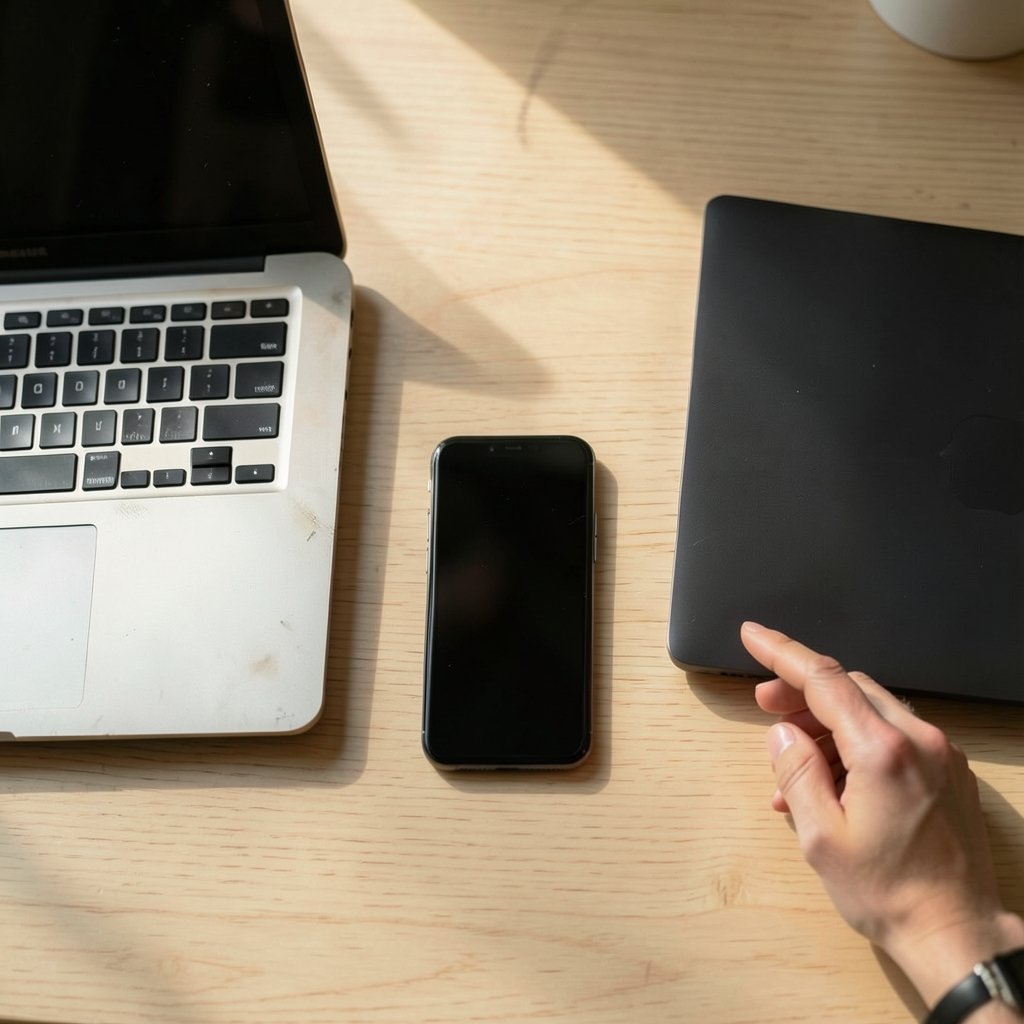
Nothing wastes more time than troubleshooting a feature your hardware doesn’t support. Apple’s requirements are fairly generous but not universal.
| Requirement | Details |
|---|---|
| iPhone model | iPhone XR or later, or iPhone SE (2nd generation) or later |
| Mac model | Mac from 2018 or later |
| Operating system | macOS Ventura or later on the Mac; iOS 16 or later on the iPhone |
| Account | Same Apple Account on both devices, with two-factor authentication on |
| Connectivity | Wi-Fi and Bluetooth enabled on both devices |
| Desk View | Requires iPhone 11 or later |
If your Mac predates 2018, Continuity Camera simply won’t appear, no matter how new your phone is. That’s a hardware limitation tied to the wireless handoff technology involved, not something a software update can fix.
Apple has revised these compatibility lists more than once since launch, so if your device sits right at the boundary, check the current documentation rather than relying on a blog post from 2022. The same caution applies to pricing questions elsewhere in Apple’s product line; costs shift by region and generation, which is why resources like this breakdown of the iPhone Philippines price tend to go stale quickly.
Step-by-Step: Setting Up Your iPhone as a Mac Webcam
Here’s the practical sequence. Follow it in order and most setups work on the first attempt.
- Update both devices. Install the latest macOS and iOS versions. Half of all Continuity Camera failures trace back to mismatched software.
- Sign into the same Apple Account on both the Mac and the iPhone. Confirm two-factor authentication is active.
- Turn on Wi-Fi and Bluetooth on both devices. They don’t need to be on the same network, but both radios must be enabled.
- Place the iPhone near the Mac — within a few feet is ideal — and lock the screen. A phone held in your hand with the screen active won’t offer itself as a camera.
- Mount the phone so the rear camera faces you. Apple sells a Belkin mount designed for Mac laptops and displays, though any sturdy stand works.
- Open your video app and find the camera or video settings menu. Select your iPhone from the list of available cameras.
- Adjust the framing using the controls that appear in the menu bar, where you can toggle Center Stage, Portrait, Studio Light, and Desk View.
The rear camera is the one you want. It’s dramatically better than the front-facing selfie camera, which is why the mounting step isn’t optional if you care about image quality. Clipping a phone to the top of a laptop screen also puts the lens at roughly eye level, which flatters your face angle far more than a phone propped up on a desk below you.
The wired alternative
Wireless is convenient, but it introduces latency and battery drain. Connecting the iPhone to the Mac with a USB cable gives you a more stable connection and charges the phone while you work. Apple documents this as a legitimate alternative to the wireless path.
For long calls — interviews, webinars, all-day workshops — the cable is the smarter choice. Wireless Continuity Camera can chew through phone battery surprisingly fast, and a dead phone mid-presentation is a special kind of embarrassment.
Common Mistakes and What Actually Works
A few failure patterns show up again and again. Knowing them in advance saves a lot of frustration.
Mistake one: leaving the phone screen active. The iPhone must be locked to appear in the camera list. This trips up almost everyone the first time.
Mistake two: assuming any app supports it. Most do, but behavior varies by app version. If your iPhone doesn’t appear in a particular app’s camera menu, check whether that app uses the standard macOS camera picker. Some older or specialized apps bypass it entirely.
Mistake three: ignoring the mount. A phone lying flat on a desk produces a deeply unflattering upward angle. A cheap clamp mount fixes this instantly and is the single highest-impact upgrade in the whole setup.
Mistake four: forgetting about lighting. A great camera sensor still can’t rescue a face lit from behind by a bright window. Face a light source, or use Studio Light to compensate.
Mistake five: skipping updates. Apple has patched several Continuity Camera reliability issues through point releases. If the feature worked last month and stopped, an update is a likely culprit or cure.
There’s a broader lesson in all this: the tools you already own are often more capable than you think. The same principle applies to productivity shortcuts — most people never learn the undo shortcut key for Windows and Mac despite using it daily. Continuity Camera sits in that same category of underused built-in power. (Mac User Guide)
When Continuity Camera Won’t Cooperate
If the iPhone doesn’t show up as a camera option, work through this checklist in order:
- Confirm both devices are past their lock screens, awake, and within range.
- Toggle Wi-Fi and Bluetooth off and back on, on both devices.
- Sign out of the Apple Account and back in on the Mac.
- Restart both devices. It sounds trite, but it resolves a genuine share of handoff glitches.
- Check that no other app is currently using the iPhone camera. Only one app can claim it at a time.
- Verify the iPhone isn’t in Low Power Mode, which can interfere with wireless handoff.
If none of that works, the fallback is the USB cable. Wired connections bypass most of the wireless handoff machinery, which makes them a reliable diagnostic tool as well as a practical option.
Third-party alternatives worth knowing
Continuity Camera isn’t the only route. Several third-party apps — Camo, EpocCam, and others — let an iPhone serve as a webcam, sometimes with extra features like virtual backgrounds or finer manual controls. They generally require installing software on both the phone and the Mac.
The trade-off is real: you get more control but you also get another subscription, another update cycle, and another thing to troubleshoot. For most people, the built-in option is good enough and costs nothing. Reach for third-party tools when you need something specific — a particular resolution, a custom overlay, or support for an older Mac that falls outside Apple’s compatibility list.
Practical Tips for Better-Looking Video Calls
Getting the setup running is step one. Looking good on camera is step two.
- Raise the phone to eye level. A stack of books under a stand works fine.
- Use the rear camera, always. It’s the better lens by a wide margin.
- Light your face, not your background. A window in front of you beats a lamp behind you.
- Enable Portrait mode sparingly. It’s flattering in a one-on-one call and slightly distracting in a group presentation.
- Keep the phone charged. Wireless mode drains battery, and a 45-minute call can take a noticeable bite.
- Test before the meeting. Open the app five minutes early and confirm the camera selection stuck.
One more consideration: the iPhone’s microphone is genuinely good, but it’s also sensitive. If you’re in a room with an echo, the phone will pick it up. A headset or a dedicated mic still wins for audio quality, even when the video is coming from the phone.
How This Fits Into a Wider Apple Setup
Continuity Camera is part of a broader pattern in Apple’s product line: features that make separate devices behave like one system. Handoff, Universal Control, and Continuity Camera all lean on the same underlying assumption — that you own more than one Apple device and want them to cooperate.
That assumption has limits. The hardware requirements exclude older Macs, and the wireless handoff occasionally stumbles on crowded networks. But when it works, it works remarkably well, and it costs nothing beyond the hardware you already own.
If you’re weighing an upgrade specifically to gain features like this, the decision deserves more thought than a single spec comparison. Camera quality, chip generation, and software support life all matter, and a resource like this guide to the best iPhone to buy can help frame the trade-offs. The same logic applies to accessories: a solid mount and a decent light will improve your video calls more than a marginal jump in phone generation ever will.
Conclusion
Using an iPhone as a Mac webcam is one of the most useful things Apple has shipped in years, precisely because it asks so little of you. No subscription, no dongle, no third-party software — just two devices, a shared account, and a couple of toggles. The setup takes about two minutes once you know the sequence, and the image quality jump over a built-in MacBook camera is immediately obvious to anyone on the other end of the call.
The keys to making it work reliably are unglamorous: keep both devices updated, lock the phone, mount it at eye level, and reach for the USB cable when wireless gets flaky. Do those four things and the feature mostly disappears into the background, which is exactly what good technology should do. The camera you already own is better than the one you were about to buy.
Frequently Asked Questions
Do I need to buy anything to use my iPhone as a Mac webcam?
No. Continuity Camera is built into macOS Ventura and later, and it costs nothing. A mount is optional but strongly recommended, since it keeps the phone at eye level and points the rear camera at your face. Apple sells a Belkin mount, but any sturdy stand works.
Why doesn’t my iPhone show up as a camera option on my Mac?
The most common causes are a phone left off its lock screen, mismatched Apple Accounts, disabled Wi-Fi or Bluetooth, or outdated software on either device. Confirm the iPhone is locked and nearby, then toggle the wireless radios and restart both devices. If it still fails, connect the phone with a USB cable.
Does Continuity Camera work with Zoom, Teams, and Google Meet?
Generally yes. It works in any app that uses the standard macOS camera picker, which covers FaceTime, Zoom, Microsoft Teams, and Google Meet. Behavior can vary by app version, so if the iPhone doesn’t appear, check that the app is fully updated.
What is Desk View, and which iPhones support it?
Desk View uses the iPhone’s ultrawide camera to show a top-down view of your desk while keeping your face on screen. It’s useful for demonstrations, sketches, and physical documents. It requires an iPhone 11 or later.
Is a wired connection better than wireless for Continuity Camera?
For long calls, yes. A USB cable provides a more stable connection and charges the phone simultaneously, avoiding the battery drain that wireless mode causes. Wireless is more convenient for short, casual meetings.
Can I use an older Mac that isn’t on the compatibility list?
Not with Continuity Camera, which requires a Mac from 2018 or later. Third-party apps like Camo or EpocCam may extend support to older hardware, though features and pricing vary by vendor, so check current details before committing.



