If you already have a VS Code setup, you can bring its core configuration into Cursor and then fill any extension gaps. Cursor feels familiar because it is built on VS Code, but its extension catalog differs. Open VSX is an open registry that provides VS Code-format extensions to compatible editors, including Cursor.
This guide gives you a practical path from importing your setup to checking, adding, and managing extensions. You will also see where settings sync, keyboard shortcuts, and an AI agent fit into your move. Switching to Cursor means using a separate desktop editor; adding AI tools to VS Code keeps you in your current editor.
The main difference is what you can install and how you manage it. A familiar extension may not appear in Cursor’s catalog, and a similar name does not prove it is the same extension. You can still bring over much of your setup and decide what belongs in your daily workflow.
The safest quick start is to import first, then check each extension’s publisher and ID before relying on it.
Key Takeaways
- Cursor is a separate editor built on the VS Code codebase.
- Its third-party extension catalog uses Open VSX.
- A one-click import can carry over extensions and core settings.
- Compare the publisher and extension ID before installing a result.
- Use profiles when you want a portable setup snapshot.
- Cursor does not use Microsoft Settings Sync.
How Do You Import Your VS Code Setup Into Cursor?
If VS Code is already installed on the same computer, use Cursor’s built-in import to bring over the main parts of your setup. The one-click import transfers extensions, themes, settings, and keybindings, so you can start with a familiar layout.
One-click import is the quickest route for a same-machine move. It brings over useful configuration, but the extension list still needs a review. The import does not make every item in the Microsoft catalog available in Cursor.
Use the one-click import for a same-machine setup
Open Cursor Settings with ⌘/Ctrl + Shift + J, then follow these steps:
- Open Cursor Settings.
- Navigate to General > Account.
- Find VS Code Import.
- Select Import.
- Review the imported setup and its extension list.
On a Mac, press ⌘ + Shift + J. On Windows or Linux, use Ctrl + Shift + J. The controls sit under the account area, so you do not need to hunt through each setting category.
Review every imported extension before you depend on it, because some Marketplace items are unavailable in Cursor.
Downloading Cursor means installing the standalone desktop editor, not adding a VS Code add-on. Cursor’s official download page listed desktop version 3.27 as the latest version in 2026. The Cursor migration guide also describes the built-in import and profile route.
Export a profile when you need more control
If the one-click import does not fit your needs, export a profile from VS Code and bring that profile into Cursor. This route lets you choose a specific configuration rather than moving the broad setup from the current installation.
Cursor can import a profile from a local file or a GitHub Gist. Use that option when you are moving between machines or keeping separate configurations for different work. Check the imported extension list before treating the migration as complete, since not every Marketplace item is available in Cursor.
VS Code Extensions Cursor Setup 2026: How the Marketplace Works
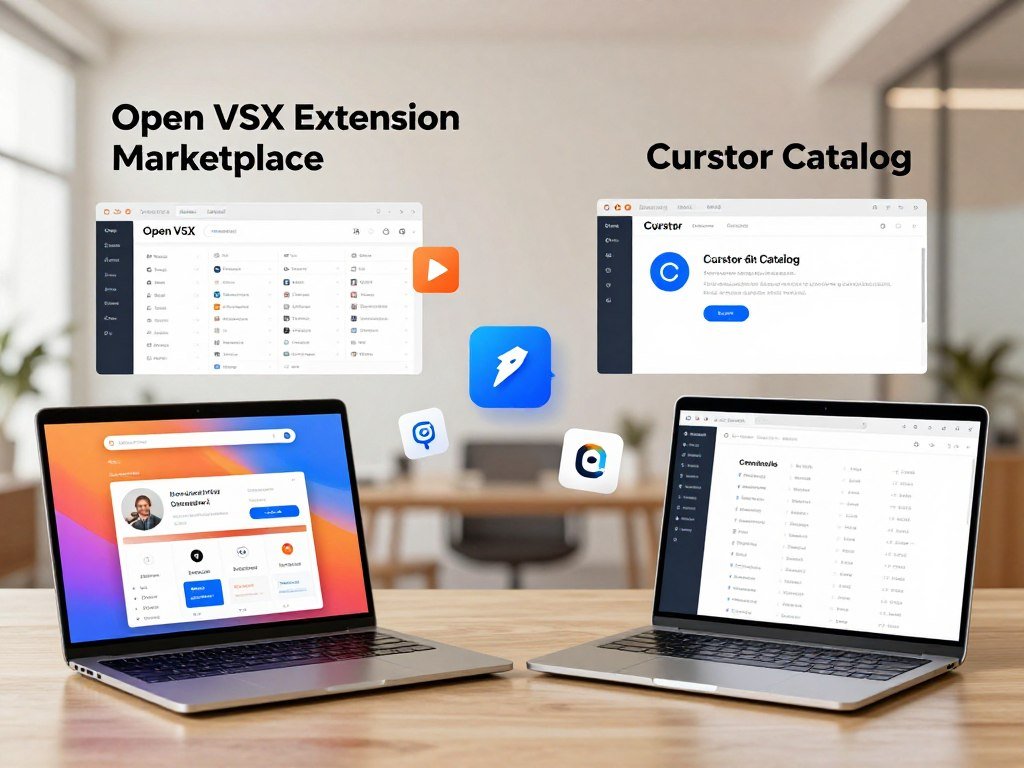
Cursor uses Open VSX for third-party extensions, so its catalog is not a mirror of the Microsoft Visual Studio Marketplace. Open VSX is an open registry for VS Code-format extensions that compatible editors can use.
VS Code compatibility does not guarantee Marketplace availability. Many popular extensions appear in both catalogs, but not every Microsoft Marketplace extension is listed on Open VSX. Cursor can run many VS Code-format code extensions, yet its extension list depends on the registry it uses.
Know which registry Cursor uses
VS Code gets extensions from the Microsoft Visual Studio Marketplace. Cursor uses Open VSX for third-party extensions. A locally supplied VSIX is a separate route: it is an extension package you provide rather than a result from either catalog.
| Source | Where it is obtained | What to expect |
|---|---|---|
| Open VSX | Cursor Extensions panel | Third-party VS Code-format extensions listed for Cursor |
| Microsoft Visual Studio Marketplace | VS Code Extensions view | Extensions listed for VS Code, not all listed in Cursor |
| Local VSIX | A package file from your device | Manual installation, outside the catalog search |
Understand why an extension may be missing
Extension publishers can list an extension in one registry without listing it in the other. That is why a search in Cursor may not show an item you used in VS Code, even when the extension follows the VS Code extension format.
The code marketplace and the format are separate issues. A VS Code-format extension can still be absent from Open VSX, and an item’s presence does not prove that every feature will work in Cursor. When you compare code extensions, check which registry lists the item and whether the publisher offers it there.
Cursor’s catalog is useful for many common tools, but it is not a copy of VS Code’s full extension list. If an extension is absent from Open VSX, first check whether Cursor offers a supported replacement before turning to manual installation.
How Do You Install an Extension From Cursor’s Marketplace?
For an extension listed in Cursor, the shortest route is to open the Extensions panel, search its name, and select Install. On a Mac, press Cmd + Shift + X; on Windows or Linux, press Ctrl + Shift + X.
The same search-and-install flow works for available VS Code-format extensions. It does not mean every Microsoft Marketplace listing will appear in Cursor. You can open the panel from the editor sidebar or use the keyboard shortcuts.
Follow these steps to add an extension:
- Open the Extensions panel with the shortcut for your platform.
- Search by the extension name or its publisher.
- Review the result and its details.
- Select Install.
- Reload the editor if Cursor prompts you.
For a Mac setup, Cmd + Shift + X opens the panel directly. The sidebar button works too, so you can choose whichever method feels easier while you work.
Search results can include extensions with similar names. A quick look at the detail page helps you tell the intended tool from a copy or an unrelated result. This matters even when the extension name matches what you remember from VS Code.
You can search for a publisher when a name is broad, or use the full extension ID if you already know it. If the result has a different publisher, check whether it is the version you expect before adding it to your project.
Cursor’s Extensions panel only shows items available through its catalog, so an empty search does not mean the extension cannot work in Cursor. It may be listed elsewhere or need a different installation route. Before installing a similarly named result, compare its publisher and extension ID with the one you intended to add.
How Can You Check an Extension’s Publisher and ID?
Treat an extension’s ID and publisher as its identity, not its display name alone. The detail page shows the publisher and extension ID, which help you confirm that a search result is the tool you meant to add.
A matching display name is not enough to identify an extension. The publisher or code can differ between Open VSX and the Microsoft Marketplace. Cursor’s marketplace proxy runs automated malware and supply-chain analysis before offering extensions, but that review is not a guarantee of safety.
Open the extension’s detail page from its search result. Read the publisher name, then find the extension ID in the details. Compare both with the publisher and ID you intended to install, especially when several results share a name.
The ID is a specific identifier, while the display name is text that can be reused. Two results can look alike in a list but come from different publishers. The code behind them may also differ across registries.
That difference matters when you follow old instructions or import an existing extension setup. A familiar name might point to a different publisher in Cursor than it did in VS Code. Use the ID as the stronger match when the names look the same.
Avoid installing the first same-name result without checking its ID. That shortcut can add a different extension than the one you intended, even if the listing looks familiar at a glance.
If the publisher is unfamiliar, pause and verify the ID before granting the extension access to a project.
What Can You Use When an Extension Is Missing?
When a familiar extension is missing, search for the job it performs as well as its exact name. Cursor provides Anysphere replacements for some widely used extensions that are unavailable on Open VSX.
A replacement is not automatically identical to the missing extension. Availability depends on the specific extension, so compare what each option supports before changing your project workflow.
Start with a feature search. If your missing extension formats code, search for formatters; if it checks spelling, search for code or text spell-check tools. A capability search can surface useful options when the exact name returns nothing.
Cursor’s Anysphere replacements cover some common gaps, but the set depends on which extension you need. Check the replacement’s supported features and compare them with the requirements of your codebase. A tool that handles one key task may not cover the rest of your old workflow.
Also decide whether you need an available catalog replacement or the original extension itself. A replacement can be installed from Cursor’s catalog. An extension that is not listed may need a compatible VSIX package, if the publisher provides one.
Test any replacement on a representative project before you rely on it across your full workflow. For example, run it against a small part of the codebase where you can review the result and confirm that it meets the project’s needs.
How Do You Install a VSIX in Cursor?
A VSIX is the packaged route to try when an extension is not available through Cursor’s marketplace. It is a file that contains an extension for installation, rather than a catalog result.
Manually installed VSIX extensions do not update automatically. To install a newer version, repeat the manual process with the updated package.
Package an extension as a VSIX
First, obtain a VSIX from the extension publisher or package an extension you maintain. The VS Code Extension CLI can create a package with npx vsce package. Run the command in the extension project folder to create its VSIX file.
- Get a VSIX package from the extension publisher.
- For your own extension, package it with
npx vsce package. - Keep the file where you can find its version later.
Install the package and manage future updates
In Cursor, open the Command Palette and run the command Extensions: Install from VSIX.... Choose the package file when prompted. You can also use the methods below, depending on how you prefer to provide the file.
| Method | Action | Useful situation |
|---|---|---|
| Command Palette | Run Extensions: Install from VSIX… | Install a package from a known file path |
| Drag-and-drop | Drop the VSIX into the Extensions panel | Install a package already visible on your desktop |
| CLI | Use the extension CLI to manage a package | Repeat a command-based workflow |
After installation, check that the extension appears in Cursor’s installed list and works in the project that needs it. The package version matters because Cursor will not check the publisher’s catalog for updates to a manually installed file.
Keep track of the package version you installed, because Cursor will not automatically update a manually installed VSIX.
How Do You Disable or Re-enable Cursor Extensions?
If an extension causes trouble in one repository, disable it for that workspace before removing it from every project. Cursor lets you disable an extension globally or only for the current workspace.
A workspace-only disable affects that project, not every Cursor project. Disabling keeps the extension installed, while uninstalling removes it from Cursor.
Use this checklist to change an extension’s scope:
- Find the extension in Cursor’s installed extension list.
- Choose a global disable if it causes trouble across projects.
- Choose a workspace disable if only one project has a conflict.
- Re-enable it from the same extension controls when needed.
A formatter offers a clear workspace example. One codebase may have its own formatter rules that conflict with an installed extension, while your other projects still need that tool. Disable it for the affected workspace and leave it active elsewhere.
When you disable an extension, Cursor stops using it in the chosen scope without removing its files. You can turn it back on later through its controls. That is useful for testing a conflict or keeping a tool available for another project.
Choose the narrowest scope that fits the problem. A conflict tied to one repository calls for a workspace change; a problem that follows the extension across projects calls for a global change.
Use a global disable when the issue follows the extension across projects, and a workspace disable when it is specific to one codebase.
Which Extension Security Controls Can a Cursor Team Set?
Teams can reduce extension risk with separate controls for timing, approved identities, and signatures. Admins can set a Marketplace Install Cooldown, restrict allowed extensions, and require signature checks for enterprise teams.
A cooldown delays installs and updates, but does not decide which publishers are allowed. It holds a marketplace version until it has been published for the number of hours set by the team.
Delay installs and updates with a cooldown
Admins configure Marketplace Install Cooldown in Team settings → Security & automation. The setting creates a waiting period for marketplace installs and updates, based on the number of hours the team chooses.
This delay gives a team time before a newly published version becomes available for install or update. It applies to timing, not publisher approval. The team must use a separate control to limit which extensions people may add.
Restrict approved publishers and verify signatures
Allowed-extension controls let admins restrict installs to approved publishers or extension IDs. Teams can manage these controls in the team dashboard or through mobile device management (MDM).
| Control | What it enforces | Where admins configure it |
|---|---|---|
| Marketplace Install Cooldown | Waits the set number of hours after publication | Team settings → Security & automation |
| Allowed extensions | Limits installs to approved publishers or IDs | Team dashboard or MDM |
| Signature verification | Requires valid Open VSX signatures | Team settings → Security & automation → Require Extension Signature Verification |
Enterprise teams can require valid Open VSX signatures through Team settings → Security & automation → Require Extension Signature Verification. This control checks signatures, while an allowlist controls which identities the team approves.
Do not assume a cooldown alone restricts which publishers are allowed. Choose controls that match the threat being managed, since delaying an update does not replace an allowlist or signature check.
How Do You Export and Import a VS Code Profile?
Use a profile export when you need a portable snapshot or want to choose exactly which setup to move. You can export a VS Code profile to a local file or a GitHub Gist, then import it into Cursor.
A profile is a snapshot, not continuous settings sync. It gives you a chosen set of configuration to move between editors or machines.
Export a profile from VS Code
In VS Code, open the Command Palette and run Preferences: Open Profiles (UI). Find the profile you want, select its three-dot menu, and choose the export option.
Save the profile as a local file or export it to a GitHub Gist. The VS Code Profiles documentation describes how profiles can package selected settings, extensions, keyboard shortcuts, snippets, and tasks.
A local file works well when you are moving a setup to another computer yourself. A Gist gives you a way to store or share the exported profile through GitHub. For a private setup, choose the Gist’s privacy option with care.
Import a profile into Cursor
In Cursor, open the same profile controls by running Preferences: Open Profiles (UI) in the Command Palette. Choose Import Profile, then select a local file or paste a GitHub Gist URL.
Import the profile and activate the new profile in Cursor. The GitHub route is to export the VS Code profile as a Gist, then paste its URL into Cursor’s import flow.
Imported profiles give you a portable starting point, but changes you make later do not keep syncing between VS Code and Cursor. Export another snapshot when you want to carry a later version of the setup.
After importing, activate the new profile in Cursor so its settings and extension set become the one you are using.
What Should You Check in Settings and Keyboard Shortcuts?
After migration, test the settings and shortcuts you use every day rather than assuming every preference behaves the same way. Cursor imports settings and keybindings, but some commands may behave differently in the new editor.
Cursor does not sync through Microsoft’s Settings Sync server. Treat imported settings as a starting point and keep a separate copy of configuration you want to carry between machines.
Review imported settings
Check these areas after your import:
- Editor preferences, such as font and display choices.
- Project-specific settings that may override editor defaults.
- Keyboard shortcuts for commands you use often.
Open Cursor Settings to review the imported values. Project settings can change behavior inside one codebase, so check them separately from editor-wide preferences.
Resolve shortcut conflicts and sync needs
Imported keyboard shortcuts can collide with Cursor’s own commands. Test the bindings you use most, then adjust keybinding conflicts where the same shortcut triggers an unexpected action.
Cursor does not use Microsoft Settings Sync to carry settings between devices. A private GitHub Gist or a dotfiles repository can help you keep configuration files available, but neither creates built-in automatic syncing in Cursor.
Keep a recoverable copy of your chosen settings and keybindings before making broad changes. That gives you a known version to restore if an edit disrupts your normal workflow.
How Do Cursor and VS Code Versions Affect Extension Compatibility?
An extension’s VS Code compatibility does not guarantee identical behavior in Cursor, especially when its requirements depend on a newer editor version. Cursor regularly rebases on the VS Code codebase, but it can use a slightly older version for stability.
Check an extension’s engine requirement against the editor version you have. An extension may need a newer VS Code version than Cursor currently uses, even when it works in the latest VS Code release.
Read the extension’s stated VS Code engine requirement and compare it with your installed Cursor version. The required editor version can affect whether an extension installs, activates, or supports a feature.
Some extensions also depend on Microsoft-specific services. Their base code may run in another editor, while a feature that relies on a Microsoft service may not work the same way in Cursor.
Cursor’s download page listed desktop version 3.27 as the latest version in 2026. That version number describes the desktop release listed then; it does not promise that every extension will work with it.
If you are choosing an editor for a development workflow, compare the tools and language support you need with the editor’s compatibility. A code editor comparison can help frame that choice without replacing the extension’s own engine requirements.
Check the extension’s stated engine requirement against the Cursor version you have installed before changing project configuration.
Are Visual Studio and VS Code Extensions Interchangeable?
Visual Studio and Visual Studio Code are different products, so an extension for one is not automatically an extension for the other. A Cursor setup generally uses VS Code-format extensions, not extensions built for the Visual Studio IDE.
Visual Studio has a separate extension ecosystem. Cursor is based on the VS Code codebase and uses Open VSX for third-party extensions, while VS Code uses Microsoft’s Visual Studio Marketplace.
| Editor | Extension ecosystem | How it relates to this setup |
|---|---|---|
| Cursor | Open VSX for third-party extensions | Uses many VS Code-format extensions |
| Visual Studio Code | Microsoft Visual Studio Marketplace | Uses VS Code-format extensions |
| Visual Studio | Visual Studio IDE extensions | Separate editor ecosystem from Cursor |
The similar names can make the distinction easy to miss. Visual Studio is a full IDE, while Visual Studio Code is a separate editor with its own extension format and catalog.
If you are comparing Mac coding tools, Cursor and VS Code belong in the editor comparison, while Visual Studio extensions target a different environment. A Mac code editor comparison covers how these tools fit different workflows.
Confirm that an extension is labeled for VS Code before trying to use it in Cursor.
Can You Add a Cursor-Like Extension to VS Code?
If you want Cursor itself, install the standalone editor; a similarly named VS Code Marketplace extension is a different product. A listing titled Cursor AI is an extension for VS Code, not Cursor installed inside VS Code.
The Cursor AI listing asks for an OpenAI API key and sends code snippets to OpenAI for processing. Review its privacy terms before using it with sensitive code.
To try that listing, find it in VS Code’s Extensions view and install it as you would another VS Code extension. Then enter an OpenAI API key in the extension’s settings, following its setup details.
The extension uses OpenAI to process code snippets. That data handling is separate from the Cursor desktop editor, so do not assume that installing the add-on gives you Cursor’s editor features or privacy terms.
Check the publisher and the extension’s data handling before connecting it to private code. A familiar name does not make a third-party add-on an official way to install Cursor in VS Code.
If you are choosing between editors, compare how Cursor’s AI-focused editing fits your work with VS Code’s extension-based approach. This developer editor guide outlines those different workflows.
Check the extension publisher and data handling before connecting any third-party AI add-on to private code.
Can You Keep VS Code and Use Other AI Coding Tools?
You can keep using free, open-source VS Code and add an AI extension, but the AI service may have separate costs. VS Code itself is free; extension and model costs depend on the service you choose.
A free editor does not make every AI feature free. Some extension-based setups use a provider API key, while others can connect to a local model on your computer.
Cline and Roo Code are extensions that can use provider API keys or local models such as Ollama and Llama.cpp. They let you add AI coding tools while staying in VS Code, rather than switching to Cursor as your editor.
An extension-based setup can use API keys from OpenAI, Anthropic, and Google Gemini. The provider’s terms, model choice, and how much you use it shape any service costs.
Local models offer another route, though your computer must be able to run the model you choose. That setup has its own hardware and configuration needs, so check those before building it into your daily development work.
VS Code remains a flexible starting point if you prefer its workflow and want to add AI tools. Try a small, familiar task first, then review the changes the tool makes. You can compare different AI tools for coding before choosing one.
Compare provider terms and local-model requirements before choosing this route, because a free editor does not make every AI feature free.
Where Can You Start Cursor Web Agents?
Cursor web agents can be started from five kinds of entry point, including a browser, a phone, and team tools. The five options are browser, phone, Slack, GitHub, and Linear.
These entry points start web agents; they are not extension installation methods. They give you ways to begin a task outside the desktop editor.
A browser or phone can work when a task comes to mind away from your computer. Slack, GitHub, and Linear offer entry points through tools you may already use with your team or development work.
For example, you could start a task from your phone while away from your desk, then review the work later in your development workflow. The task still needs your review; an entry point does not promise a particular result.
Choose a starting point based on where the task begins. If you are handling work in Slack or Linear, a team tool may be a natural place to start. If you are away from your desk, a phone or browser may be easier.
Keep web-agent access separate from extension setup: starting an agent from Slack or a phone does not install an extension in Cursor.
Each entry point supports a different part of your routine, so use the one that suits the task at hand. Choose the entry point that fits where your task begins, and keep extension setup separate from agent access.
Conclusion
A smooth Cursor setup starts with the configuration you already trust and a deliberate review of what you add. Import your VS Code configuration for a quick move, or use a profile when you want to choose a portable setup.
Then confirm each needed extension by publisher and ID, and install only the tools your project needs. A smaller extension list is easier to manage and review when your work changes.
Open the project you work on most, confirm its essential tools are active, and save a copy of the configuration you want to keep.
FAQ
Can I keep VS Code installed after setting up Cursor?
Yes, you can keep VS Code installed because it is a separate application with its own configuration folders. Cursor does not require you to remove VS Code, and the two editors can remain on the same computer. You can open the same project in either editor, though their settings and extension lists are managed separately.
Can I install an extension directly from the Microsoft Visual Studio Marketplace in Cursor?
No, Cursor’s third-party extension catalog uses Open VSX rather than the Microsoft Visual Studio Marketplace. If an extension does not appear in Cursor, check whether Cursor offers a supported replacement. You can also use a compatible VSIX package when one is available, though that requires a manual install and update process.
Why can two extensions with the same name behave differently?
The publisher or code can differ between Open VSX and the Microsoft Marketplace, even when two listings share a display name. Compare the extension IDs and publishers to confirm which one you are viewing. The name alone does not show whether both listings come from the same developer or contain the same code.
Do extensions installed manually from a VSIX update automatically?
No, a manually installed VSIX does not update automatically through Cursor’s marketplace. When you need a newer release, get its updated package and repeat the VSIX installation process. Keep the installed version noted so you can tell whether the package on your computer matches the release you intended to use.
Can a Cursor team allow only approved extensions and still delay updates?
Yes, a Cursor team can use allowlist controls and Marketplace Install Cooldown together. The allowlist limits installs to approved publishers or extension IDs. The cooldown delays installs and updates until a marketplace version has been published for the number of hours set by the team. Each control addresses a different risk.
Can I use Microsoft Settings Sync to sync Cursor settings?
No, Cursor does not sync through Microsoft’s Settings Sync server. To carry configuration between machines, you can export a profile, use a private GitHub Gist, or keep dotfiles in a repository. These options help you move or store settings, but they do not provide built-in automatic syncing between devices.
What should I try if an extension appears in Cursor but will not activate?
Check the extension’s VS Code engine requirement and compare it with the Cursor version you have installed. The extension may need a newer editor version, or a feature may rely on a Microsoft-specific service. Review the extension’s requirements before changing project configuration, since an older extension version will not resolve every compatibility issue.