
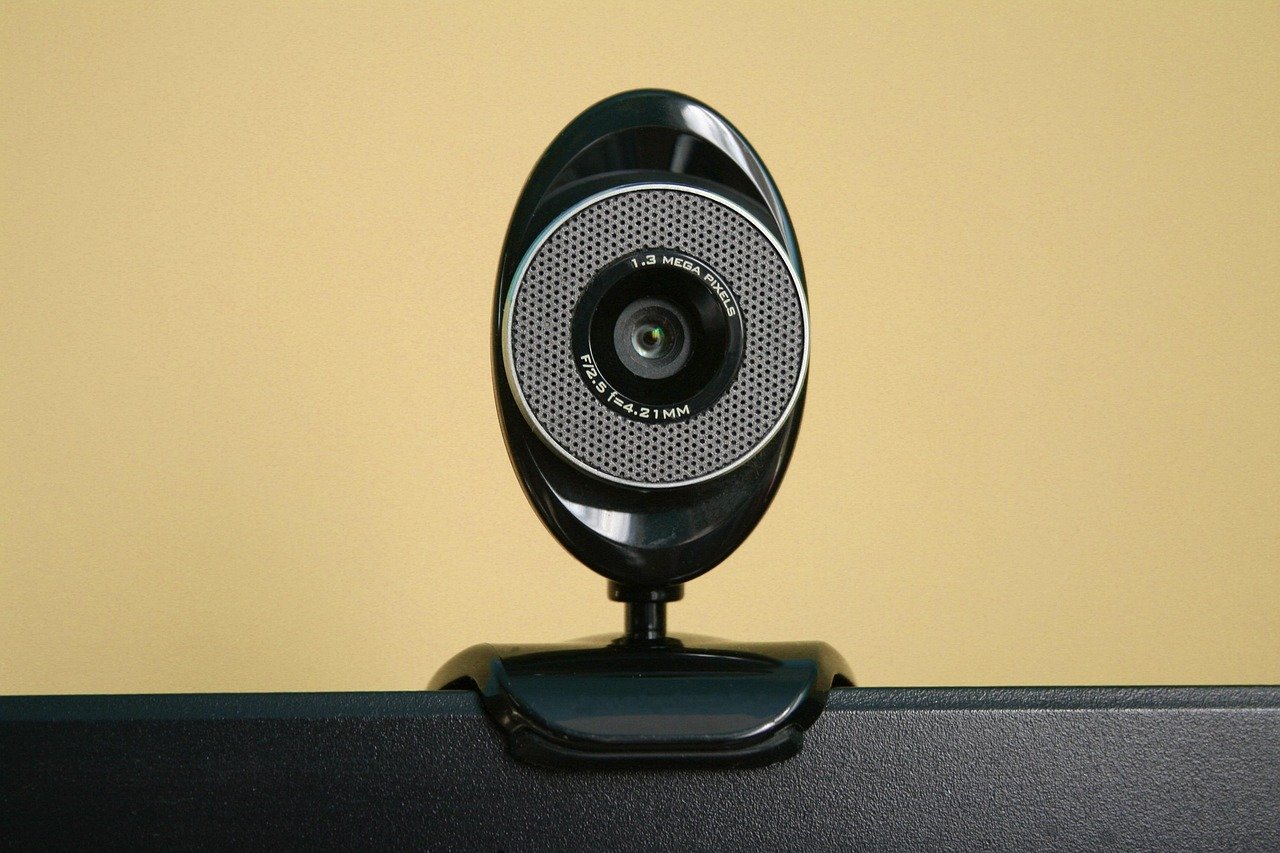
Quick Answer: Is webcam worth buying for beginners and everyday use?
It depends. A standalone webcam is worth buying if your laptop’s built-in camera looks grainy, sits at an unflattering angle, or you spend hours each week on video calls, live streams, or online classes. If you mostly join short internal meetings and your laptop camera is decent, the upgrade can wait.
Dedicated webcams differ from laptop cameras in sensor size, low-light handling, mounting flexibility, and privacy features, and those differences matter more than raw resolution numbers. Before buying, compare resolution, sensor size, low-light performance, autofocus speed, frame rate, field of view, microphone quality, mounting options, software support, and price. (Best Webcams of 2024)
Why Almost Everyone Has an Opinion About Webcams
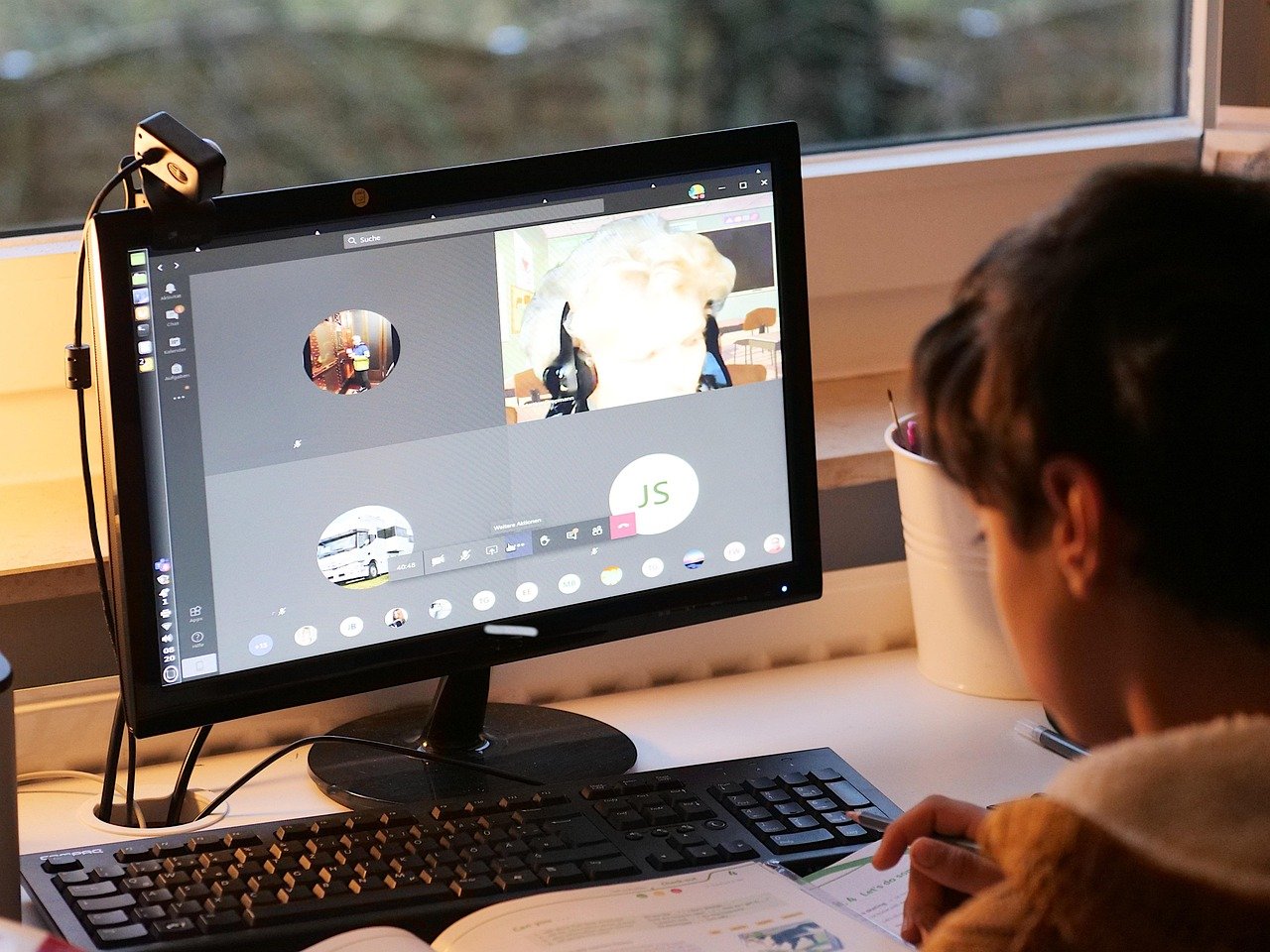
Somewhere around 2020, webcams became one of the strangest shortages in consumer electronics. People who had never thought about camera sensors suddenly hunted for any 1080p model they could find, and prices for used units climbed accordingly. That buying frenzy left behind a confusing market: plenty of cheap no-name cameras, a handful of reliable workhorses, and a lot of advice written for streamers when most buyers just wanted to look less blurry on a Tuesday morning call.
The honest answer to whether a webcam is worth it starts with a less exciting question: what is actually wrong with the camera you already own? Most modern laptops ship with 720p or 1080p cameras that are perfectly fine in a bright room. The complaints usually begin when the light drops, when the laptop sits low on a desk, or when the built-in mic picks up every keyboard clack. Those are real problems, and a dedicated webcam solves some of them far better than others. (Webcam)
What a Dedicated Webcam Actually Fixes
A standalone webcam is not magic. It is a camera with its own lens, sensor, and often its own microphone, mounted where you can aim it. That separation from the laptop body is the whole point, and it produces a few concrete improvements.
Better placement. A clip-on webcam sits at the top of your monitor, roughly at eye level. Laptop cameras sit at the hinge, which means everyone on the call gets a view of your chin and ceiling. This single change does more for how you look than jumping from 1080p to 4K ever will.
Better low-light handling. Dedicated cameras generally have larger sensors and better processing than the tiny modules squeezed into laptop lids. In a dim room, that difference shows up as less noise and fewer muddy shadows.
Physical privacy. Many standalone webcams include a built-in shutter or a clear indicator light. If privacy is a concern, that physical barrier is more reassuring than a software toggle, and consumer protection agencies have long advised covering or disabling cameras when not in use. The FTC’s consumer advice covers connected-device privacy basics in plain language.
Upgradeable microphones. Some webcams bundle surprisingly usable mics, which matters if you record tutorials, teach online, or take calls without a headset.
Where webcams do not help
A new camera will not fix a bad internet connection, a badly lit room, or a messy background. It also will not make a 720p call look sharp if the platform compresses video aggressively. Buyers routinely spend money on hardware when a $20 desk lamp pointed at their face would have solved the problem. Light beats lenses more often than people expect.
The Specs That Matter (and the Ones That Don’t)
Marketing pages lead with resolution because it is easy to print on a box. In practice, resolution is one line in a longer story.
| Spec | Why it matters | What beginners should look for |
|---|---|---|
| Resolution | Sharpness of the image | 1080p is the practical sweet spot; 4K is overkill for most calls |
| Sensor size | Low-light quality and background blur | Larger is better; often not listed, so check reviews |
| Autofocus | Keeps you sharp as you move | Look for fast, quiet autofocus |
| Frame rate | Smoothness of motion | 30fps minimum; 60fps helps for streaming |
| Field of view | How much of the room is shown | Around 70–90 degrees suits most desks |
| Microphone | Audio clarity | Dual mics with noise reduction are a plus |
| Mounting | Placement flexibility | A sturdy clip plus a tripod thread |
| Software | Settings and compatibility | Official support for your operating system |
A useful reality check: the Logitech C920, a 1080p camera that has been around for years, is still widely recommended as “good enough” for everyday use. That tells you something important. The baseline for looking professional on a video call was reached years ago, and most of the market above that line is about convenience features rather than dramatic quality jumps. For a broader look at how beginner-friendly hardware buying works, the same logic applies as with picking a best ukulele for beginners: the entry tier is usually plenty, and the premium tier solves problems you may not have.
Price Tiers: What Your Money Buys
Webcam pricing has historically clustered into rough bands. Prices shift constantly, so treat these as guideposts rather than fixed numbers.
| Tier | Typical range | What you get | Who it suits |
|---|---|---|---|
| Budget | Roughly $30–$70 | 1080p, basic autofocus, average mic | Casual callers on a tight budget |
| Mid-range | Roughly $70–$150 | Better sensors, stronger low light, privacy shutter, better mics | Remote workers, teachers, students |
| Premium | Above $150 | 4K, advanced autofocus, wide dynamic range, mounting accessories | Streamers, content creators, presenters |
The jump from budget to mid-range is where most beginners get the best value. The jump from mid-range to premium is where you start paying for capabilities that only show up under specific conditions, like recording in a dim room or streaming at high frame rates.
Who Should Buy One, and Who Should Wait
Not every buyer needs the same answer, so it helps to sort yourself into a category before opening a shopping tab.
Buy one if you take several video calls a week, teach or present online, record tutorials, stream, or work in a room where lighting is unpredictable. You will notice the difference immediately, and the camera will likely outlast your current laptop.
Wait if you join occasional calls, already have a recent laptop with a solid 1080p camera, and mostly meet in daylight. Spend the money on a lamp and a cheap laptop stand first, then reassess.
Consider an alternative if you already own a recent smartphone. Phone cameras often beat budget webcams outright, and mounting a phone as a webcam has become a genuinely practical option for people who want quality without another device. The tradeoff is setup friction and the fact that your phone is then occupied during calls.
That pattern of “the obvious purchase is not always the right purchase” shows up everywhere in beginner tech. Someone shopping for a best 3d printer for beginners faces the same question: does the entry model cover real needs, or does it create new ones? Webcams are similar. The entry tier covers most people, and the upsell is aimed at a narrower group than the marketing suggests.
Practical Tips That Make Any Webcam Look Better
These habits cost little and outperform most hardware upgrades. They are also the things beginners most often skip.
- Put the camera at eye level. Stack books under the laptop or use the monitor clip. This alone transforms framing.
- Light your face, not the wall. A window or lamp in front of you beats any ceiling light behind you.
- Clean the lens. A microfiber cloth once a week removes the smudge that makes everything look soft.
- Check your upload speed. Video calls are limited by upload bandwidth, not download. A weak upload makes even a premium camera look blocky.
- Test before the meeting. Open your camera app, join a test call, and confirm the right camera and mic are selected. Operating system settings sometimes default to the laptop camera even after you plug in a new one.
- Use a privacy shutter. Close it when the camera is idle. It is a small habit with real peace of mind attached.
Common mistakes buyers make
The most frequent error is buying on resolution alone and ending up with a 4K camera that performs worse in dim light than a good 1080p model. The second is ignoring the microphone, then discovering that crisp video paired with hollow audio still feels unprofessional. The third is skipping the return window test: plug the camera in, record a two-minute clip in your actual room, and watch it back before the deadline passes. Ten minutes of testing prevents months of mild regret.
Setup and Compatibility: The Boring Part That Bites
Most webcams are plug-and-play on Windows and macOS, but “most” is doing quiet work in that sentence. Before buying, confirm the model lists support for your operating system version, and check whether the manufacturer offers a companion app for adjusting exposure, white balance, and field of view. Some budget cameras rely on generic drivers and offer no settings at all, which is fine until you need to fix a washed-out image.
If you plan to use the camera for content creation rather than calls, the software side matters more. Recording tools, streaming apps, and even AI-driven video workflows all expect a clean, standard camera feed. Beginners exploring that space often pair a basic webcam with editing tools, and guides like this one on an AI video generator from images: a beginner’s guide show how far simple footage can be stretched with software. The camera is the input; the software does a lot of the visible work.
The Verdict for Everyday Use
For the average remote worker or student, a mid-range 1080p webcam with decent low-light performance, fast autofocus, and a privacy shutter is worth the money. It solves real, recurring problems: bad angles, dim rooms, and mediocre audio. For the casual caller with a modern laptop and a well-lit desk, the upgrade is optional and can wait until a specific frustration appears.
The pattern holds across beginner purchases of every kind. Whether someone is weighing a webcam, a starter instrument, or a gadget from a list of Gameboy Color games: 15 classics still worth playing, the useful question is never “is this the best?” but “does the entry tier solve my actual problem?” For webcams, it usually does.
Conclusion
A webcam is worth buying for beginners and everyday use when video calls are a regular part of life and the built-in camera is holding you back. The upgrade pays off through better placement, stronger low-light performance, and often a cleaner microphone, not through headline resolution numbers. Buy in the mid-range, test it in your real room during the return window, and spend a little effort on lighting and camera height. Do that, and even a modest camera will make you look noticeably more put-together than the person with a 4K model pointed at their ceiling.
Frequently Asked Questions
Do I need a 4K webcam for video calls?
No. Most video platforms compress footage heavily, so 1080p already looks sharp on typical calls. A 4K camera mainly helps if you record and edit video locally or crop into the frame during editing. For meetings and classes, the money is better spent on a camera with a larger sensor and better low-light handling.
Is a cheap webcam better than my laptop camera?
Sometimes, but not always. A budget webcam wins on placement, since you can mount it at eye level, and it often includes a privacy shutter. If your laptop already has a decent 1080p camera and you sit in good light, a cheap webcam may be a sideways move rather than an upgrade.
Can I use my phone as a webcam instead?
Yes, and many people do. Modern phone cameras often outperform budget webcams, and several apps and built-in operating system features make the connection straightforward. The tradeoffs are extra setup steps, battery drain, and the fact that your phone is tied up for the duration of the call.
What internet speed do I need for good video quality?
Upload speed matters more than download speed for video calls. A stable connection with a few megabits per second of upload is generally enough for HD video, but instability causes more visible problems than raw speed. If your image looks blocky while your camera is fine, test your upload before blaming the hardware.
Do webcams work with both Windows and Mac?
Most major-brand webcams work with both, but support varies by model and operating system version. Check the manufacturer’s compatibility list before buying, and confirm whether a companion app exists for your platform. Generic budget cameras sometimes work without any settings software, which limits your ability to fix exposure or color issues.
How do I know if a webcam is actually good in low light?
Look for reviews that show sample footage in dim rooms rather than studio lighting. Sensor size is the key spec, but it is often buried or missing, so real-world samples matter more. A quick test: record a short clip in your normal evening lighting during the return window and judge the noise and skin tones yourself.



