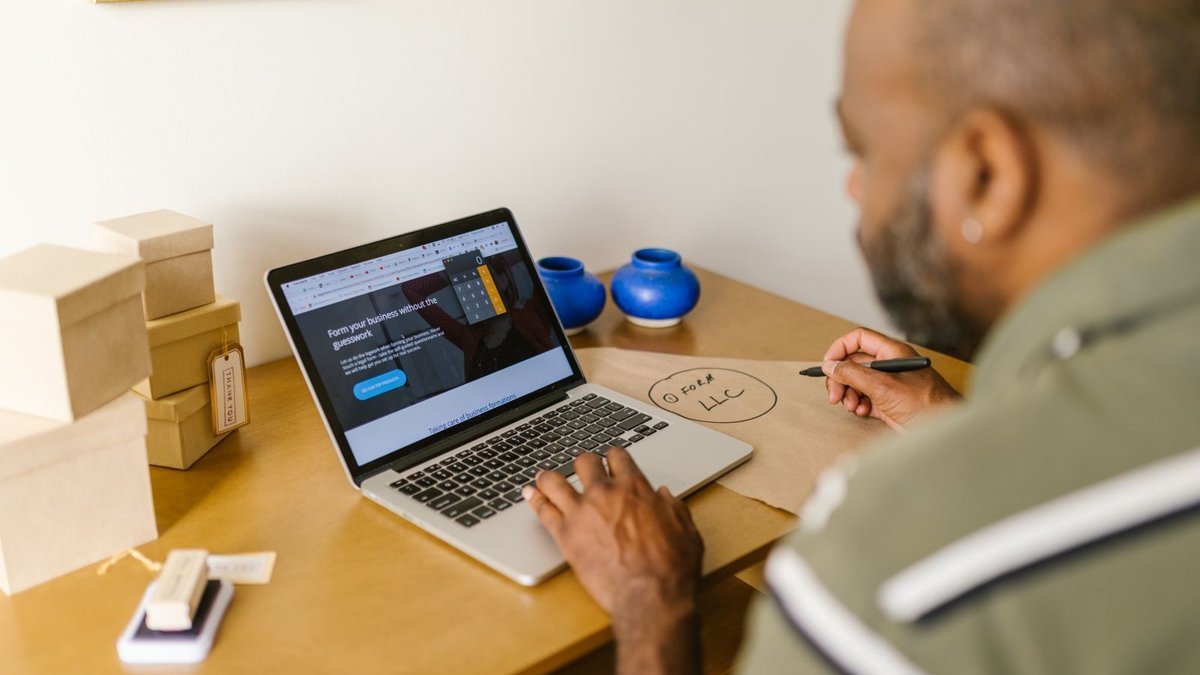
A web browser is the program you use to visit the internet. It is the window through which you read the news, watch videos, shop, bank and work. Every page you load passes through a browser, whether it is Chrome, Safari, Firefox or Edge.
Most people use a browser for hours a day without thinking about what it does. Behind the simple address bar, it fetches files from servers around the world, turns code into pages you can read, and tries to keep malicious websites away from your computer.
This guide explains what a web browser is, how it works, and how the main browsers differ, along with the benefits and risks, everyday uses, and how to pick the right one.
Key takeaways
- A web browser fetches web pages from servers and turns their code into the pages you see on screen.
- Tabs, bookmarks, history and extensions are the tools that make a browser personal and productive.
- Chrome, Safari, Firefox and Edge all do the same core job, but they differ on privacy, speed and ecosystem.
- Browsers are a common target for attacks, so updates, strong passwords and care with extensions matter.
- The best browser for you depends on your devices, your privacy preferences and the services you already use.
Web browsers at a glance
| Browser | Made by | Engine | Best known for |
|---|---|---|---|
| Chrome | Blink | Speed, extensions, Google services | |
| Safari | Apple | WebKit | Battery life, Apple devices |
| Firefox | Mozilla | Gecko | Privacy, customisation, open source |
| Edge | Microsoft | Blink | Windows integration, built-in tools |
| Brave | Brave Software | Blink | Built-in ad and tracker blocking |
What a web browser is
A web browser is an application that retrieves and displays content from the World Wide Web. When you type an address or click a link, the browser asks a server for the page and turns the returned files into the layout, text and images you see. Without a browser, the web would be raw code; the browser is what makes it readable.
The browser is also your control centre for the web. It keeps your history, stores your bookmarks, fills in saved passwords, and manages your open tabs. It can sync all of that between your phone and your computer if you sign in.
It is worth separating the browser from the internet and from search engines. The internet is the network of connected computers. A search engine, such as Google or Bing, is a website that helps you find pages. The browser is the program that takes you to the search engine and then to the pages it finds. You can use any search engine inside any browser. A virtual private network can hide your browsing from your internet provider, but it does not replace the browser.
How a web browser works

Everything starts with an address. When you type a web address into the address bar, the browser first asks a domain name system server to translate the name into a numeric address the network can use. Then it opens a connection to that server and requests the page, and the browser begins turning the returned files into something you can see.
The rendering engine does the heavy lifting. It reads the HTML to work out the structure of the page, applies the CSS to decide colours, fonts and layout, and runs JavaScript to add interaction. This happens in a fraction of a second for most pages. If a page loads slowly, the cause is usually a large image or a slow server, not the browser itself.
Security runs through the whole process. When a site uses HTTPS, the browser and the server agree on an encrypted connection before any page data is sent. The browser checks the site’s certificate to confirm it is who it claims to be, and warns you if it is invalid or expired. Modern browsers also run each tab in its own process, so a page that crashes usually takes down one tab instead of the whole browser.
Types of web browsers
All mainstream browsers do the same core job, but they are built on different engines and different priorities. The engine is the part that renders pages, and there are three in common use: Blink, used by Chrome, Edge and Brave; WebKit, used by Safari; and Gecko, used by Firefox. Because most browsers now share Blink, pages tend to look the same across them, and the differences are mostly about features and privacy.
Chrome
Chrome is the most widely used browser in the world. It is fast, works the same on Windows, macOS, Android and iOS, and has the largest library of extensions. It connects deeply with Google services such as Gmail and YouTube. The trade-off is privacy: Chrome collects a lot of browsing data by default, and uses more memory than most rivals with many tabs open.
Safari
Safari comes with every Mac, iPhone and iPad, and it is the most efficient browser on Apple hardware, with noticeably better battery life on laptops. It blocks many trackers by default and syncs passwords and tabs through iCloud. Its limits are that it only runs on Apple devices, and it has fewer extensions than Chrome or Firefox.
Firefox
Firefox is made by Mozilla, a non-profit, and it is the only major browser built on an independent engine. It is known for strong privacy controls, including tracking protection, and it is highly customisable. It suits people who want a browser not tied to a large advertising or operating system business. Its extension library is smaller than Chrome’s, and a few sites are optimised for Chrome first.
Edge and Brave
Edge is Microsoft’s browser and the default on Windows. It is built on the same engine as Chrome, so it runs the same extensions, but it adds built-in tools such as collections and vertical tabs, plus integration with Microsoft services. Brave is built on the same engine too, and its main selling point is privacy: it blocks ads and trackers by default. The choice between them usually comes down to which company’s ecosystem you already live in.
Benefits and risks of web browsers
The main benefit of a browser is access. It is a single program that opens almost any service on the internet, from email and banking to documents, video calls and shopping, without installing a separate app for each one. If the browser crashes, it can restore your tabs, and if you sign in, your bookmarks and passwords follow you to a new device. Extensions add even more, from password managers to ad blockers.
The risks follow from the same position. Because the browser handles your passwords, your payment details and your private messages, it is a prime target for attackers. Malicious extensions can read what you type, phishing pages can imitate your bank, and tracking scripts can follow you from site to site. Cybersecurity basics apply directly here: keep the browser updated, use strong unique passwords, and be suspicious of any page that asks you to download something unexpected.
Privacy is the other risk. Browsers record your history, and websites record your visits. Some of that is useful, such as remembering that you are logged in, but much of it feeds advertising. The sensible middle ground is to use the privacy settings your browser already offers, clear cookies for sites you do not trust, and review your extensions regularly, removing any you no longer use.
How people use web browsers every day
For most people, the browser is where work happens. Email, calendars, documents and video calls all run in browser tabs now. A browser that syncs across devices means you can start a document on a laptop and finish it on a phone.
Outside work, the browser is the front door to shopping, banking, streaming and social media. It is also how most people learn: searching for a recipe or watching a tutorial all start in the address bar. Keeping a few bookmarks for the sites you visit daily will save more time than any new feature.
Browsers also matter for people who build for the web. Designers test their sites in several browsers, because a page that looks right in Chrome can break in Safari. That is one reason web standards exist: they give every browser the same rules to follow.
Web browser vs search engine
The most common mix-up on the web is between the browser and the search engine. The browser is the program on your device; the search engine is a website you visit inside it. Google Chrome is a browser, and Google Search is a search engine. You can use Bing inside Chrome or Google Search inside Firefox, and none of those choices changes the other.
The mix-up matters when you change settings. If you want more privacy, you can change your search engine without changing your browser, and if you want a faster browser, you can change browsers without losing your search history. Knowing which is which also helps when something goes wrong: a search that returns strange results is a search engine problem, while a page that will not load is usually a browser or connection problem. Encryption keeps your browsing private from snoopers on the network, but it does not hide your searches from the search engine itself.
Checklist: picking and looking after your browser
- Pick the browser that runs well on your devices.
- Turn on automatic updates and restart when asked.
- Use a password manager instead of reusing passwords across sites.
- Install only extensions you trust, and remove the ones you no longer use.
- Check the privacy settings and turn on tracking protection if it is off.
- Before switching, export your bookmarks and saved passwords.
Frequently asked questions
What is a web browser in simple terms?
A web browser is a program that lets you visit websites. You type an address or click a link, and the browser fetches the page from a server and displays it on your screen.
What is the difference between a browser and a search engine?
A browser is the program you use to visit the web, while a search engine is a website that helps you find pages. You can use any search engine inside any browser, and changing one does not require changing the other.
Which web browser is the best?
There is no single best browser. Chrome is the most popular and has the most extensions. Safari is the most efficient on Apple devices. Firefox offers the strongest privacy controls. Edge fits Windows users, and Brave blocks ads and trackers by default. The best choice depends on your devices and your priorities.
Is it safe to save passwords in my browser?
It is safer than reusing the same password everywhere, but a dedicated password manager is safer still. Browser password storage is encrypted and protected by your device lock, but it is tied to one browser. A password manager works across browsers and devices and generates strong passwords for every site.
Why is my browser slow?
The usual causes are too many open tabs, extensions running in the background, a full cache, or a slow website rather than the browser itself. Try closing tabs you do not need, disabling extensions you do not recognise, and clearing the cache.
Do I need more than one browser?
Most people do not, but a second browser is useful for separating work from personal browsing, or for testing whether a problem is caused by the browser or by a website.
The bottom line
A web browser is the program that turns the internet into pages you can read, click and use. It fetches files from servers, renders them into layouts, keeps your passwords and history, and defends you against the worst of the web. The differences between browsers are real, but the choice matters less than the habits around it.
Pick a browser that fits your devices, keep it updated, use a password manager, and be careful with extensions. Do that, and whichever browser you choose will serve you well.