Quick Answer: Which budget portable gaming monitors are worth buying?
A budget portable gaming monitor is worth buying when its panel type, refresh rate, and port setup match how you actually play, not when its spec sheet looks impressive. The models that hold up are usually 15 to 16 inch IPS screens with a verified 120 Hz or 144 Hz refresh rate, honest brightness figures, and a USB-C port that supports DisplayPort Alt Mode. Cheaper alternatives exist, but many trade away colour accuracy or a stable stand to hit the price.
Shoppers can act on this in three places: checking the host device’s USB-C power budget before buying, comparing measured response times rather than advertised ones, and confirming the warranty and dead-pixel policy for their region.
Before spending anything, compare panel type, refresh rate, response time, brightness, port support, stand design, and warranty terms.
A 144 Hz sticker on a portable monitor feels like a promise. Then the box arrives, the panel runs at 60 Hz over a weak USB-C link, and the whole purchase feels like a small betrayal. So what actually separates a budget portable gaming monitor that earns its place in a backpack from one that ends up in a drawer?
Why the spec sheet lies more than the price tag
Budget portable monitors are sold on numbers, and several of those numbers are softer than they look. The most common trap is response time. A listing that says “1 ms” is usually quoting MPRT, a backlight-strobing measurement, rather than true grey-to-grey pixel response. Independent testing of budget IPS panels tends to land far higher, often in the 5 to 15 ms range. That gap does not make the monitor bad. It just means the headline figure is closer to marketing than measurement.
HDR is the second soft number. Plenty of sub-$200 panels advertise HDR10 support while peaking under 300 nits and offering no local dimming. That combination cannot produce HDR contrast. VESA’s DisplayHDR tiers, which start at DisplayHDR 400, provide a benchmark buyers can check. If a monitor claims HDR but carries no tier certification, treat the claim as decoration.
FreeSync is the third. Adaptive-Sync support is common at this price, but without a certified refresh range the feature may never engage. Buyers who care about tear-free play should look for a stated range rather than a logo alone.
None of this means budget portable monitors are a bad buy. It means the buyer has to read past the first line of the listing. If you are still weighing whether a portable screen fits your setup at all, a broader look at what makes a gaming monitor worth buying for beginners in everyday use helps frame the decision before you fixate on a single model.
The features that actually decide whether a portable monitor works
Panel type
Almost every budget portable gaming monitor uses an IPS LCD panel. VA and OLED are rare below $200. IPS brings better viewing angles and colour than budget TN, with contrast typically around 1000:1. That contrast figure is the honest weak spot: dark scenes look grey rather than black. For most gaming, it is an acceptable trade.
Refresh rate and what the host can actually push
A 144 Hz panel is only useful if the laptop or handheld can drive 144 frames and the cable can carry them. Refresh support depends on the host device and the monitor, and this is one of the most common sources of buyer confusion. A limited USB-C link can quietly cap the panel at 60 Hz. Check the host’s DisplayPort Alt Mode support and its rated resolution and refresh output before assuming the monitor’s ceiling is reachable.
Power delivery
This is the constraint that catches people out. Many portable monitors draw roughly 7 to 15 W and can run from a single USB-C cable, but only if the host supports DisplayPort Alt Mode and has enough power delivery headroom. Laptops with tight USB-C power budgets often need a second cable for power. Two cables is not a disaster, but it changes how portable the setup really is. The USB Implementers Forum publishes the USB Power Delivery specification if you want the technical detail.
Colour accuracy
Budget portable panels usually ship uncalibrated, with sRGB coverage somewhere in the 60 to 90% range. For gaming this matters far less than for photo or video work. Buyers should simply not expect factory calibration at this price, and should not pay extra for a “colour accurate” claim without a measured figure behind it.
The stand
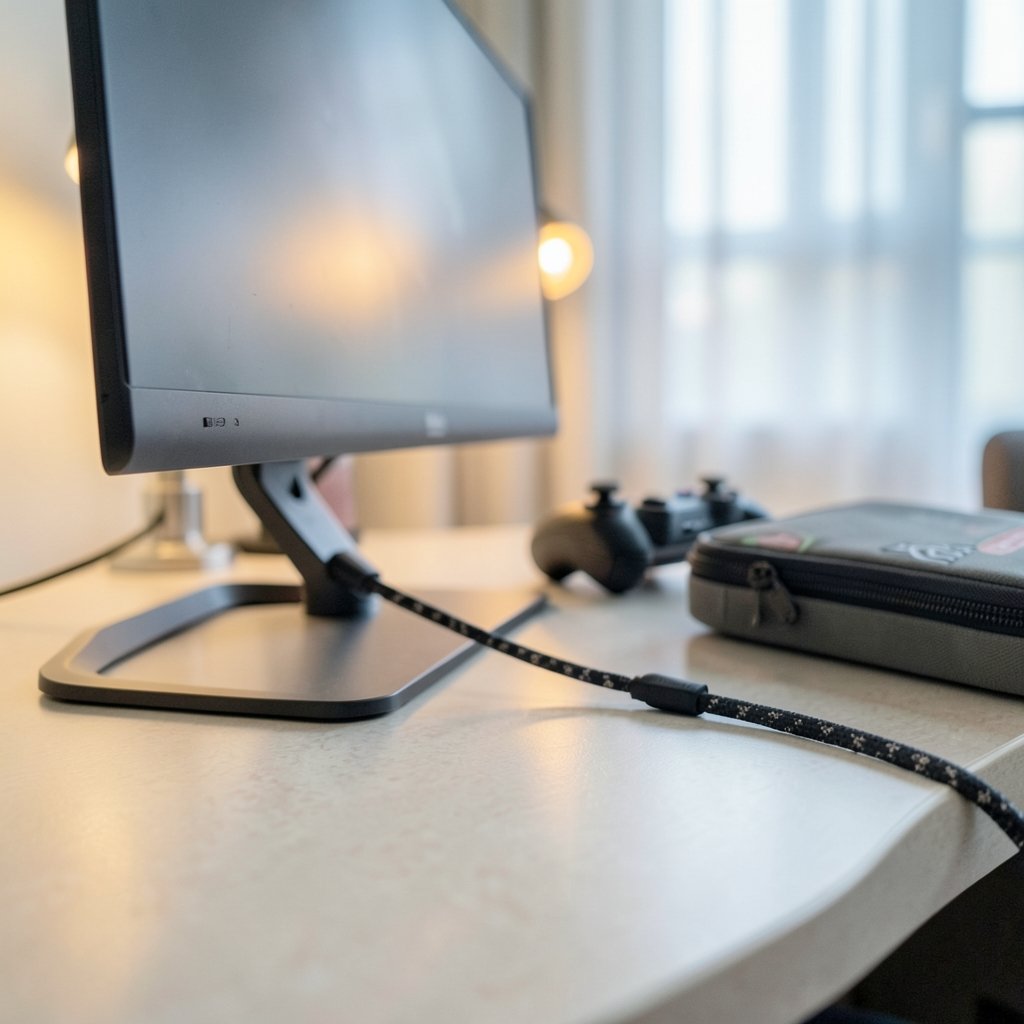
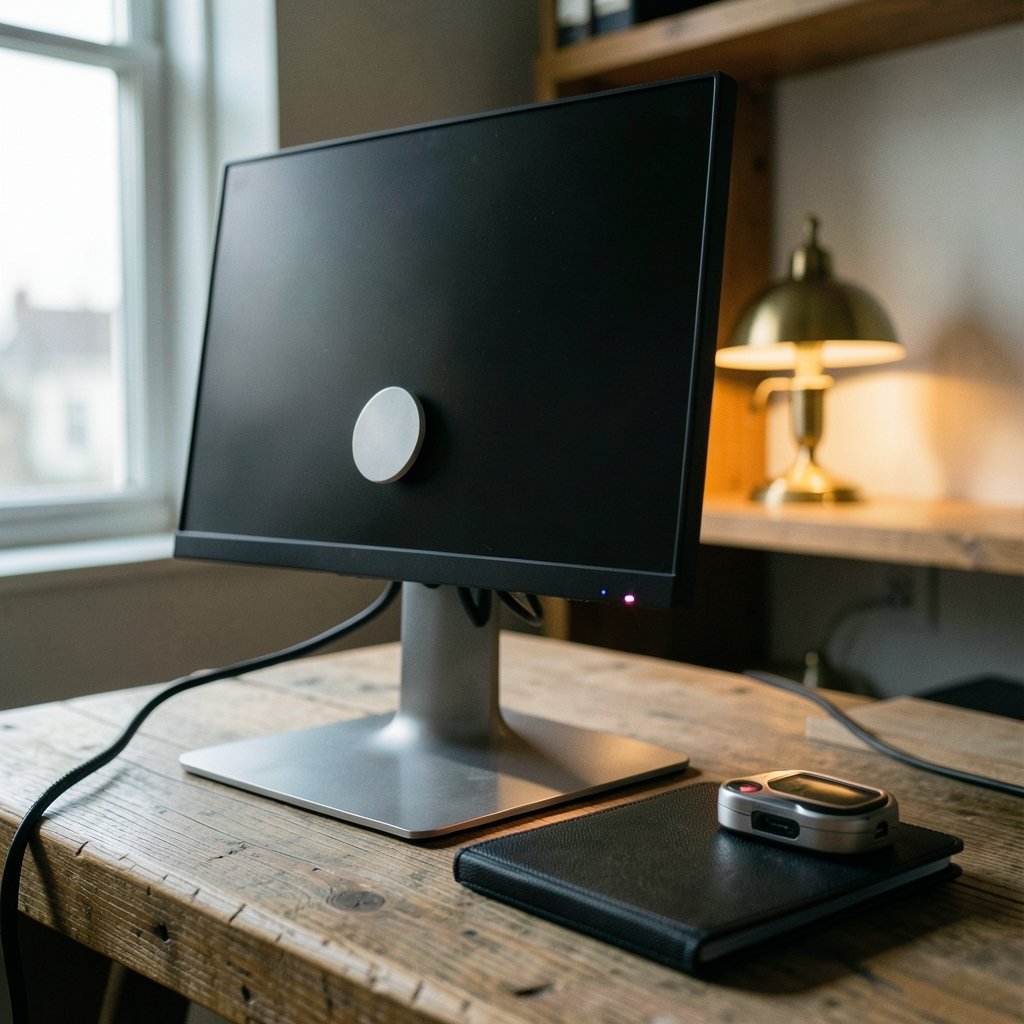
Many budget models use a folding magnetic cover as a stand. It offers limited tilt and modest stability, and it is one of the most consistent complaints in owner reviews. A monitor with a proper kickstand or a VESA mount option is worth a small premium if you plan to use it on trains, in cafes, or on hotel desks.
| Feature | What to look for | What to ignore |
|---|---|---|
| Panel | IPS, 15 to 16 inch | “HDR10” with no certification |
| Refresh rate | 120 Hz or 144 Hz, host-verified | Refresh claims without a stated range |
| Response time | Measured grey-to-grey figures | “1 ms” MPRT headlines |
| Brightness | 250 nits or more for indoor use | Peak nits quoted without context |
| Ports | USB-C with DP Alt Mode, plus mini-HDMI | Port lists with no power spec |
| Stand | Kickstand or VESA mount | Cover-only stands on soft surfaces |
Matching the monitor to how you actually play
The right pick depends heavily on the host device. Someone pairing a monitor with a Steam Deck or a handheld PC has different needs than someone docking a laptop for desk use.
For handhelds, a single-cable USB-C setup is the whole point. Look for a monitor that runs comfortably within the handheld’s power output, and accept that brightness may need to sit below maximum to avoid draining the battery. A 15-inch 1080p panel at 120 Hz is a sensible target here.
For laptops, the calculus shifts. If the laptop has a spare USB-C port with DisplayPort Alt Mode and decent power delivery, one cable works. If not, plan for a power cable and a video cable, and factor that into how portable the kit really is. Buyers comparing compact screens across brands often find that port layout, not panel specs, decides which one survives daily use; a side-by-side look at Asus vs Nexigo vs Uperfect portable gaming monitors for room-to-room use is a useful reality check on that point.
For console or desktop use, a portable monitor is a secondary screen at best. The same money spent on a fixed 24-inch panel buys better contrast and a real stand. If that is your situation, a guide to the best budget gaming monitors under 200 that actually matter will serve you better than a portable unit.
And if the monitor is meant to travel with a machine that also needs upgrading, it is worth deciding which purchase comes first. A gaming laptop under 1000 that actually fits the budget may deliver more frames per dollar than a monitor bolted onto an older machine.
Common mistakes buyers make
The first mistake is buying on refresh rate alone. A 144 Hz panel with a weak stand, poor brightness, and a host that caps it at 60 Hz is a worse purchase than a 120 Hz panel that works cleanly.
The second is assuming USB-C means one cable. It means one cable only when the host supports DisplayPort Alt Mode and has power to spare. Otherwise it means two.
The third is trusting HDR badges. Without local dimming and real brightness, HDR modes often make the image worse by washing out midtones.
The fourth is skipping the warranty check. Budget monitors frequently carry one-year warranties, and dead-pixel replacement thresholds vary by brand and region. Reading the policy for your country before purchase takes five minutes and saves a frustrating argument later. The same discipline applies to other budget electronics, whether you are weighing a tablet worth buying for beginners in everyday use or a webcam worth buying for everyday use: the policy and the port spec matter as much as the headline feature.
What actually works in practice
A few habits separate buyers who end up happy from those who return the unit.
Test the panel on arrival with a solid grey background and a solid black one. Grey reveals backlight bleed and uniformity problems; black reveals dead pixels and clouding. Do this inside the return window, not after.
Run the monitor at its native resolution and highest supported refresh for a full session before deciding. Some panels handle 144 Hz fine but show flicker at lower refresh rates when Adaptive-Sync engages.
Keep brightness under about 70% for indoor use. Budget panels often lose colour accuracy and gain visible banding near maximum brightness, and the extra nits rarely help in a normally lit room.
Buy a short, certified USB-C cable. The cable in the box is often the weakest link, and a marginal cable is a common cause of flicker, dropouts, and unexpected 60 Hz caps.
Finally, be honest about the use case. A portable monitor shines as a travel companion and a second screen. It is not a replacement for a desk monitor, and buyers who expect desk-monitor contrast from a 1000:1 IPS panel will be disappointed no matter which budget model they choose.
How much should you spend?
The sweet spot for a budget portable gaming monitor sits in the middle of the budget band, not at the very bottom. The cheapest units tend to cut the stand, the brightness, or the port spec, and those cuts show up daily. Spending a little more usually buys a better hinge, a brighter panel, and a clearer refresh range.
Above roughly $200, the value curve flattens quickly. Buyers start paying for features that do not translate into a better gaming experience on a 15-inch screen, such as wide-gamut colour or HDR badges on panels that cannot deliver them. If the budget stretches well past that line, a fixed monitor or a better host device is usually the smarter spend. The same logic applies to accessories and collectibles alike: knowing what holds value and what is hype is the whole game, much like figuring out which state quarters are worth money and which ones actually hold value.
Conclusion
A budget portable gaming monitor is worth buying when it fits the device it plugs into. The models that earn their price are IPS panels in the 15 to 16 inch range with a verified 120 Hz or 144 Hz refresh rate, honest brightness, a USB-C port that supports DisplayPort Alt Mode, a stand that does not wobble, and a warranty the buyer has actually read. Everything else on the listing is noise.
The practical path is straightforward: confirm the host’s output and power budget, ignore MPRT response claims and uncertified HDR badges, test the panel inside the return window, and spend in the middle of the budget band rather than at the bottom. Do that, and a portable monitor becomes one of the better value upgrades in budget gaming. Skip it, and the spec sheet wins while the buyer loses.
FAQ
Do budget portable gaming monitors work with a Steam Deck?
They generally do, provided the monitor supports USB-C DisplayPort Alt Mode and draws modest power. A single cable can carry both video and power from the handheld, though brightness may need to stay below maximum to preserve battery life. Check the monitor’s stated power draw against the handheld’s output before buying.
Is 144 Hz worth it on a portable monitor?
It is worth it only if the host device can actually output 144 frames and the cable can carry them. Many laptops cap a portable panel at 60 Hz over a limited USB-C link. If the host cannot sustain high frame rates, a well-built 120 Hz panel is the better buy.
Why does my portable monitor say HDR but look flat?
That is because HDR10 support on a panel without local dimming and with peak brightness under roughly 300 nits does not produce HDR contrast. The signal is accepted, but the panel cannot display the contrast range. Look for a VESA DisplayHDR tier if HDR matters to you.
What is the difference between 1 ms MPRT and grey-to-grey response time?
MPRT measures motion picture response time using backlight strobing, which is a different thing from how fast individual pixels change colour. Budget panels advertising “1 ms” are usually quoting MPRT, while measured grey-to-grey response on budget IPS panels often falls in the 5 to 15 ms range.
Can a portable monitor run from one USB-C cable?
It can when the host supports DisplayPort Alt Mode and has enough power delivery headroom for the monitor’s draw, typically 7 to 15 W. Laptops with tight USB-C power budgets often need a separate power input. A short certified cable also helps avoid flicker and unexpected refresh caps.
How do I check a new portable monitor for defects?
Display a solid grey image to reveal backlight bleed and uniformity issues, then a solid black image to spot dead pixels and clouding. Run it at native resolution and maximum supported refresh for a full session. Do all of this inside the return window, and check the brand’s dead-pixel policy for your region first.