A Steam Deck owner can get a tidy retro library in more than one way, but the choice starts with what each tool actually does. You might want easy configuration, a polished library interface, or one bundled app. Those goals point to different software, even when the same games appear on screen.
A frontend is the interface that organizes a game collection and launches games through the emulators installed underneath it. ES-DE is a frontend, while EmuDeck configures emulators and RetroDECK bundles an emulation setup in one app. The difference matters on handheld devices, Windows gaming PCs, and Linux desktop computers.
This comparison looks at what each option does, where it runs, and how much control it gives you. You will see which setup fits your device and how you want to browse your ROMs. The right fit comes from matching the software’s role to the device and the amount of control you want.
Key Takeaways
- EmuDeck configures separate emulators and suits Steam Deck owners who want Steam shortcuts.
- ES-DE organizes games but does not install a full emulator collection.
- RetroDECK bundles emulators and ES-DE inside a Linux Flatpak.
- EmuDeck supports Windows, while RetroDECK has no native Windows build.
- Your device’s operating system and preferred library style should guide your choice.
EmuDeck 2 7 vs ES DE 3 5 vs RetroDECK by Device 2026: Which One Fits?
For most Steam Deck owners who want retro games beside their Steam library, EmuDeck is the best starting point. It can configure emulators and create separate Steam entries, giving you direct access to each game.
Choose EmuDeck for configuration control, RetroDECK for a bundled Linux app, and ES-DE for a frontend. ES-DE is not an emulator installer, so it suits users who already manage the programs that run their games.
| Option | Best fit | Main trade-off |
|---|---|---|
| EmuDeck | Steam Deck owners wanting individual Steam entries | Separate emulators need more configuration choices |
| ES-DE | Users who want a customizable game browser | Needs installed emulators to launch games |
| RetroDECK | Linux users preferring one bundled Flatpak | Packaged components offer less individual control |
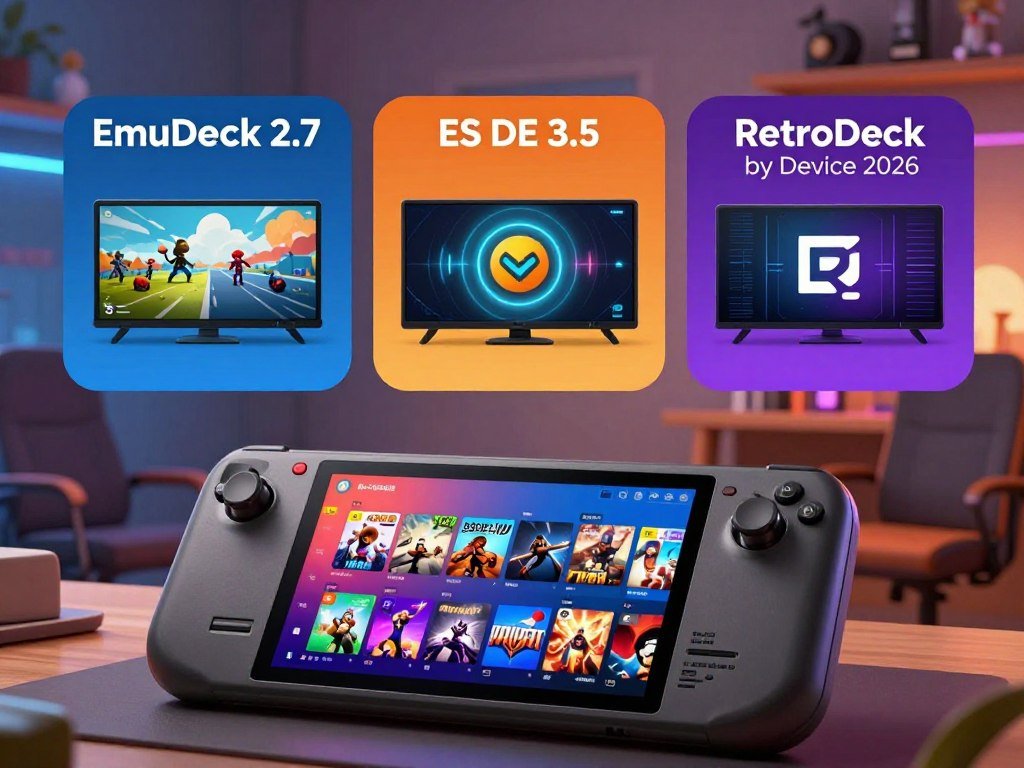
Pick software by its job first: EmuDeck configures, ES-DE browses, and RetroDECK bundles.
All three have free downloads where offered, but their licenses differ. EmuDeck and RetroDECK are free, open-source setup projects under GPL-3.0. ES-DE is free on Windows, macOS, and Linux, while its Android app is paid and partly closed source.
The full comparison of roles and workflows can help you check specific features. Check that your device’s operating system is supported before choosing based on features.
How do the three tools differ in architecture?
EmuDeck changes how separate emulators are installed and configured, while RetroDECK puts its components inside one application boundary. That difference affects how you manage updates and swap parts later.
EmuDeck keeps independent programs on your operating system; RetroDECK manages its components as a bundle. ES-DE can serve as the frontend with either setup, but it does not change how their emulators are packaged.
EmuDeck configures independent programs
EmuDeck is a configuration tool, not a single emulator app. It installs and sets up standalone emulators as independent programs on the existing system. Each program can be updated on its own, and you can replace one without rebuilding the whole setup.
This layout gives you more room to manage settings at the emulator level. If you want a custom emulator build, EmuDeck gives you more direct control over that choice. You can keep the rest of your setup while changing one program.
Separate programs can also mean separate maintenance. An emulator update may arrive outside an EmuDeck update, so you need to understand which app controls each part. That can suit a user who wants to adjust settings instead of accepting one fixed bundle.
RetroDECK keeps its bundle inside a Flatpak
RetroDECK puts its emulators and related components in one sandboxed Flatpak application. A sandbox limits how an app interacts with the rest of the system. The package creates a boundary around its contents instead of installing each component as a separate system program.
Its packaged components are managed as a bundle. This makes the install feel more contained, but it also means you have less freedom to swap one bundled emulator for another. The app maintains the set of components together rather than handing you each one to manage.
That model can reduce decisions when you want a ready-made app. In return, you give up some component-level choice. Choose the independent-program model when swapping components matters more than keeping the install contained.
Which devices and operating systems can run each option?
A stock Windows handheld narrows the choice quickly: RetroDECK has no native Windows build. EmuDeck supports Windows, while ES-DE is a frontend that works with emulators you install separately.
RetroDECK officially supports x86_64 Linux, including SteamOS and standard Linux desktops. Check the operating system you plan to boot, since the same handheld can offer different software choices in a dual-boot setup.
| Device or OS | EmuDeck | ES-DE | RetroDECK |
|---|---|---|---|
| Steam Deck/SteamOS | Supported setup | Supported frontend | Officially supported Flatpak |
| Windows PC or handheld | Windows support | Windows release | No native Windows build |
| x86_64 Linux desktop or Steam Machine | Linux desktop support | Linux x64 release | Official x86_64 Linux support |
Steam Deck and SteamOS
The Steam Deck OLED uses an AMD APU with a four-core, eight-thread Zen 2 CPU running from 2.4 to 3.5 GHz. Its RDNA 2 GPU has eight compute units, runs at 1.6 GHz, and reaches 1.6 TFLOPS FP32.
The Deck has 16GB of LPDDR5 RAM at 6400 MT/s. The OLED screen measures 7.4 inches, with 1280 by 800 resolution, HDR, refresh rates up to 90Hz, and peak HDR brightness of 1,000 nits.
Valve rates its 50Wh battery for three to 12 hours of gameplay. The Deck supports UHS-I SD, SDXC, and SDHC microSD cards. Its USB-C port supports DisplayPort output up to 8K at 60Hz or 4K at 120Hz.
Those hardware details describe the device, not a promise that every game or emulator will run at a particular speed. The Steam Deck hardware comparison also covers how its display and battery shape handheld use.
Windows handhelds and PCs
EmuDeck has Windows support, so it remains an option for a Windows handheld or desktop PC. ES-DE also has a Windows release, but it still needs installed emulators. Since RetroDECK requires Linux, it is not a native choice for a standard Windows install.
A dual-boot handheld can change the answer. Booting Windows opens the EmuDeck or ES-DE route, while a supported Linux system can add RetroDECK. The physical hardware can stay the same while the available setup changes.
Linux desktops and Steam Machine
RetroDECK officially supports x86_64 Linux, including SteamOS, Bazzite, ChimeraOS, and standard Linux desktops. EmuDeck also supports Linux desktop setups, while ES-DE offers Linux x64 and ARM64 releases.
That makes the operating system more useful than the label on the device. Confirm the operating system on a dual-boot device, since that can change which options are available without reinstalling anything.
What does ES-DE 3.5 do that the other two do not?
ES-DE is the library interface, not the emulator collection that runs the games. It browses and launches games through installed emulators, giving you one place to navigate a collection.
ES-DE supports more than 150 game systems and can also launch local games and applications. It has built-in scraping, which gathers game details and media for your library.
ES-DE organizes and launches a collection
You can use ES-DE to browse a multi-system collection and launch games through the emulators set up underneath it. The frontend can also start locally installed games and applications, so the library need not contain ROMs alone.
Its scraping tools can add game information and media, such as artwork, to entries. You can also edit metadata for individual games. That helps when a title has the wrong name or the scraper finds an unsuitable match.
The official ES-DE project README describes its support for emulators, game engines, game managers, and gaming services. The interface can also work with user-added systems and applications.
Themes and platform support
Themes change how the library looks, and controller navigation lets you move through it without a keyboard. You can pick a visual style that makes a large collection easier to scan, then launch games from the same interface.
ES-DE 3.5.0 was released on September 30, 2026. Its releases include Windows, macOS Intel 11 and later, Linux x64 and ARM64, Steam Deck, and Android. The Android app is paid and partly closed source; Windows, macOS, and Linux versions are free and open source.
ES-DE is useful on its own when you already have a plan for the emulators underneath it. It does not replace the setup work required to install those emulators. Choose standalone ES-DE when you want its interface and already have a plan for the emulators underneath it.
How do their emulator and system libraries compare?
EmuDeck’s 27 supported emulators and RetroDECK’s 24 components are not an apples-to-apples count. EmuDeck’s total leaves out RetroArch cores, while RetroDECK counts utilities and game engines alongside emulators.
Compare the systems you play, not the headline number. A component count says little about a game you want to run unless that system appears in the software’s supported options.
EmuDeck’s supported emulators
EmuDeck’s manual lists 27 supported emulators in 2026, in addition to RetroArch cores. RetroArch is a multi-system program that runs separate system-specific cores. This means the emulator total does not describe every way EmuDeck can support a system.
Think about the games you plan to play before comparing lists. A Game Boy Advance game, for example, needs a different emulator choice than a Nintendo DS game. The emulator guide by game system covers options such as mGBA, melonDS, and Azahar.
Older systems often have lighter demands than newer ones. Nintendo 3DS and Switch emulation generally ask more of the hardware than older consoles. The specific emulator matters too, so broad totals cannot tell you how well one title will work.
RetroDECK’s curated component bundle
RetroDECK’s 2026 bundle contains 24 components across five groups. Those groups include four utilities, two multi-system emulators, thirteen standalone emulators, four game engines, and DuckStation in a legacy tier.
Examples from its standalone emulator group include Azahar, CEMU, Dolphin, melonDS, PCSX2, PPSSPP, RPCS3, Vita3K, and XEMU. The list covers systems from Nintendo handhelds to PlayStation and Xbox hardware.
RetroDECK’s total includes programs that are not emulators. A utility can support the setup, while a game engine can run games made for that engine. DuckStation is a specific exception because it sits in the legacy tier rather than the main standalone group.
EmuDeck and RetroDECK can both help with a broad retro game library, but their totals measure different things. Compare the specific systems you play, not just the headline totals.
How does each option put games into Steam or its own library?
If you want each retro game to appear as its own Steam library tile, EmuDeck’s Steam ROM Manager is the clearest fit. It scans your ROMs folder and creates Steam shortcuts with box art for launching games from Game Mode.
Steam ROM Manager creates individual entries; ES-DE gives you a single browsing app. RetroDECK uses ES-DE and can optionally sync favorites to Steam, but that does not add every ROM as an individual Steam entry by default.
Choose the path that matches how you want to start a game:
- EmuDeck with Steam ROM Manager creates separate Steam entries for games.
- EmuDeck with an ES-DE launcher lets you browse from one frontend.
- RetroDECK uses ES-DE and can sync selected favorites to Steam.
Steam ROM Manager scans the ROMs folder and builds shortcuts that can show box art in the Steam library. This keeps each game close to your other Steam titles. It does not change the fact that the game launches through its emulator.
With an ES-DE launcher, you open one library app and browse its systems and games there. You do not need a separate tile for every title. This can be easier to manage when you have many ROMs or prefer a console-style menu.
RetroDECK follows the single-library approach through ES-DE. Its optional Steam sync can add favorites, but it is not the same as creating a Steam entry for every ROM. Decide whether you want individual shortcuts or one library app before importing a large collection.
How much control do setup modes give you?
Easy Mode suits a first setup when you want EmuDeck to apply its defaults rather than ask you to tune every component. It keeps the installation simple by making fewer decisions your job.
Custom Mode lets you choose emulators and tune more settings. That control can help when you have a specific setup in mind, but it also leaves more choices for you to manage.
Easy Mode keeps decisions to a minimum
Easy Mode applies default settings rather than asking you to pick every component. This can make a first installation feel more direct, especially if you do not yet know which emulator settings suit each system.
Defaults give you a starting point, not a promise that every game needs no adjustment. You can still change settings later when a specific game or controller needs attention. Starting with the preset path avoids front-loading every choice.
Custom Mode hands more choices to the user
Custom Mode lets you choose emulators and configure options such as RetroAchievements, shader presets, bezels, and controller layouts. The EmuDeck installation guide also covers storage locations and integration choices.
These settings can make the setup better match your preferences. A shader can change how an older game looks, while a controller layout can change how its controls feel. The trade-off is that you need to know what each setting does before changing it.
RetroDECK takes a different route by providing a ready-made bundle. You have less freedom to replace each packaged component independently, but the app asks for fewer component-level decisions. Someone who wants a fast, low-decision install may prefer that approach even with less control.
Custom Mode makes sense when you want to choose the parts yourself and are ready to maintain those choices. Choose Custom Mode only when you are ready to own the extra configuration decisions it adds.
Should you use a microSD card or internal SSD?
A microSD card is the simpler way to add removable storage without opening the Steam Deck. Replacing the internal SSD changes the Deck’s main storage instead, so the two options solve different needs.
Valve specifies UHS-I microSD cards with Speed Class 3 or higher. UHS-II and UHS-III cards work in the Deck, but they do not run at their higher interface speeds there.
Expand storage without opening the Deck
A microSD card stays removable, so you can take it out or move it between uses. It adds storage without replacing the Deck’s built-in drive. An SSD replacement upgrades internal capacity, but it changes the main storage inside the device.
That makes a card a practical fit when you want extra room without opening the hardware. An internal drive change suits someone who wants more built-in capacity. The Steam Deck storage and price guide also compares storage choices and used options.
Format and speed-match a new card
Prepare a new card through SteamOS before placing ROMs or games on it. Follow these steps:
- Choose a UHS-I card with Speed Class 3 or higher.
- Format it through Settings > System > Format SD Card.
- Do not pay extra expecting UHS-II or UHS-III speeds on the Deck.
The Deck supports UHS-I SD, SDXC, and SDHC microSD cards. A faster card label does not change the Deck’s supported interface speed. Choose a card for the level the device can use, rather than its highest advertised rate.
Once formatted, the card can hold games and ROMs alongside the internal drive. Keep in mind that a card remains removable, while an SSD replacement changes internal capacity. Format the new card in SteamOS before moving game files onto it.
What does each Steam Deck option cost in 2026?
EmuDeck and RetroDECK are free, so the Steam Deck itself is the main cost in this choice. In the United States, Valve sold only the OLED model in October 2026, while used 256GB listings remained a separate option.
On October 30, 2026, the 256GB model averaged $555 in listings and $436 in sales. Those are used marketplace figures, unlike the OLED prices set by Valve.
| Model or price measure | Previous price | Price or average | Date and condition |
|---|---|---|---|
| 256GB average listing price | Not stated | $555 | October 30, 2026, marketplace listings |
| 256GB average sale price | Not stated | $436 | October 30, 2026, completed sales |
| Steam Deck OLED 512GB | $549 | $789 | Valve US price, changed May 27, 2026 |
| Steam Deck OLED 1TB | $649 | $949 | Valve US price, changed May 27, 2026 |
Used 256GB Deck pricing
The average listing price and average sale price describe different stages of a used purchase. A seller’s asking price does not show what a buyer paid. The Steam Deck price guide covers storage sizes and used LCD choices.
On October 30, 2026, the 256GB Steam Deck had an average listing price of $555 and an average sale price of $436. Those figures can help you judge an offer, but the unit’s condition still matters.
Steam Deck OLED prices in the United States
On May 27, 2026, the OLED 512GB price rose from $549 to $789. The OLED 1TB price rose from $649 to $949. In October 2026, the OLED was the only Steam Deck model Valve sold in the United States.
The 512GB and 1TB models give you different built-in storage amounts at different prices. A used 256GB Deck may cost less, but it is not the same purchase as a new OLED model. Compare condition, capacity, and price together.
How to judge the storage trade-off
Use these three checks when comparing an older used model with an OLED:
- Compare a used unit’s condition with its sale price.
- Check whether its internal capacity meets your needs.
- Account for removable storage as a separate option.
The Deck’s software costs do not settle the hardware choice. A used listing may have wear, while an OLED model gives you a new purchase and more internal capacity at the higher listed prices. Use the date and condition attached to each figure before comparing a used listing with a new OLED model.
How does Steam Deck hardware compare with a PS5 and a future Deck?
The PS5 is stronger on each of the listed GPU measures, but those figures are not a direct frame-rate comparison. It lists 10.3 TFLOPS FP32, 36 GPU compute units, and 448 GB/s memory bandwidth, against the Deck’s 1.6 TFLOPS, eight units, and 88 GB/s.
TFLOPS and memory bandwidth do not create a one-to-one PC GPU equivalent. They also cannot predict game performance by themselves, because hardware and software differ between systems.
The PS5 has much higher listed GPU figures
The listed GPU figures show a large gap between the PS5 and Steam Deck. The PS5 has more compute units, higher listed FP32 throughput, and greater memory bandwidth. Those measures are useful for describing hardware, but they do not tell you how a specific game will run.
Game performance also depends on the game, its settings, and how it uses each system. A handheld and a home console do not run under the same power or display conditions. Avoid treating a single number as a direct prediction of frame rate.
Future plans do not establish a release date
Estimated Steam Deck sales reached four million units by August 2026. That estimate shows a large installed base, but it does not prove how long future software support will last.
In October 2026, Valve’s Pierre-Loup Griffais said rising RAM prices had “not really” changed its Steam Deck 2 plans. Valve wants a “very delineated performance improvement” for a future Deck. Those comments describe plans and goals, not a release date.
The October 2026 comments on Steam Deck 2 plans discuss RAM prices and the performance goal. They do not set a launch window.
For your own Deck, judge its useful life by battery condition, repair options, and whether its performance still suits your games. Age alone does not decide whether the device works for you. Keep a working Deck for as long as its battery, repair options, and game performance meet your needs.
How do updates and releases affect maintenance?
The maintenance difference follows the architecture: EmuDeck’s emulators are separate programs, while RetroDECK updates as a bundle. That changes whether you track an app update or separate component updates.
EmuDeck components can update separately, while RetroDECK refreshes its packaged foundation as an application. Neither update style proves software quality by itself.
EmuDeck updates separate components
EmuDeck 2.7 landed in October 2026 with Steam Machine support and controller AutoMap. Its configuration layer can work with separate programs, which may receive their own updates. You have more parts to track, but you can handle each component separately.
That arrangement suits users who want to manage the emulator they use. It also means the setup can involve more than one update path. A component update does not always arrive as part of the same app release.
RetroDECK updates its packaged foundation
RetroDECK shipped five point-updates between February and May 2026. Its latest listed version, 0.10.9b, was released on May 30, 2026. Those updates refresh the bundle through the application rather than treating every emulator as an independent install.
The 0.10.0b rework moved bundled components into isolated sub-sandboxes and cut the build size by roughly 800MB. It also moved the runtime to org.kde.Platform 6.10. The change kept components contained while making the build smaller.
In the 2026 comparison, EmuDeck had 3,479 GitHub stars and RetroDECK had 1,225. GitHub stars can show attention, but they do not guarantee support or quality. Treat release activity and star counts as context, then choose the update model you are comfortable maintaining.
Which setup fits each device and type of user?
A Steam Deck owner who wants direct game tiles should start with EmuDeck, while a reader who wants one contained Linux app should start with RetroDECK. Your operating system can rule an option in or out before you compare other features.
ES-DE suits people who already manage emulators and want a themeable game browser. It does not install the emulator collection by itself, so you still need programs underneath it.
Use these picks as a quick match for your device and preferred library:
- Steam Deck owner seeking individual Steam shortcuts: choose EmuDeck.
- Steam Deck owner seeking a preassembled sandboxed bundle: choose RetroDECK.
- Windows handheld owner: choose EmuDeck.
- User who already manages emulators and wants a themeable browser: choose ES-DE.
EmuDeck fits Steam Deck owners who want a configurable setup and direct Steam entries. It also gives Windows handheld owners a supported route. RetroDECK suits Linux users who prefer its packaged components inside one application.
ES-DE is a frontend choice, not an emulator pack. You can pair it with a setup you already manage, then use its browsing interface to launch games. That division makes it a good fit when you want the library experience without switching to a bundled setup.
Handheld hardware alone does not settle the choice. A Windows handheld running Windows has different options from the same device booted into Linux. Match the pick to the operating system you will actually boot, not just the handheld’s hardware.
Conclusion
Choose EmuDeck for control and direct Steam entries, or RetroDECK for a bundled Linux setup. EmuDeck also supports Windows, while RetroDECK suits users who prefer one sandboxed application.
ES-DE is the frontend choice when you already have emulators and want a game library interface. It does not install the emulator pack that runs your ROMs.
Start by checking the operating system you will use, then pick the install path that matches how you want to browse and launch games. Check your device’s operating system before downloading the option you chose.
FAQ
Is a 256 GB Steam Deck worth it?
A 256GB Steam Deck can be worth it if the used price and condition suit your needs. On October 30, 2026, its average listing price was $555, while its average sale price was $436. Check the screen, controls, battery, and overall wear before judging a listing. Your storage needs matter too, since a microSD card adds removable space.
Which is better, EmuDeck or RetroDECK?
EmuDeck is better for users who want independent emulator configuration and Steam shortcuts. RetroDECK fits Linux users who prefer a sandboxed bundle managed as one app. EmuDeck gives you more direct control over separate programs, while RetroDECK limits some component-level choices. Your preferred operating system and willingness to manage updates should guide the decision.
What are the GPU specifications of the Steam Deck equivalent to?
The Steam Deck’s GPU has eight RDNA 2 compute units, runs at 1.6GHz, and reaches 1.6 TFLOPS FP32. Those specifications do not map to one exact PC graphics card. TFLOPS alone cannot predict how a game will run, since software, power limits, and system design all affect performance. Judge it by the games and settings you use.
Will Steam Deck 2 come out in 2026?
Valve’s October 2026 comments do not give a Steam Deck 2 release date. Pierre-Loup Griffais said rising RAM prices had “not really” changed Valve’s plans, and the company wants a “very delineated performance improvement.” Those statements explain the project’s goals, not its timing. Do not treat them as confirmation of a 2026 launch.
Which Steam Deck should I get in 2026?
The OLED was the only Steam Deck model Valve sold in the United States in October 2026. Its 512GB model cost $789, and its 1TB model cost $949. Used 256GB listings are a separate choice, with an average sale price of $436 on October 30, 2026. Compare condition and capacity, not price alone.
Is the Steam Deck outdated in 2026?
The Steam Deck is not outdated for you if its performance still suits the games you want to play. Demands vary between systems and specific games, so an older console may run well while a newer one needs more power. Check the emulator and game you plan to use. Age alone cannot tell you whether the Deck meets your needs.
Will a Steam Deck become obsolete?
A Steam Deck does not become obsolete on one fixed date. Its useful life depends on battery condition, repair options, and the hardware demands of the games you want. A working Deck can remain useful for older systems even when newer games ask for more power. Replacing a worn part may also extend the time you can use it.
Is the Steam Deck stronger than a PS5?
No, the Steam Deck is behind the PS5 on the listed GPU measures. The Deck has 1.6 TFLOPS FP32, eight compute units, and 88 GB/s memory bandwidth; the PS5 lists 10.3 TFLOPS, 36 units, and 448 GB/s. These figures show a hardware gap, but they do not directly predict frame rates across different systems.



