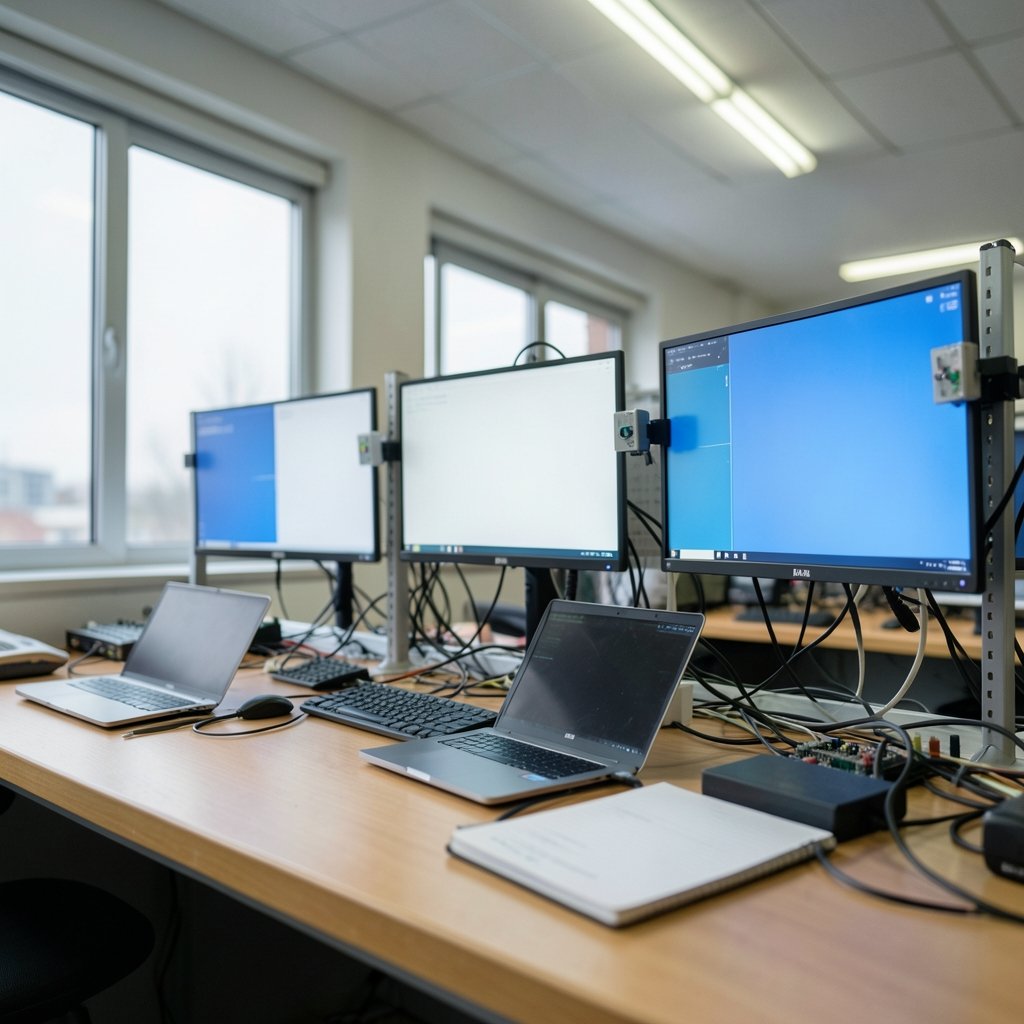
Can a $1,000 OLED monitor really scar itself just because you left a spreadsheet open over lunch? Yes, it can, and that is exactly why burn-in prevention deserves a real plan rather than a vague hope. OLED panels have come a long way, but the underlying chemistry has not changed. Organic pixels dim as they age, and they age unevenly when part of the screen works harder than the rest. The good news? A disciplined routine keeps most panels clean for years. Here are 13 steps that actually work in 2026, written for people who use their screens for work, not just games. (OLED)
Why Burn-In Still Matters on 2026 Panels
Every OLED pixel is its own light source. Blue subpixels wear out fastest, which is why white UI elements and bright taskbars are the usual suspects. When static content sits in one spot for hundreds of hours, those pixels age ahead of their neighbors. The result is image retention that fades at first, then permanent burn-in that does not.
Manufacturers have added compensation cycles, pixel shifting, and logo dimming to slow this down. Independent long-term testing by outlets like RTINGS has repeatedly shown that modern OLEDs resist damage far better than early models, but none are immune. Treat prevention as maintenance, not paranoia. The same mindset applies to hardware care elsewhere: if you already track thermals with a GPU temperature check routine, you already understand that small habits prevent expensive failures.
The 13 Steps That Actually Work
1. Drop Peak Brightness for Desktop Work
Most burn-in happens at high brightness with static content. Running the monitor at 60–70% brightness for spreadsheets, email, and browsing cuts pixel wear substantially. Save full brightness for HDR movies and games, where content moves constantly. This single change does more than any other step.
2. Enable Auto-Hide on the Taskbar
A bright, fixed taskbar is the classic burn-in culprit. Set it to hide automatically and watch the difference over months. On Windows, this is a two-click change in taskbar settings. On macOS, hide the Dock and menu bar translucency helps too. It feels odd for a week, then you stop noticing.
3. Use a Dark Theme Everywhere
Dark mode is not just aesthetic on OLED. Black pixels are effectively off, which means less current, less heat, and slower aging. Switch your operating system, browser, code editor, and office apps to dark themes. The cumulative hours of reduced emission add up fast.
4. Set an Aggressive Screen Saver
A blank or moving screen saver after five minutes of idle time is one of the cheapest protections available. Avoid static logos and clocks. A plain black screen or a slowly drifting pattern works best. Never leave a paused video, a login screen, or a static wallpaper on for hours.
5. Rotate Your Wallpaper
Static desktop icons and a fixed wallpaper create a permanent pattern of wear. Rotate wallpapers on a schedule, and consider hiding desktop icons entirely. If you need them, group them in one corner rather than scattering them across the screen.
6. Let Pixel Refresh Run
Most OLED monitors run short compensation cycles automatically when powered off or idle. Do not cut power at the wall switch immediately after use, and do not skip the longer refresh prompts that appear every few hundred hours. These cycles measure and correct uneven pixel wear. Interrupting them repeatedly is a common mistake.
7. Enable Logo Detection and Pixel Shift
Nearly every 2026 OLED monitor ships with pixel shifting, which nudges the image by a pixel or two, and logo dimming, which detects static channel logos and HUD elements. Turn both on and leave them on. They are subtle by design, and you will rarely notice them during normal use.
8. Vary Your Layout
If you work in the same app eight hours a day, move your panels around. Dock a sidebar on the left one week and the right the next. Resize windows. Full-screen video occasionally instead of a fixed window. Variety spreads wear across the panel instead of concentrating it.
9. Hide Static Game HUDs
Games are gentler than spreadsheets because the scene moves, but health bars, minimaps, and ammo counters stay put for entire sessions. Many titles let you reduce HUD opacity or hide elements. Do that where possible, and take a short break every couple of hours. If you are deep into emulation and overlays, the same principle applies to static menus, so keep your RetroArch cheats and overlay setup clean and avoid leaving pause menus on screen.
10. Avoid Static Content in Extreme Heat
Heat accelerates organic material degradation. Keep the monitor well ventilated, away from direct sunlight and radiators, and avoid stacking it above a hot laptop or amplifier. Room temperature matters more than most people think.
11. Use a Second Screen for Static Work
If your workflow involves a fixed toolbar, a spreadsheet grid, or a persistent chat window, consider a cheap LCD as a secondary display for that content. Save the OLED for media, gaming, and dynamic work. This is the single most effective hardware-level fix for heavy productivity users.
12. Take Real Breaks
Screens that sit idle with static content still wear. A screen saver handles idle time, but stepping away and letting the monitor power down entirely is better. Set a sleep timer for 15–20 minutes of inactivity. It saves electricity and pixels at once.
13. Know Your Warranty Terms
Burn-in coverage varies wildly by brand and region. Some manufacturers explicitly exclude it; others cover it for a limited period. Read the fine print before you buy, and keep your receipt. If you are planning a purchase around a specific panel, check the specs first, such as this breakdown of the Samsung 4K 360Hz QD-OLED monitor, and confirm what the warranty actually promises.
Quick Reference: Habits and Their Impact
| Habit | Effort | Burn-In Protection |
|---|---|---|
| Lower brightness for desktop | Low | High |
| Auto-hide taskbar | Low | High |
| Dark mode everywhere | Low | Medium |
| Screen saver at 5 minutes | Low | High |
| Let pixel refresh finish | Low | High |
| Rotate wallpaper and icons | Low | Medium |
| Secondary LCD for static apps | Medium | Very high |
| Skip static HUDs in games | Medium | Medium |
Common Mistakes That Undermine Prevention
People often do the right things in the wrong order. The most frequent error is running maximum brightness all day because “it looks better,” then wondering why a faint taskbar ghost appears after a year. Another is disabling pixel refresh because the prompt is annoying. A third is leaving a paused game or a static login screen on overnight.
There is also a subtler mistake: assuming burn-in is only a gaming problem. Office workers with fixed toolbars and chat windows are often at higher risk than gamers, because their content barely moves for eight hours straight. Balance matters in every technical workflow. Just as you would calibrate an evaluation pipeline carefully, as described in this guide to LLM-as-a-judge kappa calibration, you should calibrate your display habits deliberately rather than by accident.
What the Research and Experts Say
Panel makers and independent testers broadly agree on the mechanism. The Society for Information Display has published extensively on differential aging of OLED subpixels, and the consensus is that wear is cumulative and content-dependent. Bright, static, blue-heavy content is the worst combination.
Independent long-term tests reinforce the practical takeaway: modern OLEDs are resilient, but the panels that survive years of testing tend to be the ones where owners used screen savers, moderate brightness, and varied content. There is no single magic setting. It is the accumulation of small habits that decides whether a panel looks pristine in year four or shows a ghost of last year’s spreadsheet.
Conclusion
OLED burn-in is not a myth, and it is not inevitable either. The 13 steps above share one theme: reduce static brightness, spread the workload, and let the monitor’s own maintenance systems do their job. None of these habits cost money, and most take under five minutes to set up once. Do them in 2026, and your panel will reward you with years of deep blacks and crisp motion instead of a permanent reminder of your taskbar. Start with brightness and auto-hide today, then layer in the rest over a week. Your future self, squinting at a clean screen, will thank you.
Frequently Asked Questions
How long does it take for an OLED monitor to develop burn-in?
It depends entirely on content and brightness. Heavy static content at full brightness can leave faint marks within a year, while varied content at moderate brightness may show nothing for many years. There is no fixed timetable, which is why habits matter more than hours.
Does pixel refresh actually prevent burn-in?
Pixel refresh does not reverse damage, but it corrects uneven pixel wear and keeps the panel balanced. Skipping these cycles lets small imbalances compound. Let them run, and do not cut power mid-cycle.
Is burn-in covered by warranty?
Sometimes, but not always. Coverage varies by brand, model, and region, and many warranties exclude burn-in entirely. Check the terms before purchase and keep proof of purchase.
Can dark mode really make a difference?
Yes. Black pixels emit almost no light, so dark themes reduce current, heat, and pixel aging. The effect is cumulative over thousands of hours of use.
Should gamers worry about burn-in?
Gamers face less risk than office workers because scenes move constantly. Static HUDs are the main concern, so reduce HUD opacity where possible and take breaks during long sessions.
Is burn-in permanent once it appears?
Faint image retention often fades on its own after varied content and a refresh cycle. True burn-in, where pixels have physically aged unevenly, is permanent. That is why prevention beats repair every time.
Final Thoughts on Building a Burn-In-Resistant Routine
The most effective prevention plan is the one you actually follow. Rather than implementing all 13 steps at once, treat them as a checklist you work through over the first month of ownership. Start with the highest-impact changes—lower desktop brightness, auto-hide the taskbar, and enable a five-minute screen saver—then add dark themes, wallpaper rotation, and layout variety as they become habits. Within a few weeks, these adjustments fade into the background and stop feeling like compromises.
It also helps to think in terms of cumulative exposure rather than single sessions. A two-hour gaming session with a static minimap matters far less than eight hours of a fixed spreadsheet grid at full brightness, five days a week. Track your heaviest static-content workflows and target those first. If spreadsheets, chat apps, or dashboards dominate your day, the secondary LCD recommendation from step 11 is worth the modest cost.
Finally, revisit your settings seasonally. Operating system updates occasionally reset power-saving options, and new applications may reintroduce bright toolbars or light themes. A quick quarterly check—confirming pixel shift, logo dimming, and sleep timers are still active—takes minutes and protects years of investment. Combined with the compensation cycles your monitor runs on its own, these small maintenance habits are what separate a panel that looks new in 2030 from one marked by the ghost of a taskbar past.
OLED technology in 2026 is more durable than ever, but durability is not immunity. Treat your monitor well, and it will deliver the contrast, color, and motion that made you choose OLED in the first place—for a very long time.