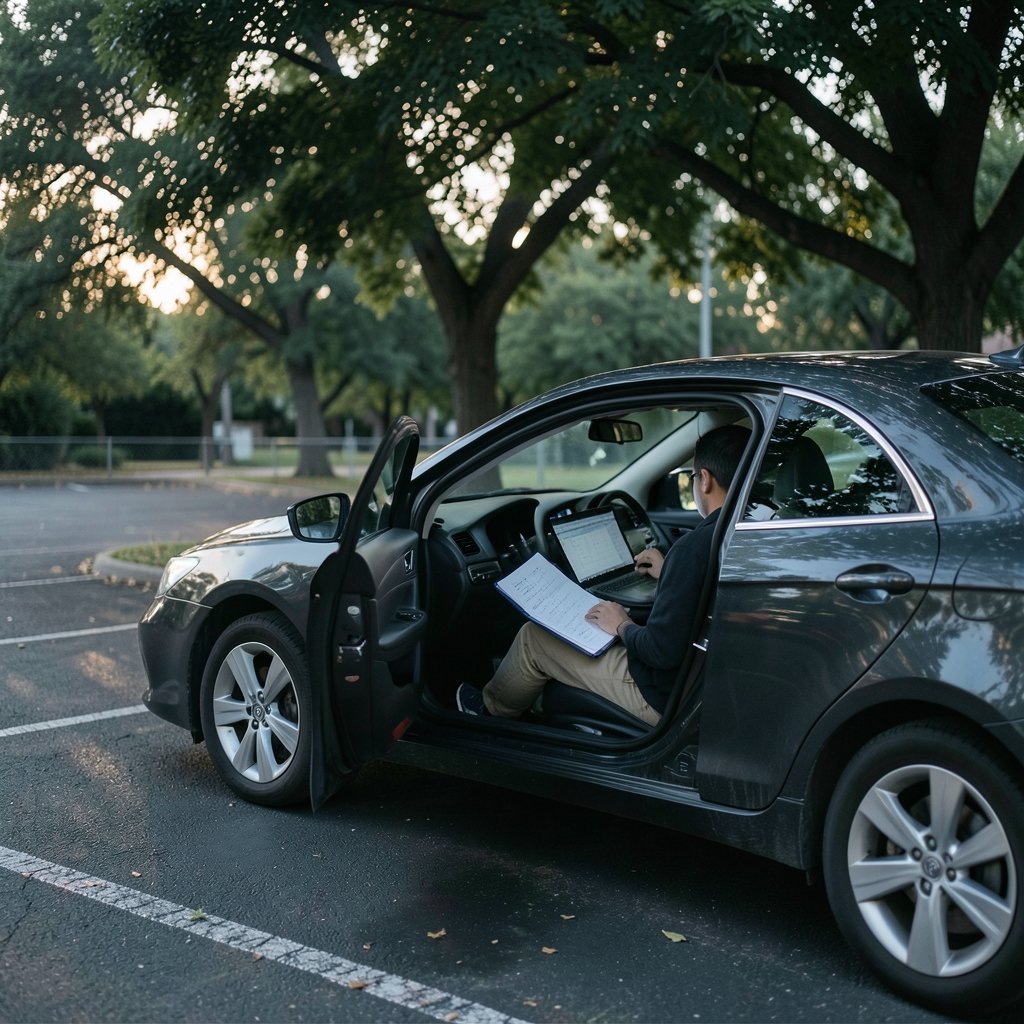
In 2023, a single misconfigured network at a major airport exposed the login credentials of thousands of travelers in a matter of hours. The travelers had done nothing wrong. They simply connected, opened their email, and trusted a network they didn’t own. That is the quiet trap of public Wi-Fi: the danger rarely announces itself. It sits in the background, waiting for someone to type a password into a page that looks exactly like the one they expect. (Virtual private network)
A VPN is the most practical defense most people have. But using a VPN and using it well are two different skills. A poorly configured VPN can leak your traffic, fail silently when the network drops, or refuse to connect at the exact moment you need it. This guide walks through what actually works, what commonly goes wrong, and how to build a routine that keeps your data out of the wrong hands.
Why Public Wi-Fi Is Still a Real Risk
It’s tempting to think the public Wi-Fi problem solved itself once most websites switched to HTTPS. It didn’t. Encrypted web traffic protects the content of a page, but it leaves plenty exposed: which sites you visit, your DNS queries, and any app or device that still talks in plain text. A 2023 report from the UK’s National Cyber Security Centre noted that rogue hotspots and “evil twin” networks remain a common method attackers use to intercept traffic on networks they control.
The threats break down into a few categories:
| Threat | How It Works | What Stops It |
|---|---|---|
| Evil twin hotspot | A fake network mimics a legitimate one to capture logins | Verifying the network name with staff; a VPN |
| Packet sniffing | An attacker captures unencrypted traffic on the same network | VPN encryption (AES-256 or ChaCha20-Poly1305) |
| DNS hijacking | Queries are redirected to malicious servers | VPN with its own DNS resolver |
| Session hijacking | Cookies are stolen to impersonate you | HTTPS plus VPN; logging out of sessions |
| Malware injection | Files or updates are tampered with mid-download | VPN plus signature checks |
A VPN tunnels your traffic from your device to a server you trust, encrypting everything in transit. That single change neutralizes most of the list above. It doesn’t make you invisible, and it doesn’t fix a compromised device, but it removes the easy wins an attacker counts on.
Step One: Choose a VPN That Won’t Sell You Out

Here’s the uncomfortable part. The free VPN market is riddled with apps that log your activity, inject ads, or resell bandwidth. A VPN sees everything you do. Handing that to an unknown operator is arguably worse than using the coffee shop’s Wi-Fi with no protection at all. If you’re weighing options, a rundown of the best free VPN tools can help you separate the genuinely usable ones from the data harvesters.
What should you actually look for?
- A no-logs policy that’s been audited. Claims mean little without third-party verification.
- A kill switch. This feature cuts your internet if the VPN drops, preventing leaks.
- DNS leak protection. Your queries should resolve through the VPN, not the local network.
- Modern encryption. AES-256 or ChaCha20-Poly1305 are the standards to expect.
- A jurisdiction you’re comfortable with. Laws about data retention vary widely by country.
If you want a broader comparison, this guide to the best VPN services covers the trade-offs between speed, price, and privacy. The key insight: the cheapest VPN is rarely the safest one, and the most expensive isn’t automatically better either.
Step Two: Configure Before You Connect
The single biggest mistake people make is installing a VPN and then trying to set it up for the first time on a captive-portal network. Airports, hotels, and cafés often require you to open a browser and click “agree” before any traffic flows. Many VPNs will fail to connect until you’ve done that, because the tunnel can’t establish over a network that hasn’t authorized you yet.
The fix is simple: configure everything at home, on a network you trust.
- Install the app and sign in.
- Turn on the kill switch and any “auto-connect on untrusted networks” setting.
- Enable DNS leak protection and, if available, IPv6 leak protection.
- Test the connection and run a DNS leak test.
- Save your credentials in a password manager so you’re not typing them on a strange keyboard.
That last point matters more than people realize. Public computers and shared devices are a bad place to type a master password. If you’re unsure whether a VPN or a simpler proxy fits your needs, this explainer on VPN vs proxy, what is the difference, is worth five minutes before you commit.
Step Three: Connect in the Right Order
Once you’re on-site, the sequence matters. Follow this order every time:
- Verify the network name with staff before connecting. “Free Airport Wi-Fi” and “Free Airport Wifi” are not the same network.
- Connect to the Wi-Fi, then complete any captive-portal login.
- Open your VPN app and connect before opening email, banking, or social media.
- Confirm the tunnel is active (most apps show a status indicator or lock icon).
- Run a quick leak check if the app doesn’t do it automatically.
Skipping step three is where most breaches happen. People connect, get impatient, and start browsing while the VPN is still negotiating. That window, sometimes thirty seconds, sometimes several minutes, is exactly when an attacker on the same network is listening.
A practical tip from people who travel constantly: set the VPN to launch automatically on startup and to connect whenever it detects a new network. It removes the human error entirely.
Step Four: Watch for the Silent Failures
A VPN that says it’s connected isn’t always protecting you. Three failure modes cause most real-world leaks:
DNS leaks. Your device sends domain lookups to the local router instead of the VPN. The fix is a VPN with its own DNS resolver, plus periodic leak tests.
IPv6 leaks. Many VPNs handle IPv4 traffic but quietly let IPv6 slip past the tunnel. Check whether your provider supports IPv6 leak protection.
Kill switch failures. The kill switch should cut traffic the instant the tunnel drops. Test it deliberately: connect the VPN, then toggle airplane mode or disconnect the Wi-Fi, and watch whether your connection actually stops.
If any of these fail, disconnect and fix it before doing anything sensitive. A VPN with a leak is worse than no VPN, because it creates false confidence.
Step Five: Layer Your Defenses
A VPN is one layer, not the whole wall. The most secure travelers combine it with a handful of habits that cost nothing:
- Use HTTPS everywhere. Most browsers now warn you when a site isn’t encrypted. Heed the warning.
- Turn off file sharing and AirDrop on public networks.
- Log out of sessions when you’re done, especially on shared devices.
- Avoid sensitive transactions like banking or tax filing on public Wi-Fi, VPN or not.
- Keep the OS and apps updated, since many attacks exploit known, patched vulnerabilities.
- Use a password manager so you never type the same password twice.
For anyone who wants a deeper comparison of providers before a trip, the best VPN services 2025 roundup is a useful starting point. And if you’re traveling to a region with stricter network rules, check the best VPN for Australia guide for country-specific considerations.
Common Mistakes That Undo All Your Effort
Even careful users trip over the same handful of errors. Here are the ones that show up most often:
Connecting before the VPN is ready. Covered above, but worth repeating. Wait for the tunnel.
Trusting the network name. Attackers name their hotspots to match the venue. Ask.
Using a free VPN for banking. Free services often monetize through logging or ad injection. Not the tool for financial logins.
Forgetting about mobile hotspots. Your phone’s hotspot is a network too. If you tether, the same rules apply.
Ignoring app permissions. A VPN with broad permissions can see more than it needs. Review what you grant.
Assuming the VPN covers everything. It doesn’t protect you from phishing pages, malicious downloads, or a compromised device. It protects traffic in transit.
One more subtle mistake: leaving the VPN on when you don’t need it can slow your connection and, on some networks, cause connectivity headaches. On trusted home networks, many people turn it off. The goal is protection where it matters, not blanket paranoia.
A Quick Word on Legality and Trust
VPN use is legal in most countries, but not all. Some governments restrict or ban them, and the rules can change. Before you travel, check the local regulations. If a network blocks VPN traffic, that’s often a sign the operator is inspecting or controlling what you do, and it’s worth reconsidering whether you need to be on that network at all.
Trust also runs both ways. A VPN provider with a strong reputation, transparent ownership, and independent audits is worth paying for. A no-name app with a million downloads and no privacy policy is not. Read the policy. If you can’t find one, walk away. (Use Strong Passwords)
Putting It All Together
The safe routine is short enough to memorize: verify the network, connect, complete the portal, start the VPN, confirm the tunnel, then browse. Configure everything in advance, test your kill switch, and treat free VPNs with the suspicion they’ve earned. None of this requires technical expertise. It requires a little patience and the discipline to wait thirty seconds before opening your inbox.
Public Wi-Fi isn’t going away, and neither are the people who exploit it. But the gap between a vulnerable traveler and a protected one is smaller than most people think. It’s one app, configured correctly, connected in the right order. That’s the whole trick.
Frequently Asked Questions
Is a VPN necessary on public Wi-Fi if the websites I use are HTTPS?
Not strictly necessary, but strongly recommended. HTTPS encrypts the content of individual pages, yet it still leaves your browsing patterns, DNS queries, and any non-HTTPS traffic visible to the network operator or an attacker. A VPN closes those gaps and protects apps that don’t use HTTPS at all. Think of HTTPS as a lock on each door and the VPN as a guard at the building entrance.
Can a free VPN actually keep me safe on public Wi-Fi?
Some can, many can’t. The free VPN market includes legitimate services with limited data caps, but it also includes apps that log activity, inject ads, or resell bandwidth. Since a VPN sees all your traffic, the operator matters enormously. Use free tools for casual browsing only, and never for banking or work logins.
Why won’t my VPN connect at the airport or hotel?
Captive portals are the usual culprit. These networks require you to open a browser and accept terms before any traffic flows, and a VPN can’t establish its tunnel until that happens. Connect to the Wi-Fi first, complete the portal login, then start the VPN. If it still fails, the network may be blocking VPN traffic, which is a red flag worth noting.
What is a VPN kill switch, and do I really need one?
A kill switch automatically cuts your internet connection if the VPN drops, preventing your traffic from falling back to the unprotected network. It’s one of the most important features for public Wi-Fi use, because VPN connections do drop, especially on flaky networks. Test yours before you travel so you know it works.
How do I know if my VPN is leaking my data?
Run a DNS leak test and an IP leak test after connecting. These check whether your real IP address or DNS queries are visible outside the tunnel. Many VPN apps include built-in leak protection and status indicators. If a test shows your real IP or your local ISP’s DNS servers, disconnect and fix the configuration before continuing.
Does using a VPN on public Wi-Fi slow down my connection?
Usually a little, sometimes a lot. Encryption and the extra hop to a VPN server add latency, and the effect is more noticeable on already-slow public networks. Choosing a server geographically close to you and using a provider with modern protocols (WireGuard, for example) keeps the slowdown minimal. If speed collapses entirely, switch servers or protocols before assuming the network is at fault.