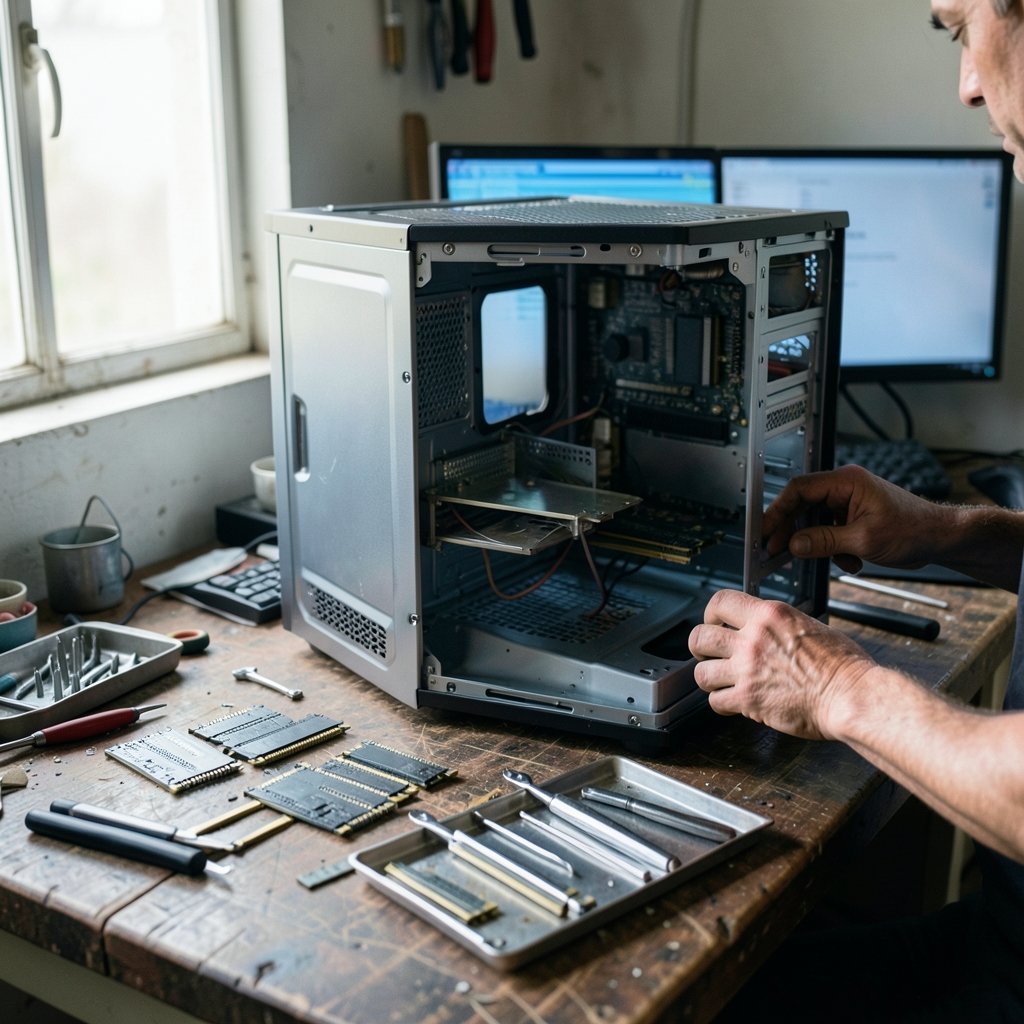
Few things stop a Windows 11 PC faster than a blue screen. One moment you’re working, and the next the screen fills with a sad face and a stop code like `CRITICAL_PROCESS_DIED`. The machine restarts, and you’re left wondering what just happened. The Blue Screen of Death (BSOD) isn’t random punishment. It’s Windows protecting itself from a problem it can’t safely continue past, usually a faulty driver, failing hardware, or corrupted system files.
The good news: most blue screens are fixable, and you don’t need to be a technician. The trick is reading the clues Windows leaves behind. This guide walks through the actual process, from the first crash to a stable system, with the mistakes people make along the way and what genuinely works.
What a Blue Screen Is Actually Telling You
A BSOD is a bug check. When Windows detects a condition it can’t recover from, such as a kernel-level driver accessing memory it doesn’t own, it halts on purpose rather than risk corrupting your data. The stop code on screen is the single most important clue. It narrows the problem to a category.
Common codes and what they usually point to:
| Stop Code | Likely Cause |
|---|---|
| `CRITICAL_PROCESS_DIED` | Corrupted system files or a failed critical service |
| `IRQL_NOT_LESS_OR_EQUAL` | A driver touching memory it shouldn’t |
| `MEMORY_MANAGEMENT` | Faulty or mismatched RAM |
| `SYSTEM_SERVICE_EXCEPTION` | A driver or antivirus conflict |
| `PAGE_FAULT_IN_NONPAGED_AREA` | Bad RAM or a corrupt driver |
Write the code down before you do anything else. If the screen flashes past too quickly, disable automatic restart so it stays put: open System Properties, go to Advanced, find Startup and Recovery, and clear the Automatically restart checkbox. Next time it crashes, you’ll have time to read the code and photograph it.
There’s a second clue most people ignore: the minidump file. Windows writes a small crash record to `C:WindowsMinidump` by default. You don’t need special software to see that the files exist, and their timestamps tell you exactly when each crash happened. That history matters more than any single crash.
Step 1: Get Back Into Windows Safely

If your PC won’t boot past the blue screen, you need Safe Mode. Windows 11 changed how you reach it compared with older versions. The reliable route is to hold Shift while clicking Restart from the power menu, or to go through Settings, then System, then Recovery, then Advanced startup.
Once in the recovery menu, choose Troubleshoot, then Advanced options, then Startup Settings, and restart. Safe Mode loads Windows with a minimal set of drivers, which is useful: if the machine runs fine there, the culprit is almost certainly a driver or a startup program, not your hardware.
A common mistake is jumping straight to a full reinstall. That wipes your files and often doesn’t fix the underlying problem, because the faulty driver or dying RAM is still there afterward. Safe Mode costs you five minutes and saves hours.
Step 2: Repair Corrupted System Files
Corrupted system files are one of the most frequent causes of repeat blue screens, and Windows ships with two tools that repair them. Run them in order from an elevated Command Prompt (right-click Start, choose Terminal (Admin)):
- Type `sfc /scannow` and press Enter. This scans and repairs protected system files.
- When it finishes, type `DISM /Online /Cleanup-Image /RestoreHealth` and press Enter. This repairs the system image that `sfc` draws from.
- Restart and watch for another crash.
Run `sfc` first, then `DISM`. Doing it the other way round is a frequent slip, and it can leave `sfc` trying to repair files from an already-damaged source. If `sfc` reports it found corrupt files but couldn’t fix them, the `DISM` step is the one that often clears the blockage.
Step 3: Update or Roll Back Drivers
Drivers cause the majority of blue screens, especially graphics and network drivers. The practical approach is to update through Windows Update first, then check the PC manufacturer’s support page for chipset and graphics drivers. Avoid random “driver updater” utilities; they frequently install the wrong package and create a new crash.
If the blue screens started right after an update, roll the driver back. Open Device Manager, right-click the suspect device, choose Properties, open the Driver tab, and select Roll Back Driver. This is the single most underused fix, and it solves a large share of crashes that appear suddenly after a working period. If you need to grab a screenshot of the error for a support forum, here’s how to take a screenshot on windows quickly before the screen clears.
For stubborn cases, Microsoft’s Driver Verifier (`verifier.exe`) is built into Windows and stresses drivers to expose the faulty one. Enable it only when you’re actively troubleshooting, because it deliberately triggers crashes to identify the culprit. Standard mode is enough for most people.
Step 4: Test Your Memory
If your stop code mentions memory, or crashes happen under load, test the RAM. Windows includes the Windows Memory Diagnostic tool. Type `mdsched.exe` into the search bar, run it, and choose to restart now. The test runs before Windows loads and reports results on the next boot.
A failing stick of RAM produces exactly the kind of unpredictable, repeating blue screens people blame on Windows. If the test flags errors, reseat the modules, then test again. Mismatched or loose RAM is a surprisingly common cause, and it costs nothing to check. For persistent odd behavior across the system, it’s also worth running a proper virus check on your windows pc, since some malware deliberately destabilizes the kernel.
Step 5: Use Reliability Monitor to Find the Pattern
Here’s where experienced troubleshooters separate themselves from guessers. Reliability Monitor (`perfmon /rel`) shows a timeline of crashes, failed updates, and application errors, all in one view. Open it and look at what happened in the hours before each blue screen. A failed update, a newly installed program, or a driver install right before the crash is a strong lead.
This is the step most people skip, and it’s the one that turns a guessing game into a diagnosis. Patterns beat single events. One crash means little; three crashes after the same update means everything.
Step 6: Rule Out Heat, Power, and Overclocking
Hardware problems masquerade as software problems. Overheating causes sudden shutdowns and bug checks under load. A failing power supply produces random crashes that no driver fix will solve. And overclocking, whether on the CPU, GPU, or RAM (including XMP profiles), is a classic source of instability that appears only after a Windows update changes timing behavior.
If you’ve overclocked anything, return it to stock settings and test for a few days. Clean the dust out, confirm the fans spin, and check temperatures under load. If crashes only happen during gaming or heavy work, hardware is the prime suspect, not Windows.
Step 7: The Last Resorts, in the Right Order
When the earlier steps don’t work, escalate carefully:
- System Restore to a point before the crashes began. This is fast and reversible.
- Uninstall recent updates through Settings, then Windows Update, then Update history.
- Reset Windows while keeping your files, which reinstalls the OS but preserves documents.
- Clean install from official media, which is the definitive fix for deep corruption.
Do them in that order. Each step is more disruptive than the last, so there’s no reason to jump to a clean install while a restore point might solve it in ten minutes. If you’re managing a machine with a history of performance problems alongside crashes, resolving background issues like antimalware service executable high cpu usage can also reduce the load that pushes unstable hardware over the edge.
Mistakes That Make Blue Screens Worse
A few habits reliably turn a fixable problem into a nightmare. Installing multiple driver-updater tools at once creates conflicts. Ignoring the stop code means treating every crash the same when they have different causes. And repeatedly forcing restarts during a crash cycle can corrupt files further.
Another quiet mistake: assuming a blue screen always means Windows is broken. Sometimes it’s the honest signal that a component is failing. The screen is a symptom, not the disease. Treat it as diagnostic information rather than an inconvenience to suppress.
When to Stop Troubleshooting and Replace Hardware
If memory tests pass, drivers are clean, system files are repaired, and crashes continue with different stop codes each time, the odds shift toward failing hardware, most often RAM, the storage drive, or the power supply. At that point, further software fixes waste time. Back up your data immediately, then test components individually or have a technician check them. A drive that’s quietly failing produces exactly this kind of erratic behavior, and no amount of reinstalling will fix it.
Conclusion
Fixing a blue screen on Windows 11 comes down to reading the clues before changing anything. Note the stop code, check the minidump timestamps, boot into Safe Mode, and repair system files with `sfc` and `DISM`. Update or roll back drivers, test your RAM, and let Reliability Monitor show you the pattern. Only then escalate to restores and reinstalls. Most blue screens trace back to a driver or a memory fault, and both are findable with tools already on your PC. A little patience with the diagnosis saves hours of blind fixing, and it usually gets you back to a stable machine without losing a single file.
Frequently Asked Questions
What causes the Blue Screen of Death on Windows 11?
Most blue screens come from faulty or outdated drivers, corrupted system files, failing RAM, or overheating hardware. The stop code on the screen points to the category, which is why writing it down is the fastest way to narrow things down.
How do I find out what caused my blue screen?
Check the stop code first, then look at the minidump files in `C:WindowsMinidump` and the crash timeline in Reliability Monitor (`perfmon /rel`). Together they show what changed right before the crash, which is usually the culprit.
Can I fix a blue screen without reinstalling Windows?
Yes, in most cases. Running `sfc /scannow` and `DISM /Online /Cleanup-Image /RestoreHealth`, updating or rolling back drivers, and testing your RAM resolve the majority of crashes. A reinstall is a last resort, not a first step.
Why does my PC blue screen only when gaming or under load?
Crashes under load usually point to hardware: overheating, a struggling power supply, unstable overclocking, or failing RAM. Return any overclock to stock settings, clean the cooling, and run the Windows Memory Diagnostic before blaming software.
How do I start Windows 11 in Safe Mode after a blue screen?
Hold Shift while clicking Restart, or go to Settings, then System, then Recovery, then Advanced startup. From there, choose Troubleshoot, then Advanced options, then Startup Settings. Safe Mode helps confirm whether a driver is responsible.
Does a blue screen mean my computer is permanently damaged?
No. Most blue screens are software or configuration problems and are fully fixable. Only repeated crashes with varying stop codes, after software fixes, suggest a failing component like RAM or a drive, and even then the rest of the PC is usually fine.
One final note on timing: after any fix, give the machine a day or two of normal use before declaring victory. A single crash-free afternoon proves little, but a week without a bug check after a driver rollback is real evidence. If crashes return, revisit Reliability Monitor and compare timestamps against what changed, since repeat patterns narrow the cause faster than any single diagnostic tool. Keep your notes on stop codes and fixes; a short log turns the next incident into a five-minute check rather than a fresh investigation, and it tells you when to stop fixing software and start replacing hardware.