

Windows 11 updates arrive on their own schedule, not yours. Ask anyone who has watched a deadline disappear behind a blue “Working on updates” screen. The feature update cadence alone is enough to make people search for an off switch: Microsoft moved Windows 11 to one major feature release per year, with 24H2 landing in late 2024 and 25H2 expected in 2025. Each of those releases can take 20 to 40 minutes to install, restarts included.
Here is the uncomfortable truth up front: Windows 11 has no supported, permanent off switch for updates. Microsoft’s documented controls are pause and deferral, not disable. What follows is an honest map of every real option, ranked from safe to risky, plus the traps that catch people who reach for registry hacks and third-party blockers.
Why Windows 11 Fights You on Updates
Microsoft treats patching as a security function, not a preference. The company’s position is consistent: updates deliver fixes for known vulnerabilities, and blocking them leaves those holes open. That is why the operating system re-enables update components on its own, sometimes within days of a tweak.
Two background services do the enforcement work: the Windows Update Medic Service (WaaSMedicSvc) and the Update Orchestrator. Community and IT sources widely report that disabling them is unsupported and frequently reverted by the system. Treat that behavior as contested rather than gospel, but the practical outcome is the same. If you disable them, expect Windows to undo your work at some point, often quietly.
The good news is that the supported controls cover most real-world needs. If your goal is “stop updates interrupting my work week,” pause and deferral handle it. If your goal is “never update again,” no supported path exists, and the workarounds carry real costs.
Method 1: Pause Updates for Up to Five Weeks
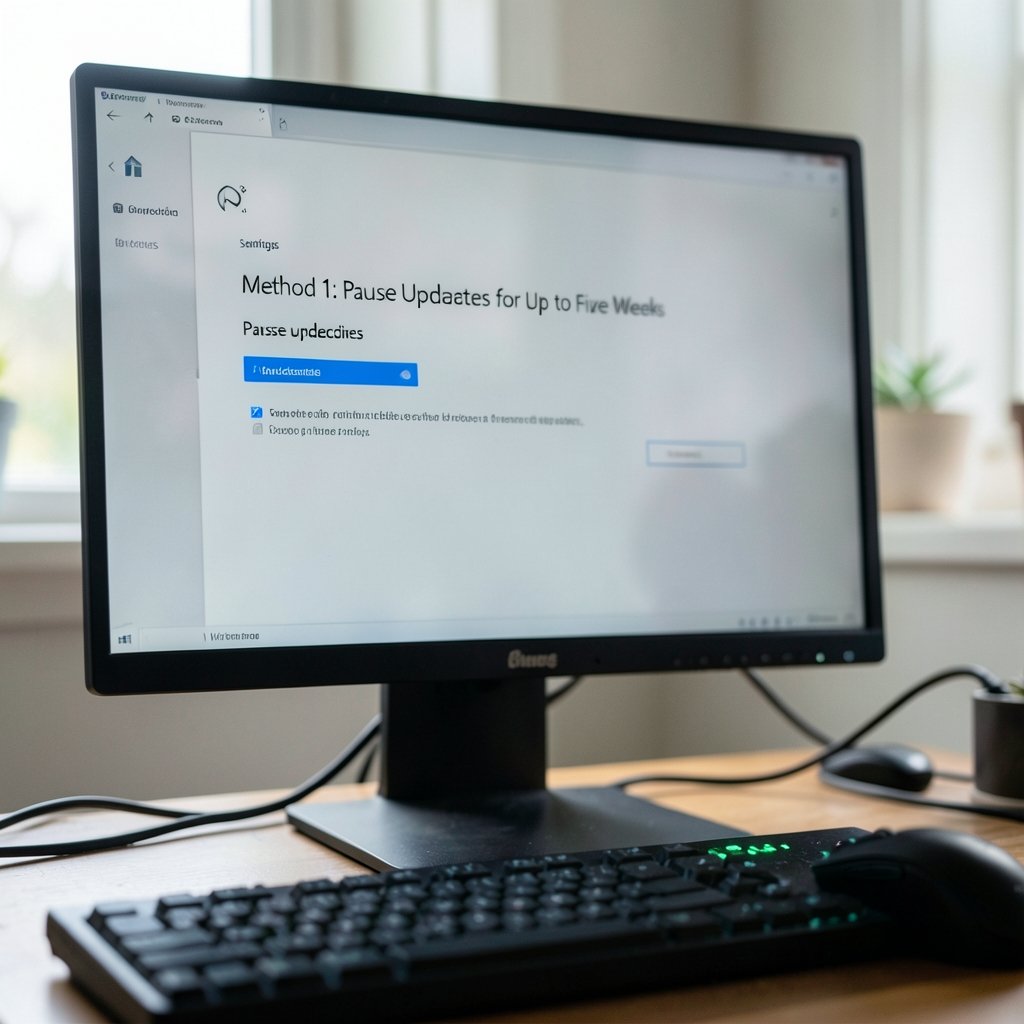
This is the safest lever and the one most people should use first. Windows 11 Home and Pro both allow pausing for up to five weeks (35 days) through Settings.
- Open Settings with the keyboard shortcut Windows key + I. If shortcuts are rusty, this Windows keyboard shortcuts guide covers the essentials.
- Go to Windows Update.
- Select Pause updates and choose a duration from the dropdown.
- To extend later, open the same screen and pick a new date once the current pause expires.
The catch: you cannot stack pauses indefinitely. When the five weeks run out, Windows installs pending updates before it lets you pause again. Plan around that reset rather than fighting it.
Method 2: Defer Updates with Group Policy (Pro, Enterprise, Education)
The Group Policy Editor gives Pro-tier users finer control. The “Configure Automatic Updates” policy lives under Computer Configuration > Administrative Templates > Windows Components > Windows Update. From there you can defer quality updates by up to 30 days and feature updates by up to 365 days.
- Press Windows key + R, type `gpedit.msc`, and press Enter.
- Open the Windows Update policy folder listed above.
- Open Configure Automatic Updates, enable it, and set the behavior to notify before downloading and installing.
- Use the separate deferral policies to push quality and feature updates out.
- Run `gpupdate /force` in Command Prompt, then restart.
Windows 11 Home does not include the Group Policy Editor, so this route is closed to Home users. Policy names and limits have shifted between releases, so confirm the exact wording on Microsoft Learn before relying on a specific number.
Method 3: The Registry Equivalent
The registry mirrors the policy engine. The documented path is `HKLMSOFTWAREPoliciesMicrosoftWindowsWindowsUpdateAU`, where a `NoAutoUpdate` value set to `1` tells Windows to stop automatic installation. This is the same mechanism Group Policy writes to, which is why it sometimes sticks where random hacks do not.
Before editing, back up the key. Then:
- Open Registry Editor (Windows key + R, type `regedit`).
- Go to the WindowsUpdate path above, creating the `AU` key if it is missing.
- Create a DWORD named `NoAutoUpdate` and set it to `1`.
- Restart the PC.
The honest caveat: whether registry and policy tweaks survive feature updates is genuinely uncertain. They often do not, because major upgrades rebuild servicing configuration. Re-check after every big version jump.
Method 4: Metered Connections, and Why They Disappoint
Marking a Wi-Fi network as metered historically limited automatic downloads. Microsoft has narrowed that behavior across builds, and its effectiveness now varies by release. It is worth trying on a laptop that tethers, but do not treat it as a reliable block. If a download is already queued, metering will not stop it.
This is also where people make their first common mistake: they set a metered connection, assume updates are dead, and then get surprised three weeks later. Test your assumption instead of trusting it.
Method 5: Third-Party Blockers and What They Cost
Tools like Windows Update Blocker and StopUpdates10 exist, and they work by flipping the same registry and service switches described above, just with a friendlier interface. Microsoft does not support them, and they can break security patching entirely.
The trade-off deserves a straight sentence: every month you block updates is a month of unpatched vulnerabilities. If you run one of these tools, schedule a monthly manual check so security fixes still land. Skipping that step is how machines end up years behind. The same discipline applies to general PC hygiene, which is why a routine virus check on Windows belongs in the same monthly habit.
Active Hours and Restart Control: The Underrated Fix
Many people do not actually want updates gone. They want updates to stop rebooting the machine mid-task. Active hours solve that specific problem without any hack.
- Open Settings > Windows Update > Advanced options.
- Set Active hours to match your working window, or let Windows track it automatically.
- Turn on Notify me when a restart is required so you choose the moment.
- Enable Restart as soon as possible when you’re not using the device only if you trust the detection.
Combined with a pause during busy weeks, this handles the majority of complaints. It is boring, supported, and it survives feature updates.
Comparison: Which Method Fits Which Situation
| Method | Edition | Duration | Survives feature updates? | Risk |
|---|---|---|---|---|
| Pause updates | Home, Pro | Up to 5 weeks | Yes, but resets | None |
| Active hours | Home, Pro | Ongoing schedule | Yes | None |
| Group Policy deferral | Pro and up | 30 days quality, 365 days feature | Usually | Low |
| Registry `NoAutoUpdate` | All | Until reverted | Often not | Medium |
| Metered connection | All | Unreliable | Varies by build | Low, low payoff |
| Third-party blocker | All | Until you undo it | Depends on tool | High (security) |
| WSUS / Intune rings | Enterprise | Full control | Yes | None, but needs infrastructure |
For organizations, the supported answer is Windows Update for Business, WSUS, or Intune update rings. Those are the only methods Microsoft documents for controlling timing at scale, and they are the reason IT departments never bother with registry hacks.
Common Mistakes That Backfire
The most frequent error is disabling services and assuming the job is done. Windows re-enables them, often without a notification, and the user never notices until a restart hits at the worst moment. The second error is stacking a third-party blocker on top of a registry tweak, which produces unpredictable behavior and makes troubleshooting miserable.
A third mistake is confusing deferral with disablement. Deferral is a schedule; disablement is a gamble. People who understand the difference stop fighting the system and start steering it. The same principle shows up everywhere in Windows: learn the intended control, and the machine cooperates. That is true of update timing, and it is true of basics like the undo shortcut that saves people from accidental deletions every day.
One more practical note: if you are troubleshooting a failed update, take a screenshot on Windows of the error code before you change anything. Error codes are the fastest path to a fix, and they vanish once you start poking at settings.
What Actually Works in Practice
After all the options, the pattern that holds up is unglamorous. Pause during crunch periods. Set active hours to your real schedule. Defer feature updates if you are on Pro. Check manually once a month so security patches still arrive. That combination eliminates nearly every interruption without gambling on unsupported tweaks.
The security math matters here. Microsoft ships monthly quality updates because vulnerabilities get exploited in the wild, and a machine that skips six months of patches is a machine with known, public holes. Balancing convenience against that risk is a judgment call, but it should be a conscious one rather than an accident caused by a blocker tool someone forgot they installed.
Conclusion
Windows 11 will not let you switch updates off permanently, and the workarounds that promise otherwise tend to get reverted or leave you exposed. The supported controls, pause, active hours, and policy deferral, cover the interruptions that actually annoy people. Use them deliberately, keep a monthly manual check in your routine, and save the registry edits for cases where you accept the trade-off. Steering the schedule beats fighting the system, every time.
Frequently Asked Questions
Can I permanently disable Windows 11 automatic updates?
Not through any supported method. Microsoft documents pause and deferral only. Registry edits and third-party blockers can suppress updates temporarily, but Windows frequently re-enables its update components, and feature updates often wipe the tweaks entirely. Anyone claiming a permanent switch is either using an unsupported tool or overstating the result.
How long can I pause updates in Windows 11?
Up to five weeks, or 35 days, on both Home and Pro. When the pause expires, Windows installs any pending updates before allowing another pause. You cannot chain pauses indefinitely, so plan the reset date rather than being surprised by it.
Does the Group Policy Editor exist on Windows 11 Home?
No. The Group Policy Editor ships with Pro, Enterprise, and Education editions. Home users can edit the same underlying registry values manually, but those changes are unsupported, easier to break, and more likely to be reverted during a feature update.
Will marking my connection as metered stop updates?
Sometimes, but not reliably. The metered-connection behavior has narrowed across Windows 11 builds, and it will not stop a download that is already in progress. Treat it as a minor speed bump, not a strategy, and verify whether it is actually working on your build.
Do third-party update blockers cause problems?
They can. Tools like Windows Update Blocker flip the same service and registry switches as manual edits, but they add a layer that makes troubleshooting harder and can leave security patching off for months without warning. If you use one, schedule a monthly manual update check so critical fixes still arrive.
How do enterprises control Windows 11 update timing?
Through supported infrastructure: Windows Update for Business, WSUS, or Intune update rings. These let administrators set deferral windows, pilot rings, and maintenance schedules across fleets. They are the only methods Microsoft documents for controlling update timing at scale, which is why IT teams rely on them instead of registry hacks.
If you want to reduce interruptions further, set a maintenance window in Settings > Windows Update > Advanced options > Active hours and keep devices plugged in overnight so downloads complete without touching your workday. Laptops that sleep through the window will simply catch up later. Finally, record your chosen settings and the date you last checked manually, so the monthly routine becomes a habit rather than a memory test. With that, the schedule is yours to steer.



