
Windows 11 ships with at least four different ways to move a file from one PC to another, yet most people still email attachments to themselves. That habit survives because the built-in options are scattered across Settings panels with names that don’t obviously mean “file transfer.” The good news: once you know where each tool lives, moving a 2 GB video folder between two laptops on the same desk takes under a minute.
This guide walks through every practical method, from the built-in Nearby sharing to a plain USB stick, and explains which one actually works for each situation. It also covers the mistakes that cause most failed transfers, because the failure mode is almost always the same: a network setting, not a broken feature.
Start With the Simplest Option: Nearby Sharing
Nearby sharing is Microsoft’s answer to AirDrop. It uses Bluetooth to find the other PC and Wi-Fi Direct to move the data, so both machines need Bluetooth and Wi-Fi switched on. No router, no cables, no Microsoft account required.
The setup takes about thirty seconds per machine:
- Open Settings and go to System > Nearby sharing.
- Turn the toggle on.
- Choose whether the PC receives files from “Everyone nearby” or only from your own devices.
- Repeat on the second computer.
- On the sending PC, right-click any file, choose Share, and pick the receiving computer’s name from the list.
- On the receiving PC, click Save when the notification appears.
A few practical notes matter here. Both PCs must be within Bluetooth range, roughly ten meters in open air, and the feature works best when the devices are on the same desk. Speed is decent for photos and documents but noticeably slower than a wired network for multi-gigabyte files. If the receiving PC never appears in the share list, the usual culprit is a Bluetooth radio that’s off or a device name that hasn’t refreshed. Toggling Nearby sharing off and back on forces a fresh discovery broadcast.
One quirk worth knowing: Nearby sharing is not the same as Quick Assist, which is a remote-control tool for support calls. People confuse the two constantly, then wonder why Quick Assist won’t transfer a folder. It won’t. Use Nearby sharing for files.
Share a Folder Over Your Local Network with SMB
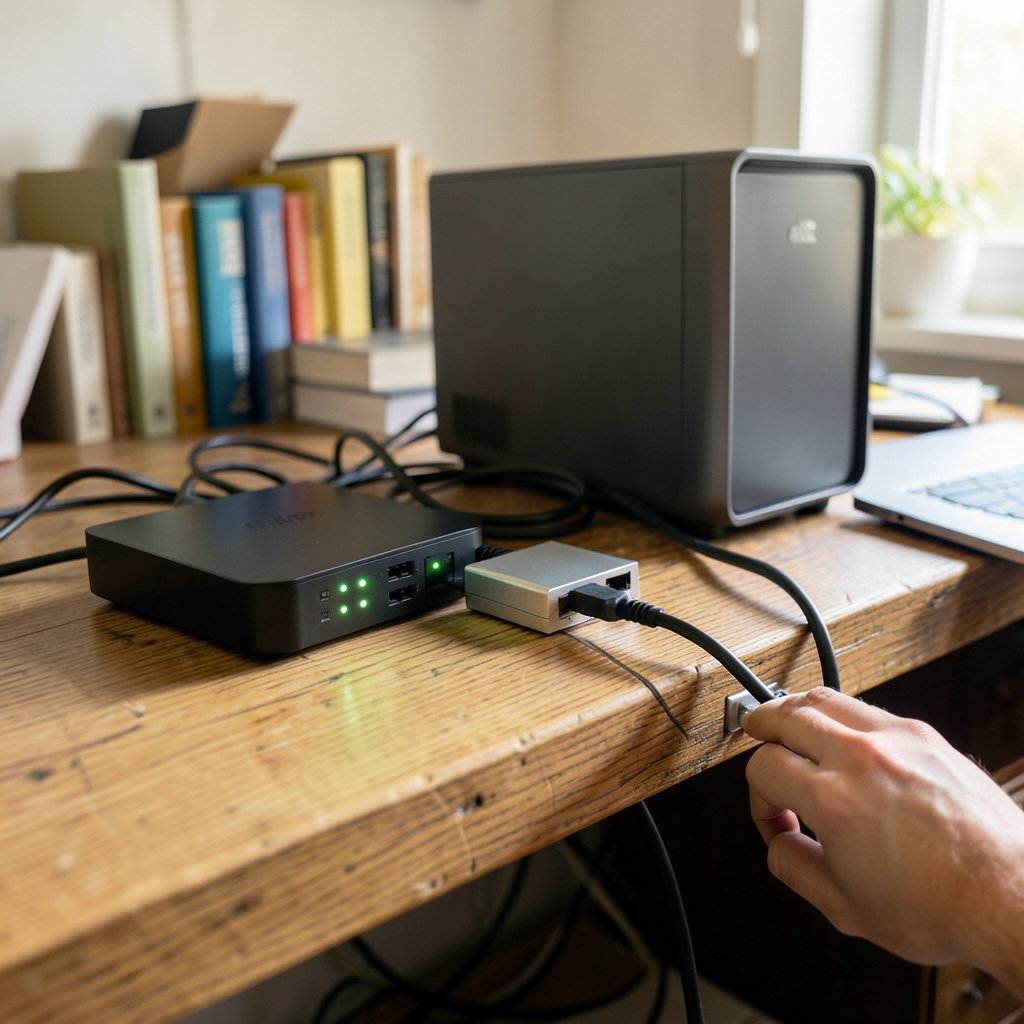
For repeated transfers between computers that stay on the same network, a shared folder beats every other method. It’s a one-time setup that turns a folder into a permanent drop box both PCs can see.
Windows 11 uses SMB (Server Message Block) for this, the same protocol that has powered Windows file sharing since the 1990s. Microsoft has gradually retired the ancient SMB1 version, disabled by default for security reasons, and modern Windows 11 builds rely on SMB2 and SMB3, which encrypt traffic and run considerably faster.
Here’s the setup that works on current builds:
- On both PCs, open Settings > Network & internet > Advanced network settings > Advanced sharing settings.
- Under Private networks, turn on Network discovery and File and printer sharing.
- Confirm both machines show the network as Private, not Public. This single setting causes more failures than anything else.
- On the PC holding the files, right-click the folder, choose Properties > Sharing > Share.
- Add the other user account, or choose Everyone for a home network, and set permissions to Read or Read/Write.
- On the second PC, open File Explorer, type `COMPUTERNAME` in the address bar, and press Enter.
The folder now behaves like a local drive. You can map it to a drive letter for convenience, and it survives reboots.
The catch is credentials. If the two PCs use different Microsoft accounts, Windows will prompt for a username and password, and the username format trips people up. It’s usually the full email address tied to the account on the sharing PC, not the display name shown on the login screen. If a password prompt loops endlessly, the fix is usually to create a matching local account on both machines or to enable password protected sharing consistently on both sides.
For anyone who wants a deeper grounding in how Windows handles these connections, the broader family of Windows keyboard shortcuts everyone should know is a handy companion, since Win+E opens File Explorer instantly and Win+R lets you type a UNC path without hunting for the address bar.
Use the Public Folder as a Zero-Config Drop Box
Windows has shipped a Public folder for years at `C:UsersPublic`, and on many systems it’s already shared with the network. It’s the closest thing to a no-setup option: drop a file in, and any PC on the same private network can usually reach it at `COMPUTERNAMEUsersPublic`.
This works well for quick, casual transfers on a trusted home network. It’s a poor choice for anything sensitive, because the folder is open to every device on the network by default and there’s no per-file permission control. It’s also inconsistent across manufacturers, since some OEM builds alter the default sharing state. Treat it as a convenience, not a security boundary.
Sync Through OneDrive for Computers in Different Places
When the two computers aren’t on the same network, cloud sync is the pragmatic answer. OneDrive is bundled with Windows 11, and files placed in the OneDrive folder sync automatically to every PC signed into the same account.
The workflow is almost too simple: sign into OneDrive on both machines, drop the file into the OneDrive folder on PC A, and it appears on PC B within seconds to minutes depending on file size and connection speed. There’s no pairing, no IP address, no firewall negotiation.
Two limitations deserve honesty. First, the free storage tier is small, so large transfers mean paying for a subscription or clearing space. Second, sync is not instant for big files, and a 4 GB video may take a while to upload before it even begins downloading on the other end. For sharing with people outside your account, OneDrive’s sharing links are the better route than folder sync.
Microsoft’s own support documentation on file sharing and OneDrive remains the authoritative reference for current menu paths, since Windows 11 has reorganized Settings several times since its October 2021 launch. Anyone who has ever tried to undo a shortcut mistake after clicking the wrong sharing toggle knows how much the layout has shifted between builds.
Compare the Methods Side by Side
Different situations call for different tools. This table summarizes when each option makes sense.
| Method | Best for | Speed | Setup effort | Works off-network |
|---|---|---|---|---|
| Nearby sharing | One-off files, same desk | Moderate | Very low | No |
| Shared folder (SMB) | Repeated transfers, large files | Fastest | Medium | No |
| Public folder | Casual drops, home network | Fast | None | No |
| OneDrive sync | Different locations, backup | Depends on internet | Low | Yes |
| USB drive | Huge files, no network | Fast (manual) | None | Yes |
The pattern is clear. Local network methods win on speed; cloud methods win on distance. A USB drive still beats everything for a one-time 50 GB transfer, despite feeling old-fashioned.
Fix the Problems That Break File Sharing
Most failed transfers trace back to a short list of causes, and each has a straightforward fix.
The network is set to Public. Windows treats Public networks as hostile and blocks discovery and sharing by default. Switching to Private in Settings resolves it instantly.
The firewall is blocking SMB. Windows Defender Firewall allows file sharing on private networks but not public ones. If the network profile is correct and sharing still fails, check that File and Printer Sharing is enabled in the firewall’s allowed apps list.
The two PCs are on different subnets. A guest Wi-Fi network, a mesh system with client isolation, or a VPN can all put two computers on the same router but different logical networks. They won’t see each other. Disconnecting the VPN is often the whole fix.
Discovery is stale. Windows caches network device names. If a PC was renamed, it may take a restart before the new name resolves.
SMB1 is required by an old device. Some network-attached storage boxes and printers still demand SMB1. Enabling it is possible through Turn Windows features on or off, but it’s a security trade-off worth avoiding if the device can be replaced or updated. Microsoft’s documentation on SMB explains why the protocol was deprecated in the first place.
A sensible habit before any transfer session: run a quick malware scan on both machines. If either PC has picked up something unpleasant, a file share is an efficient way to spread it, and knowing how to check for viruses on a Windows PC takes only a few minutes with the built-in Defender tool.
Third-Party Tools Worth Considering
Microsoft’s built-in options cover most cases, but a few free third-party utilities fill gaps. LocalSend is an open-source app that works across Windows, macOS, Linux, Android, and iOS, which matters if one of the “two computers” is actually a Mac. Syncthing keeps folders continuously synchronized between machines without a cloud account, using peer-to-peer connections. Resilio Sync does something similar with a more polished interface.
These tools are not Microsoft-official, so they carry the usual caveats about installing software from outside the Store. In practice, LocalSend has become the default recommendation for mixed-OS households because it requires no configuration at all: install on both machines, and they find each other on the local network.
Practical Habits That Save Time
A few small habits make file sharing smoother over the long run. Keep device names short and recognizable, since typing a UNC path like `DESKTOP-4F2K9L` gets old fast. Create one folder called “Transfer” and share it permanently rather than sharing different folders each time. Use Read permissions for anything that only needs to be copied, and reserve Read/Write for genuine two-way drops.
It also pays to know a couple of shortcuts. Taking a screenshot of an error message is far more useful than describing it, and knowing how to take a screenshot on Windows means you can capture the exact wording of a sharing error before it vanishes. Similarly, if a transfer goes wrong mid-way, the redo shortcut key for Windows and Mac is a small but real time-saver when you’re re-running the same copy operation.
One more habit: verify large transfers. Windows doesn’t always warn when a copy is incomplete, especially over a flaky Wi-Fi link. Comparing file sizes on both ends takes seconds and prevents the classic “the video is corrupted” moment.
Conclusion
Sharing files between two Windows 11 computers isn’t hard once the options are sorted by situation. For a quick one-off between two machines on the same desk, Nearby sharing is the fastest path from right-click to done. For an ongoing relationship between two PCs that stay on the same network, a properly configured SMB shared folder is faster and more reliable than anything else. When the computers live in different buildings, OneDrive or a third-party tool like LocalSend bridges the gap.
The failures, when they happen, are almost always network profile settings, firewall rules, or stale discovery caches rather than broken features. Check those three things first and most problems disappear. And don’t overlook the humble USB drive; for a single enormous transfer, it still beats every wireless method on the market.
Frequently Asked Questions
Do both computers need to be on the same Wi-Fi network to share files?
For Nearby sharing and SMB folder sharing, yes. Both PCs must be on the same local network, and that network must be set to Private in Windows settings. OneDrive and third-party tools like LocalSend or Syncthing can work across different networks, since they route traffic through the internet or a relay server. (Internet Engineering Task Force (IETF))
Why can’t my second Windows 11 PC see the shared folder?
The most common cause is that one PC is on a Public network profile, which blocks discovery by default. Check Settings > Network & internet > Advanced network settings > Advanced sharing settings and confirm both machines are set to Private with network discovery and file sharing enabled. A VPN or guest Wi-Fi network can also isolate the two devices from each other.
Is Nearby sharing faster than a shared folder?
No. Nearby sharing uses Bluetooth for discovery and Wi-Fi Direct for the transfer, which is convenient but slower than a direct SMB connection over Ethernet or a strong Wi-Fi link. For files over a gigabyte, a shared folder is noticeably quicker. Nearby sharing wins on convenience, not throughput.
Can I share files between Windows 11 and a Mac?
Yes, though the built-in Windows tools won’t do it cleanly. macOS can connect to an SMB share through Finder’s Go > Connect to Server menu, which works well for Mac-to-Windows transfers. For a simpler cross-platform experience, LocalSend handles Windows, macOS, Linux, Android, and iOS with no configuration.
Does file sharing work if one computer is asleep?
No. A sleeping PC drops off the network and can’t receive files or serve a shared folder. Wake-on-LAN can wake a machine remotely, but it requires specific hardware and BIOS support. The practical fix is to disable sleep temporarily during a transfer session or set the receiving PC to stay awake while plugged in.
Is it safe to enable file sharing on a public Wi-Fi network?
No. Public networks should always stay on the Public profile, which blocks discovery and sharing. Enabling sharing on a coffee shop or hotel network exposes your files to strangers on the same connection. Reserve file sharing for networks you control, and use OneDrive or an encrypted transfer tool when you’re away from home.



