
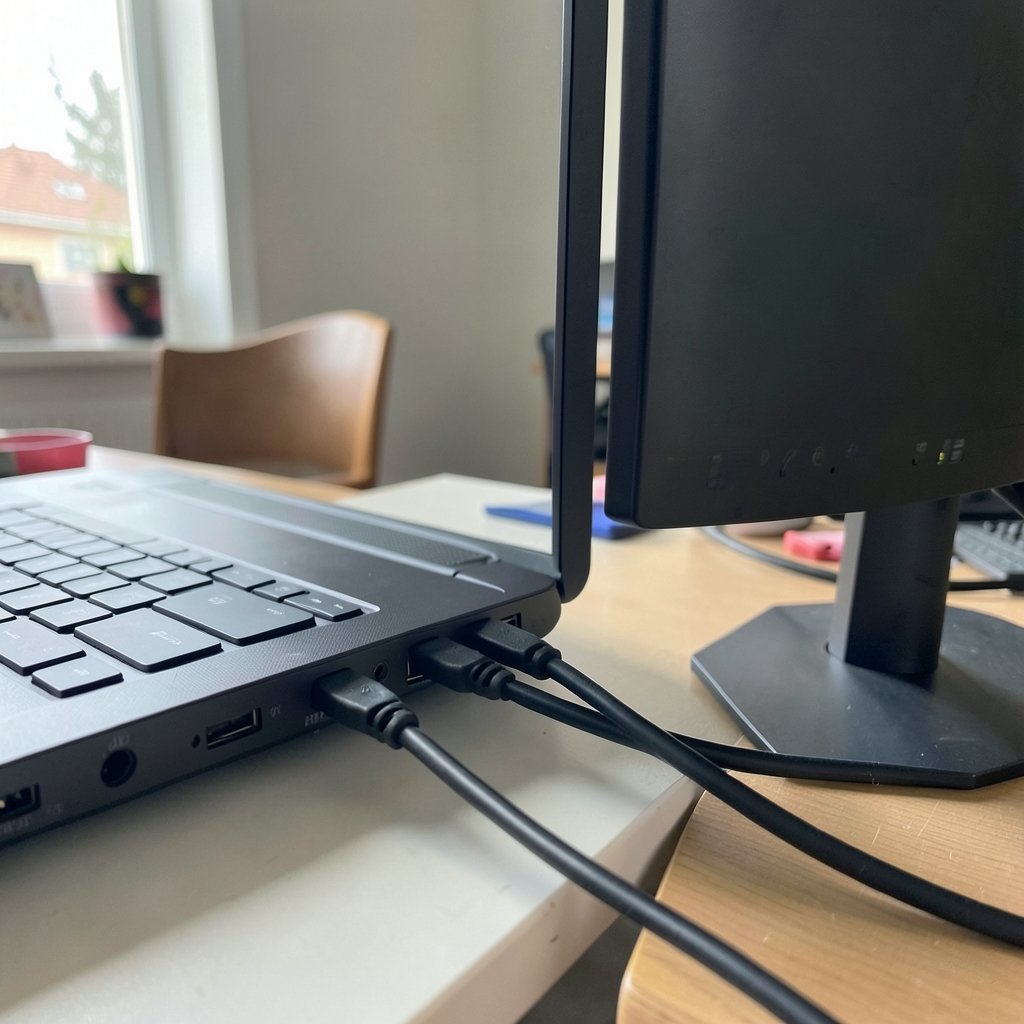
Two screens are no longer a luxury reserved for stock traders and video editors. According to a survey by the remote-work research firm Workable, a large share of employees working from home say a second monitor is the single upgrade that most improved their daily productivity. Another widely cited figure from software maker DisplayLink puts the productivity gain from a second display at roughly 42 percent for certain tasks. Whatever the exact number, the appeal is obvious: more screen means less Alt-Tab, fewer minimized windows, and a cleaner mental workspace.
Windows 11 handles dual monitors well once you know where the controls live. This guide walks through the physical setup, the settings that actually matter, and the mistakes that trip people up. It is written for anyone who just unboxed a second screen or who plugged one in and got a mirror image instead of extra desktop space.
Before You Touch a Setting: Check the Hardware
Most “it doesn’t work” stories start with a cable, not Windows. A few practical checks save a lot of frustration.
First, confirm the ports. Modern laptops often have one HDMI and one USB-C, and desktop graphics cards typically offer DisplayPort plus HDMI. Match the cable to the port, and if you need an adapter, make sure it supports the resolution and refresh rate you want. A cheap HDMI-to-VGA adapter will happily display an image, but it may cap you at 1080p and 60 Hz no matter how good your monitor is.
Second, think about the graphics hardware. A single GPU can usually drive two displays without breaking a sweat. Three or more, especially at 4K, can push older integrated graphics to their limit. If you plan a high-resolution pair, pick a monitor that matches your output. Our roundup of the best UHD monitors covers what to look for in panel quality and connectivity. (How to Set Up Multiple Monitors)
Third, power. Some USB-C docks need their own power supply to output video reliably. A bus-powered hub may work for a mouse and keyboard but drop the display connection at random. If the second screen flickers or disconnects, suspect the dock before you suspect Windows.
Connecting the Second Monitor and Letting Windows Detect It
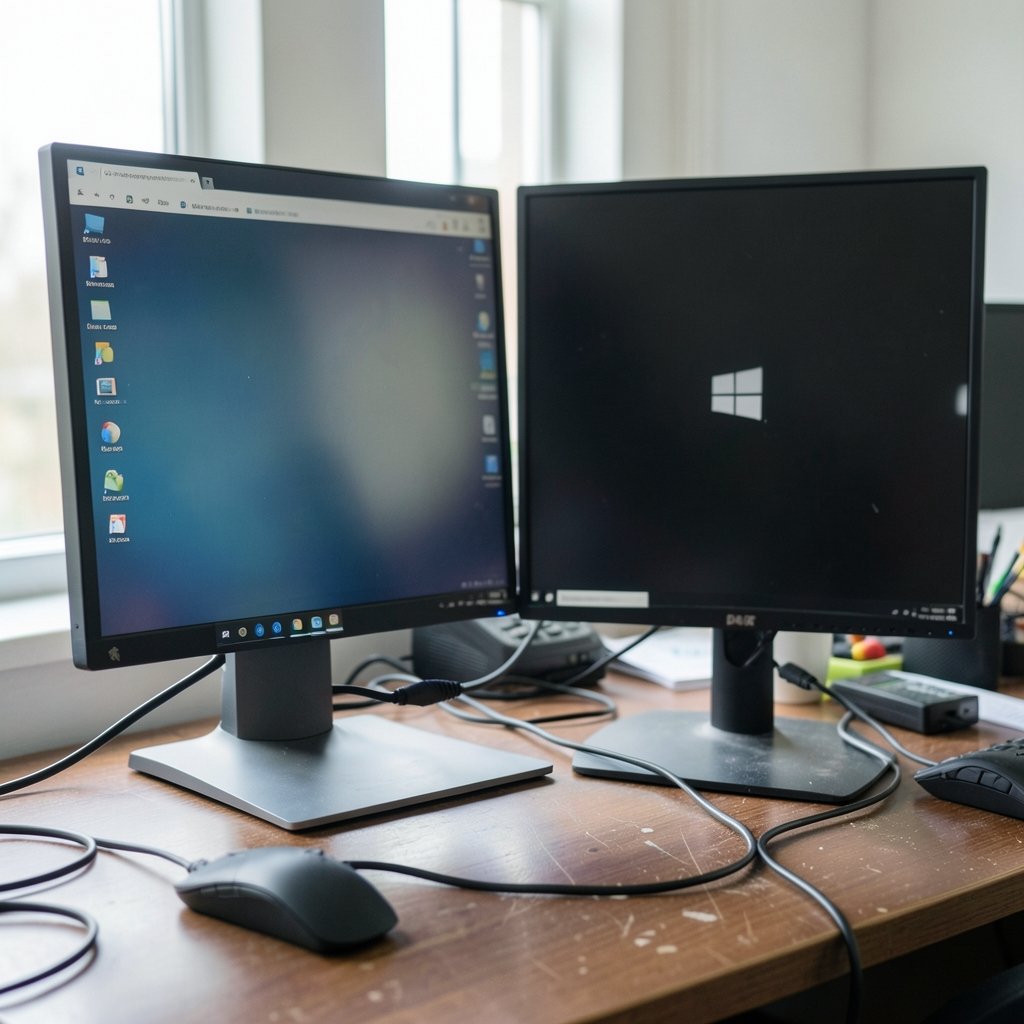
Plug the monitor in, turn it on, and give Windows a few seconds. In most cases Windows 11 detects the new display automatically and extends the desktop to it. The screen may flash once or twice as the driver negotiates the connection. That is normal.
If nothing happens, press Win + P to open the projection flyout and choose Extend. This shortcut is one of the handiest in the entire operating system, and it belongs on any short list of Windows keyboard shortcuts everyone should know. It switches between modes without digging through menus.
Still nothing? Open Settings → System → Display and look for a Detect button near the multiple-display controls. Clicking it forces Windows to rescan the ports. If the monitor remains invisible, try a different cable, a different port, or the other end of the cable. Cable faults are far more common than people expect, especially with HDMI leads that have been bent behind a desk for years.
The Display Settings Page, Explained
The Display page is the control room for everything multi-monitor. At the top you see a diagram with numbered boxes, one per connected screen. Below that sit the controls for Scale, Display resolution, Display orientation, and Multiple displays. (Multi-monitor)
The numbered boxes are not decorative. They map directly to your physical monitors, and dragging them changes how the mouse travels between screens. Click Identify and each monitor flashes its number for a few seconds so you can confirm which box is which. Do this first; every other adjustment is easier once you know which screen is “1” and which is “2.”
One quirk worth knowing: the box layout does not have to be a straight line. If your second monitor sits slightly higher or lower than the first, drag its box up or down to match. The cursor will then cross at the right height instead of jumping. It sounds trivial until you have spent a week overshooting a menu bar.
Setting Resolution, Scale, and Refresh Rate
Select a monitor’s box, then adjust its settings individually. Resolution should normally be set to the monitor’s native value, marked as “(Recommended).” Running a 1440p panel at 1080p makes everything soft and wastes the hardware.
Scale controls how large text and interface elements appear. A 4K monitor at 100 percent scale produces tiny text; 150 percent is a common sweet spot. Mixed setups, such as a laptop at 125 percent next to a 4K display at 150 percent, work fine in Windows 11, though some older apps may look slightly blurry on the secondary screen.
For refresh rate, scroll to Advanced display and pick the highest rate the monitor supports. Gamers and anyone who stares at scrolling text all day will notice the difference between 60 Hz and 144 Hz immediately.
Choosing the Main Display
The Make this my main display checkbox decides where the taskbar, Start menu, and most new windows appear. Pick the screen directly in front of you. A surprising number of dual-monitor complaints trace back to the main display being set to the off-to-the-side screen, which sends every new window to the wrong place.
Arranging Screens to Match Your Desk
The arrangement diagram is where dual monitors become genuinely comfortable. Place the boxes to mirror reality: if the second screen is on your left, drag its box to the left of the primary one.
A few field-tested tips:
- Align the tops, not the centers. Most people sit with monitors at the same height, and top alignment keeps the cursor path predictable.
- Leave no gaps. If the boxes do not touch, the cursor can get “stuck” at an edge because Windows thinks there is empty space between displays.
- Overlap slightly if needed. For monitors of different sizes, a small overlap prevents dead zones where the cursor disappears.
If dragging feels fiddly, the keyboard can help. Hold Shift while moving a window between screens and it jumps intact rather than landing half off-screen. And if you ever drag a window somewhere you cannot reach, the undo shortcut for Windows and Mac will not save you, but Win + arrow keys will snap the window back into view.
Extend, Duplicate, or Use One Screen Only
Windows 11 offers four display modes, reachable through Win + P or the Multiple displays dropdown. Each suits a different situation.
| Mode | What it does | Best for |
|---|---|---|
| Extend | Two independent desktops | Everyday productivity, the default choice |
| Duplicate | Same image on both screens | Presentations, screen sharing to a projector |
| Show only on 1 | Turns off the second screen | Laptop use on battery, privacy |
| Show only on 2 | Turns off the first screen | Using an external monitor with a closed laptop |
Most people want Extend almost all the time. Duplicate is the one to remember before a meeting: it prevents the classic embarrassment of sharing the wrong screen while notes or private messages sit visible on the other.
Common Mistakes and How to Avoid Them
Even careful users hit the same handful of snags. Here are the ones that come up most often, with fixes that actually work.
The monitor shows “No Signal.” Check the input source on the monitor itself. Many displays have multiple inputs and do not switch automatically. Then reseat both ends of the cable.
Everything looks blurry on the second screen. The resolution is probably not native, or the scale is mismatched. Set native resolution first, then adjust scale.
The mouse behaves oddly at the screen edge. The arrangement boxes are misaligned or separated. Return to the diagram and line them up.
Windows forgets the layout after a reboot. This usually points to a driver or dock issue. Update the graphics driver from the manufacturer’s site rather than relying on Windows Update alone. If the machine has been behaving strangely in other ways too, it is worth learning how to check for viruses on a Windows PC before blaming the display stack.
The second screen lags or stutters. A USB-C adapter sharing bandwidth with other peripherals can choke video. Move the display to a dedicated video port, or use a dock with its own power.
The taskbar only appears on one screen. That is the default. To show it everywhere, right-click the taskbar, open Taskbar settings, and expand Taskbar behaviors to find the multi-monitor toggle.
A Quick Word on Drivers and Updates
Display problems are disproportionately driver problems. Graphics drivers from Intel, AMD, and NVIDIA are updated far more often than the versions Windows ships. When a monitor misbehaves after a Windows feature update, the first move is usually to grab the latest driver directly from the vendor.
Keeping the rest of the system clean helps too. A machine clogged with toolbars and background updaters can slow display switching and cause odd freezes. Running a reputable cleanup tool occasionally, or checking our guide to the best free virus removal tools for Windows, keeps the environment stable enough that hardware quirks stay visible instead of hiding behind software noise.
When It Is Time to Stop Tinkering
There is a point where further adjustment stops paying off. Once resolution is native, scale is comfortable, and the arrangement matches the desk, the setup is done. Resist the urge to chase perfect color calibration on a secondary screen used mainly for email and chat.
What genuinely improves a dual-monitor desk over time is ergonomics. Raise both screens so the top of each sits near eye level. Keep the primary monitor centered. Angle the secondary one slightly inward. And take breaks; two screens invite more work, not less strain.
For anyone who enjoys the mechanics of a well-organized desk, the same principles of layout and clear rules apply elsewhere. The rules for the backgammon board game reward the same kind of structured thinking, and a horse racing board game is a fine way to spend the evening after a day of staring at two glowing rectangles.
Conclusion
Setting up dual monitors in Windows 11 is a fifteen-minute job once you know the path: connect the cable, let Windows detect the screen, open Settings → System → Display, identify each monitor, arrange the boxes to match your desk, then set native resolution and a comfortable scale on each one. The Win + P shortcut handles mode switching on the fly, and the main-display checkbox keeps new windows where you expect them.
The mistakes are equally predictable. Bad cables, mismatched inputs, and misaligned arrangement boxes cause most of the grief, and each has a simple fix. Get those basics right and the second screen stops being a gadget and becomes part of how you work. Two monitors will not make anyone smarter, but they will make the same work take fewer clicks.
Frequently Asked Questions
Why does Windows 11 not detect my second monitor?
The most common causes are a loose or faulty cable, the wrong input selected on the monitor, or a port that does not carry video. Try a different cable and port first, then open Settings → System → Display and click Detect. If the screen still does not appear, update the graphics driver from the manufacturer’s website.
How do I make the mouse move between screens correctly?
Open Settings → System → Display and drag the numbered boxes so they match the physical position of your monitors. Make sure the boxes touch with no gap between them, and align their tops if the screens sit at the same height. Click Identify if you are unsure which box belongs to which screen.
Can I use two monitors with different resolutions and sizes?
Yes. Windows 11 configures resolution, scale, and orientation separately for each display. Select a monitor’s box in Display settings and adjust it on its own. Mixed setups work well, though text may look slightly inconsistent when moving windows between screens with very different pixel densities.
How do I make the taskbar show on both monitors?
Right-click an empty area of the taskbar, choose Taskbar settings, expand Taskbar behaviors, and enable the option to show the taskbar on all displays. By default, Windows 11 shows it only on the main display.
What is the difference between Extend and Duplicate?
Extend creates two independent desktops, so you can have different windows on each screen. Duplicate shows the same image on both. Extend is best for everyday work; Duplicate is useful for presentations and screen sharing. Switch between them quickly with Win + P.
Does a second monitor slow down my computer?
Rarely, and only in specific cases. Driving two displays uses some graphics resources, which matters mainly for gaming on older integrated graphics. For office work, browsing, and video, a modern laptop handles two screens without noticeable slowdown. If performance drops, check that the display is connected to a proper video port rather than a crowded USB hub.



