
Apple’s iOS 18 update, released on September 16, 2024, finally gave iPhone owners something they had been requesting for years: a native way to lock and hide apps. Before that release, anyone searching for how to hide apps on iPhone had to settle for clever workarounds that never truly concealed anything. The app was always still there, lurking in search results or the App Library. That changed with iOS 18, though the feature comes with important limits that many guides gloss over. (iOS)
This guide walks through what actually works, what only looks like it works, and where the pitfalls hide. It covers the native iOS 18 method first, then the older Screen Time approach for older devices or stricter restrictions, and finishes with the mistakes that trip people up.
What “Hiding” an App Actually Means on iPhone
The word “hide” gets thrown around loosely, and that ambiguity causes real confusion. On iPhone, hiding can mean three different things:
- Concealing an app so it disappears from the Home Screen, App Library, and search results, and requires Face ID, Touch ID, or a passcode to open. This is the iOS 18 feature.
- Removing an app from the Home Screen while keeping it installed. The icon vanishes from your main pages, but the app remains visible in the App Library and in search. This is not hiding, and anyone with your phone can still find it in seconds.
- Restricting an app through Screen Time, which blocks access entirely rather than concealing it. The app icon disappears from the Home Screen and search, but the mechanism is parental-controls-style restriction, not privacy.
Knowing which one you need matters. A parent locking down a child’s device has different needs than an adult who simply wants a banking app off the main screen. The good news is that iOS 18’s native feature handles most personal privacy cases well.
The Native iOS 18 Method: Lock and Hide
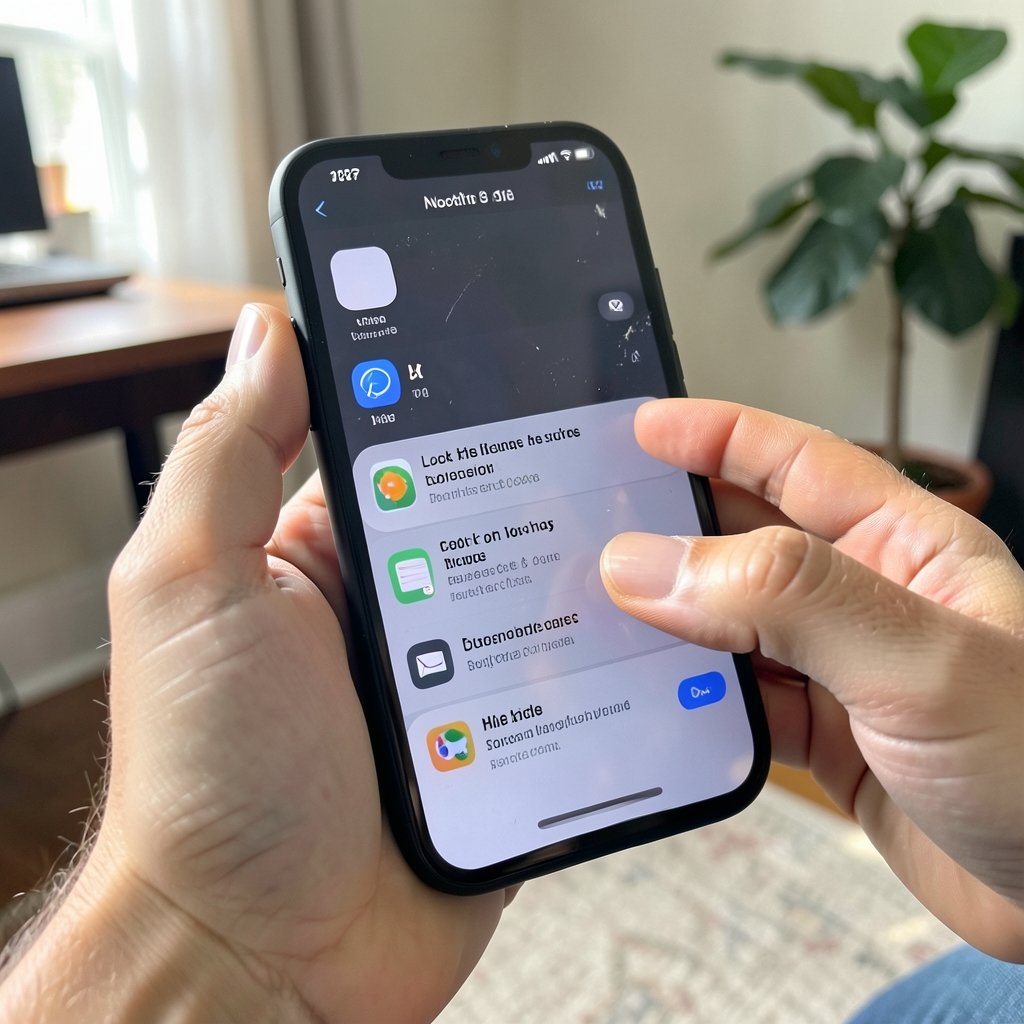
The built-in feature is the cleanest option, and it takes under a minute per app. Apple’s own support documentation describes the process, and the steps below match what you will see on a device running iOS 18 or later.
- Touch and hold the app icon on your Home Screen until the quick actions menu appears.
- Tap Require Face ID (or Require Touch ID on older hardware). If you have not set up a passcode or biometric unlock, this option will not appear.
- Choose Hide and Require Face ID if you want the app fully concealed, or just Require Face ID if you only want a lock without hiding.
- Confirm with Face ID when prompted.
Once hidden, the app moves into a Hidden folder inside the App Library, which sits at the bottom of the App Library screen. That folder is itself locked. Opening it requires biometric authentication, and so does launching any app inside it.
A few practical details matter here. Hidden apps do not show up in Spotlight search, do not appear in notifications on the Lock Screen by default, and do not surface in Siri suggestions. That is a meaningful privacy upgrade over the old remove-from-Home-Screen trick.
What Hiding Does Not Cover
Here is where expectations need managing. Apple’s documentation notes that hidden apps can still leave traces in some parts of the system, depending on the iOS version. Battery usage screens, notification settings, and certain system menus may still list the app by name. So if the goal is to keep an app invisible from a determined person who has unlocked your phone and knows where to look, the native feature is a strong barrier but not an absolute one.
Also worth noting: the feature requires a passcode to be set. On a device with no passcode, the option simply is not offered. That is by design, since the entire security model rests on biometric or passcode authentication.
The Screen Time Method for Older iPhones
If the phone runs iOS 17 or earlier, or if the goal is to block rather than conceal, Screen Time is the tool. It has existed for years and remains the legitimate mechanism for parental controls and managed devices.
The path runs through Settings > Screen Time > Content & Privacy Restrictions. After enabling restrictions and setting a Screen Time passcode, you can toggle off specific built-in apps under Allowed Apps, or block entire categories under Content & Privacy. Apps you disable disappear from the Home Screen and from search.
The catch is that this is a blunt instrument. It blocks rather than hides, it requires a separate passcode that is easy to forget, and re-enabling an app means walking back through the same menus. For parents, that is exactly the point. For an adult wanting a discreet banking app, it is overkill.
| Method | Hides icon | Hides from search | Requires passcode | Best for |
|---|---|---|---|---|
| iOS 18 Hide and Require Face ID | Yes | Yes | Yes (Face ID) | Personal privacy |
| iOS 18 Require Face ID only | No | No | Yes (Face ID) | Locking without hiding |
| Remove from Home Screen | Yes | No | No | Decluttering only |
| Screen Time restrictions | Yes | Yes | Yes (Screen Time passcode) | Parental controls |
Common Mistakes People Make
A handful of errors show up again and again when people try to hide apps. Avoiding them saves time and frustration.
Mistake one: confusing “Remove App” with hiding. Tapping Remove App and choosing “Remove from Home Screen” does nothing for privacy. The app stays fully visible in the App Library and appears the moment someone swipes down and types its name. This is the single most common misunderstanding, and it is especially risky for anyone treating it as a privacy measure.
Mistake two: expecting third-party hider apps to work. Apps that promise to hide other apps cannot deliver on that promise on a non-jailbroken iPhone, because iOS sandboxing prevents one app from controlling another’s visibility. At best they add a password gate in front of a shortcut; at worst they harvest data. Apple’s platform security model is built specifically to prevent this kind of cross-app control, which is why the native feature was necessary in the first place.
Mistake three: forgetting that hidden apps still update and consume storage. Hiding is not offloading or deleting. The app remains installed, keeps receiving updates, and continues using space. If the goal is to free up storage, hiding does nothing.
Mistake four: hiding an app and then wondering why notifications stopped. Because hidden apps are locked, their notifications behave differently. Anyone relying on an app for alerts should test the behavior before committing.
Mistake five: assuming hidden means gone from a shared Apple Account. Hiding is per-device. If the same Apple Account is signed in elsewhere, or if Family Sharing is active, purchase history and some account-level records can still reflect the app. Hiding is a local privacy feature, not an account-level eraser.
Practical Tips That Actually Work
Beyond the basics, a few habits make the feature more useful in daily life.
Hide in batches, not one at a time. If several apps need concealing, do them in one sitting. The Hidden folder becomes your single locked destination, which is easier to manage than scattered locks.
Audit the Hidden folder periodically. It is easy to forget what is in there. A quick monthly check keeps the folder meaningful and prevents surprise storage bloat.
Use lock-only for sensitive-but-frequent apps. Banking and password manager apps benefit from Require Face ID without hiding, since you still want fast access. Reserve full hiding for apps you rarely open.
Test search behavior after hiding. Swipe down, type the app’s name, and confirm it does not appear. This takes five seconds and verifies the feature worked as expected.
Keep the passcode strong. The entire hiding mechanism collapses if the device passcode is a four-digit guess. A six-digit or alphanumeric passcode is the real foundation here.
For readers comparing device options before setting all this up, it helps to know which models support the latest iOS features; a rundown of the best iPhone to buy can clarify compatibility, and checking the iPhone Philippines price list helps with budgeting if an upgrade is on the table. Anyone weighing the newest hardware can also see how much does the iPhone 17 cost before deciding whether the upgrade is worth it for privacy features alone. (iPhone User Guide)
Hiding Apps Versus Locking the Whole Phone
It is worth stepping back for a moment. Hiding individual apps solves a narrow problem: keeping specific content away from specific eyes. But the broader security question is whether the phone itself is locked down.
A strong passcode, Face ID enabled, Find My turned on, and Stolen Device Protection activated do more for overall privacy than hiding a dozen apps ever could. Hiding is a supplement, not a substitute. Someone who has your unlocked phone and your passcode can eventually find almost anything; the goal is to raise the effort required, not to build an impenetrable vault.
Apple’s approach reflects this philosophy. The company’s platform security documentation frames app locking as one layer in a stack that includes hardware encryption, Secure Enclave key management, and passcode-derived keys. Hiding an app is meaningful precisely because it sits on top of that foundation.
When Hiding Is the Wrong Tool
There are situations where hiding an app is the wrong solution entirely, and recognizing them saves trouble.
If the concern is a child accessing inappropriate content, Screen Time restrictions are the correct tool, not hiding. Restrictions are designed for exactly that scenario and include reporting and time limits that hiding lacks.
If the concern is a shared work device or a managed fleet, a mobile device management profile is the right mechanism. MDM can enforce app restrictions centrally, which no amount of manual hiding can match.
If the concern is someone accessing your accounts, the answer is stronger authentication and password hygiene, not concealment. Hiding a banking app does not stop someone who already knows your login credentials.
And if the concern is simply a cluttered Home Screen, the App Library already solves that. Removing apps from the Home Screen is free, instant, and reversible, with no passcode friction.
A Note on iOS Versions and Wording
Menu wording shifts between iOS releases, and that trips people up when following older guides. The “Require Face ID” label, for instance, replaced earlier phrasing, and the exact placement of the Hide option has moved slightly across point releases. If the steps above do not match what is on screen, checking the current iOS version under Settings > General > About is the fastest way to orient yourself. Apple’s support pages are updated alongside each release, so they remain the most reliable reference for exact menu paths.
One more version note: devices that cannot run iOS 18 will never see the Hide option, no matter how many times they restart. The Screen Time method remains the fallback for those devices.
Conclusion
Hiding apps on iPhone went from a workaround-heavy chore to a genuinely simple feature once iOS 18 arrived. The native Hide and Require Face ID option does what years of third-party apps could not: it conceals an app from the Home Screen, the App Library, and search, and it locks access behind biometric authentication. For older devices or stricter blocking needs, Screen Time remains a capable, if clunkier, alternative.
The key is matching the method to the goal. Decluttering needs nothing more than removing icons. Personal privacy needs the iOS 18 feature. Parental control needs Screen Time. And genuine security needs a strong passcode underneath all of it. Get that hierarchy right, and the feature works exactly as advertised. Get it wrong, and you will join the ranks of people who “hid” an app only to find it sitting in search results weeks later.
Frequently Asked Questions
Does hiding an app delete it from my iPhone?
No. Hiding keeps the app fully installed and updating. It only removes the app from view and locks access behind Face ID, Touch ID, or your passcode. Storage usage is unchanged, and you can unhide the app at any time by opening the Hidden folder in the App Library.
Can someone find a hidden app without my Face ID?
Not through normal means on iOS 18. Hidden apps do not appear in Home Screen pages, the App Library grid, or Spotlight search. The Hidden folder itself requires biometric or passcode authentication to open. That said, some system menus such as battery usage may still reference the app by name, so hiding is a strong barrier rather than an absolute eraser.
Why is the “Require Face ID” option missing when I long-press an app?
The option only appears if your iPhone has a passcode set and is running iOS 18 or later. If either condition is unmet, the menu will not offer it. Check your iOS version under Settings > General > About, and confirm a passcode is enabled under Settings > Face ID & Passcode.
Can I hide built-in apps like Safari or Mail?
Yes, but the mechanism differs. The iOS 18 Hide feature works on apps generally, while Screen Time’s Allowed Apps list lets you disable built-in apps entirely so they vanish from the Home Screen and search. For built-in apps you want blocked rather than concealed, Screen Time is the more reliable route.
Do third-party app hider apps work on iPhone?
Largely no. iOS sandboxing prevents one app from controlling another app’s visibility, so third-party hiders cannot genuinely conceal anything on a non-jailbroken device. Most only add a password gate in front of a shortcut, and some carry privacy risks. The native iOS 18 feature is the only reliable method.
Is hiding an app the same as locking it?
No, and the distinction matters. Locking an app with Require Face ID keeps the icon visible but demands authentication to open it. Hiding removes the icon from view entirely and also requires authentication. Locking suits apps you use often, while hiding suits apps you want out of sight.



