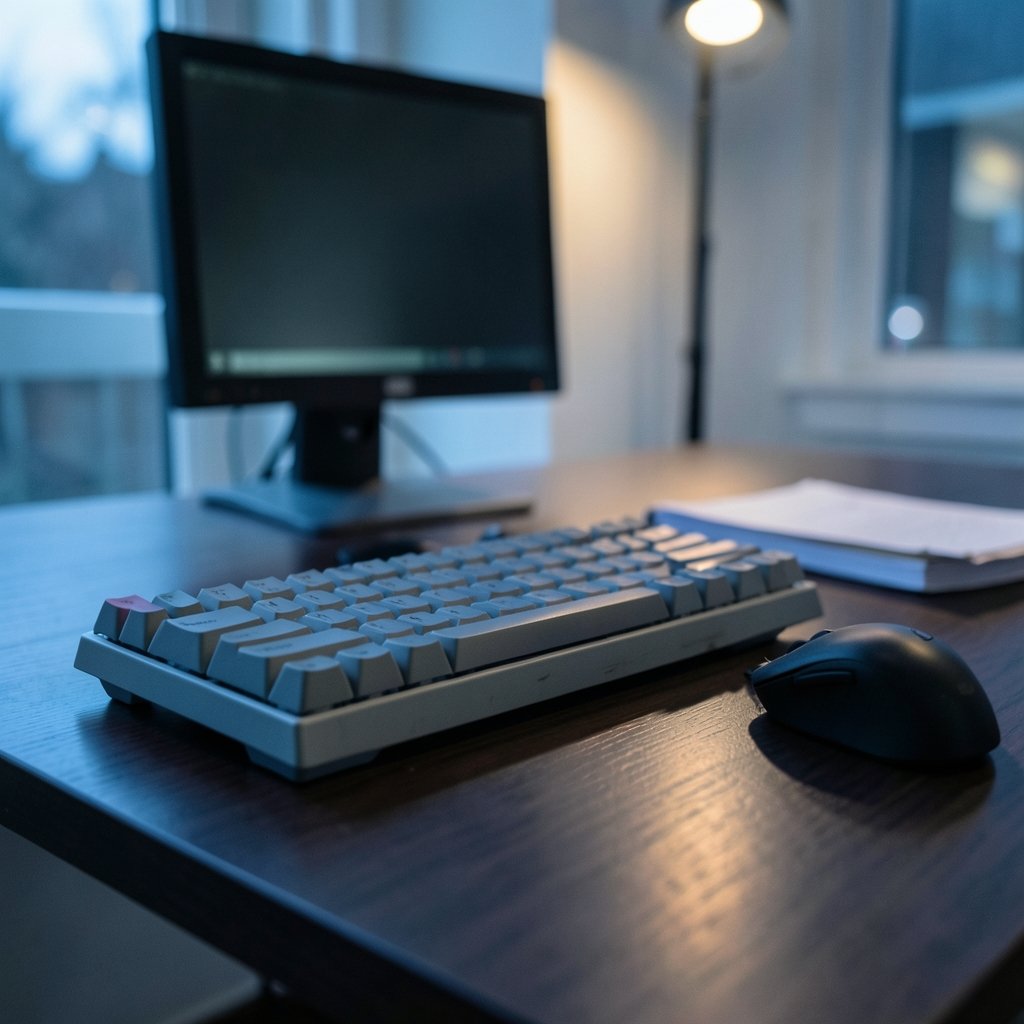
The average office worker types thousands of words a day, yet most people use whatever keyboard came in the box. That is a bit like running a marathon in dress shoes. The keyboard is the single tool you touch more than any other during the workday, and small differences in switch feel, layout, and wrist angle add up over millions of keystrokes.
This guide walks through the factors that genuinely change the typing experience, the trade-offs between popular keyboard styles, and the mistakes that trip up first-time buyers. It is not a ranking of one perfect model, because no such thing exists. The right board depends on your hands, your desk, and how you work.
Why Switch Type Is the First Decision
Every mechanical keyboard is built around switches, and switches come in three broad families. Linear switches move smoothly from top to bottom with no bump. Tactile switches give a noticeable bump partway down, which many typists describe as confirmation that the key registered. Clicky switches add an audible click on top of the tactile bump.
For typing specifically, tactile and linear switches dominate. Clicky switches feel satisfying in isolation but become a social problem in shared offices and a distraction in quiet homes. If you have ever sat near someone with a loud board, you already understand the trade-off.
Switch weight matters as much as switch type. Lighter springs (around 45 cN) suit fast, light-handed typists. Heavier springs (55–60 cN) reduce accidental keypresses for people with heavy hands. Standard mechanical switches typically actuate around 2 mm of travel, while low-profile switches shorten that distance. Buyers should check the manufacturer’s own spec sheet rather than trusting marketing copy, since actuation force and travel vary widely between brands.
The Common Mistake
New buyers often chase the loudest, most tactile switch they can find, then discover after a week that their fingers ache. Start lighter than you think you need. You can always move to a heavier switch later, but a board that fatigues your hands will sit in a drawer.
Layout: The Quiet Factor Nobody Talks About
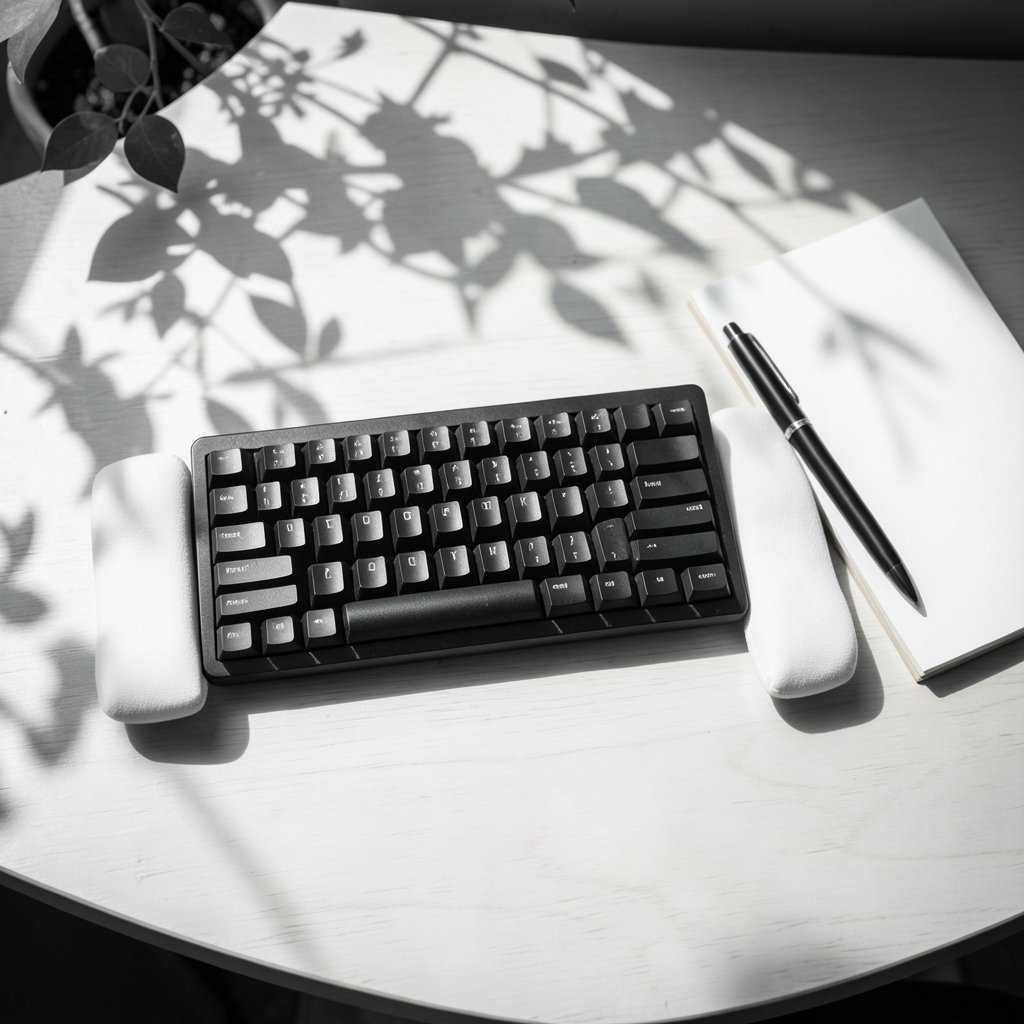
Layout affects typing comfort more than most people expect, and it has nothing to do with switch feel. The main options:
| Layout | What You Get | Best For |
|---|---|---|
| Full-size | Numpad, function row, arrow cluster | Spreadsheet and data work |
| TKL (tenkeyless) | No numpad, keeps arrows and function row | Most typists |
| 75% | Compact function row, arrows retained | Small desks, travel |
| 65% | No function row, arrows retained | Minimalist setups |
| Split ergonomic | Two halves, adjustable angle | Wrist strain, long sessions |
A full-size board pushes the mouse further to the right, which increases shoulder reach. A TKL or 75% board brings the mouse closer and often reduces strain without sacrificing much. Typists who live in spreadsheets should think twice before dropping the numpad, though.
Split keyboards separate the two halves and let each hand sit in a straighter line. That design reduces wrist extension and ulnar deviation, the awkward angles that contribute to repetitive strain. Government ergonomics guidance on computer workstations consistently emphasizes neutral wrist posture and proper keyboard placement, which is the principle split boards are built around. Anyone who types for six or more hours a day should at least try one before dismissing the category. (Computer keyboard)
Ergonomics: Where Most Typing Pain Comes From
Wrist position, desk height, and keyboard tilt matter more than the board itself. A keyboard that sits flat with the wrists hovering in a neutral line beats an expensive board angled upward on rear feet. Many typists flip the rear feet up because it looks sporty, then wonder why their forearms ache by Thursday.
Practical adjustments that cost nothing:
- Keep the keyboard flat or with a slight negative tilt so the wrists stay neutral.
- Position the board so the elbows sit near 90 degrees and the shoulders stay relaxed.
- Keep the mouse close to the keyboard to avoid repeated reaching.
- Take short breaks every 30–45 minutes rather than one long break at lunch.
- Learn the shortcuts for your operating system so your hands leave the keyboard less often. A working knowledge of Windows keyboard shortcuts everyone should know cuts a surprising amount of mouse travel.
Ergonomics agencies and occupational health bodies publish guidance on repetitive strain and musculoskeletal disorders related to keyboard use. The consistent message is that posture and break frequency matter as much as hardware. A premium keyboard will not fix a desk that is the wrong height.
Wired vs. Wireless: A Practical Trade-Off
Wireless keyboards clean up a desk and make switching between devices easy. The cost is latency, battery management, and occasionally a dropped keystroke at the worst moment. For pure typing, modern wireless connections are fast enough that most people will not notice a difference.
Wired boards win on reliability and price. They also never need charging, which matters if you type in long sessions. A reasonable compromise is a board that supports both, so you can run wired at the desk and wireless when traveling.
One underrated factor is keycap quality. Cheap ABS keycaps develop a shine within months and feel slippery. PBT keycaps resist shine and keep a textured feel far longer. If two boards are otherwise similar, pick the one with better keycaps.
What About Membrane and Scissor Keyboards?
Not everyone wants a mechanical board. Membrane keyboards are quieter and cheaper, and many people type happily on them for years. Scissor switches, found in most laptops, offer short travel and a low profile that some typists prefer for speed.
The honest answer is that switch technology matters less than fit. A quiet membrane board with good key spacing and a comfortable wrist angle can outperform a badly chosen mechanical board. Typists who share space, travel often, or work in calls may find a low-profile scissor board the better daily driver. The mechanical advantage is real but not universal.
Matching the Keyboard to the Way You Actually Work
The best board for a novelist differs from the best board for a data analyst. A few profiles:
- Long-form writers benefit from a tactile switch, a TKL or 75% layout, and PBT keycaps. Comfort over hours beats novelty.
- Coders often prefer a compact layout with easy access to brackets and modifiers, and many swear by programmable layers.
- Data workers should keep the numpad unless they have trained on a separate one.
- Travelers need a low-profile or compact board that survives a bag.
- Shared-office workers should avoid clicky switches entirely.
Families setting up a home workspace often end up buying one keyboard for everyone, which rarely works. It is a bit like choosing one board game for the whole household. The better approach is to match the tool to the person, the same way you would when picking from a shelf of best board games for families rather than grabbing the first box.
Budget Realities
Mechanical keyboards range from budget-friendly entry models to premium boards that cost as much as a monitor. The good news is that the sweet spot sits in the middle. Above a certain price, you are paying for materials, customization, and aesthetics rather than typing performance.
Spending priorities, in order:
- Correct switch type and weight for your hands.
- A layout that fits your desk and tasks.
- Solid keycaps (PBT over ABS).
- Build quality and stabilizers, which affect larger keys like space and shift.
- Extras like RGB lighting and hot-swap sockets.
Hot-swap sockets deserve a mention because they let you change switches without soldering. For a first mechanical board, that flexibility is worth more than a fancy case.
Testing Before You Commit
The single best move is to try before buying. Many stores display mechanical boards, and switch tester kits cost little. Type a full paragraph, not three words. Pay attention to whether your fingers bottom out hard, whether the space bar rattles, and whether the board slides on the desk.
Online reviews help, but they tend to reflect the reviewer’s hands, desk, and preferences. A board praised as “perfect for typing” may feel heavy to someone with smaller hands. Treat reviews as a shortlist, not a verdict.
If a full mechanical setup feels like too much, a quality membrane or scissor board is a perfectly respectable choice. The goal is comfortable, accurate typing, not joining a hobby.
Conclusion
There is no universal best keyboard for typing, and anyone who claims otherwise is selling something. The right board comes down to three things: a switch that suits your hand strength, a layout that fits your desk and tasks, and a wrist position you can hold comfortably for hours. Get those right and even a mid-priced keyboard will outperform a premium board chosen on hype.
Start with switch feel, narrow the layout, then spend on keycaps and build quality. Try before you buy when you can, and do not overlook posture and breaks. The keyboard is a tool, and the best tool is the one your hands forget about while you work.
Frequently Asked Questions
Are mechanical keyboards actually better for typing?
They are better for many typists, not all. Mechanical switches offer consistent feel, replaceable parts, and a choice of actuation force that membrane boards rarely match. But a comfortable membrane or scissor keyboard can serve a typist perfectly well, especially in shared or quiet spaces. The benefit comes from matching the switch to your hands, not from the category itself.
Which switch type is best for fast typing?
Linear and light tactile switches are the most common picks for speed. Linear switches remove the bump so keystrokes flow, while light tactile switches give feedback without extra resistance. Heavier or clicky switches slow some typists down and fatigue others. The honest answer is that personal hand strength matters more than any general rule.
Is a split keyboard worth it for wrist pain?
It can be, particularly for people who type for many hours a day. Split boards let each hand sit in a straighter line, reducing wrist extension and ulnar deviation. That said, hardware alone rarely solves pain. Desk height, keyboard tilt, break frequency, and overall posture all play a role, and persistent pain deserves professional advice.
Do I need a numpad for typing?
Only if your work involves frequent number entry. Writers, coders, and general office users usually gain more from a compact layout that brings the mouse closer. Spreadsheet and accounting work is a different story, and dropping the numpad there often costs more time than it saves in desk space.
How much should I spend on a typing keyboard?
Most typists find good value in the mid-range, where switches, keycaps, and stabilizers are solid without premium pricing. Spending more mainly buys materials, customization, and aesthetics. Prioritize switch fit and layout first, then upgrade keycaps and build quality if the budget allows.
Can a keyboard really improve my typing speed?
Only indirectly. A keyboard that fits your hands reduces fatigue and mistyped keys, which can help accuracy and sustained speed. It will not replace practice. Typing speed comes mostly from familiarity and technique, and a comfortable board simply removes friction that gets in the way.
A final word on maintenance: dust and crumbs are the quiet killers of keyboard feel. Turn the board upside down and shake it out monthly, and use a soft brush or compressed air between the keys. Sticky stabilizers on a space bar usually mean a little debris or worn lubricant, not a failed board. Keycaps on most mechanical models pull off easily and can be washed in warm soapy water. A few minutes of care every few months keeps switches crisp and extends the life of the board well beyond its warranty.