
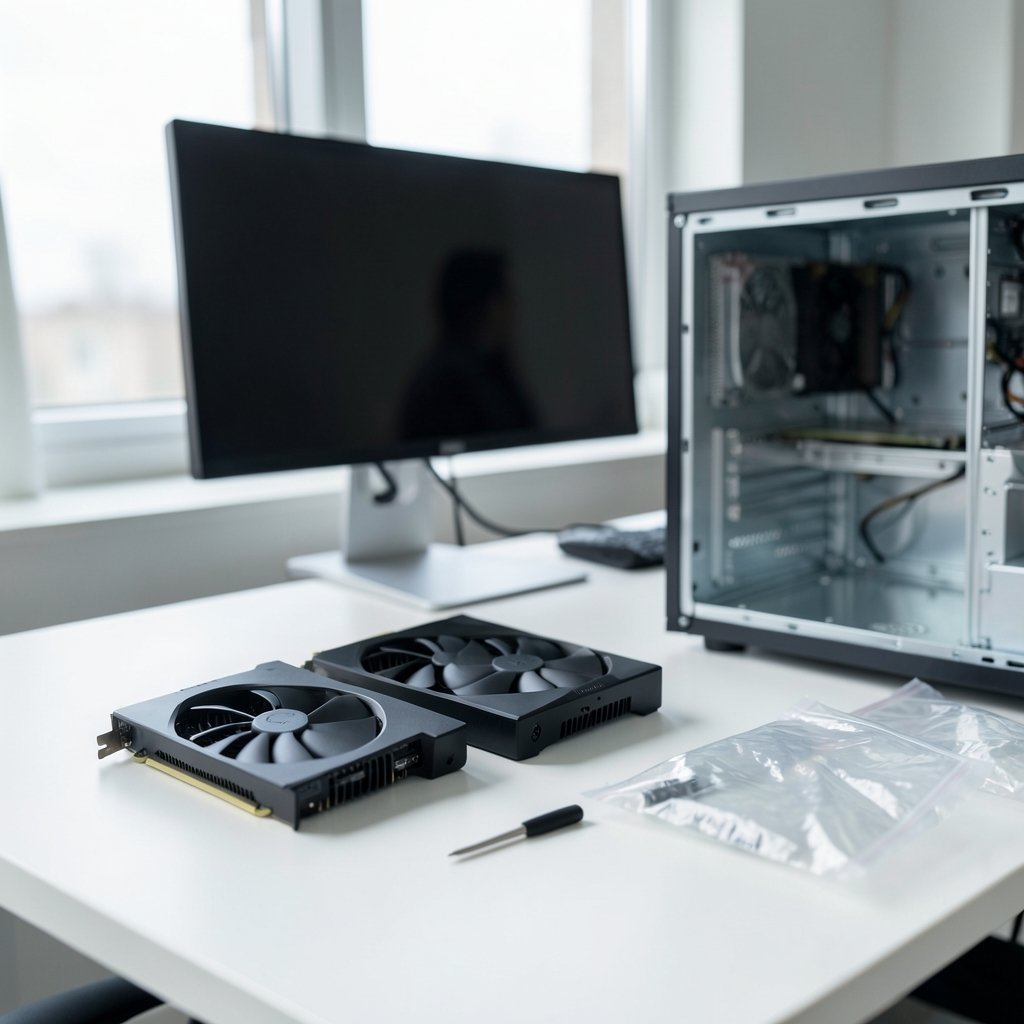
The graphics card is often the single most expensive part of a custom PC build, and it is the component that most directly decides whether games look sharp or stutter. Yet shoppers routinely buy the wrong one. Some overspend on a card their monitor can’t even display properly. Others save a few dollars on a model with too little memory and watch textures load in like a slideshow two years later.
The good news is that picking a GPU is not mysterious once you break it into a handful of decisions: resolution, memory, power, physical space, and the features you actually use. This guide walks through each one in plain language, flags the mistakes that catch people out, and ends with answers to the questions buyers ask most.
Start With Your Monitor, Not the Card
Here is the fact that reframes the whole shopping trip: your graphics card only ever draws frames your monitor can show. A $900 GPU paired with a 60 Hz 1080p screen is like buying a sports car to drive in a school zone. Before browsing a single product page, note two numbers on your display: its resolution and its refresh rate.
Resolution sets how many pixels the card must fill. Refresh rate sets how fast it must fill them. Together they define a rough performance target:
| Target setup | What the card must do | Memory to look for |
|---|---|---|
| 1080p, 60–144 Hz | Steady high frame rates at modest detail | 8 GB is workable, 12 GB is safer |
| 1440p, 144 Hz | High frame rates at high detail | 12–16 GB recommended |
| 4K, 120 Hz+ | Very high frame rates at maximum detail | 16 GB or more |
These are general guidelines, not laws. Demanding modern titles at 1440p can already strain an 8 GB card, so if you plan to keep the GPU for four or five years, buy one tier above what today’s games demand. Also check which adaptive sync technology your monitor supports. G-Sync and FreeSync reduce screen tearing, and matching the card’s brand to the monitor’s sync type avoids surprises. If you are also refreshing other parts of the machine, a separate walkthrough can cover the physical swap in detail.
Memory Capacity: The Spec People Regret Ignoring
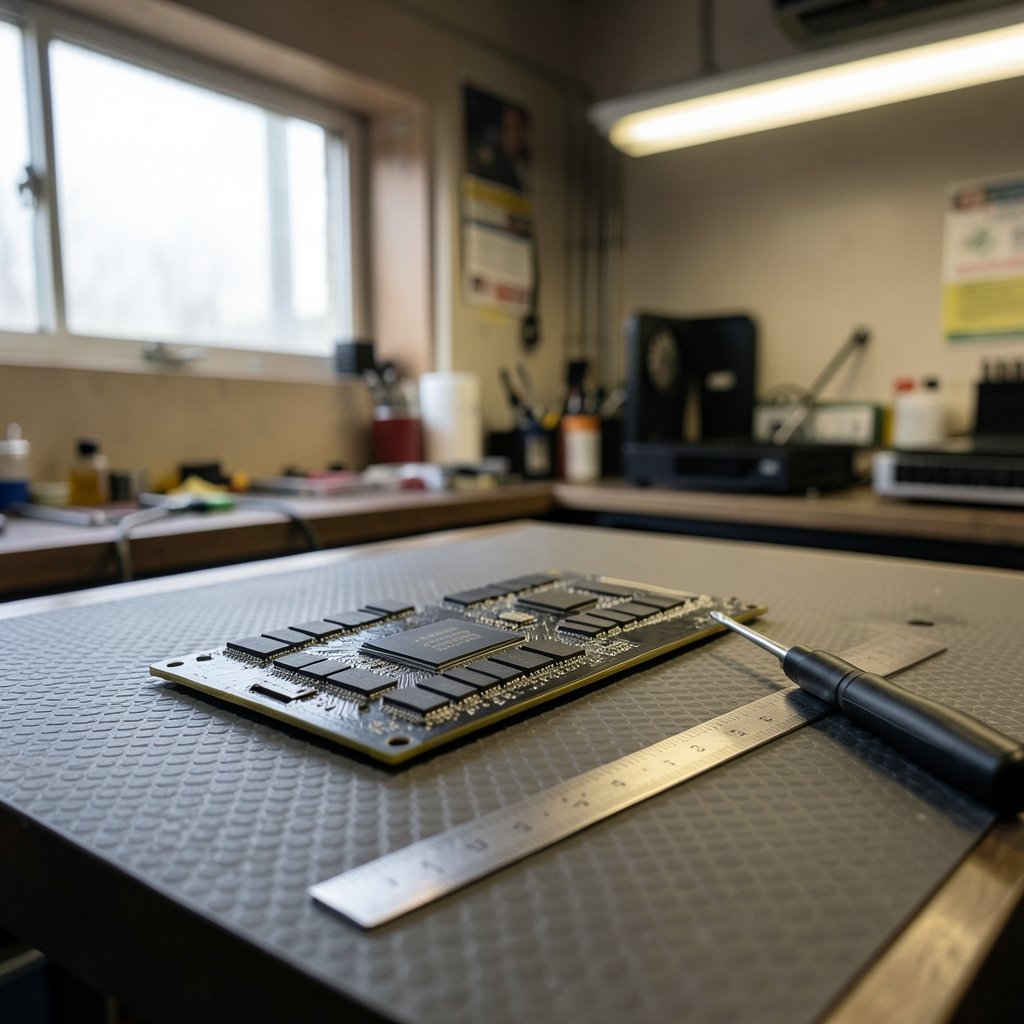
VRAM is the card’s own pool of fast memory, and it holds textures, frame buffers, and geometry data. When a game needs more than the card has, performance doesn’t degrade gracefully. It falls off a cliff, with stutter, blurry textures, and frame times that spike unpredictably.
The practical takeaway: memory capacity is a longevity spec. A card with a strong processor but skimpy VRAM can feel fine on day one and painful in two years. When comparing two cards at similar prices, the one with more memory is often the better long-term buy, provided the rest of the specs are close.
One caution: capacity alone doesn’t tell the whole story. Memory type and bus width affect how fast that pool can be filled. A large pool of slow memory is not automatically better than a smaller, faster pool. Read independent benchmarks rather than trusting the number on the box.
Match the Power Supply Before You Fall in Love
Every GPU has a thermal design power rating, and vendors publish a recommended power supply wattage for each model. Ignore it at your peril. Modern cards can draw brief spikes well above their rated figure, and an aging or undersized PSU will either shut the system down mid-game or, worse, run hot and loud for years.
Three checks worth doing before checkout:
- Wattage headroom. Add up the entire system, including the card, and leave a comfortable margin above the recommended figure.
- Connector count and type. Count the PCIe power cables your PSU provides and confirm they match what the card needs. Newer high-end cards use the 12VHPWR connector, which had well-documented melting reports after its 2022 debut; a revised specification, 12V-2×6, followed. If you are buying a card with this connector, use the adapter or cable supplied with it and seat it fully.
- PSU age and quality. A ten-year-old unit rated at the right wattage may not deliver clean power under modern loads. If in doubt, budget for a replacement.
Measure Your Case and Your Slot
This is the mistake that produces the saddest unboxing photos: a card that physically will not fit. High-end models can run well past 30 cm long and occupy three or more expansion slots. Before ordering, grab a tape measure and check:
- Length from the rear bracket to the first obstruction (drive cages, front fans).
- Thickness in slots, especially if you have other expansion cards installed.
- Height clearance to the side panel, since some cards are taller than the standard bracket.
- Airflow, because a card jammed against a solid panel will run hot and throttle.
Also confirm your motherboard’s PCIe version. A PCIe 4.0 or 5.0 card will work in an older slot at reduced bandwidth, and for gaming the performance loss is usually small. It is worth knowing, though, so you aren’t puzzled by a benchmark gap.
Read Benchmarks the Way Reviewers Do
Spec sheets sell cards; benchmarks tell the truth. When comparing reviews, keep a few habits in mind.
First, look for numbers at your resolution. A card that leads at 1080p may trail at 4K, because the workload shifts toward memory bandwidth.
Second, separate raw performance from upscaling and frame generation. Technologies like DLSS, FSR, and XeSS render at a lower internal resolution and reconstruct the image, sometimes adding interpolated frames. They can transform playability, but they are not free performance. Compare benchmarks both with and without these features enabled so you know the card’s honest baseline.
Third, check frame-time consistency alongside average frame rate. A card that averages 90 fps but stutters to 40 feels worse than one that holds a steady 75. Reviewers who chart 1% low frame rates are giving you the more useful number.
Finally, weight the games you actually play. A card that shines in one engine may be mid-pack in another. If a specific title matters to you, find a benchmark of that title.
Features, Drivers, and the Software Side
Hardware is only half the purchase. The other half is the software ecosystem you join.
Driver quality varies by vendor and by generation, and so does the length of support. Before buying an older or discounted card, check when its architecture stops receiving driver updates. A bargain that loses security patches and game optimizations in eighteen months is not a bargain. This is the same logic that applies when choosing antivirus software: support lifespan matters as much as the sticker price. (How to choose the best antivirus for your computer)
Feature sets also differ. Some cards offer better ray-tracing hardware, others better upscaling quality, others stronger video encoding for streaming. Make a short list of what you genuinely use, then let that list break ties between closely matched cards. (NVIDIA GeForce Graphics Cards)
New, Used, or Waiting?
Three buying paths, three sets of trade-offs.
New gets you a warranty, current drivers, and the latest features. It costs the most.
Used can deliver strong value, especially for previous-generation cards. Verify the card’s history if possible, test it under load before paying, and confirm it wasn’t used for sustained mining, which wears fans and thermal paste. Meet in person, run a stress test, and check temperatures.
Waiting is a strategy, not a plan. There is always a newer card coming. If today’s hardware meets your needs at a price you accept, buy it. If you are two months from a major release and can wait, waiting is reasonable. Perpetual waiting is just indecision with better branding.
Whatever path you take, keep your broader security and account hygiene in mind too. A new GPU often means new game store accounts and launcher logins, so it is a fine moment to review how you manage passwords securely and lock down those accounts.
Common Mistakes That Cost Real Money
Experienced builders see the same errors again and again. Watch for these:
- Buying for the box, not the screen. A monster card on a 60 Hz panel wastes money.
- Skipping the PSU check. The most common cause of a “dead” new build is an inadequate or misconnected power supply.
- Ignoring physical clearance. Measure first, order second.
- Chasing average frame rates only. Frame-time consistency is what you feel.
- Assuming more memory is always better. Speed and bus width matter too.
- Forgetting the used market exists. A careful used purchase can fund a tier upgrade.
- Neglecting case airflow. Two intake fans and a clear path beat a premium card in a sealed box.
Budgeting the Whole Upgrade
A GPU rarely travels alone. Factor in a possible PSU replacement, extra case fans, and maybe a monitor upgrade if your display is the real bottleneck. Set a total budget, allocate most of it to the card, and keep a reserve for the supporting parts. Spending the entire budget on the GPU and then discovering you need a new power supply is a classic rookie move. (Gpu upgrade install graphics card guide 2026) (Graphics processing unit)
If the machine is shared with family and doubles as an entertainment hub, a few inexpensive extras go a long way. A deck of cards and a good zap card game make a fine companion for game night when the PC is busy rendering, and browsing best card games is a cheap way to round out the evening. It sounds trivial, but a balanced setup serves the whole household, including the person playing at 1440p.
Conclusion
Choosing a graphics card comes down to five questions asked in the right order: What can my monitor show? How much memory will my resolution and settings need for the next few years? Can my power supply feed it? Will it physically fit and stay cool? And do its features and driver support match how I actually use the machine? Answer those honestly, lean on independent benchmarks rather than marketing copy, and the shortlist usually narrows itself to two or three sensible options. Buy one tier above today’s minimum if you plan to keep the card, measure before you order, and don’t let a sale price talk you out of the specs you need.
Frequently Asked Questions
How much VRAM do I need for 1440p gaming?
For 1440p at high settings, 12 GB is a sensible floor and 16 GB gives comfortable headroom for future titles. Cards with 8 GB can still play at 1440p, but demanding games may force lower texture settings or show stutter as memory fills up. (How to choose a secure password manager)
Can I use a new graphics card with an older motherboard?
Yes, in most cases. A modern PCIe 4.0 or 5.0 card will run in an older PCIe slot at reduced bandwidth, and for gaming the performance difference is usually small. Check that your motherboard’s slot is a full-length x16 slot and that your BIOS supports the card.
Do I need to upgrade my power supply when I buy a GPU?
Often, yes. Compare the card’s recommended PSU wattage against your unit’s rating and age. If you are close to the limit, or your PSU lacks the required PCIe power connectors, replace it. An undersized supply causes shutdowns and instability under load.
Is it worth buying a used graphics card?
It can be excellent value if you buy carefully. Test the card under load before paying, check temperatures and fan noise, and ask about its history. Cards used for continuous mining may have worn fans and dried thermal paste, so inspect them closely.
What is the difference between DLSS, FSR, and XeSS?
All three are upscaling technologies that render a game at lower internal resolution and reconstruct a sharper image, improving frame rates. DLSS is Nvidia’s, FSR is AMD’s, and XeSS is Intel’s. Quality and game support vary, so compare benchmarks with these features both on and off.
Should I wait for the next generation of graphics cards?
Only if a release is imminent and you can comfortably wait. There is always a newer card coming, and waiting indefinitely means never buying. If current hardware meets your needs at a price you accept, purchasing now is a reasonable decision.



