
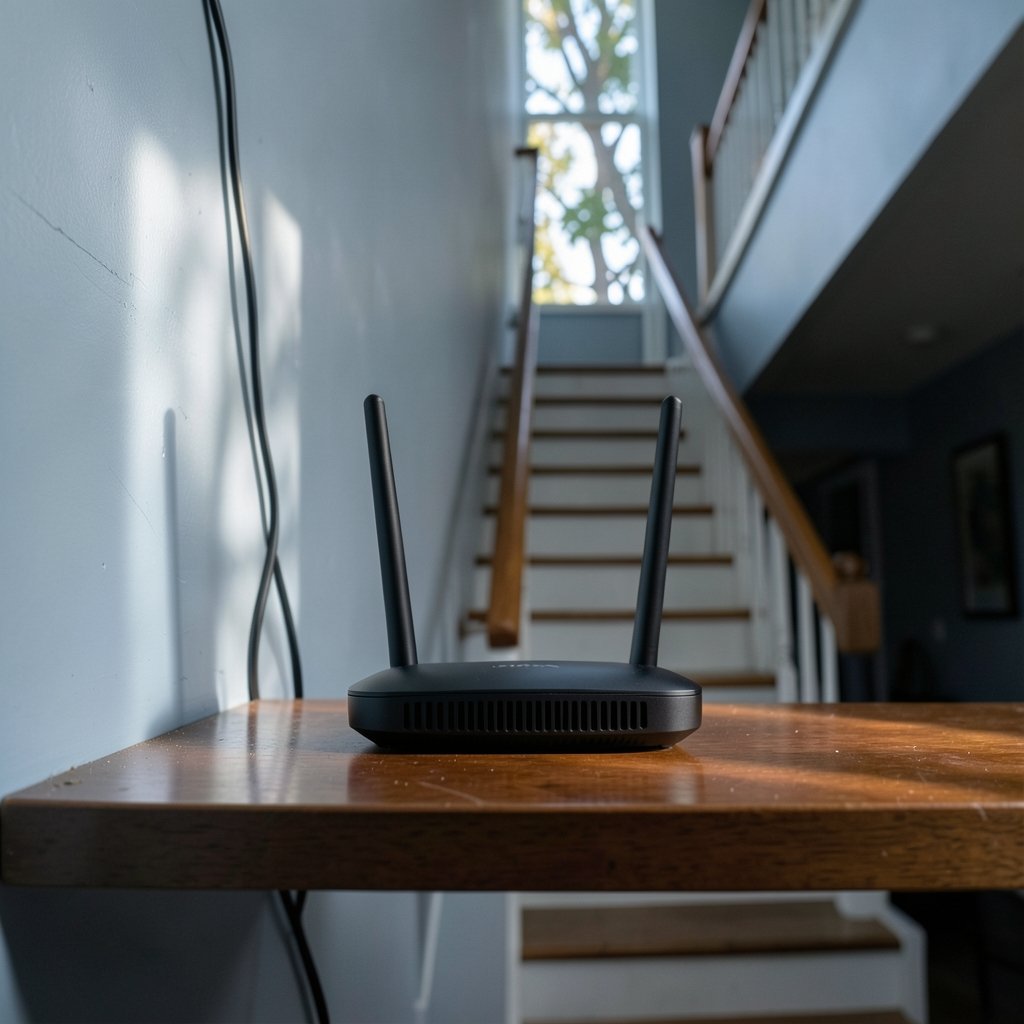
Roughly half of all homes report at least one room where the Wi-Fi signal drops out, and in multi-story houses that room is almost always upstairs. The frustrating part is that the fix is rarely a bigger router. Wi-Fi is a two-way conversation: your laptop has to shout back at the router just as loudly as the router shouts at it. A weak transmitter inside a phone or a smart TV can hear a strong signal and still fail to reply, which is why the signal bars look great while the video call freezes.
This guide walks through what genuinely moves the needle, from free placement tweaks to hardware upgrades, and flags the popular “fixes” that quietly waste money. If you have been searching for a way to get reliable coverage on the second floor, the answer usually comes down to physics, not marketing.
Why the upstairs signal is weak in the first place
Before buying anything, it helps to understand what is standing between your router and your bedroom. Radio waves at Wi-Fi frequencies do not pass through building materials so much as they get absorbed, reflected, and scattered by them.
Concrete floors, brick walls, metal lath behind plaster, foil-backed insulation, and even the wire mesh in underfloor heating all chew through signal. Water is another culprit: a full fish tank or a bathroom wall can block more than you would expect. And because most routers sit low, in a corner, or inside a cabinet near the front of the house, the signal has to travel diagonally through the worst part of the structure to reach the far upstairs corner.
There is also the two-way problem mentioned earlier. A mesh node or repeater can broadcast a loud signal upstairs, but if your device’s radio is weak, the return path still fails. That is why “signal strength” apps on your phone can be misleading: they measure what your phone hears, not what the router hears from your phone.
Start with free fixes: placement and settings

Before spending a dollar, spend twenty minutes on placement. It is the highest-return, lowest-effort step, and plenty of households solve the problem entirely here.
- Move the router central and high. Aim for a central spot on the ground floor, ideally elevated (a shelf, not the floor) and out of cabinets, closets, and metal enclosures. Central placement shortens the diagonal path to every upstairs room.
- Point antennas sensibly. Most routers use vertical antennas that radiate outward like a doughnut, so a straight-up antenna sends signal sideways, not up. Angling one antenna horizontally can help in a two-story home, and a router with external adjustable antennas gives you more control than an internal-antenna puck.
- Get away from interference. Keep the router clear of microwaves, cordless phone bases, baby monitors, and large metal objects. Neighbors’ networks also crowd the airwaves, especially on the 2.4 GHz band.
- Split or steer your bands. The 2.4 GHz band travels farther and through walls better; 5 GHz is faster but fades faster with distance. If your router lets you separate the two networks, connect upstairs devices to 2.4 GHz and keep 5 GHz for rooms near the router. Modern routers do this automatically through band steering, which is convenient but not always reliable.
- Update firmware and reboot. It sounds trivial, but outdated firmware causes real dropouts, and a scheduled reboot clears memory leaks. Check the router’s admin page or app for updates.
One practical tip from people who do this often: test after every change with a speed test in the exact spot where you care about coverage. Do not test standing next to the router. Walk upstairs, run the test, write down the number, then change one variable. Changing three things at once tells you nothing.
A common mistake is buying a “high-gain” antenna and pointing it at the ceiling. Antennas do not work like flashlights; pointing one up usually makes things worse in the horizontal plane where most devices sit.
Ethernet and MoCA: the boring fix that beats everything
If you can run a cable, stop reading and run a cable. A single Ethernet run from the router to an upstairs access point (a dedicated Wi-Fi device wired to the network) delivers full speed with zero wireless loss. It is the gold standard, and it does not have to mean tearing up drywall: flat cables tuck under baseboards, and outdoor-rated cable can run up an exterior wall.
No Ethernet? MoCA adapters send network traffic over existing coaxial cable, which many homes already have for TV. If you have a coax jack upstairs and one near the router, MoCA can deliver near-Ethernet performance with no new wiring. (Wi-Fi)
Wired backhaul matters because wireless repeaters and even many mesh systems lose roughly half their throughput when they relay traffic wirelessly. A wired access point does not have that penalty. This single distinction explains most of the gap between “my mesh system is disappointing” and “my mesh system is fantastic.”
Mesh systems, repeaters, and powerline: an honest comparison
If wiring is off the table, here is how the wireless options stack up. Prices and performance vary by model, so treat the table as a guide to trade-offs rather than a shopping list.
| Option | How it works | Best for | Main drawback |
|---|---|---|---|
| Wi-Fi extender/repeater | Rebroadcasts the existing signal | One stubborn room on a budget | Halves throughput; can create a second network name |
| Mesh system | Multiple nodes share one network name and hand devices off | Whole-home coverage, easy setup | Wireless backhaul costs speed unless nodes are wired |
| Powerline adapter | Sends data over electrical wiring | Homes with thick walls and no coax | Performance varies wildly by circuit and wiring age |
| Wired access point | Ethernet cable to a second Wi-Fi radio | Best possible performance | Requires a cable run |
| MoCA adapter | Network over coaxial cable | Homes with existing coax jacks | Needs coax in the right rooms |
Mesh is the most popular upgrade for a reason: it is simple, it uses one network name, and devices roam between nodes. The catch is placement. Nodes need to be close enough to talk to each other and far enough apart to be useful, and a node placed in the dead zone itself will relay a weak signal. Put the first node roughly halfway between the router and the problem room.
Powerline adapters are genuinely hit-or-miss. They depend on your home’s electrical circuits, and a circuit breaker panel or a surge protector can kill performance. Buy from a retailer with a generous return policy.
Repeaters are the cheapest option and the most misunderstood. They work for light browsing in one room, but they halve bandwidth and often create a confusing second network name. If you go this route, place the repeater where the signal is still decent (about halfway), not in the dead zone.
Wi-Fi 6, 6E, and 7: does the standard matter upstairs?
Newer standards help, but not always the way people expect. Wi-Fi 6 (802.11ax) improves efficiency when many devices share one network, which matters in busy homes. Wi-Fi 6E and Wi-Fi 7 add access to the 6 GHz band, which is cleaner and less congested because it is newer. The trade-off is range: 6 GHz fades faster through walls than 5 GHz, so a 6E router alone will not magically reach the attic.
If you are shopping for a mesh system or router, look for Wi-Fi 6 or newer, but do not buy a new router expecting it to fix a coverage problem. A newer standard improves speed and efficiency, not wall penetration. The physical layout of your house still wins.
One detail worth knowing: the Wi-Fi Alliance certifies devices for interoperability, and its certification marks (Wi-Fi 6, 6E, 7) are a quick way to confirm a device supports the standard it claims. If you are curious how the industry labels new hardware, a look at filings like the PS Portal 2 Wi-Fi Alliance filing 2026 shows how certification paperwork surfaces before products launch.
Practical tips that save money and frustration
A few habits separate a smooth setup from a constant battle.
- Do not trust “signal booster” apps. Many just show bars. Measure real throughput with a speed test in the room that matters.
- Check your internet plan first. If the upstairs speed matches your plan’s limit, the problem is not coverage; it is the plan.
- Label your networks clearly. If you keep a separate 2.4 GHz network for upstairs devices, name it something obvious. Confusion over which network a device joined causes endless “it works in the kitchen but not the bedroom” complaints.
- Watch for the classic naming trap. People rename their network, forget the change, and then wonder why devices will not connect. If you are picking a new name anyway, it helps to know what makes a best name wifi choice memorable without being cryptic.
- Check who owns your gear. If your router is rented from your provider, you may be paying a monthly fee for hardware you could replace with something better. Knowing who owns boost and similar brand questions can clarify whether an upgrade is really yours to make.
- Consider the whole house rather than only the dead room. A single access point upstairs may solve the bedroom, but a mesh node often covers the hallway, bathroom, and stairs too.
- Revisit your floor plan. If someone in the household uses a stairlift, the rail and its power supply can interfere with signals near the stairs, and the same goes for any large metal installation; understanding platform stair lift for home layouts helps you plan where not to put a node.
When to call a professional
If you have tried placement, a wired or MoCA backhaul, and a modern mesh system, and the upstairs still fails, the problem may be structural. Very old wiring, dense masonry, or a home larger than about 3,000 square feet may need a site survey. A professional can map signal strength room by room and recommend access point locations. For most homes, though, a single wired access point or a well-placed three-node mesh system is enough.
Conclusion
Boosting Wi-Fi upstairs is less about buying power and more about removing obstacles. Start with placement and settings, because they are free. If that is not enough, prioritize a wired or MoCA backhaul, since it beats every wireless shortcut. Choose mesh over repeaters when you need whole-home coverage, and treat powerline adapters as a gamble worth testing with a return window open. Newer standards like Wi-Fi 6 and 7 improve speed and efficiency, but they cannot bend physics. Get the signal path right, and the upstairs bedroom stops being the room where the internet goes to die.
FAQ
Why is my Wi-Fi slow upstairs but fast downstairs?
Distance and building materials weaken the signal, and the effect is worse on 5 GHz than 2.4 GHz. Floors, walls, and metal in the structure absorb and reflect radio waves, so the farther and more obstructed the path, the slower the connection. Moving the router central and elevated is the first fix to try. (ITU Statistics)
Does a Wi-Fi extender actually work?
It works, but with a catch. A repeater rebroadcasts the existing signal and typically halves the throughput, so it is fine for browsing and email but poor for video calls or gaming. Place it halfway between the router and the dead zone, not in the dead zone itself.
Is mesh better than a repeater?
For most homes, yes. Mesh systems share one network name, hand devices off smoothly, and are easier to manage. The best mesh setups use a wired backhaul, which removes the throughput penalty entirely. A single cheap repeater is still a reasonable budget option for one room.
Can I boost Wi-Fi without buying anything?
Often, yes. Move the router to a central, elevated spot, angle the antennas, keep it away from metal and appliances, switch upstairs devices to 2.4 GHz, and update the firmware. Test speed in the problem room after each change so you know what helped.
Does Wi-Fi 7 fix weak upstairs coverage?
Not by itself. Wi-Fi 7 adds speed and efficiency, and its 6 GHz band is less crowded, but 6 GHz has shorter range through walls than 5 GHz. A newer router improves performance where signal already reaches; it does not solve a coverage gap on its own.
How many mesh nodes do I need for a two-story house?
Most two-story homes do reasonably well with two or three nodes. Start with two, place the second roughly halfway between the router and the problem area, and add a third only if a far corner still struggles. More nodes are not automatically better; too many can cause interference.
