

In 2024, a survey of home broadband users found that slow Wi-Fi is one of the most common complaints people have about their internet service, and that a large share of “slow internet” tickets turn out to be wireless problems, not provider problems. That gap between what people blame and what’s actually broken is exactly where a Wi-Fi analyzer earns its keep. It’s the tool that turns a vague feeling of “the internet is bad” into a concrete reading of which network is hogging your channel and where the signal dies.
Quick Answer: What is a wifi analyzer and how to use one?
A Wi-Fi analyzer is software or a handheld device that scans nearby wireless networks and reports signal strength, channel, frequency band, security type, and hardware address, so you can see what’s really happening in the air around you. You use it by scanning your space, walking through it to measure signal as you go, and then changing your router’s channel or placement based on what the readings show.
There are two broad families: passive tools that only listen to the frames every access point broadcasts to announce its presence, and active tools that can also probe or capture traffic. For most home and small-office users, the passive view is all you need, and it’s the safer, simpler option.
Before you act on any reading, check the units and scale your tool uses, the band you’re measuring on, the channel width, the time of day you tested, and whether your device’s own radio is the bottleneck, because a laptop with a weak antenna will report a gloomy picture even when the network is fine.
Why Wireless Problems Are Harder to See Than Wired Ones
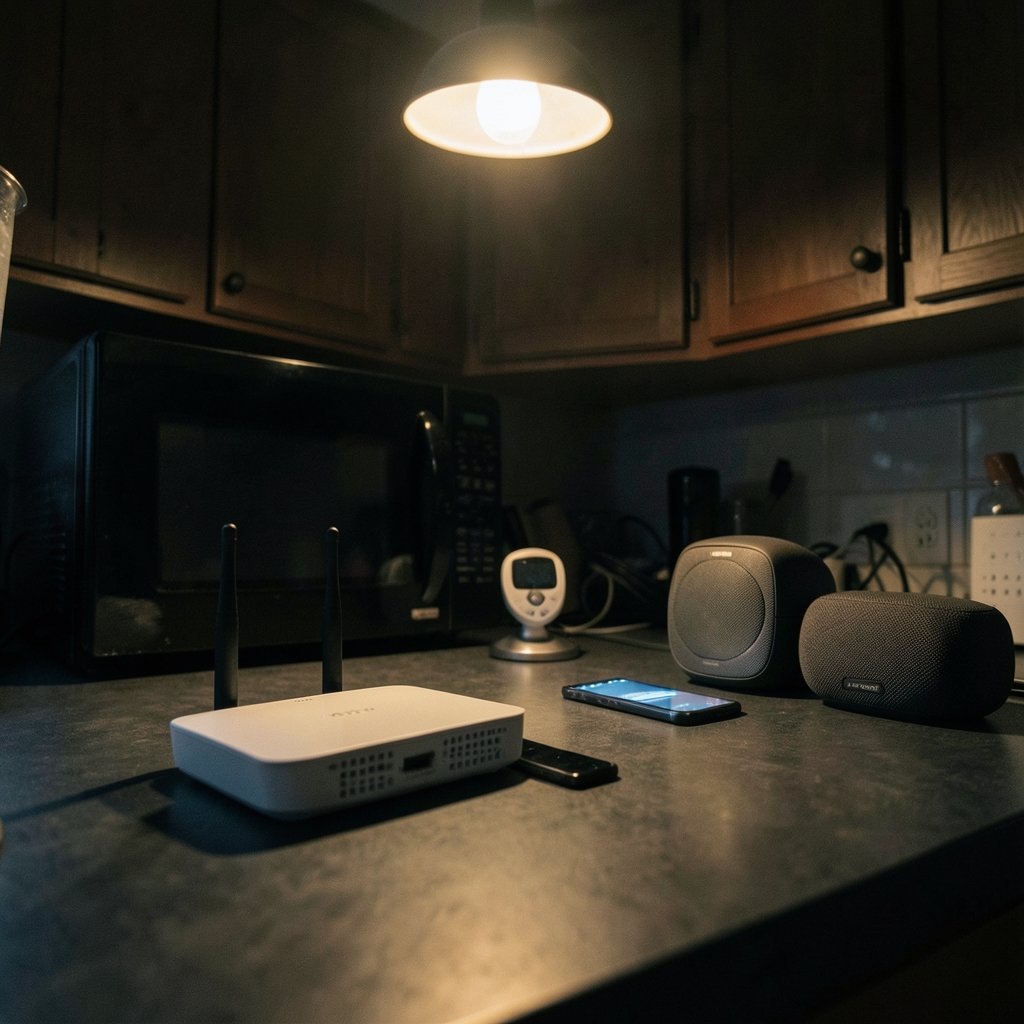
An Ethernet cable either works or it doesn’t. Wi-Fi is a shared, invisible medium, and everything nearby competes for the same airtime: your neighbor’s router, a microwave, a baby monitor, a dozen smart bulbs, and the Bluetooth speaker on your desk. A Wi-Fi analyzer makes that invisible contest visible.
The tool reports RSSI, or received signal strength indicator, usually in dBm. Here’s the part that trips people up: the numbers are negative, and closer to zero means stronger. A reading around −30 dBm is excellent, roughly −67 dBm is fine for video calls, and anything near −90 dBm is barely usable. These thresholds are rules of thumb, not an official standard, so treat them as a rough map rather than a legal boundary.
What a Wi-Fi Analyzer Actually Shows You
Most analyzers, whether a phone app or a laptop utility, surface the same core fields. Knowing what each one means is half the battle.
| Field | What it tells you | Why it matters |
|---|---|---|
| SSID | The network name | Identifies which network is which |
| BSSID | The access point’s hardware address | Distinguishes two access points sharing one name |
| Channel | The frequency slice in use | Overlapping channels cause interference |
| Band | 2.4 GHz, 5 GHz, or 6 GHz | Determines range and congestion |
| Signal (dBm) | Strength at your location | Shows coverage and dead zones |
| Security | WPA2, WPA3, open | Flags weak or open networks |
The channel view is where most people get their first “aha.” The 2.4 GHz band is crowded and only offers three non-overlapping 20 MHz channels in most regulatory domains, usually 1, 6, and 11. If your router sits on channel 6 and so do four neighbors, everyone slows down together. The 5 GHz and 6 GHz bands offer many more channels, which is why newer routers push devices there.
The Tools You Can Actually Use
You don’t need to buy hardware to get started. Options range from free to professional-grade.
Phone apps are the easiest entry point. They’re handy for a quick walk-around, though phone radios vary and the readings are approximate.
Laptop utilities give more detail. On Windows, built-in commands can list nearby networks and show your current connection’s signal, which is enough for basic troubleshooting. On macOS, the built-in Wireless Diagnostics tool includes a scanning view.
Dedicated analyzers are handheld devices or software paired with a specific adapter. They’re the choice for installers who need repeatable, calibrated measurements across a whole building.
Router dashboards are often overlooked. Many modern routers show channel usage and connected-device signal strength, which is a free analyzer you already own.
If you’re also worried about what’s happening on your network beyond signal quality, it’s worth learning what is a keylogger and how can you detect one, since a compromised device can look like a “slow Wi-Fi” problem when it’s really something else entirely.
How to Use a Wi-Fi Analyzer, Step by Step
Here’s a workflow that works whether you’re in a studio apartment or a three-floor office. (Wi-Fi)
- Pick a quiet moment. Scan when the network is idle, not during a big download. You want a clean baseline.
- Do a stationary scan first. Stand near the router and note the channel map. Count how many networks share each channel.
- Walk the space. Move slowly through each room, pausing every few meters, and note where signal drops below about −70 dBm. Those are your dead zones.
- Check both bands. Compare 2.4 GHz and 5 GHz coverage. The 2.4 GHz band reaches farther but is more crowded; 5 GHz is faster but fades faster through walls.
- Change one thing at a time. Switch your router to the least-crowded channel, then re-scan. Don’t change channel and placement simultaneously or you won’t know which fix worked.
- Reposition if needed. Moving an access point a meter or two, off the floor, and away from metal and microwaves often beats any channel tweak.
- Re-test at the same spots. Compare before and after readings so you have evidence, not a feeling.
A common mistake is scanning once and declaring victory. Wi-Fi conditions shift with the time of day, so a channel that’s clear at 8 a.m. may be jammed at 8 p.m. when the whole neighborhood is streaming. Scan at two or three different times before you commit to a channel.
Another mistake: chasing the strongest signal instead of the cleanest channel. A slightly weaker signal on an empty channel usually beats a strong signal surrounded by interference.
Reading the Results Without Overthinking Them
The temptation is to obsess over every decimal in the dBm column. Resist it. What matters is the pattern: where does the signal fall off, and which channels are crowded?
If your analyzer shows a dozen networks stacked on channel 6, moving to 1 or 11 is a cheap win. If it shows your signal dropping sharply on the far side of one particular wall, that wall is the problem, and no channel change will fix it. If it shows strong signal everywhere but slow speeds, the issue probably isn’t coverage at all, and you should look at your connection, your devices, and your security instead.
That last scenario is where a bit of broader awareness helps. If you’re working from home or on public networks, understanding what is a vpn and when should you use one is a useful companion skill, because a good analyzer tells you about the air, not about who’s watching the traffic.
Where Wi-Fi Analyzers Fit in a Bigger Setup
Analyzers aren’t just for fixing a bad connection. They’re standard equipment for anyone designing coverage: setting up a mesh system, placing access points in an office, or checking whether a new appliance is wrecking a room’s signal. The same discipline applies to naming your networks sensibly, which is why a guide to the best name wifi is a surprisingly practical companion to channel planning, since a clear, distinct SSID makes it far easier to tell your access points apart in a crowded scan.
The legal side deserves a mention too. Passive scanning, which only listens to the frames every access point broadcasts to announce its presence, is generally fine. Active monitoring or packet-capture modes may need specific hardware and drivers, and the rules vary by jurisdiction, so don’t assume a feature is fair game just because the software offers it.
Common Mistakes and What Actually Works
The single most common error is buying a fancy analyzer before trying the free option. Most people solve their problem with a phone app and a router dashboard in under an hour.
The second is ignoring the client device. Your phone might show a strong signal while your old laptop struggles, because the laptop’s antenna is weaker. Test from the device that actually has the problem, not from the one with the best radio. (Protecting Personal Information: A Guide for Business)
The third is treating a channel change as a permanent fix. Neighbors change their settings too. A quick re-scan every few months keeps you ahead of it.
Finally, don’t overlook the boring stuff. Firmware updates, a router that isn’t buried behind a TV, and a wired connection for the devices that never move will do more for real-world performance than any amount of channel tuning. If you’re curious how hardware filings hint at what’s coming next, the ps portal 2 wifi alliance filing 2026 is a fun example of how much you can learn from public records before a product even ships.
Conclusion
A Wi-Fi analyzer is less a gadget and more a habit: look at the air, measure honestly, change one thing, and measure again. The tools range from free phone apps to professional handheld units, but the method is the same at every level. Scan when it’s quiet, walk the space, find the crowded channels and the dead zones, and fix the biggest problem first.
The payoff is real. Most wireless complaints come down to interference, placement, or a device that’s simply too far from the access point, and all three are visible the moment you look at the right screen. You don’t need to become a network engineer. You just need to stop guessing and start measuring.
Frequently Asked Questions
Do I need special hardware to use a Wi-Fi analyzer?
No. A free phone app or your router’s admin page will cover most home troubleshooting. Dedicated hardware matters mainly for installers who need calibrated, repeatable measurements across a large building.
What dBm reading counts as a good Wi-Fi signal?
As a rough guide, −30 dBm is excellent, around −67 dBm is solid for streaming and calls, and anything near −90 dBm is barely usable. These thresholds are rules of thumb rather than an official standard, so compare readings from the same device and location.
Why does my Wi-Fi show full bars but still run slowly?
Signal strength and speed are different things. Full bars with slow speeds usually points to channel congestion, an overloaded router, or a problem upstream of the wireless link. An analyzer will show you whether the air is crowded or clear.
Can a Wi-Fi analyzer see who is using my network?
Most analyzers show networks and access points, not individual users or their activity. To see connected devices, check your router’s client list. For deeper monitoring, you’d need different tools entirely.
Is it legal to scan nearby Wi-Fi networks?
Passive scanning, which listens to the frames access points broadcast publicly to announce their presence, is generally lawful. Active monitoring or packet capture can require specific hardware and may be restricted depending on where you live, so check local rules before using advanced modes.
How often should I re-scan my network?
Every few months, or any time speeds drop or you add devices. Neighbors change channels and add routers, so a setting that was clean last year may be crowded now.



