
Quick Answer: How do i set up graphics card for the best performance?
Getting the best performance from a graphics card means installing the correct vendor driver, choosing the right power and display settings, and tuning per-game profiles instead of relying on defaults. Most of the work happens in three places: the driver control panel, Windows graphics and power settings, and the game’s own video menu. (NVIDIA GeForce Graphics Cards)
The order matters more than the individual tweaks. A clean driver install and a confirmed high-refresh display setting often deliver more than any overclock. Switching between AMD and NVIDIA hardware, or moving from an older card, adds a step because leftover driver files cause conflicts.
Before changing anything, check the card model and power connectors, the monitor’s resolution and refresh rate, the PCIe slot and link width, the power supply headroom, and the current driver version.
A modern graphics card is a strange thing: it can render billions of pixels per second yet sit half-idle because a single checkbox is wrong. Ask ten people how to set up a graphics card for the best performance and you will get ten answers, most of them focused on overclocking. In practice, the biggest gains usually come from boring housekeeping. Drivers, display settings, and power plans decide whether the card runs at its rated speed or quietly holds itself back. This guide walks through that setup in the order that actually works, from a clean install to per-game tuning, with the common mistakes that trip people up along the way. (Graphics processing unit)
Start With a Clean Driver Install
The single most common cause of poor performance is a messy driver situation. Windows Update often installs a generic driver that works but leaves out the vendor control panel and per-app settings. The fix is to download the current driver directly from the card maker’s official support page and run a clean install.
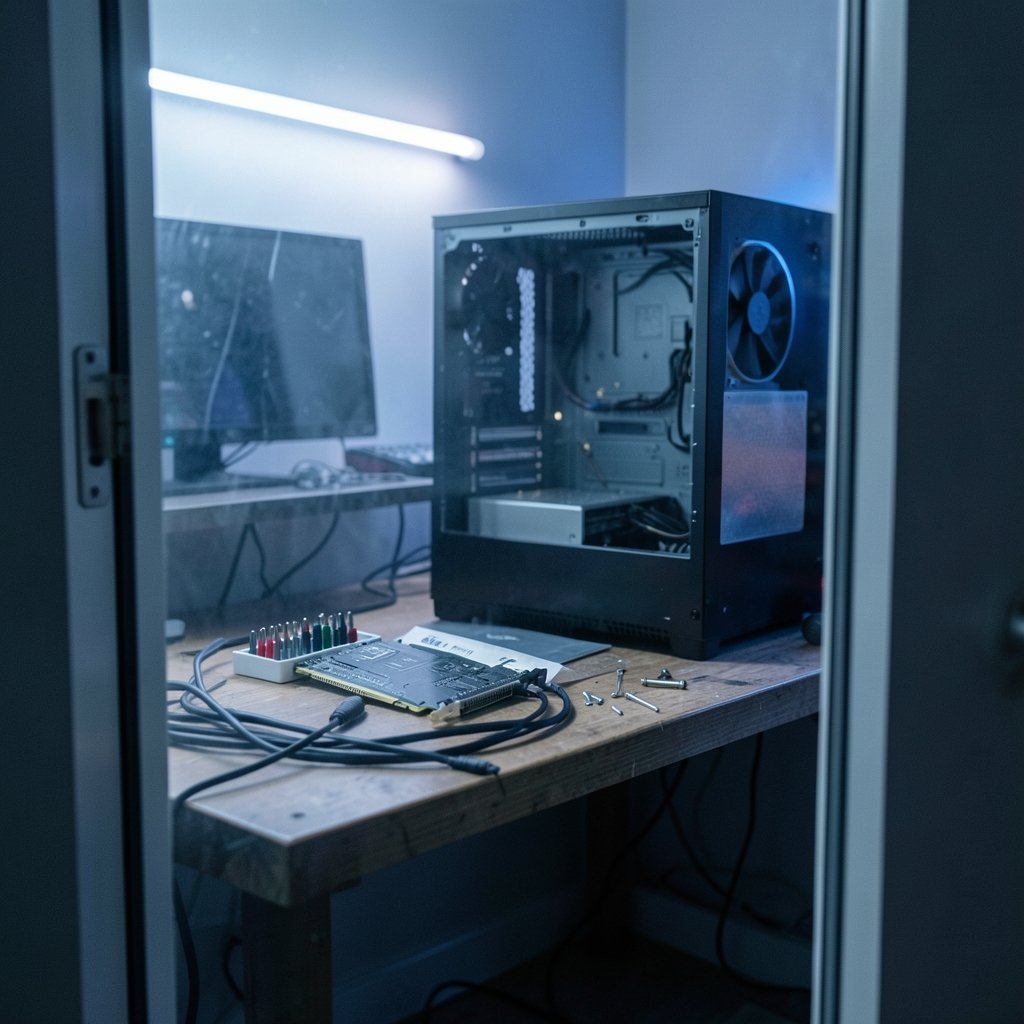
If the card is new, or the system previously used a card from a different brand, remove the old driver completely first. A dedicated driver-removal tool in safe mode, or the installer’s own clean-install option, clears leftover files that can cause stutters and crashes. Skipping this step is the number one mistake people make when upgrading, and it is worth the extra ten minutes. If you are fitting a new card at the same time, the same discipline applies to the physical install; a step-by-step walkthrough helps avoid bent pins and loose power cables.
After installation, open the vendor control panel and confirm the driver version and card model are detected correctly. If the panel shows a generic name or refuses to open, the install did not complete properly, so run it again.
Fix the Display Settings First
Here is a fact that surprises a lot of people: many gaming monitors ship set to 60 Hz out of the box. A card capable of high frame rates will still look sluggish if the display is capped at 60 Hz. Open the Windows display settings, check the advanced display options, and set the refresh rate to the monitor’s maximum.
Resolution deserves the same check. Some setups default to a lower resolution or an overscan mode that softens the image. Set the native resolution, then confirm the scaling mode is set to full panel rather than stretched.
Two more display-level settings are worth knowing:
- HDR should only be enabled when the monitor genuinely supports it well; a weak HDR implementation can wash out colors.
- V-Sync and variable refresh rate interact. Variable refresh (G-Sync or FreeSync) smooths frame pacing, but it needs to be enabled in both the monitor menu and the driver panel to work.
Choose the Right Power Plan and GPU Mode
Laptops and desktops behave differently here, and mixing up the advice is a common error. On a desktop, set Windows to a high-performance power plan so the processor and PCIe link do not downclock aggressively. On a laptop, plug in the charger and select the manufacturer’s performance mode, because battery mode will always throttle the card.
In the driver control panel, the power management setting matters too. Setting it to prefer maximum performance stops the card from dropping clocks between frames, at the cost of higher idle power draw. For a gaming desktop that is a fair trade; for a work laptop it drains the battery fast.
One more check that catches people out: confirm the card is seated in the top PCIe slot and running at the expected link width and generation. A monitoring utility will show this in seconds. A card running at half its expected link width because of a slot or BIOS setting will underperform no matter how well everything else is tuned.
Table: Settings That Help vs. Settings That Rarely Matter
| Setting | Typical effect | Worth changing? |
|---|---|---|
| Vendor driver with clean install | Fixes stutters, gives access to control panel | Yes, always |
| Refresh rate set to maximum | Large perceived smoothness gain | Yes, first thing |
| High-performance power plan | Prevents clock drops | Yes on desktops |
| Resizable BAR / Smart Access Memory | Mixed, workload-dependent gains | Yes, if supported |
| Hardware-accelerated GPU scheduling | Varies by game and driver version | Test it, keep if stable |
| Aggressive overclock | Single-digit percentage gains | Optional, test stability |
| Global “max performance” everywhere | Can hurt stability in non-game apps | Prefer per-game profiles |
Tune Per-Game Profiles, Not Global Settings
Global settings feel efficient, but they are a trap. A global “maximum performance” profile can cause instability in video editing or browsing, and it wastes power in tasks that do not need it. The better habit is to create a profile for each demanding game and leave everything else on defaults.
Inside each game’s video menu, the biggest wins come from a handful of settings. Shadows, reflections, and volumetric effects are usually the heaviest. Dropping those a notch or two often buys a large frame rate gain with little visual cost. Resolution scaling is the other lever: rendering slightly below native and letting the card upscale can transform performance on mid-range hardware.
It helps to know what kind of bottleneck you are working with. A quick look at the card’s utilization while gaming tells the story. If it sits near 100 percent, the card is the limit and lower settings will help. If it sits well below that while frames are low, something else, usually the processor or a frame cap, is holding it back, and graphics tweaks will do little.
Understand Resizable BAR and GPU Scheduling
These two toggles generate more forum debate than almost anything else, and the honest answer is that results vary. Resizable BAR (AMD calls its version Smart Access Memory) lets the processor access the card’s full memory buffer. It needs BIOS support, a compatible driver, and a compatible game. Some titles gain a few percent; others show no change or a small regression.
Hardware-accelerated GPU scheduling is a Windows toggle that hands more frame scheduling to the card. Early versions showed mixed results, and the benefit depends heavily on the driver version and the game. The practical approach is to enable each one, test a few titles you actually play, and keep it only if performance and stability hold up. Treat any single number you read online with suspicion, because it was measured on different hardware and a different driver build.
Overclocking and Undervolting: Gains Are Real but Small
Overclocking is the part everyone asks about and the part that matters least for most people. Modern cards already boost close to their limits, so manual tuning typically yields single-digit percentage gains. Undervolting, which lowers voltage while holding clocks, is often the smarter move: it reduces heat and fan noise and can let the card hold higher clocks for longer.
If you do tune, use the vendor’s own utility or a well-known monitoring tool, change one value at a time, and stress test for at least half an hour. Watch temperatures and power draw while testing. A card that throttles because of heat will lose more performance than any overclock can add, so airflow and a clean case often matter more than clock numbers.
The power supply deserves a mention too. A weak unit, or one using daisy-chained cables where separate cables are recommended, can cause crashes under load. If the card shuts down or artifacts appear only in heavy scenes, power delivery is a prime suspect.
Keep the Setup Healthy Over Time
A tuned system does not stay tuned by itself. Driver updates arrive regularly, and while most are fine, a new release occasionally regresses performance in specific games. Keeping the previous driver installer on hand makes rolling back easy.
Other habits that pay off:
- Clear dust from the card and case every few months; clogged fins cause thermal throttling.
- Re-check the refresh rate after major Windows updates, which sometimes reset display settings.
- Store per-game profiles so a reinstall does not wipe your tuning.
- Avoid stacking multiple tuning utilities at once; they can fight over the same settings.
For anyone who also tinkers with older hardware or emulators, the same principle applies: correct settings beat raw power. A well-configured emulator setup, for example, runs far better than a default one, just as a properly set up card outperforms an expensive one left on stock Windows defaults. The same is true of any hobby where configuration matters, from a stage keyboard rig to a family game night; the gear only performs as well as its setup allows. (Horse Racing Board Game: Family Racing Game Set)
Common Mistakes That Cap Performance
A short list of the errors that show up again and again:
- Leaving the monitor at 60 Hz. The most common and most invisible problem.
- Skipping the clean driver install when changing cards, which causes stutters.
- Using global maximum-performance settings and then blaming the card for instability.
- Overclocking before checking temperatures, so thermal throttling cancels the gains.
- Ignoring the processor bottleneck, then lowering settings that were never the limit.
- Forgetting the power supply, which shows up as crashes only under heavy load.
Each of these is easy to check and easy to fix, and together they account for most of the “my card is slow” complaints that turn out to be setup issues rather than hardware faults.
Conclusion
Setting up a graphics card for the best performance is less about secret tweaks and more about removing the things that hold it back. Install the vendor driver cleanly, set the display to its native resolution and maximum refresh rate, choose a sensible power plan, and tune games individually rather than globally. Test Resizable BAR and GPU scheduling on your own titles, and treat overclocking as a finishing touch rather than a starting point. Do the housekeeping first and the card will do the rest.
Frequently Asked Questions
Do I need to reinstall Windows after installing a new graphics card?
No. A clean driver install is enough in almost every case. Windows will detect the new card, and removing the old driver before installing the new one prevents conflicts. A full reinstall is only worth considering if persistent crashes survive a clean driver install.
Does a higher refresh rate really matter more than a faster card?
For perceived smoothness, often yes. A monitor stuck at 60 Hz hides the benefit of a fast card entirely. Checking the refresh rate takes seconds and costs nothing, which makes it the first thing to verify before spending money on hardware.
Should I use the game’s settings or the driver panel to improve performance?
Use both, but for different jobs. The game’s video menu controls visual quality and resolution scaling, which usually deliver the biggest gains. The driver panel handles power management, anti-aliasing overrides, and per-game profiles. Start in the game menu. (Rules for Backgammon Board Game: How to Set Up and Play)
Is overclocking safe for a graphics card?
Modern cards protect themselves with thermal and power limits, so moderate overclocking is generally safe. The risks are instability, crashes, and added heat. Undervolting is often the better choice because it lowers temperatures while keeping performance steady.
Why does my card run below its rated clock speed?
The usual causes are thermal throttling, a power limit set too low, a balanced or power-saving Windows plan, or a laptop running on battery. Checking temperatures and the power plan first solves most cases quickly.
How often should I update graphics drivers?
Roughly every few months, or when a new game you play gets a performance-focused driver release. There is no need to install every single update. Keep the previous installer so you can roll back if a new version causes problems.



