
Quick Answer: How do i set up nas storage for the best performance?
Getting top performance from NAS storage starts with the network, not the drives. Most home and small-office setups are capped by a 1 Gbps Ethernet link long before the disks break a sweat, so the single biggest upgrade is usually moving to 2.5GbE or 10GbE end to end. Beyond that, performance depends on enough RAM for caching, a sensible RAID layout, and matching the filesystem and protocol to your workload.
There are real trade-offs. RAID adds redundancy or multi-client throughput but is never a backup, and parity RAID can slow small random writes. SSD or NVMe cache tiers help some workloads and hurt others. Before spending money, compare your network hardware, switch and cabling, drive count, RAM, RAID level, and the protocols your clients actually use.
A mechanical hard drive can stream data at roughly 150 to 250 MB/s, yet a plain gigabit network tops out near 110 to 118 MB/s in the real world. That gap is the whole story of NAS tuning in one sentence: people buy fast drives and then strangle them with a slow pipe. Get the plumbing right, and the rest of the setup becomes far more forgiving.
This guide walks through the practical order of operations. It covers what to fix first, what to ignore, and the mistakes that quietly cost people hundreds of megabytes per second.
Start With the Network, Because It Is Almost Always the Bottleneck
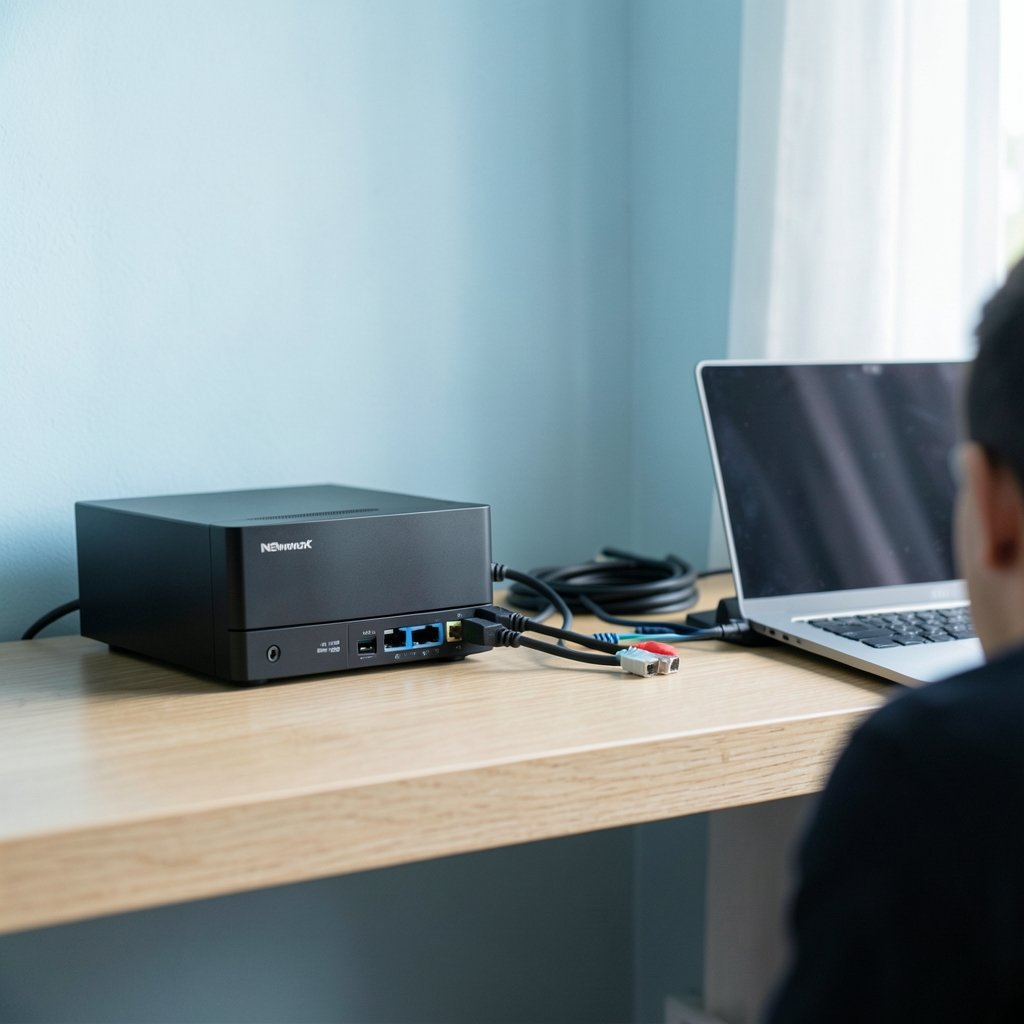
Before touching a single drive setting, map the path data takes. Files travel from the NAS network card, through a switch, into the client machine. Every hop must support the same speed, or the whole link drops to the slowest device.
A 10GbE upgrade needs three things: a NAS with a 10GbE port, a 10GbE switch, and a client NIC that supports it. Cat6 or Cat6a copper cabling handles 10GbE at typical home distances. Miss any one piece and the link negotiates down. This is the most common and most expensive mistake in NAS tuning.
For most people, 2.5GbE is the sweet spot. It roughly doubles gigabit throughput at a fraction of the cost, and many consumer switches and motherboards now include it. The IEEE 802.3 family of standards defines these Ethernet rates, and it is worth confirming exactly which one your hardware supports before buying anything.
One more network detail trips people up constantly: link aggregation. Bonding two gigabit ports sounds like it should double a single transfer’s speed. It does not. Aggregation adds total bandwidth across multiple clients and provides failover, but one client still gets one stream. If a single big file transfer feels slow, aggregation will not fix it.
Jumbo Frames: Helpful, but Only If You Commit Fully
Jumbo frames raise the MTU to 9000 bytes, cutting per-packet overhead on large file transfers. The catch is consistency. Every device on the path, including the switch and the client, must use the same MTU. One device left at the default 1500 and transfers can stall or crawl. The gains are workload-dependent and sometimes modest, so treat this as a fine-tuning step, not a first move.
Choose Drives and RAID With Your Actual Workload in Mind
Drive count matters more than most buyers expect. More spinning disks generally mean more aggregate sequential throughput, because the controller reads from several platters at once. A four-drive array will usually outrun a two-drive array on large sequential transfers, even with identical disks.
RAID level shapes performance in ways that are easy to misread. RAID 0 stripes data for maximum speed with zero protection. RAID 1 mirrors for redundancy. RAID 5 and 6 add parity for fault tolerance, but parity calculations can slow small random writes, especially on cheaper controllers. RAID 10 combines mirroring and striping and tends to perform well for mixed workloads, at the cost of usable capacity.
| RAID Level | Read Speed | Write Speed | Redundancy | Best For |
|---|---|---|---|---|
| RAID 0 | High | High | None | Scratch space, temporary data |
| RAID 1 | Good | Good | One drive | Small setups, critical files |
| RAID 5 | High | Moderate | One drive | General storage, mixed reads |
| RAID 6 | High | Moderate | Two drives | Larger arrays, safer parity |
| RAID 10 | High | High | One per mirror | Databases, busy mixed workloads |
The point people miss: RAID is not a backup. It protects against a drive failure, not against deletion, ransomware, or a controller dying and taking the array with it. Keep a separate copy of anything irreplaceable. If you are weighing where that copy lives, the differences between cloud storage vs local storage are worth understanding before you decide. (Network-attached storage)
Give the NAS Enough RAM and Configure Caching Carefully
RAM does real work in a NAS. ZFS-based systems use it for the ARC read cache, and mainstream vendors use spare memory for read caching too. Too little RAM and the system spends its time fetching from disk instead of serving from memory. Exact sizing guidance varies by vendor, model, and firmware, so check the current documentation for your specific unit rather than trusting a forum rule of thumb.
SSD and NVMe cache tiers are more controversial. They can genuinely accelerate random I/O, which helps virtualization, databases, and many-small-file workloads. But cache effectiveness depends heavily on the workload, and in some write patterns a cache can even hurt. Before buying a cache drive, ask what your actual bottleneck is. If you mostly stream large media files over a gigabit link, a cache will do nothing you can feel.
Match Protocols and Filesystems to What You Actually Do
Protocol choice affects real-world speed. SMB is the default for Windows and mixed networks. NFS often performs better in Linux and virtualization environments. Neither is universally faster; results depend on the client, the workload, and how the NAS implements each protocol.
Filesystems follow the same logic. ZFS brings checksumming, snapshots, and strong data integrity, at the cost of RAM appetite and a steeper learning curve. Ext4 and Btrfs are lighter and simpler. For a media server, the lighter options are often plenty. For a machine hosting virtual machines or important archives, ZFS earns its overhead.
If you are new to how networked storage actually works under the hood, a primer on what cloud storage is and how it works clarifies the client-server model that NAS systems also follow, which makes protocol choices easier to reason about.
A Practical Setup Sequence That Actually Works
Order matters. Tuning a NAS in the wrong sequence wastes hours chasing problems that a cable swap would have solved.
- Wire everything. Connect the NAS and the main client to the switch with Ethernet. Wi-Fi is convenient but unpredictable for sustained transfers.
- Confirm link speeds. Check the NAS interface and the switch port status. Both should report the speed you paid for.
- Verify the client NIC. A 10GbE NAS behind a gigabit client port is a gigabit NAS.
- Install drives and build the array. Choose the RAID level based on redundancy needs first, performance second.
- Add RAM if the platform benefits. Check vendor guidance for your model.
- Set the filesystem and shares. Pick protocols per client: SMB for Windows, NFS for Linux.
- Benchmark before and after each change. One variable at a time, or you will never know what helped.
- Only then try jumbo frames or cache tiers. These are refinements, not foundations.
That last step is where enthusiasm usually outruns discipline. Changing three settings at once and seeing a speed bump tells you nothing about which change mattered, and it makes rollback a guessing game.
Common Mistakes That Quietly Kill NAS Performance
The most frequent error is buying fast drives for a slow network. It feels productive because drives are tangible, but the link is the ceiling.
The second is assuming link aggregation speeds up single transfers. It does not, and plenty of people buy a second NIC for exactly that reason.
The third is treating RAID as a backup. A rebuild after a drive failure is a stressful, hours-long process, and it is not a substitute for an independent copy.
The fourth is enabling SSD caching without measuring. Cache tiers can help, but they can also add a failure point and complicate recovery for no measurable gain. (Cybersecurity)
The fifth is skipping the benchmark. Without a baseline, every change is a feeling rather than a fact.
When Cloud Storage Makes More Sense Than a NAS
A NAS is not the right answer for everyone. It demands upfront hardware cost, ongoing maintenance, and a plan for backups. Cloud storage trades that control for convenience and predictable billing.
For small teams or people who travel constantly, a cloud service can be the pragmatic choice. Comparing options carefully pays off, and a rundown of the best cloud storage services compared helps frame the trade-offs. Many experienced users land on a hybrid: a fast local NAS for daily work plus cloud for offsite copies.
Conclusion
NAS performance is a chain, and the slowest link sets the pace. For most people, that link is the network. Fix the cabling, switch, and client NIC first, then choose drives and RAID around your real workload, size RAM to the platform’s guidance, and only then experiment with caching and jumbo frames.
The discipline that separates a fast NAS from a frustrating one is measurement. Benchmark, change one thing, benchmark again. Skip that loop and you are guessing. Follow it and you will know exactly where your megabytes are going, which is worth more than any single upgrade.
Frequently Asked Questions
Is 2.5GbE worth it over gigabit for a home NAS?
For most home users, yes. It roughly doubles real-world throughput for a modest cost, and 2.5GbE hardware is now common on consumer switches and motherboards. The gain only appears if the client machine also supports 2.5GbE, so check both ends before buying.
Does adding more RAM really speed up a NAS?
It depends on the platform. ZFS-based systems lean heavily on RAM for read caching, and vendor systems use spare memory for caching too. If the NAS already has enough memory for its workload, adding more brings little. Check vendor guidance for your specific model rather than following a generic rule.
Will link aggregation make my file transfers faster?
Not for a single client. Aggregation combines bandwidth across multiple simultaneous clients and adds failover protection, but one transfer still uses one link. If you want faster single-file transfers, upgrade the link speed itself.
Can I use SSD caching to speed up a slow NAS?
Sometimes, but not reliably. SSD or NVMe cache tiers help random I/O workloads like virtualization and many-small-file access. For large sequential transfers, a cache often makes no measurable difference and adds a failure point. Benchmark before and after.
Is RAID 5 fast enough for a busy home server?
RAID 5 reads quickly and handles general storage well, but parity calculations can slow small random writes. For mixed workloads with lots of small writes, RAID 10 often performs better. Remember that RAID is redundancy, not a backup.
How do I know which part of my NAS setup is the bottleneck?
Benchmark a large file transfer and note the speed. If it sits near 110 to 118 MB/s, the gigabit network is your ceiling. If it is far below that, check drive health, RAID status, and RAM usage. Change one variable at a time so you can attribute the result.



