
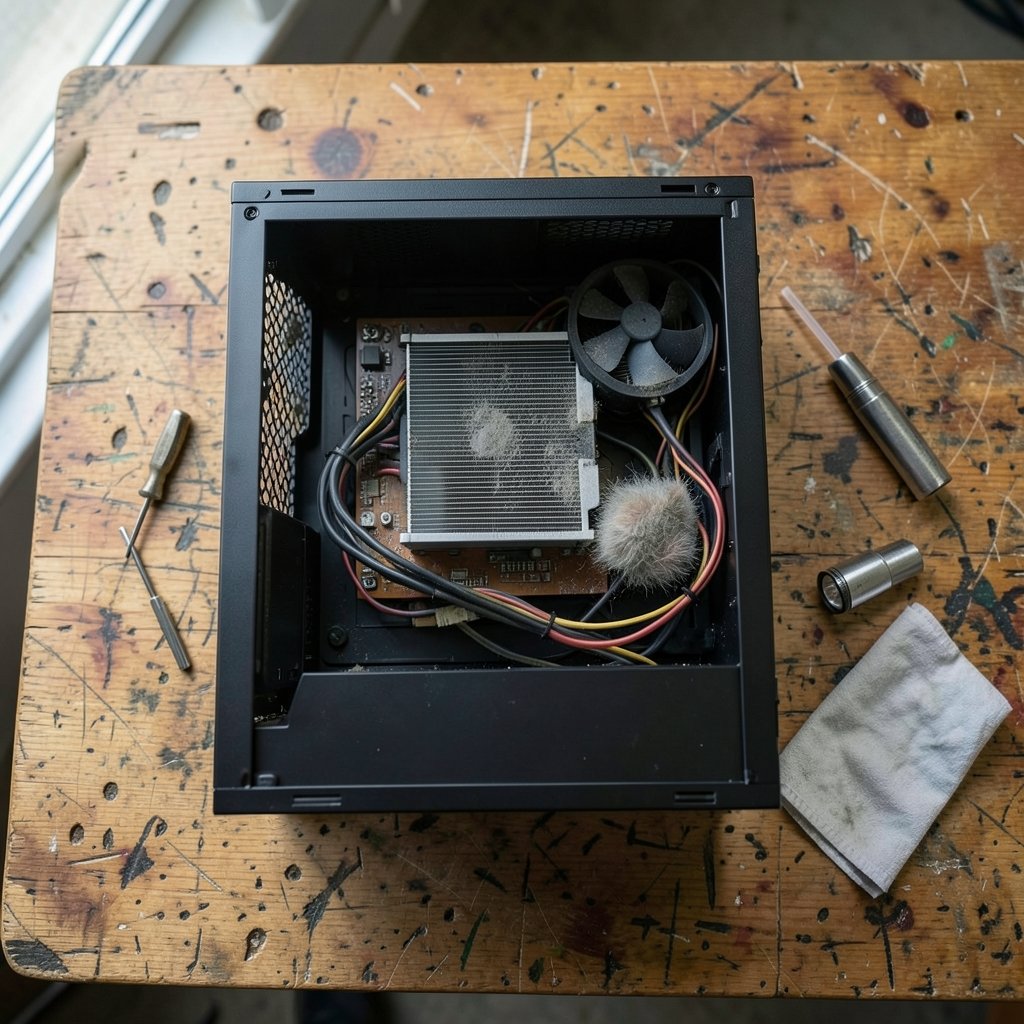
Quick Answer: What are the most common problems with cpu cooler and how do i fix them?
The most common CPU cooler problems are dust-clogged fins, failing fans, dead AIO pumps, dried thermal paste, and loose mounting hardware. Most of them show up as the same symptom: temperatures and noise creeping upward over months until something overheats or throttles.
You can usually diagnose the culprit in under an hour with a temperature monitor, a flashlight, and a screwdriver. Air coolers tend to fail mechanically (fans, dust, mounting), while liquid coolers add pump wear and coolant degradation to the list.
Before you buy a replacement, check the dust buildup, fan spin and header connection, pump RPM readings, thermal paste condition, mounting pressure, and your BIOS fan curve.
A CPU cooler is one of the few PC parts that degrades slowly and silently. Unlike a dead graphics card, which announces itself with a black screen, a struggling cooler just gets a little louder and a little hotter each month. By the time a system starts throttling or shutting down under load, the problem has usually been building for a year or more. The good news: nearly every common cooler failure is diagnosable at home and most are fixable for the price of a can of compressed air or a tube of paste.
Dust Buildup: The Number One Silent Killer
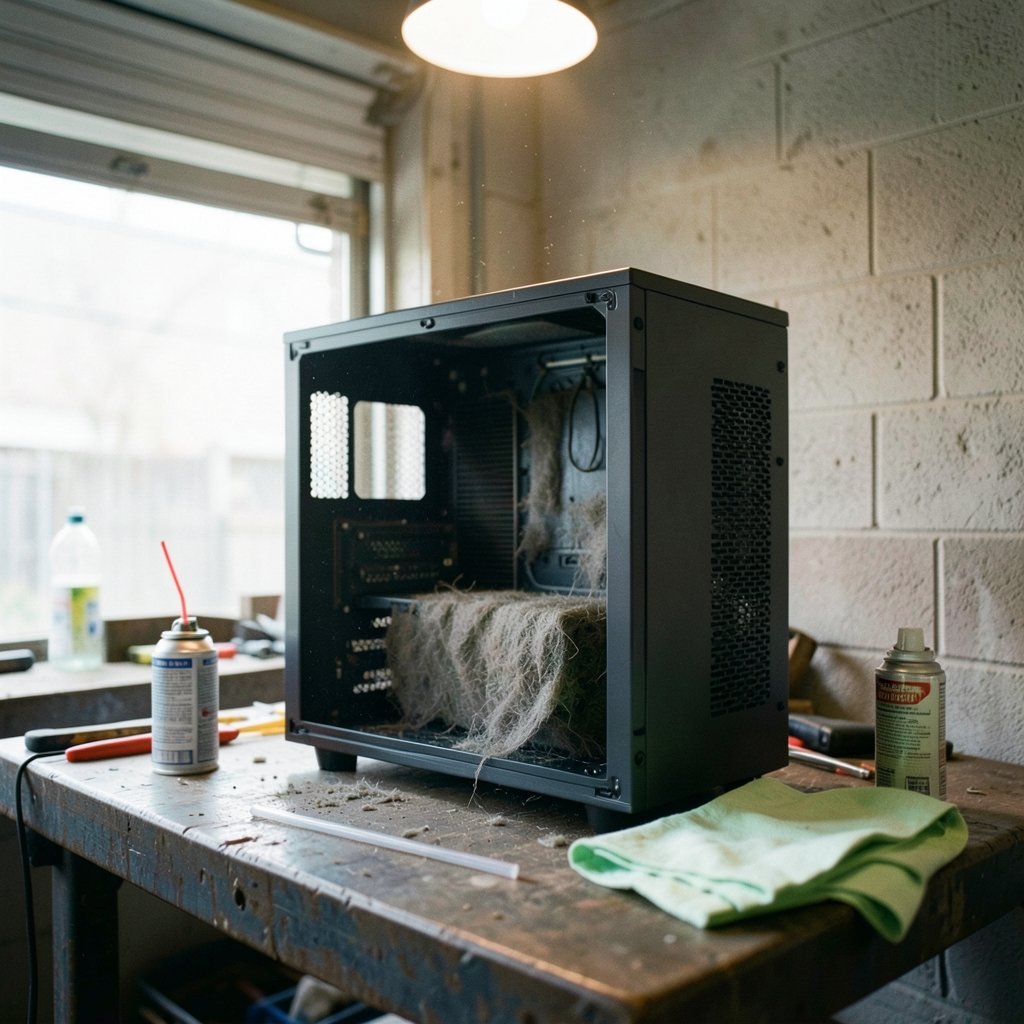
If there is a single answer to “why is my CPU hot,” it is dust. Cooler fins are tightly spaced by design, which makes them excellent air filters. Over 12 to 24 months, a fin stack can lose a significant share of its airflow, and the fan has to spin faster to compensate, which adds noise on top of heat.
The fix is straightforward but needs to be done correctly:
- Power down and unplug the PC.
- Open the side panel and take the machine outside or into a well-ventilated space.
- Hold each fan blade still with a finger or a plastic straw before blasting it with compressed air. Spinning a fan past its rated RPM with air pressure can damage the bearing.
- Blow through the fin stack from the exhaust side so debris exits the way it entered.
- Wipe fan blades with a slightly damp microfiber cloth.
Common mistake: people blast air while the fan spins freely, then wonder why the fan rattles three weeks later. Another frequent error is skipping the front intake filters, which clog first and starve the whole case of air.
Fan Failure and Bearing Wear
Fans are mechanical parts, and mechanical parts wear out. Symptoms include rattling at low RPM, a fan that stops and starts, or a fan that simply never spins. A failed CPU fan is serious because many boards will throttle hard or refuse to boot when they detect no CPU fan signal.
Diagnosis takes two minutes. Boot into the BIOS and watch the CPU fan RPM readout, or use a free monitoring tool in Windows. If the reading sits at zero while the machine runs, check the header first. Reseat the connector, confirm it is on the CPU_FAN header rather than a chassis header, and test a known-good fan in the same slot to isolate whether the fan or the board is at fault.
If the fan is confirmed dead, replacement is cheap. Match the size (120mm and 140mm are standard), the mounting hole pattern, and the connector type. A worn bearing can sometimes be nursed along with a drop of lubricant, but on a CPU cooler it is rarely worth the risk. If you are already shopping for cooling parts and weighing platform upgrades, it helps to know which chips run hot in the first place; this breakdown of the best am4 cpu options is a useful reference for matching cooler capacity to real heat output. (Computer cooling)
AIO Pump Failure: When Liquid Cooling Goes Quiet
All-in-one liquid coolers add a pump to the equation, and the pump is the part most likely to fail first. Warning signs include a grinding or gurgling noise from the pump block, pump RPM reading zero in monitoring software, and temperatures that climb steadily even with fans at full speed.
Pump failures often trace back to configuration rather than hardware. Many boards default the pump header to a PWM curve that lets the pump idle too slow, or users plug the pump into a chassis fan header by mistake. Set the pump header to 100% or to a DC/full-speed profile in BIOS. If the pump still reads zero and the block is warm while the radiator stays cold, the loop is not moving coolant. That is an RMA case, not a repair case.
Practical tip: mount the radiator with the pump block below the top of the radiator so air collects at the radiator’s high point rather than in the pump. Trapped air is a leading cause of premature pump noise and wear.
Dried Thermal Paste and Poor Mounting Pressure
Thermal paste is not permanent. Over three to five years it can dry, crack, and pump out from under the cold plate, especially with the heat cycling of daily use. The telltale sign is high idle temperatures, or a temperature that jumps almost instantly when load starts.
Repasting is a 30-minute job:
- Remove the cooler and clean both surfaces with isopropyl alcohol and a lint-free cloth until no residue remains.
- Apply a pea-sized dot in the center of the CPU. Manufacturer guidance on method varies, from a single dot to a spread or a line, and any of them works if the mounting pressure is even.
- Reseat the cooler and tighten screws in a cross pattern, a few turns at a time, until snug.
Mounting pressure matters as much as the paste. A cooler that was knocked during a move, or tightened down on one side first, can sit with uneven contact and leave a hot spot. On older platforms, a cracked or warped backplate is a common hidden culprit.
Airflow Orientation and Fan Curve Mistakes
Sometimes the cooler is fine and the case is the problem. Fans installed backwards, intake and exhaust fighting each other, or a solid front panel with no intake at all will starve even a large tower cooler. Fan frames have small arrows showing blade rotation and airflow direction; check them rather than guessing.
Equally common is a BIOS fan curve that keeps the CPU fan near silent until 70°C, then ramps abruptly. That produces a hot, noisy machine that feels broken. A smoother curve that reaches meaningful RPM by 60°C usually fixes both complaints at once. The same logic applies when a whole system misbehaves after a software change; if you have ever had a page refuse to render and assumed the hardware was at fault, the troubleshooting sequence in this guide on how to fix a website that will not load mirrors the layer-by-layer approach that works for cooling diagnostics too. (Intel support: processor overheating and cooling)
Socket and Mounting Kit Incompatibility
After a CPU upgrade, a cooler that worked perfectly may not make proper contact with the new socket. Bracket heights, backplate designs, and mounting hole spacing differ between generations. Symptoms include unexpectedly high temperatures immediately after a swap, or a cooler that rocks slightly when pressed.
Check the cooler maker’s compatibility list for your exact socket and request a free or low-cost mounting kit if needed. Never force a bracket to fit. Uneven pressure on the integrated heat spreader can bend pins on some sockets and will always produce poor thermal contact.
A Quick Diagnostic Comparison
| Symptom | Most likely cause | First fix |
|---|---|---|
| Gradual temp rise over months | Dust in fins | Clean with compressed air |
| Rattling or zero fan RPM | Fan bearing or header | Reseat header, replace fan |
| Pump RPM zero, block hot | Pump failure or wrong header | Set pump to full speed, RMA |
| High idle temps, fast spikes | Dried thermal paste | Clean and repaste |
| Temps fine, noise erratic | BIOS fan curve | Set a smoother curve |
| Hot only after CPU upgrade | Mounting kit mismatch | Get correct bracket kit |
How to Test Whether Your Fix Worked
Change one thing at a time, then measure. Run a 15-minute stress test before and after each fix and record the maximum temperature and fan RPM. A drop of 5 to 10°C after cleaning or repasting is typical on a neglected system. If temperatures do not move at all, the bottleneck is elsewhere: case airflow, ambient room temperature, or a cooler that is simply undersized for the chip.
Also watch for thermal throttling rather than absolute temperature. A CPU that holds steady clocks under sustained load is healthy even if the number looks warm, while one that drops clocks repeatedly needs attention. For systems where cooler problems overlap with software misbehavior, such as a background service pinning a core and pushing temperatures up, the same patient approach in this walkthrough on how to fix antimalware service executable high cpu usage helps separate a cooling issue from a workload issue.
When to Repair and When to Replace
Repair makes sense for dust, paste, fans, and mounting hardware. Replacement makes sense when an AIO pump has failed out of warranty, when a cooler’s mounting hardware is no longer available for your socket, or when a low-profile stock cooler cannot keep up with a newer, hotter chip. Air coolers are the more durable long-term choice because their only wear items are fans, which are cheap and swappable.
A sensible maintenance rhythm: clean dust every six to twelve months, check fan behavior at the same time, and repaste every three to five years or whenever temperatures drift upward without explanation. That schedule prevents most of the failures above from ever reaching the point of a shutdown.
Conclusion
Most CPU cooler problems are boring, predictable, and cheap to fix. Dust, worn fans, dried paste, loose brackets, and bad fan curves account for the overwhelming majority of overheating complaints, and each has a clear diagnostic path. Liquid coolers add pump wear to the list, which is why pump RPM and radiator placement deserve attention from day one. Measure before and after every change, fix one variable at a time, and treat rising temperatures as an early warning rather than a crisis. A cooler that gets a little maintenance every year will quietly outlast most of the parts around it.
Frequently Asked Questions
How often should I clean my CPU cooler?
Every six to twelve months in a typical home, and more often in dusty environments or homes with pets. If fan noise has increased noticeably, clean it sooner rather than waiting for a schedule.
Can I fix a dead AIO pump myself?
Usually not. Pumps are sealed units, so the realistic options are checking the header and BIOS pump setting, then claiming the warranty. Opening a sealed loop voids coverage and risks a leak.
Is it normal for CPU temperatures to rise over time?
A slow rise over months or years is normal and almost always means dust or degraded thermal paste. A sudden jump points to a fan, pump, or mounting failure instead.
Do I need to replace thermal paste every year?
No. Quality paste lasts three to five years in normal use. Repaste when idle temperatures climb, when the paste looks cracked or dried, or whenever you remove the cooler for another reason.
Why is my CPU fan loud but temperatures still high?
That combination usually means restricted airflow: clogged fins, a blocked intake, or a cooler too small for the chip. The fan is working hard but the heat cannot escape the fin stack.
Can a loose cooler cause crashes?
Yes. Poor mounting pressure creates hot spots that can trigger thermal throttling or sudden shutdowns under load, and it is one of the first things to check after moving a PC or swapping a CPU.
