
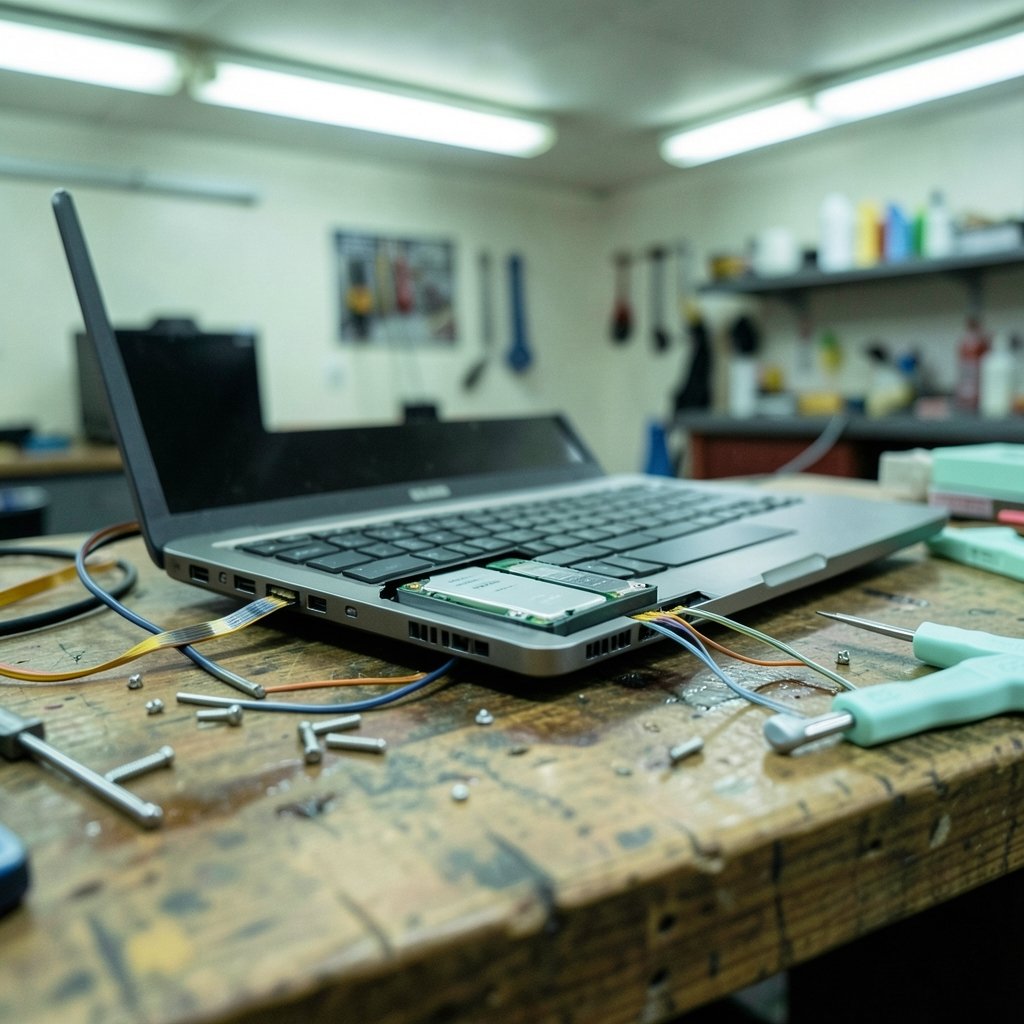
Around 300 to 500 full charge cycles is often the point where a lithium-ion laptop battery starts showing noticeable capacity loss. That number matters because it explains why so many batteries behave strangely long before they die completely. The good news? Most battery complaints have a fix, and many of them cost nothing.
Quick Answer: What are the most common problems with laptop battery and how do i fix them?
The most common laptop battery problems are a battery that will not charge, rapid draining, sudden shutdowns, overheating, and a swollen chassis. Most fixes start with simple steps: check the charger and cable, review charge-threshold settings in the manufacturer’s power tool, run a battery health report, and update firmware.
Some issues are software-related and reversible, while others signal a battery at the end of its life and require replacement. It helps to know which category you are dealing with before spending money.
Before acting, check the charger wattage, the battery cycle count, the charge threshold settings, the device temperature, and any physical signs of swelling.
Battery complaints are among the most searched laptop support topics, and for good reason. A laptop that will not hold a charge turns a portable computer into a desk-bound machine. What follows is a practical walkthrough of the usual suspects, what causes them, and what actually works in practice.
Why Laptop Batteries Fail in the First Place

Lithium-ion chemistry is a trade-off. It stores a lot of energy in a small space, but it degrades every time it charges and discharges. Heat speeds that process up. So does sitting at 100% charge for weeks on end while plugged into a dock.
Most manufacturers now ship charge-threshold features that stop charging at around 60% to 80%. Lenovo calls it conservation mode, Dell and HP have similar tools, and Apple offers optimized charging. These features exist because partial charging genuinely extends lifespan. If a laptop seems stuck at 80%, that is often not a fault at all. It is the feature doing its job.
The other big factor is age. A three-year-old battery that has lost 30% of its capacity is behaving normally, not breaking down. Knowing that distinction saves a lot of unnecessary troubleshooting.
Problem 1: The Battery Says “Plugged In, Not Charging”
This is the single most common complaint, and it has several possible causes. Work through them in order, cheapest first.
- Check the charge threshold. Open the manufacturer’s power management app and look for a battery conservation or charge limit setting. If it is on, the battery will stop charging at the set percentage by design.
- Test the charger and cable. Try a different outlet, then a different adapter if you have one. Frayed cables and failing bricks cause intermittent charging that looks like a battery fault.
- Inspect the charging port. Lint and dust compact into laptop ports surprisingly fast. A wooden toothpick and a burst of compressed air fix more charging problems than most people expect.
- Reseat or reset the battery. Some models have a pinhole reset button on the bottom. Others require a full power drain: unplug, hold the power button for 15 seconds, then reconnect.
- Update firmware and BIOS. Charging logic lives in firmware, and vendors patch it. A BIOS update has resolved stuck-charging behavior on plenty of machines.
If none of that works and the battery report shows very low design capacity remaining, the battery has likely reached end of life. Replacement is the honest answer.
Problem 2: The Battery Drains Too Fast
Rapid draining is usually a software problem wearing a hardware costume. Before blaming the battery, look at what is running.
Open the task manager and sort by power usage. Browsers with dozens of tabs, video calls, and background sync tools are the usual culprits. A battery report helps here: on Windows, running `powercfg /batteryreport` in the command line generates a report showing design capacity against current full-charge capacity. macOS shows battery condition in System Settings. Many OEMs also ship their own health utilities.
If the report shows the battery still holds most of its design capacity but runtime is short, the fix is behavioral: lower screen brightness, shorten the display timeout, disable startup apps, and unplug peripherals you are not using. If the report shows the battery holds less than about 60% of design capacity, no amount of tweaking will bring it back.
One thing worth knowing: some laptops ship with power-hungry discrete graphics that stay active when they should not. If you have been poking at drivers or system tweaks, a misconfigured setup can quietly cost you hours of runtime. The same principle of checking the obvious before the exotic applies to fixing a website that will not load — start simple, then escalate.
Problem 3: The Laptop Shuts Down Suddenly at 20% or 30%
A battery that jumps from 25% to zero is showing voltage sag. The cell reports a percentage based on voltage, and a worn cell cannot hold voltage under load. The gauge says 25%, the processor asks for power, the voltage drops, and the machine cuts out to protect itself.
This is a genuine battery wear symptom, not a calibration quirk. Some older guidance suggested full discharge and recharge cycles to recalibrate the gauge. That advice is contested for modern lithium-ion cells, and most vendor guidance now advises against deep discharges. Check your manufacturer’s current documentation before running a calibration routine. (Lithium-ion battery)
If sudden shutdowns happen at high percentages and the battery report shows heavy wear, replacement is the practical fix. If they happen only under heavy load, check for overheating first. (How to fix antimalware service executable high cpu usage)
Problem 4: The Laptop Gets Dangerously Hot While Charging
Warm is normal. Hot enough to be uncomfortable on your lap is not. Heat accelerates battery degradation, which creates a loop: a hot battery wears faster, and a worn battery generates more heat.
Practical fixes that genuinely help:
- Keep the laptop on a hard surface so the vents can breathe. Soft surfaces like beds and cushions block airflow.
- Blow out the vents and fan with compressed air every few months.
- Avoid charging in direct sun or in a hot car.
- Check whether a runaway background process is pegging the CPU.
If the machine gets hot even at idle, the cooling system needs attention. That is a maintenance issue, not a battery issue, but it will shorten battery life if ignored.
Problem 5: The Battery or Chassis Is Swollen
This one deserves its own warning. A bulging trackpad, a case that will not sit flat, or a visible bulge in the bottom panel means the battery has swollen, and that is a safety issue rather than a performance issue.
Stop using the laptop. Do not press the bulge down. Do not charge it. Manufacturer safety notices and consumer product recall announcements treat swollen lithium-ion cells as a fire risk, and the correct response is authorized service or proper disposal at an e-waste facility.
This is the one battery problem where DIY troubleshooting is the wrong move. Everything else on this list rewards patience; this one rewards caution.
Problem 6: The Battery Drains While the Laptop Is Off
A laptop that loses 10% overnight with the lid closed is usually not fully shutting down. Modern standby and fast startup features keep low-level processes running. So do USB peripherals that draw power from the port.
Check the power settings for USB charging while sleeping, unplug accessories, and try a full shutdown rather than sleep to confirm the cause. If the drain persists with everything disconnected, the battery may have an internal fault.
How to Read a Battery Health Report
| Metric | What it means | When to worry |
|---|---|---|
| Design capacity | Factory-rated capacity | Baseline only |
| Full charge capacity | What the battery holds now | Below ~60% of design |
| Cycle count | Full charge cycles used | Above ~500 with heavy wear |
| Battery condition | Vendor health rating | “Service recommended” |
The table is a starting point, not a verdict. A battery with 400 cycles that still holds 85% of design capacity is fine. A battery with 150 cycles that holds 55% is not, and that pattern sometimes points to a defective cell rather than normal wear.
What Actually Works in Practice
The fixes that resolve the most cases, in order of how often they work:
- Turning off or adjusting charge thresholds when charging appears stuck.
- Replacing a frayed cable or underpowered adapter.
- Cleaning the charging port.
- Updating BIOS and power management firmware.
- Reducing background load for drain complaints.
- Replacing the battery when the health report shows heavy wear.
The fixes that rarely work: calibration rituals on worn cells, third-party “battery saver” apps, and registry tweaks promising restored capacity. Capacity loss is physical. Software cannot undo it.
A useful habit is to check the battery report every few months rather than waiting for a failure. Trends tell you more than snapshots. If you enjoy keeping hardware running past its expected life, the same maintenance mindset applies to getting the best linux laptop setup, where battery-friendly power management is often a deciding factor.
When to Replace Instead of Repair
Replace the battery when the health report shows capacity below roughly 60% of design, when sudden shutdowns happen at high percentages, or when the chassis shows any swelling. Repair the surrounding system when the battery is healthy but charging is unreliable.
Counterfeit and mismatched chargers are a recurring cause of charging faults and a real safety concern. Use the adapter the manufacturer specifies, with the correct wattage. A underpowered charger will charge slowly or not at all under load, which many people misread as a failing battery.
Conclusion
Most laptop battery problems fall into two buckets: settings and hardware that can be fixed for free, and physical wear that cannot. The stuck-charging complaint is usually a threshold setting or a cable. The fast-drain complaint is usually background software. The sudden-shutdown and swelling complaints are usually the battery itself telling you it is done.
Start with the charger, the port, and the battery report. Those three checks resolve or clarify the majority of cases in under twenty minutes. And if the chassis bulges, stop everything and get it serviced. That is the one rule with no exceptions.
Frequently Asked Questions
How long should a laptop battery last before it needs replacing?
Most laptop batteries deliver roughly 300 to 500 full charge cycles before capacity loss becomes noticeable, which works out to about two to three years of heavy daily use. Light users often get four or five years. The battery report’s cycle count and capacity figures tell you where yours stands.
Is it bad to leave a laptop plugged in all the time?
It is not dangerous, but it does accelerate wear if the battery sits at 100% constantly. Most manufacturers include a charge limit feature that caps charging around 60% to 80% for exactly this reason. Enabling it is one of the easiest ways to extend battery life.
Can a laptop battery be repaired or only replaced?
Lithium-ion cells cannot be restored once capacity is lost. Calibration routines can sometimes correct a misreporting gauge, but they cannot recover physical capacity. When the health report shows heavy wear, replacement is the only real fix.
Why does my laptop say plugged in but not charging at 80%?
That is almost always a charge threshold feature working as designed. Manufacturers cap charging to protect battery lifespan. Check the power management app for a conservation mode or charge limit setting and adjust it if you need a full charge.
Should I drain my laptop battery completely to recalibrate it?
Modern guidance generally advises against deep discharges for lithium-ion batteries. Older calibration advice applied to different battery chemistries. Check your manufacturer’s current documentation before running any full-discharge routine.
What should I do if my laptop battery looks swollen?
Stop using the laptop immediately, do not charge it, and do not press on the bulge. A swollen lithium-ion cell is a fire risk. Take the device to authorized service or dispose of the battery at a proper e-waste facility.
