
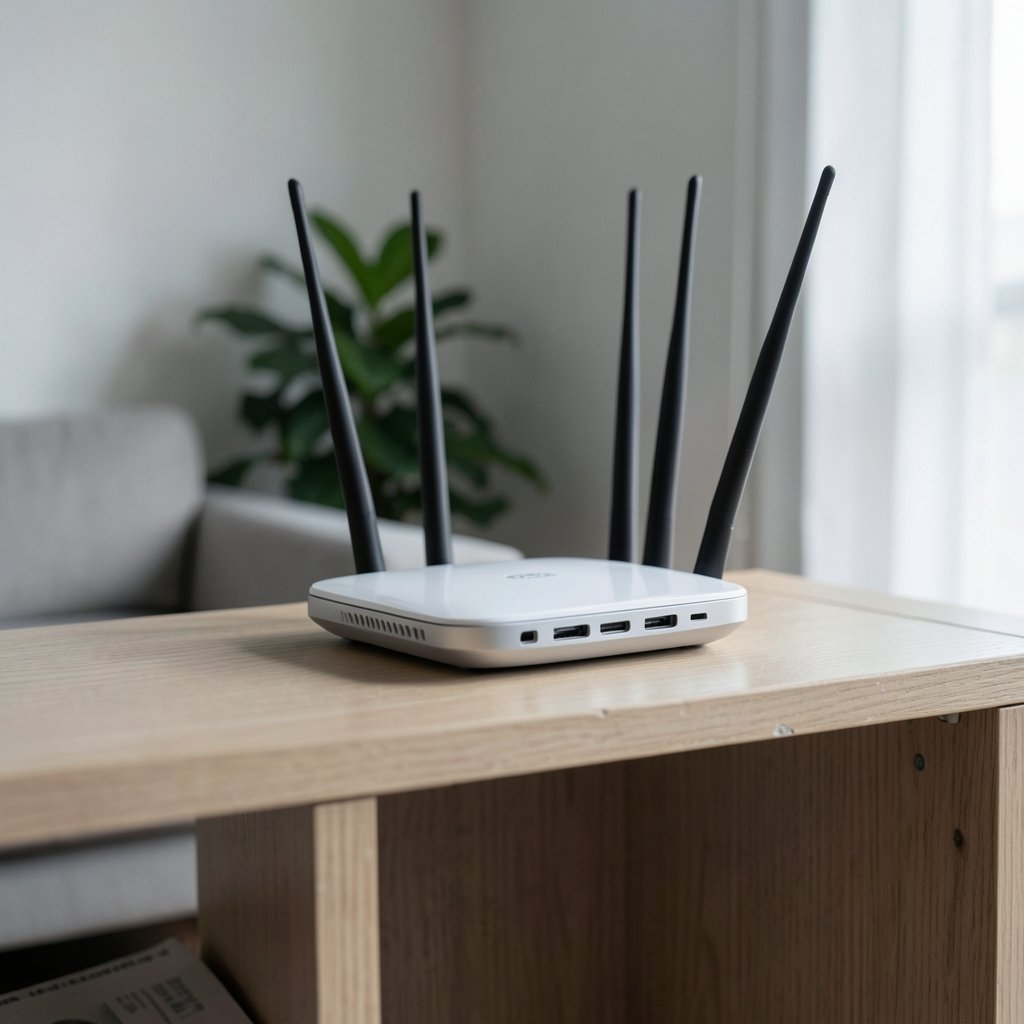
Quick Answer: How do i set up wifi router for the best performance?
To set up a Wi-Fi router for the best performance, place it central and elevated, then tune the essentials: firmware, security, and channel settings. Start by putting the router in an open, central spot away from metal, concrete, and water, then update its firmware and switch on WPA3 encryption before adjusting channels and band settings.
Most homes see the biggest gains from placement and firmware updates rather than exotic tweaks. Splitting the 2.4 GHz and 5 GHz bands, or letting the router steer devices automatically, changes results depending on how many gadgets are connected and how far they sit from the unit.
Before acting, check your router model and age, your internet plan speed, how many devices connect, the layout of your home, and whether your ISP supplied a modem/router combo, since each factor changes which adjustments actually help.
A surprising number of slow-home complaints trace back to a router stuffed inside a closet or sitting beside a microwave. Placement alone can swing real-world speeds by a wide margin, and it costs nothing to fix. The steps below walk through a practical setup routine, from unboxing to the last security setting, plus the mistakes that quietly wreck performance.
Start With Placement, the Cheapest Speed Boost
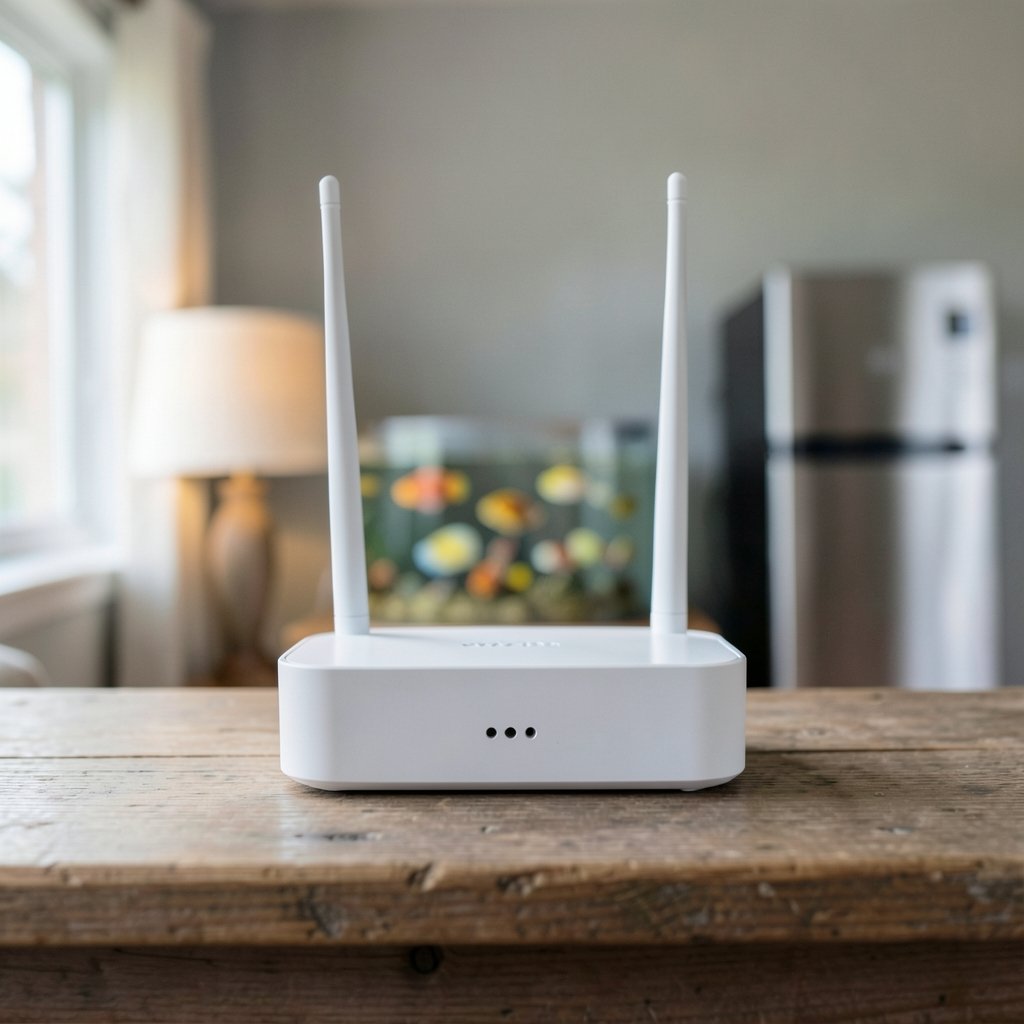
Before touching a single setting, look at where the router sits. Radio waves weaken as they pass through walls, metal, and water, so a router hidden in a cabinet or tucked behind a TV is fighting a losing battle.
The general rule is to place the router central, high, and in the open. A shelf or the top of a bookcase works well. Keep it away from fish tanks, metal shelving, cordless phone bases, and microwaves, which all interfere with Wi-Fi signals.
Homes with multiple floors need extra thought. A single router on the ground floor will struggle to reach an upstairs bedroom, and no amount of channel tuning fixes that. In larger spaces, a mesh system or a second access point wired back to the main router usually beats a single powerful unit.
It is worth walking around the house with a phone in hand after setup to find dead zones and confirm the router’s position is doing its job.
Update Firmware Before Anything Else
Router firmware updates patch security holes and sometimes improve stability and speed. Manufacturers release them quietly, so many routers run years-old software without anyone noticing.
Log into the router’s admin panel, usually by typing its local address into a browser, and look for a firmware or update section. Some modern routers check automatically; older ones need a manual file download from the vendor’s support page.
Two practical tips from experience: update over a wired connection if possible, since a dropped Wi-Fi link mid-update can brick a router, and note down the admin password before starting. A factory reset wipes custom settings, so back up the configuration if the panel offers that option.
Choose the Right Band and Channel Settings
Wi-Fi splits across frequency bands, and each has a personality. The table below sums up the trade-offs most households face.
| Band | Best For | Weakness |
|---|---|---|
| 2.4 GHz | Long range, walls, smart home gadgets | Slow, crowded with neighbors |
| 5 GHz | Speed in nearby rooms, streaming, gaming | Shorter range, weaker through walls |
| 6 GHz (Wi-Fi 6E/7) | Fast, clean spectrum in one area | Very short range, needs newer devices |
On 2.4 GHz, stick to channels 1, 6, or 11, which do not overlap. A Wi-Fi analyzer app on a phone shows which channels nearby networks use, and picking the quietest of the three reduces interference. On 5 GHz, wider channels of 80 MHz boost throughput but can clash in apartment blocks; 40 MHz is often steadier in dense areas. (Wi-Fi)
Many routers ship with band steering, which pushes devices onto the best band automatically. It works well for most homes. If a smart plug or older gadget refuses to connect, temporarily splitting the bands into separate names solves the problem.
Set Up Security the Right Way
Security settings affect performance more than people realize. An old encryption standard invites unwanted attention, and a weak password is an open door.
Choose WPA3 if every device supports it, or WPA2-AES as the minimum. WEP and WPA with TKIP are obsolete and should be switched off. Change the admin password from the factory default, and rename the network so it does not advertise the router model.
Guest networks are useful for visitors and smart devices, keeping them separate from laptops and phones. Disabling remote administration and WPS push-button pairing closes two commonly exploited gaps.
For anyone running an ISP-supplied gateway, checking whether it can run in bridge mode is worthwhile. A dedicated router behind it often performs better than the combo unit, and matching it with a solid best modem router combo can simplify the whole setup into one box.
Fine-Tune Advanced Settings Without Breaking Things
Once the basics work, a few advanced options are worth a look. Quality of Service (QoS) prioritizes video calls or gaming traffic, but a misconfigured rule can starve other devices. Test before trusting it.
Disabling legacy modes such as 802.11b/g helps only when every device is modern, since old standards slow the whole network down. Channel width, transmit power, and MU-MIMO settings vary widely between brands, so check the manual rather than copying advice from a forum.
Here is a sensible tuning order:
- Confirm firmware is current.
- Set encryption to WPA3 or WPA2-AES.
- Pick a clear channel on 2.4 GHz.
- Test 40 MHz versus 80 MHz on 5 GHz.
- Enable QoS only if calls or games stutter.
- Re-test speeds in each room and adjust placement.
Anyone also setting up a handheld console or streaming device on the same network may find a guide like how to set up ppsspp 2026 handy for getting the software side right once the Wi-Fi is solid.
Common Mistakes That Hurt Wi-Fi Performance
A few errors show up again and again in home setups. The first is hiding the router for aesthetics, which trades signal for looks. The second is never rebooting it; a monthly restart clears memory leaks and stale connections.
Another frequent slip is naming the 2.4 GHz and 5 GHz networks identically while band steering is off, leaving devices to guess. Others pile every smart bulb and camera onto the main network, cluttering it, when a guest network would do.
Overloading a single cheap router with dozens of devices is the quiet killer. Every connected gadget shares airtime, and a budget unit from five years ago simply cannot keep pace with a modern household.
When to Replace the Router Instead of Tweaking It
Sometimes settings cannot rescue old hardware. Wi-Fi standards have moved through several generations, and a router from the Wi-Fi 4 era lacks the antennas and processing power for today’s device counts. (Discover Wi-Fi)
Signs it is time to upgrade include frequent dropouts, speeds far below the internet plan, and devices that cannot see the 5 GHz band. A newer unit with Wi-Fi 6 support handles crowded homes better and pairs well with modern laptops and phones.
Before buying, check the internet plan’s actual speed and the home’s square footage. Matching router capability to real needs beats chasing the newest label.
Practical Setup Checklist for Busy Households
Busy homes juggling work calls, streaming, and gaming benefit from a short, repeatable routine. Run through it once, then revisit every few months.
- Place the router centrally and high, away from metal and water.
- Update firmware and change the admin password.
- Set WPA3 or WPA2-AES encryption.
- Pick clear channels and test band steering.
- Put smart devices on a guest network.
- Reboot monthly and re-test speeds.
For families that enjoy a bit of analog fun between screens, the same network can support a horse racing board game night streamed to a tablet, or a quick round following the rules for backgammon board game pulled up online. A stable connection makes those little extras smoother too.
Conclusion
Setting up a Wi-Fi router for the best performance is less about secret settings and more about the fundamentals: smart placement, current firmware, modern encryption, and clean channels. Those four steps deliver most of the gains, and they cost nothing but a little time.
Tweaks like QoS, channel width, and band steering help at the margins, but they cannot compensate for a router in a closet or a unit too old for the job. Test after each change, keep notes, and let real-world speed tests in each room guide the next move.
A well-placed, properly configured router quietly does its job for years. A few minutes of setup now saves months of buffering later, and the routine above is easy to repeat whenever the network starts to feel sluggish.
Frequently Asked Questions
Where should I put my router for the best signal?
Central, elevated, and open is the short answer. Avoid cabinets, metal shelves, and spots next to fish tanks or microwaves. For multi-floor homes, a mesh system usually beats one router in a corner.
Does updating router firmware actually improve speed?
It can. Updates patch security flaws and sometimes fix bugs that cause slowdowns or dropouts. Speed gains vary by model, but the security benefit alone makes updating worthwhile.
Should I use 2.4 GHz or 5 GHz?
Use 5 GHz for speed in nearby rooms and 2.4 GHz for range and smart home gadgets. Many routers steer devices automatically, which suits most households. Splitting the bands helps when older devices struggle to connect.
How often should I restart my router?
A monthly reboot is a reasonable habit. It clears memory buildup and refreshes connections. If the router needs restarting weekly to stay stable, that is a sign of a firmware problem or aging hardware.
Why is my Wi-Fi slow even after setup?
Common causes include an old router, too many connected devices, interference from neighbors, or an internet plan slower than expected. Test speeds with a cable first to separate Wi-Fi issues from provider issues.
Do I need a mesh system or a single router?
A single router suits most apartments and smaller homes. Mesh systems make sense for larger or multi-floor spaces where one unit cannot cover every room, especially when wired backhaul is possible.
Final Thoughts on Maintenance and Monitoring
The setup routine above covers the heavy lifting, but a network is not a set-and-forget appliance. Devices multiply, neighbors upgrade their gear, and interference patterns shift over time. A quarterly check takes ten minutes: run a speed test in the rooms that matter, glance at the router’s connected-device list for anything unfamiliar, and confirm the firmware is still current. That last point matters because automatic update checks sometimes fail silently, leaving a router exposed without anyone noticing.
Keep a simple log of changes, the channel chosen, the encryption mode, and the date of the last firmware update. When something breaks months later, that note saves an hour of guesswork. If speeds dip after a change, reverting is quick once the previous settings are written down.
Finally, treat the router as part of the home’s infrastructure rather than a gadget in a corner. It deserves the same attention as the thermostat or the smoke detector, a quick glance now and then, a reboot when it acts up, and replacement when it genuinely wears out. Households that follow that habit rarely think about Wi-Fi at all, which is exactly the point. The best network is the one nobody notices, quietly carrying video calls, streams, and late-night board game tournaments without a stutter.
