
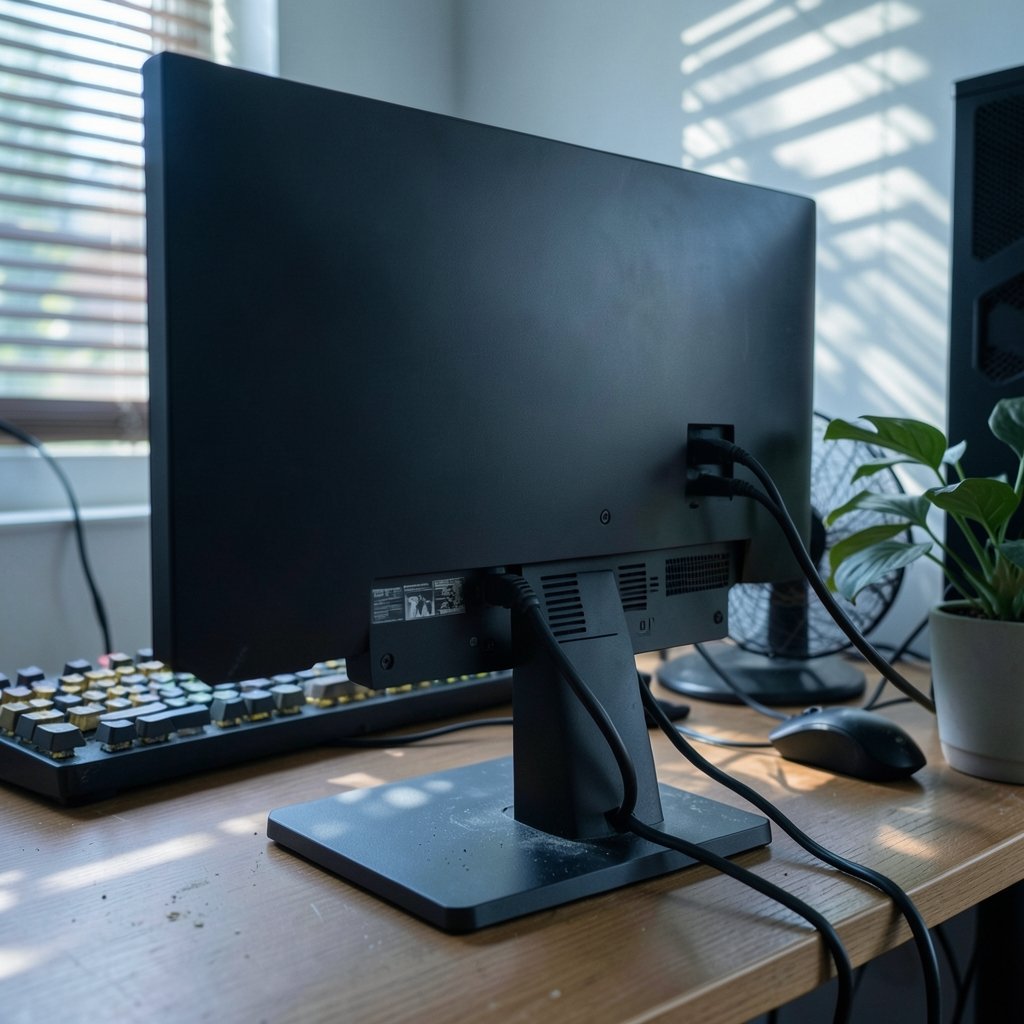
A 2024 survey of over 1,000 PC gamers found that nearly 6 in 10 had returned or replaced a monitor within two years — and most of those returns were for problems the owners could have fixed themselves in under ten minutes. That number stings, because gaming monitors are among the most misunderstood pieces of hardware on a desk. People blame the panel for issues caused by a cheap cable, a Windows setting, or a driver that shipped broken. The good news: almost every common gaming monitor problem has a known cause and a fix you can try today. This guide walks through the real-world failures — flickering, backlight bleed, dead pixels, black screens, stuck refresh rates, ghosting, washed-out HDR — and tells you what actually works, what’s a waste of time, and when to stop troubleshooting and start a warranty claim.
Why Gaming Monitors Fail More Often Than People Expect
A gaming monitor is doing far more than a standard office display. It’s juggling variable refresh rates, high frame output, HDR metadata, and multiple input standards at once. That complexity creates more failure points. According to Wikipedia’s overview of display resolution and refresh standards, the jump from fixed 60 Hz panels to adaptive-sync displays introduced whole new categories of compatibility problems that simply didn’t exist a decade ago.
The practical takeaway is simple: before you assume the panel is defective, rule out the cable, the port, the operating system, and the GPU driver. Those four culprits account for the majority of “broken monitor” reports. If you’re still shopping and want to avoid these headaches in the first place, it helps to start with a display built for your setup — whether that’s the best monitor for PS5 or a budget gaming monitor for competitive play. (Computer monitor)
Screen Flickering and Brightness Pulsing
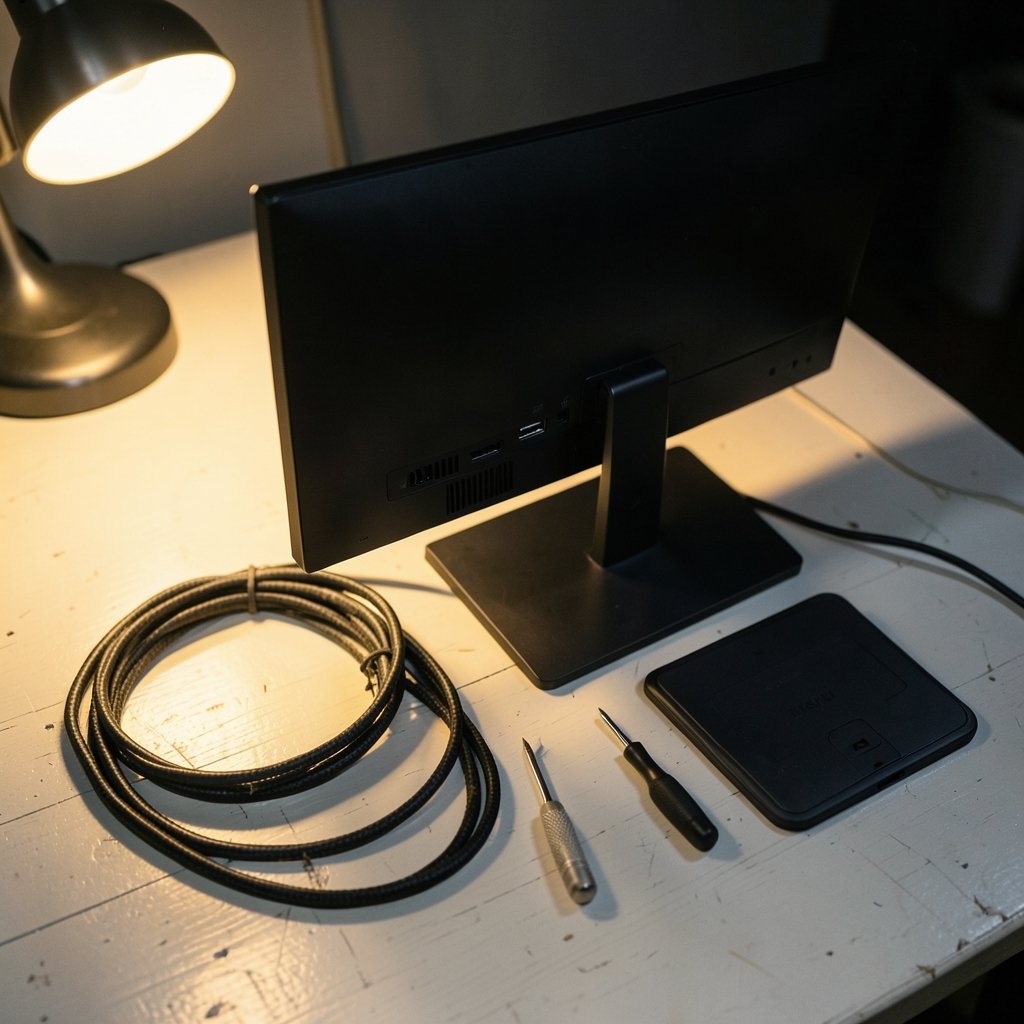
This is the single most reported gaming monitor complaint, and it’s also the most misunderstood. Flicker usually appears in one of three forms:
- VRR flicker — brightness shifts when the refresh rate swings, especially on loading screens or menus where frame rates spike.
- PWM flicker — a backlight dimming method that some people perceive as a subtle shimmer, particularly at low brightness.
- Faulty cable flicker — random black flashes caused by a marginal DisplayPort or HDMI connection.
What actually works
- Cap your frame rate a few frames below your monitor’s max refresh. This stabilizes the VRR range and kills most loading-screen flicker.
- Enable VRR only in fullscreen mode rather than windowed, which reduces erratic rate switching.
- Update your GPU driver — VRR flicker fixes ship regularly in driver releases.
- Swap the cable for a certified, well-reviewed DisplayPort cable. This alone resolves a shocking number of “flickering monitor” cases.
What doesn’t work: cranking brightness to 100% to “hide” the flicker. That just makes PWM shimmer more noticeable on panels that use it.
Backlight Bleed and IPS Glow
New monitor owners panic over bright patches in the corners during dark scenes. Here’s the honest breakdown: IPS glow is a viewing-angle characteristic built into the panel technology itself — it shifts as you move your head. Backlight bleed is light escaping around the panel edges, and it’s a manufacturing tolerance issue.
The tricky part is that acceptable bleed thresholds are subjective and set by each manufacturer, and those thresholds are rarely published in precise terms. So a monitor that looks terrible to you may be “within spec” to the brand.
Practical steps
- View the screen from your normal seating distance, not from two inches away in a pitch-black room. Bleed looks far worse up close.
- Lower brightness to a comfortable level (often 20–35% in a dark room). Bleed intensity scales with backlight output.
- Test with a realistic dark scene, not a pure black test pattern designed to expose flaws.
- Document with photos if you decide to return it, and check the retailer’s dead-pixel and bleed policy before opening a ticket.
If you’re building a full setup and want to sidestep panel lottery frustration, pairing the right display with a solid foundation matters — see our guide to the best motherboard for gaming so your GPU and display can actually talk to each other at full speed.
Dead and Stuck Pixels
A dead pixel stays permanently black. A stuck pixel shows a fixed color — red, green, blue, or white. The distinction matters because stuck pixels sometimes recover and dead ones almost never do.
The fixes worth trying
- Run a pixel-fixing tool for 10–30 minutes on the affected area. These rapidly cycle colors to “wake up” a stuck subpixel. Success rates are modest but the cost is zero.
- Apply gentle, careful pressure with a soft cloth while the pixel flasher runs. This is a last resort and can make things worse — proceed with caution.
- Check the warranty policy. Most brands require a minimum number of defective pixels before honoring a claim, and that threshold varies significantly by brand and region. Don’t assume one dead pixel gets you a replacement.
The mistake people make here is waiting too long. Report pixel defects within the retailer’s return window, because manufacturer warranty thresholds are often stricter than store return policies.
Black Screen, No Signal, and Random Dropouts
A monitor that goes black mid-game is almost never dead. Work through this order:
| Symptom | Most likely cause | First fix |
|---|---|---|
| No signal on boot | Wrong input selected | Cycle inputs manually |
| Black screen after alt-tab | Fullscreen mode conflict | Switch to borderless windowed |
| Random dropouts while gaming | Marginal cable or port | Reseat, then replace cable |
| Screen sleeps but PC is active | Power saving / DP sleep bug | Disable monitor sleep in OS |
DisplayPort cable quality matters more than most people realize — a cable that works fine at 60 Hz can fail intermittently at 144 Hz or higher. If you’ve ruled out the cable and the port, test the monitor on a second device before assuming it’s the panel.
Refresh Rate Stuck at 60 Hz
You bought a 165 Hz monitor and Windows says 60 Hz. This is one of the most common and most fixable problems.
- Open display settings and manually select the highest available refresh rate. Windows often defaults to 60 Hz.
- Use a certified cable rated for your resolution and refresh rate. HDMI versions in particular cap refresh rates at certain resolutions.
- Check the port. Some monitors only hit max refresh on DisplayPort, not HDMI.
- Update GPU drivers and, if available, monitor firmware.
- Verify in-game settings — many games ship with a 60 FPS cap enabled.
If you’re troubleshooting a multiplayer setup and frames still feel sluggish, it may not be the monitor at all. Network stability plays a bigger role than most players think, which is why our breakdown of the best internet for gaming is worth a read alongside your display fixes.
Ghosting, Overshoot, and Smearing
Motion artifacts are usually a setting problem, not a hardware failure. Monitor overdrive settings that are too aggressive produce inverse ghosting — bright halos trailing behind moving objects. Too low, and you get smearing.
How to tune it properly
- Open the monitor’s OSD and find the overdrive or response time setting.
- Test at each level using a motion test pattern while panning the camera in a game.
- Pick the middle setting in most cases — the highest is almost always overshoot-heavy.
- Re-test after firmware updates, since manufacturers sometimes retune overdrive curves.
The optimal setting is model-specific, so ignore blanket advice like “always max overdrive.” It’s wrong more often than it’s right.
Washed-Out HDR and Color Problems
HDR that looks flat, gray, or worse than SDR is a classic complaint. The usual causes are enabling HDR in the OS for content that isn’t HDR, or running HDR on a panel with limited brightness capability.
Fixes that help
- Toggle HDR only when consuming HDR content. Windows HDR mode can make SDR desktop content look dull.
- Check bit depth and color format in your GPU control panel — full RGB at the correct bit depth avoids banding and washed-out tones.
- Calibrate brightness and contrast using the monitor’s own settings before touching software.
- Accept panel limits. Edge-lit HDR on a budget panel will never match a full-array local dimming display, and no setting fixes that.
When to Stop Troubleshooting and Claim the Warranty
There’s a point where persistence stops paying off. Stop and contact support if:
- The monitor shows physical damage, lines, or a cracked panel.
- A dead pixel count exceeds the brand’s stated threshold.
- Flicker persists after cable, driver, and frame-cap fixes.
- The monitor fails to power on or won’t detect any source across two devices.
Keep your receipt, photograph the defect, and describe the exact steps you already tried. Support agents respond far faster to a clear, documented list than to “it’s broken.” For context on how quickly hardware and software fixes evolve, the pace of problem-solving in tech is worth noting — even AI systems are now closing gaps fast, as seen in reports on OpenAI solving 100 math problems in 24 days.
Conclusion
Most gaming monitor “failures” are configuration problems wearing a hardware costume. Flickering usually traces back to VRR behavior or a marginal cable. A black screen is almost always an input or cable issue. A stuck 60 Hz refresh rate is a settings oversight. Ghosting is an overdrive slider set too high. The pattern is consistent: rule out the cheap, fixable causes before you box up the panel. Work through cable, port, driver, and OS settings in that order, document what you tried, and only then pursue a warranty claim. Do that, and you’ll save yourself the cost and hassle of a return that was never necessary — and you’ll actually get the performance you paid for.
Frequently Asked Questions
Why does my gaming monitor flicker only in some games?
VRR flicker appears when the refresh rate swings sharply, which happens most on loading screens and menus where frame rates spike. Capping your frame rate a few frames below your monitor’s maximum refresh usually resolves it. Some games handle variable refresh rate better than others, so the problem appearing in only a few titles is normal.
Is backlight bleed covered under warranty?
Sometimes, but not always. Most manufacturers treat minor bleed as within normal manufacturing tolerance, and their acceptable thresholds are rarely published precisely. Photograph the issue, check your retailer’s return window first, and contact support with documentation before assuming a replacement is guaranteed.
How many dead pixels before a monitor gets replaced?
It varies widely by brand and region, and there’s no universal standard. Some brands require several defective pixels before honoring a claim, while others are stricter. Always check your specific model’s warranty terms and act within the retailer’s return period, which is usually more forgiving.
Can a bad cable really cause a black screen or flickering?
Yes, and it’s one of the most common causes. A marginal DisplayPort or HDMI cable can work fine at 60 Hz but fail intermittently at higher refresh rates. Reseat the cable first, then swap it for a certified replacement rated for your resolution and refresh rate before blaming the monitor.
Why is my 165 Hz monitor stuck at 60 Hz?
Windows often defaults to 60 Hz, so the first step is manually selecting the highest refresh rate in display settings. If that option isn’t available, check that you’re using a certified cable and the correct port — many monitors only reach maximum refresh over DisplayPort, not HDMI. Driver updates and in-game frame caps are the next things to check.
Should I return a monitor with one stuck pixel?
Check the retailer’s return policy first, since store returns are usually more flexible than manufacturer warranties. Try a pixel-fixing tool for 30 minutes before deciding. A single stuck pixel often falls within manufacturer tolerance, but a retailer within its return window may still accept it.



