
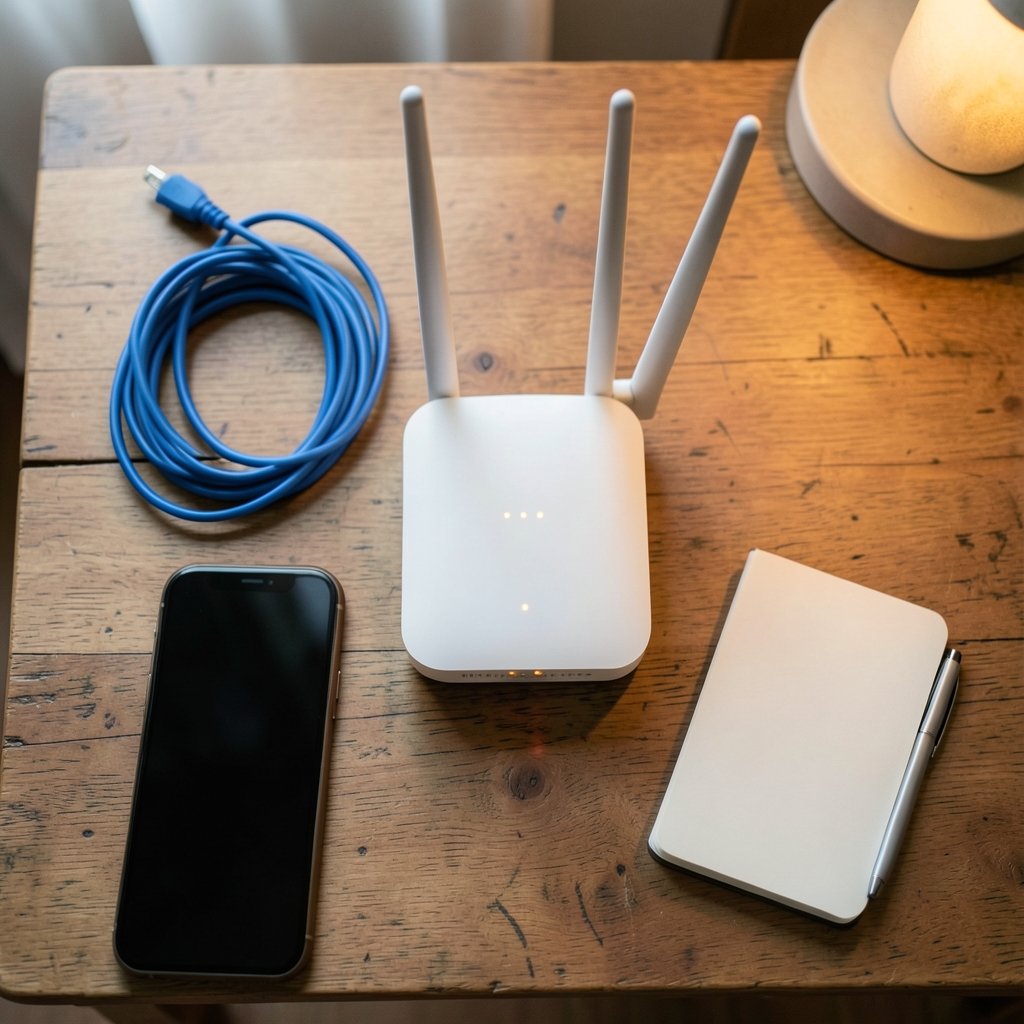
Quick Answer: What are the most common problems with wifi router and how do i fix them?
The most common Wi-Fi router problems are weak or dead zones, dropped connections, slow speeds, and devices that refuse to connect at all. Most of them trace back to one of a few causes: bad placement, channel congestion, outdated firmware, or a router that simply can’t handle the number of devices in the home.
The fixes usually live in three places: where the router sits, what its admin settings say, and how current its software is. A reboot or a firmware update solves a surprising share of complaints, while placement and channel changes handle most of the rest.
Some problems look like router faults but are actually ISP outages or modem failures, so isolating the source comes before buying anything new. Before acting, check signal strength in problem rooms, the router’s firmware version, how many devices are connected, which band each one uses, and whether a wired connection works.
Every home has that one room where the Wi-Fi mysteriously dies. You carry your laptop in, the bars drop to one, and a page that loaded fine in the kitchen suddenly spins forever. It’s a small daily frustration that most people blame on their internet provider, when the real culprit is often sitting quietly in a corner behind the TV.
The scale of the problem is real. A single household now routinely runs a couple of dozen connected devices, from phones and laptops to thermostats and doorbells, all competing for airtime on the same router. Consumer routers are typically built to a price, and they show it under that load. The good news is that most of the problems people experience fall into a handful of predictable categories, and nearly all of them have practical fixes that don’t require a new provider or a technician visit.
Weak Signal and Dead Zones
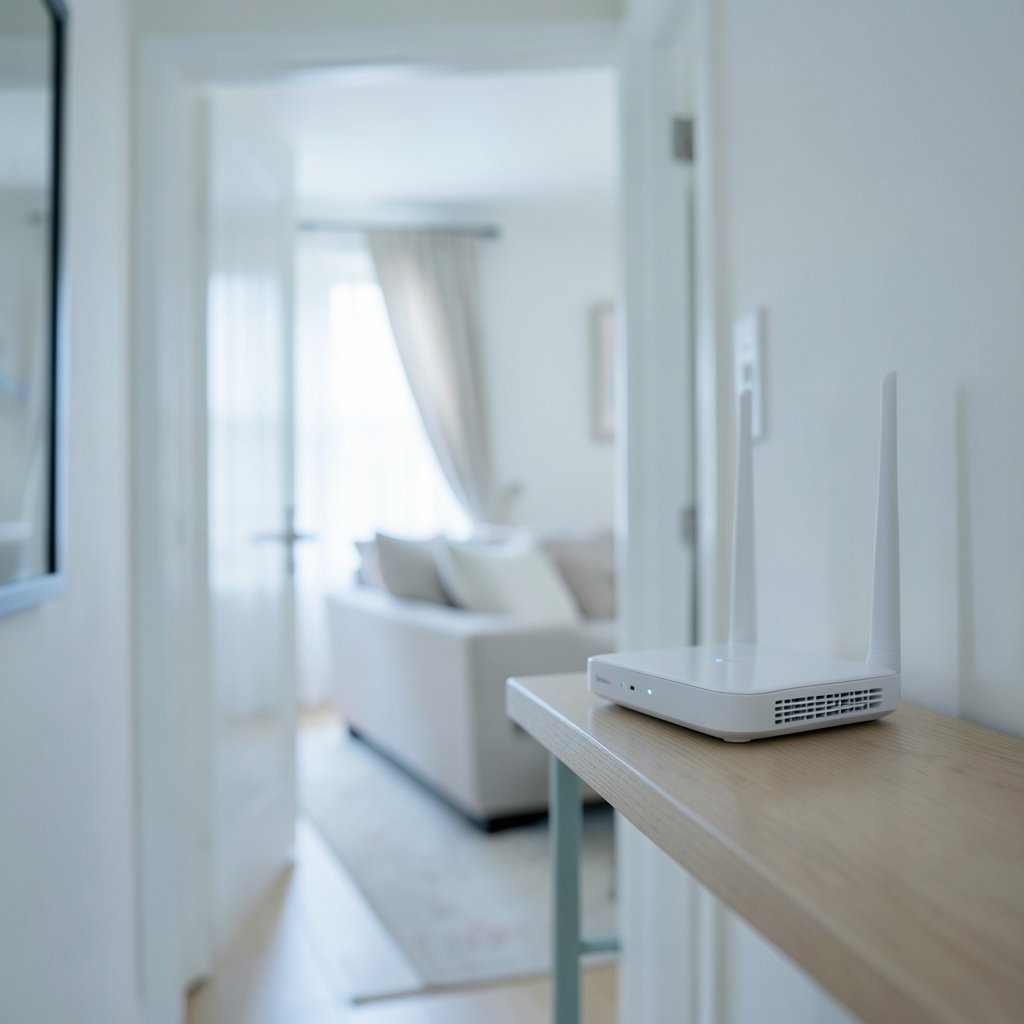
This is the complaint that starts most router troubleshooting, and placement is the usual suspect. Wi-Fi signals weaken with distance and fare badly against physical obstacles. Metal studs, concrete walls, aquariums, mirrors, and even a microwave in the next room all eat into the signal. A router tucked into a cabinet or placed on the floor is fighting a losing battle before anyone even connects.
The practical fix is to move the router to a central, open, elevated spot. Ideally it sits high, away from metal and water, and out of enclosed furniture. Small placement changes often beat expensive hardware upgrades, which is why it’s worth testing before spending money. (How to fix antimalware service executable high cpu usage)
If moving the router isn’t enough, the next step is extending coverage deliberately. A mesh system or a wired access point will outperform a cheap repeater, which tends to halve throughput and add latency. Homes with thick walls or multiple floors usually need more than one broadcasting point. Readers who want a single device to handle both routing and coverage should compare options carefully, since the best modem router combo units vary widely in wireless performance.
Slow Speeds Even When the Signal Looks Strong
Full bars and slow pages is one of the most confusing combinations. It usually means the connection between the router and the device is fine, but something upstream is throttling it. Common causes include an old cable modem, a congested channel, an overloaded 2.4 GHz band, or a device stuck on a slower band when a faster one is available.
A quick diagnostic sequence helps narrow it down:
- Run a speed test over Wi-Fi, then repeat it with an Ethernet cable plugged directly into the router.
- If wired is fast and Wi-Fi is slow, the problem is wireless, not the internet connection.
- If both are slow, plug a laptop directly into the modem to rule the router out entirely.
- Compare results at different times of day to spot congestion or peak-hour throttling.
That last step matters more than people expect. Neighbors’ networks, cordless phones, baby monitors, and Bluetooth devices all crowd the 2.4 GHz band, and performance can swing dramatically between evening and mid-morning. Switching devices to the 5 GHz band where possible is often the single biggest speed improvement available, provided the device supports it and isn’t too far from the router. (Broadband Speed Guide)
Dropped Connections and Random Disconnects
Connections that drop and reconnect on their own are frustrating because they’re intermittent. In practice, the usual causes are outdated firmware, overheating, overloaded routers, and interference. A router that’s been running for months without a restart can accumulate memory problems, and a power cycle clears many of them.
Router firmware is worth checking. Manufacturers publish updates that fix stability bugs and close security holes, and an unpatched router is a known risk. Government cybersecurity guidance consistently flags home routers as a target because so many ship with default admin passwords and never get updated. Logging into the admin panel and checking the firmware version takes five minutes and resolves a large share of mystery disconnects. (Wi-Fi)
Heat is the underrated culprit. Routers stacked on top of other electronics, or crammed into closed cabinets, run hot and behave erratically. Giving the device airflow is free and occasionally decisive.
Devices That Won’t Connect at All
When a single device can’t join the network while everything else works, the router is rarely the problem. The usual suspects are a saved network profile with an old password, a device that only supports 2.4 GHz trying to reach a 5 GHz-only network, or a MAC address filter that’s quietly blocking it.
The fix is methodical. Forget the network on the device, then reconnect. Check whether the router has band steering enabled, which can confuse older devices into failing to associate. If the router uses a single network name for both bands, temporarily separating them into distinct names makes troubleshooting far easier, and many people leave them separated permanently. Naming networks clearly is its own small art — a distinctive name helps you identify your network in a crowded apartment building, and it’s worth reading up on how to pick the best name wifi setups use so you don’t confuse your own network with a neighbor’s.
If a device connects but shows “connected, no internet,” the issue is usually DNS or an IP conflict rather than Wi-Fi. Switching the router’s DNS servers or renewing the device’s lease often clears it.
Security Problems People Overlook
Default admin credentials remain one of the most common and most avoidable router weaknesses. Many routers still ship with an admin password of “admin” or similar, and those devices get scanned and compromised routinely. Changing the admin password, disabling remote administration, and keeping firmware current are the three highest-value security steps available to any household.
WPA3 or at minimum WPA2 encryption should be enabled, and WPS should be turned off unless actively in use. These settings live in the same admin panel as everything else, so a single session can cover security and performance at once. Anyone who spends time verifying what they share online will recognize the pattern: the defaults are rarely the safest choice.
When the Problem Is the ISP, Not the Router
A sizable share of “my Wi-Fi is broken” complaints turn out to be provider-side outages or degraded lines. The tell is simple: if a wired connection straight to the modem is also slow or dead, the router is innocent. Checking the provider’s status page and restarting the modem in the correct order, modem first, then router, resolves a lot of these cases. (Best modem router combo)
If a website won’t open at all while other sites load fine, that’s a different problem entirely, and the fix usually involves DNS, browser cache, or the site itself rather than the router. There’s a solid walkthrough on how to fix a website that will not load that covers the client-side checks before blaming the network. (Decky loader not working steam deck fix 2026)
Router Settings Worth Reviewing
A short list of settings resolves a disproportionate number of complaints. Working through them once, deliberately, saves repeated troubleshooting later.
| Setting | What to check | Why it matters |
|---|---|---|
| Channel | Use 1, 6, or 11 on 2.4 GHz in North America | Non-overlapping channels reduce interference |
| Band steering | On for modern devices, off if older devices fail | Pushes devices to 5 GHz automatically |
| Firmware | Latest version from the vendor | Fixes bugs and security flaws |
| Admin password | Changed from default | Prevents unauthorized access |
| Encryption | WPA2 or WPA3 | Protects traffic from snooping |
| Guest network | Enabled for visitors and smart devices | Isolates untrusted devices |
Channel recommendations differ by region because regulatory rules vary, so the 1/6/11 advice is specific to North America. Elsewhere, the non-overlapping set may be different.
Older Hardware and Capacity Limits
Sometimes the router isn’t broken; it’s simply outmatched. A Wi-Fi 4 or early Wi-Fi 5 router handling thirty devices will struggle regardless of settings, and no amount of channel tweaking fixes a capacity ceiling. Symptoms include slowdowns that appear only when everyone is home, video calls that degrade in the evening, and devices that disconnect when a game console or TV starts streaming.
The practical test is to count active devices and compare that with what the router was designed to handle. If the number is well past the router’s comfort zone, replacement is the honest answer. Before buying, check the wireless standard, the number of streams, and whether the unit supports the bands your devices actually use.
Conclusion
Most Wi-Fi router problems are not mysterious. They cluster around a short list: placement, interference, outdated firmware, overloaded hardware, and default settings nobody changed. Working through them in order, starting with the free fixes and moving toward replacement only when capacity is genuinely the limit, resolves the vast majority of complaints without a technician or a new contract.
The habit that matters most is diagnosis before purchase. Test wired versus wireless, check the firmware version, count the devices, and note which band each one uses. That five-minute routine tells you whether you’re dealing with a placement problem, a settings problem, or a hardware problem, and it stops you from buying a new router to solve something a channel change would have fixed.
FAQ
Why does my Wi-Fi slow down in the evening?
Evening slowdowns usually mean congestion, either on your own network or from neighbors. More devices stream at once, and 2.4 GHz channels get crowded. Moving devices to 5 GHz and scheduling heavy downloads for off-peak hours helps noticeably.
Should I restart my router regularly?
A periodic restart clears memory issues and resolves many transient faults, though some argue it masks underlying problems. Monthly is a reasonable middle ground; if you need to restart weekly to stay online, something else is wrong.
Does a more expensive router always mean better Wi-Fi?
No. Placement, interference, and device capacity matter more than price. A well-placed mid-range router often outperforms an expensive one stuck in a cabinet behind a TV.
How do I know if my router is hacked?
Warning signs include unfamiliar devices in the admin panel, changed DNS settings you didn’t make, random redirects, and unusually slow performance. Check the connected device list and reset the admin password if anything looks off.
Can I use my own router with my provider’s modem?
Usually yes, though some providers require bridge mode or specific settings. The safest approach is to put the provider’s device into bridge mode so only one device handles routing, which avoids double NAT problems.
How often should I replace my router?
Every four to five years is a reasonable cadence, or sooner if it lacks the wireless standard your devices use. Security updates are the real deadline, since vendors eventually stop patching older models.



