

Quick Answer: What are the most common problems with webcam and how do i fix them?
The most common webcam problems are privacy settings that block camera access, another app already holding the device, the wrong camera selected inside an app, outdated or missing drivers, faulty USB connections, and a closed physical privacy shutter. Most of these are fixed in minutes by checking the system privacy toggle, closing competing apps, reselecting the camera in the app’s settings, and trying a different USB port.
Operating system privacy controls differ from app-level permissions, and both can block a camera independently, so a camera that works in one program may fail in another. Browser-based calls add a third layer, since each site asks for its own camera permission.
Before buying a replacement, check the privacy toggle, the app’s camera selection, background apps, the cable and port, the driver status, and any physical shutter or kill switch.
Roughly one in five support tickets about video calls traces back to a camera that was never actually broken. It was simply blocked, mis-selected, or unplugged. That statistic is the good news: most webcam failures are configuration problems, not hardware deaths. The frustrating part is that the symptom looks identical every time. A black preview window, a spinning icon, or an error that says the camera is “in use” tells you almost nothing about the cause.
What follows is a practical diagnostic order that works on Windows, macOS, and browsers. It starts with the cheapest checks and moves toward hardware only when the software trail runs cold.
Start With the Physical Stuff Nobody Checks
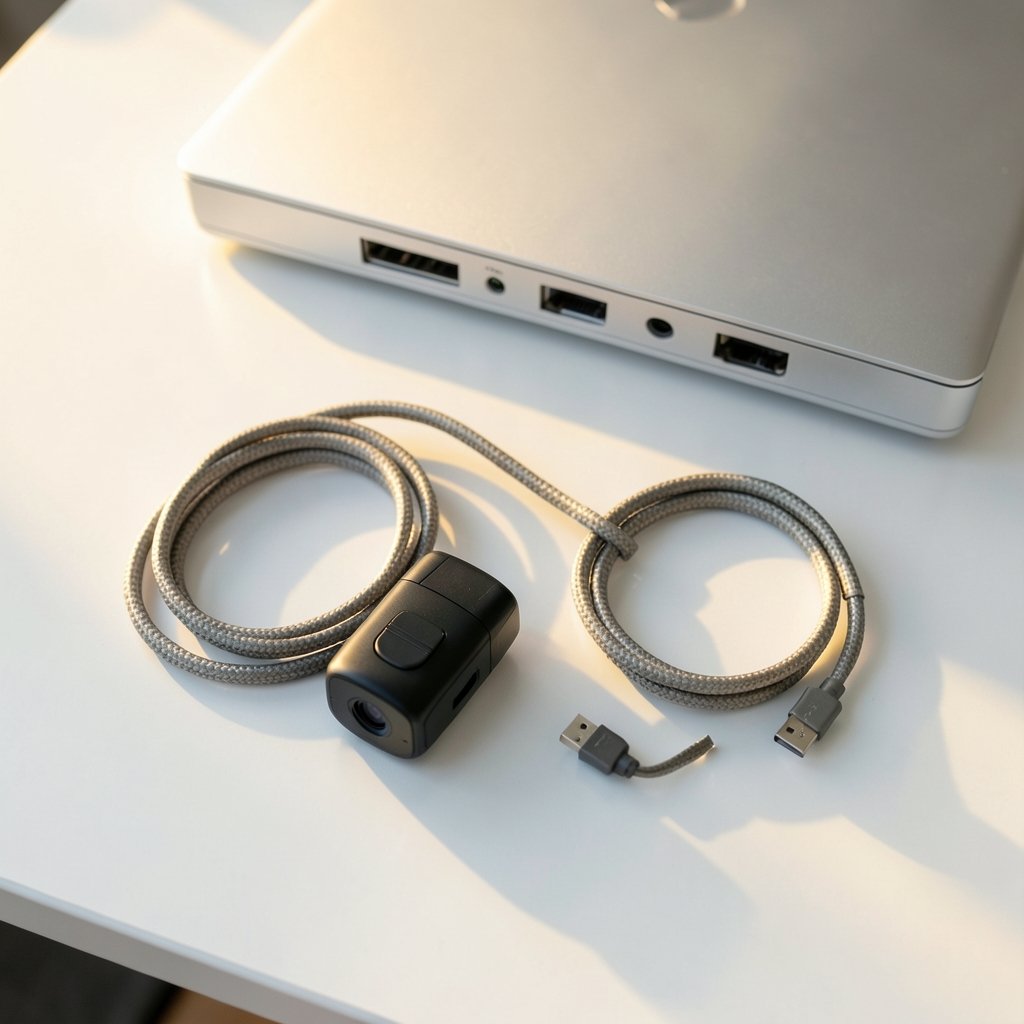
Before touching a single setting, look at the camera itself. This sounds almost insulting, but it is the single most common mistake people make. Many laptops and standalone webcams ship with a sliding privacy shutter, and it is easy to close it and forget. A shutter left closed produces a perfectly black image with no error message at all.
Next, check the cable. A loose USB connection, a cable that has been yanked one too many times, or a webcam plugged into an unpowered hub will all produce intermittent or total failure. Plug the camera directly into a rear USB port on a desktop tower rather than a front-panel port or a monitor hub. Rear ports connect straight to the motherboard and deliver steadier power.
There is also the hardware kill switch question. Some business laptops include a function-key combination that disables the camera at the firmware level. If the camera vanished after someone pressed a key combination, that switch is the first suspect.
If the camera works on another computer, the problem is software. If it fails everywhere, the hardware is the culprit. That single test saves hours of guessing.
The Privacy Settings That Quietly Block Everything
Modern operating systems treat the camera as a sensitive resource, which is useful until it blocks access. On Windows, the system-wide camera switch is under Settings > Privacy > Camera. That page has a device-wide switch and a separate list of apps allowed to use the camera. If the device-wide switch is off, every app reports that no camera exists, and people search for drivers they do not need. (If your built-in camera isn’t working)
On macOS, the camera permission model is per-app. Each application must be granted access under System Settings, then Privacy and Security, then Camera. An app that was denied once stays denied until someone flips the switch back, and reinstalling the app often resets the prompt.
Check the device-wide switch first, then the per-app list, then restart the app. Permission changes often need a full quit and relaunch before they apply. Closing the window is not enough on either platform.
Another App Is Probably Holding the Camera
Many webcams allow exactly one application to use them at a time. If a video conferencing client is minimized in the system tray, or a browser tab is sitting on a call screen, the camera stays locked. The next app that tries to open it gets an “in use” or “unavailable” error.
The fix is unglamorous but reliable. Close every program that might touch the camera, including chat apps, screen recorders, virtual backgrounds tools, and browser tabs. Then reopen only the app you actually need. On Windows, the Task Manager shows background processes that do not appear on the taskbar, and those are frequent offenders.
Virtual camera software deserves a special mention. Tools that create a fake camera feed for streaming or filters install a virtual device that can hijack the default. If a video call suddenly shows a logo instead of a face, a virtual camera has taken over.
Wrong Device Selected: The Five-Second Fix
Apps do not always pick the camera you expect. A laptop with a built-in camera, an external webcam, and a virtual camera offers three choices, and the app may default to the wrong one. The result is a black screen even though the hardware is fine.
Open the app’s audio and video settings and look for the camera dropdown. Select the correct device by name, then test the preview. If the external webcam appears as something generic like “USB Video Device,” that is normal, and it is still the right pick.
This is also where people discover a second camera they forgot about. Docking stations and monitors with built-in cameras add devices that Windows and macOS both list, and the operating system may prefer them over the one on the laptop lid.
Driver Problems on Windows
When Device Manager shows a warning triangle next to the camera, or lists an “unknown device,” the driver is the problem. The standard repair sequence is to open Device Manager, find the camera under Imaging devices or Universal Serial Bus controllers, and uninstall it. Then restart the computer so Windows reinstalls a clean driver automatically.
If that fails, download the driver directly from the laptop or webcam manufacturer rather than relying on generic update tools. Manufacturer pages list drivers by exact model number, and the model number is usually printed on the camera body or under the laptop.
One caution: driver update utilities that promise to fix everything often install the wrong package. The manufacturer’s own download page beats any third-party updater. Also worth knowing, a busy system can make a healthy camera stutter. If the camera works but the video is choppy, check what is eating processor time, such as a runaway background service, before blaming the webcam. Guidance on fixing antimalware service executable high CPU usage covers one frequent culprit on Windows machines.
Browser Permissions Are a Separate Layer
A camera that works in a desktop app can still fail inside a browser. Chrome, Edge, Firefox, and Safari each manage camera access per website, and a single “block” click is remembered indefinitely. The address bar shows a camera icon with a slash through it when a site is blocked, and clicking that icon reopens the permission prompt.
The order of checks matters. Confirm the site is served over a secure connection, since browsers restrict camera access on insecure pages. Then confirm the browser itself has operating system permission, because a browser denied at the OS level cannot pass access to any website. Finally, check the site-specific setting.
If a page simply refuses to respond at all, the problem may be broader than the camera. A guide to fixing a website that will not load helps separate a network or page failure from a camera permission issue.
Security Software and Camera Protection
Some endpoint security suites include a camera protection feature that blocks applications from accessing the webcam. It is designed to stop spyware, but it does not always distinguish between spyware and a legitimate video call. When a camera works everywhere except one app, and permissions look correct, check the antivirus dashboard for a camera shield or webcam protection toggle. (Webcam)
The same logic applies to corporate laptops. Management software can enforce camera policies that individual users cannot override, and the fix in that case is a request to the IT department rather than another round of driver reinstalls.
Quality Problems: Blurry, Dark, and Laggy Video
Not every webcam problem is a total failure. Blurry, grainy, or stuttering video has its own causes. Low light forces the camera to raise its sensitivity, which adds noise. A camera running through a USB 2.0 port or a crowded hub may be bandwidth-starved, especially at higher resolutions. Background processor load causes dropped frames.
The practical fixes are simple. Add light in front of the face rather than behind it, move the camera to a direct USB 3.0 port, lower the resolution in the app’s settings, and close heavy background tasks during calls. A $30 webcam with good lighting routinely outperforms an expensive one pointed at a bright window.
When the Camera Is Fine but the Image Looks Wrong
Sometimes the hardware and software are both healthy and the problem is the picture itself. A mirrored image, a stretched aspect ratio, or a background that looks slightly off can all come from app-level filters rather than the camera. Before adjusting anything in the operating system, reset the app’s video effects to default and test again.
This matters more than it used to. Filters, background blur, and virtual avatars now run as separate processes that sit between the camera and the app. When one of them misbehaves, the camera gets blamed. The same principle applies to shared media in general: verifying what you are actually looking at prevents a lot of wasted troubleshooting, and a guide on how to verify images before sharing them covers the habits that keep visual content trustworthy.
A Comparison of Symptoms and Likely Causes
| Symptom | Most likely cause | First fix to try |
|---|---|---|
| Completely black preview, no error | Privacy shutter closed or device-wide switch off | Open shutter, check OS privacy settings |
| “Camera in use” error | Another app holds the device | Close all camera apps, then retry |
| Camera missing from app list | Driver issue or device disabled | Check Device Manager, reinstall driver |
| Works in one app, fails in browser | Site permission denied | Reset permission in browser settings |
| Grainy or stuttering video | Low light or USB bandwidth | Add lighting, use a direct USB 3.0 port |
| Camera vanished after update | Permission reset by OS update | Re-grant camera access per app |
Conclusion
Webcam failures feel mysterious because the symptom is always the same black rectangle, but the causes are a short, predictable list. Physical shutters, privacy toggles, competing apps, wrong device selection, drivers, USB connections, browser permissions, and security software account for nearly every case. Working through them in order, cheapest and simplest first, resolves most problems without a single download.
The habit worth building is a two-minute pre-call check: shutter open, correct camera selected, no other app running, light in front of the face. That routine prevents more failed meetings than any troubleshooting guide ever will. And when something does break, the diagnostic order above turns a panic into a checklist.
Frequently Asked Questions
Why does my webcam show a black screen but no error message?
A black screen with no error almost always means the camera is receiving power but no image is reaching the app. The usual causes are a closed privacy shutter, a disabled system camera toggle, or a virtual camera selected by mistake. Check the physical shutter first, then the operating system privacy settings, then the camera dropdown inside the app.
Can a webcam be broken by a Windows update?
An update can reset camera permissions or replace a working driver with a generic one, which makes the camera appear broken. The hardware itself is rarely damaged. Re-granting camera access in privacy settings and reinstalling the manufacturer’s driver usually restores everything.
Why does my camera work in one app but not in another?
Apps request camera access independently, and each one can be granted or denied separately. A denied permission, a competing app holding the device, or a different camera selection inside that specific app explains nearly every case. Compare the two apps’ video settings side by side to spot the difference.
How do I know if the problem is hardware or software?
Test the camera on a second computer or a different user account. If it fails everywhere, the hardware, cable, or port is at fault. If it works elsewhere, the problem is a setting, permission, or driver on the original machine.
Do USB hubs cause webcam problems?
They can. Unpowered hubs and front-panel ports sometimes deliver inconsistent power, and sharing bandwidth with other devices causes stutter or dropouts. Plugging the camera directly into a rear motherboard port is the fastest way to rule the hub out.
Why is my webcam video blurry even though the camera is new?
Blur usually comes from low light, a dirty lens, or an app running at a reduced resolution. Wipe the lens with a soft cloth, add light in front of the face, and check the app’s video quality setting. Bandwidth limits on a hub or older USB port can also force a lower resolution than the camera supports.



