

DDR5 memory arrived with a promise of double the bandwidth of DDR4, and on paper it delivers. Yet a first build or upgrade often runs into a wall of strange behavior: a PC that sits on a black screen for a minute, a system that refuses to boot at its rated speed, or random crashes that appear only under load. These are not rare edge cases. They are the everyday reality of a newer memory standard that packs more complexity into the same thin stick of hardware.
The good news is that most DDR5 headaches have well-understood causes and practical fixes. This guide walks through the problems people actually hit, why they happen, and what genuinely resolves them, with the mistakes to avoid along the way. (DDR5 SDRAM)
Why DDR5 Feels More Fragile Than DDR4
DDR5 moved a lot of intelligence onto the memory module itself. Each stick now carries a power management chip and a small controller that handles on-die error correction. That design improves signal integrity at high speeds, but it also means the memory and the motherboard must negotiate more carefully during startup. When that negotiation goes wrong, the symptom is usually a slow boot, a failed POST, or instability rather than a clean error message.
It also helps to understand what on-die ECC is not. It corrects errors inside the memory chip, but it is not the same as system-level ECC memory used in servers for data integrity. People sometimes conflate the two and assume DDR5 is inherently error-proof. It isn’t.
Another factor is maturity. Early firmware for new platforms carried memory-compatibility bugs, and board vendors have shipped a steady stream of BIOS updates to fix them. Many “broken” DDR5 kits were never broken at all; they simply needed newer firmware. If someone is still deciding which platform to build on, it’s worth checking how the memory controller side has evolved, similar to how buyers weigh AMD Ryzen 5 5500F and 7500 launch RAM prices in 2026 before committing to a socket.
Problem 1: The PC Takes Forever to Boot on First Start
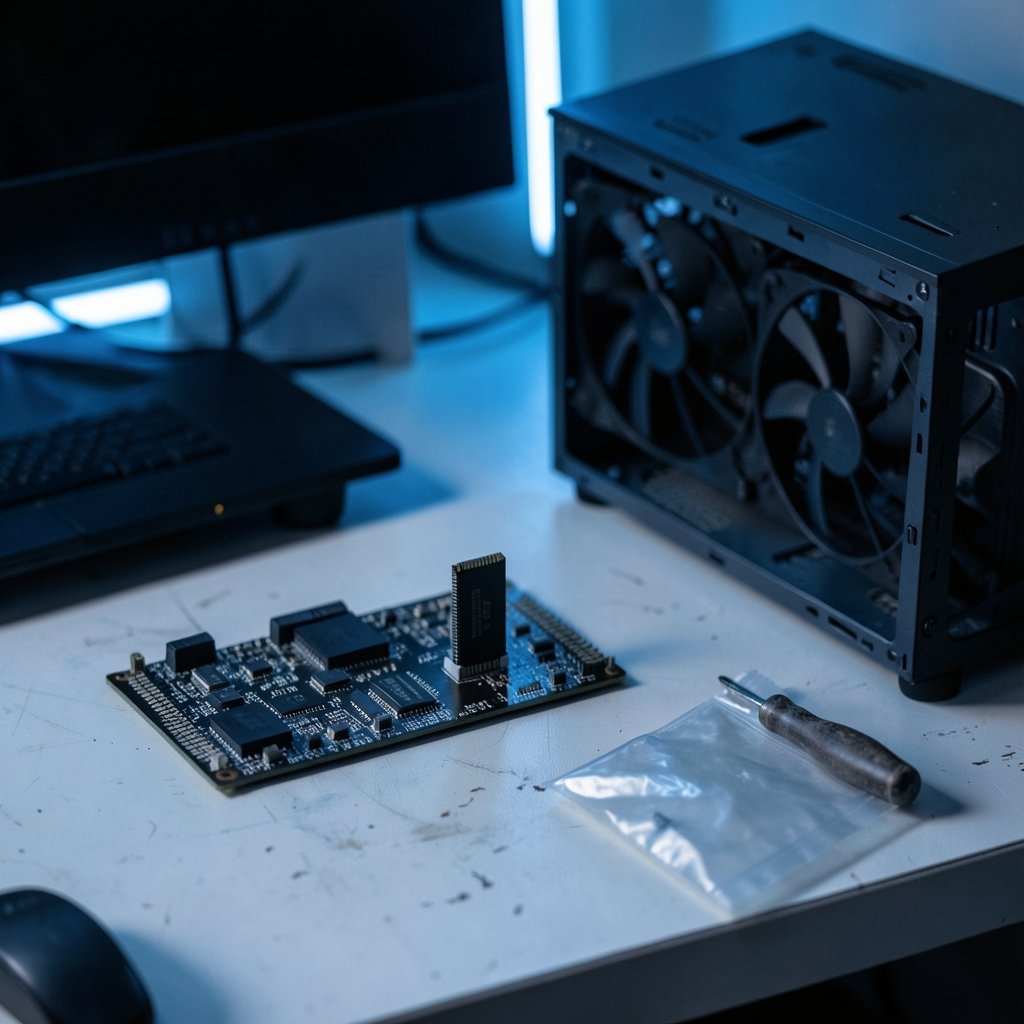
The most common panic moment is the first power-on after installing DDR5. The fans spin, the screen stays dark, and nothing happens for what feels like an eternity.
What’s happening: The memory controller is training the RAM, calibrating timings and voltages for the specific sticks installed. DDR5 training takes longer than DDR4, and it runs again after a BIOS update or a CMOS clear.
The fix: Wait. Give it a full two to three minutes before assuming failure. If it still won’t post, reseat the modules and try a single stick in the slot the manual recommends (usually the second slot from the CPU). Exact training times vary by platform, so treat any specific number as a rough guide rather than a rule.
Problem 2: EXPO or XMP Won’t Post at Rated Speed
Buying a 6000 MT/s kit and finding it runs at 4800 MT/s out of the box is frustrating, and enabling the rated profile sometimes makes things worse.
Why it happens: The EXPO (AMD) or XMP (Intel) profile is a suggestion, not a guarantee. Stability depends on the combination of CPU memory controller, motherboard, BIOS version, and the kit itself.
What actually works, in order:
- Update the BIOS to the latest stable release before touching memory settings.
- Enable EXPO or XMP and test with a memory stress tool for at least an hour.
- If it fails, drop to the next profile down or set the speed manually one step lower.
- Check the motherboard’s QVL (qualified vendor list) to confirm the kit was validated for that board.
A common mistake is chasing the highest number on the box. A stable 5600 MT/s beats a 6400 MT/s profile that crashes during a video export.
Problem 3: Four Sticks Are Harder to Stabilize Than Two
Filling all four DIMM slots looks better and feels more complete, but it frequently forces a lower stable speed than a two-stick configuration on consumer platforms.
The reason: More modules load the memory controller and the signal path more heavily. Two larger sticks usually reach higher speeds than four smaller ones.
The fix: Where capacity allows, use a matched two-stick kit. If four sticks are necessary, accept a lower EXPO profile or manual speed, and expect to spend more time testing. The maximum stable speed for a four-DIMM setup varies widely by platform, so vendor documentation is a better guide than forum anecdotes.
Problem 4: Mixing Kits Causes Mystery Crashes
Combining two separately purchased kits, even of the same model and brand, is one of the most reliable ways to create instability. Modules bought at different times can use different memory chips underneath the heatspreader, and the controller may not handle the mismatch gracefully.
The fix: Use a single matched kit rated for the capacity needed. If a second kit is already installed and the system is unstable, remove it and confirm the crashes stop before troubleshooting anything else. This single step resolves a surprising share of “random reboot” complaints.
Problem 5: Modules Aren’t Fully Seated
DDR5 slots use a design where one end may lack a latch, and the higher density of the module makes partial seating more likely than on older standards. A stick that looks installed can be a millimeter shy of full contact.
The fix: Push firmly at both ends until the latch clicks and the module sits level with its neighbors. A partial seat often produces exactly the symptoms people blame on bad RAM: no boot, intermittent detection, or a board that reports only one channel.
Problem 6: Outdated BIOS and Compatibility Bugs
Early firmware for a new platform frequently shipped with memory-compatibility issues that later updates resolved. Board vendors publish release notes that often mention improved memory support or specific kit compatibility.
The fix: Check the vendor’s support page for the board, read the BIOS release notes, and update if a newer version addresses memory stability. Do this before buying replacement RAM. It is the cheapest possible fix and one of the most effective.
Problem 7: High-Speed Kits Running Hot
Aggressive profiles with tight timings push more voltage and heat through the modules. In a case with poor airflow, especially with tall heatspreaders crammed under a large CPU cooler, thermal throttling can cause performance drops or instability under sustained load.
The fix: Ensure some airflow moves across the DIMM area, avoid blocking the slots with oversized coolers, and consider a lower profile if temperatures are consistently high. Monitoring software that reports memory temperatures makes this easy to confirm rather than guess.
Problem 8: Failed Overclocks Leave the System Unbootable
A failed memory overclock can leave a machine stuck before it ever reaches the operating system.
The fix: Clear the CMOS, which restores default settings and gets the system booting again. Most boards have a clear-CMOS button or jumper; others require removing the battery briefly. After that, reapply settings one change at a time.
Voltage Caution Worth Repeating
Raising DRAM or SoC voltages beyond the motherboard vendor’s guidance risks permanent damage to the memory controller. Memory tuning guides that suggest pushing voltages higher “for stability” should be treated with skepticism. Follow the vendor’s published limits, not a random forum post.
A Practical Troubleshooting Order
When a DDR5 system misbehaves, working through steps in a sensible order saves hours. The table below summarizes the sequence that resolves most cases.
| Step | Action | What It Rules Out |
|---|---|---|
| 1 | Wait through first-boot training | False alarm on slow POST |
| 2 | Reseat modules, try one stick | Partial seating, dead slot |
| 3 | Update BIOS | Firmware compatibility bugs |
| 4 | Load defaults, then enable EXPO/XMP | Corrupted settings |
| 5 | Test with a memory stress tool | Genuine instability |
| 6 | Drop speed or loosen timings | Overly aggressive profile |
| 7 | Remove mixed kits | Mismatched module pairs |
Following that order means the free, fast fixes come first. Replacing hardware should be the last resort, not the first move.
What the Standards and Vendors Actually Say
The technical foundation for DDR5 comes from the JEDEC standard family, which defines signaling, timings, and the on-die ECC implementation. JEDEC publishes these specifications openly, and they are the authoritative reference when a vendor claim needs checking. Platform makers such as Intel and AMD publish their own memory-support documentation, and motherboard vendors maintain QVL lists and BIOS release notes that describe which kits were validated and which firmware versions improved compatibility. (JEDEC DDR5 SDRAM Standard (JESD79-5))
Memory module vendors also publish technical notes on EXPO and XMP behavior that explain why a rated profile may not run on every combination of hardware. Reading those notes before buying is far cheaper than discovering the mismatch afterward. For anyone also weighing a vehicle purchase while budgeting a build, the same principle of comparing documented terms applies to resources like Ram lease deals compared by price and monthly payment, where the fine print matters more than the headline number.
Mistakes That Make Things Worse
A few habits turn a solvable problem into a frustrating one.
- Changing several settings at once. If three variables move together, there’s no way to know which one caused the failure.
- Trusting the rated speed unconditionally. The number on the packaging is a best-case target for a validated combination.
- Skipping the QVL. It exists precisely to prevent compatibility surprises.
- Assuming on-die ECC means “no errors possible.” It corrects internal errors, not system-level ones.
- Blaming the RAM first. Firmware, seating, and mixed kits cause more failures than defective modules.
When to Suspect the Module Is Actually Faulty
Genuine hardware failure is real, just less common than configuration problems. Warning signs include a stick that fails in every slot and on a second system, errors that appear at stock speeds with a single module installed, or a kit that worked for months and suddenly fails after no changes. In those cases, warranty replacement is the right path. Before sending anything back, confirm the failure with a single stick at default settings, because a return that tests clean wastes everyone’s time.
It also helps to know the ownership and support structure behind the brands involved when warranty claims come up. Buyers researching truck purchases alongside their tech questions often look into who owns Ram trucks for exactly this reason: knowing the parent company clarifies who handles service and support. The same logic applies to memory vendors, where the brand on the heatspreader isn’t always the company making the chips.
Conclusion
DDR5’s quirks are mostly a side effect of ambition. The standard pushes speeds far beyond DDR4 while asking the memory controller to negotiate more carefully at every boot, and that complexity shows up as slow first starts, stubborn EXPO profiles, and instability when modules are mixed or slots are fully populated. None of it is mysterious once the causes are clear.
The pattern across nearly every fix is the same: start with the free and reversible steps. Wait out memory training. Reseat the sticks properly. Update the BIOS. Use one matched kit instead of two. Test one change at a time and confirm stability before moving on. Only after those steps fail does hardware replacement make sense. Approach DDR5 with a little patience and a methodical order of operations, and the platform’s extra bandwidth becomes something to enjoy rather than troubleshoot.
Frequently Asked Questions
Why does my DDR5 system take so long to boot the first time?
The memory controller is training the modules, calibrating timings and voltages for the specific hardware installed. DDR5 training takes longer than earlier standards and repeats after a BIOS update or CMOS clear. Waiting two to three minutes before assuming failure is the right first move.
Is it better to use two sticks or four sticks of DDR5?
Two larger sticks are usually easier to stabilize at higher speeds because they place less load on the memory controller. Four sticks often require a lower EXPO profile or manual speed. Use two modules where capacity allows, and expect more testing with four.
Why won’t my RAM run at its advertised speed?
The rated speed is a target for a validated combination of CPU, motherboard, BIOS, and kit. Enable EXPO or XMP, update the BIOS first, and check the motherboard’s QVL. If the profile still fails, step down one speed tier rather than forcing it.
Can I mix two DDR5 kits from the same brand?
It’s strongly discouraged. Kits bought separately can use different memory chips underneath the heatspreader, and the controller may not handle the mismatch. A single matched kit is the reliable choice, and removing a second kit often ends random crashes immediately.
Does DDR5’s on-die ECC protect my data like server ECC memory?
No. On-die ECC corrects errors inside the memory chip to improve signal integrity at high speeds. It is not the same as registered or system-level ECC memory used where data integrity is critical. The two should never be treated as equivalent.
How do I recover a system that won’t boot after a memory overclock?
Clear the CMOS using the board’s button, jumper, or by briefly removing the battery. That restores default settings and gets the machine booting again. Reapply changes one at a time afterward, and stay within the motherboard vendor’s published voltage limits.



