

Quick Answer: How do i set up steam deck for the best performance?
Getting the best performance from a Steam Deck means tuning a handful of built-in settings rather than chasing exotic hacks. The core moves are opening the Quick Access Performance menu to set a TDP limit, a frame rate cap, and a GPU clock, then adjusting in-game graphics presets and enabling FSR upscaling where a title struggles.
Owners can also switch Proton compatibility layers per game, move large titles to the internal NVMe drive, and choose between the LCD model’s 60 Hz panel and the OLED model’s 90 Hz screen. Community tweaks like CryoUtilities exist but deliver inconsistent, hardware-dependent results.
Before changing anything, check the game’s own settings, the SteamOS firmware version, your storage type, the model revision, and your battery-versus-fidelity priorities, since each factor changes which settings actually help.
A quick reality check before you start tweaking
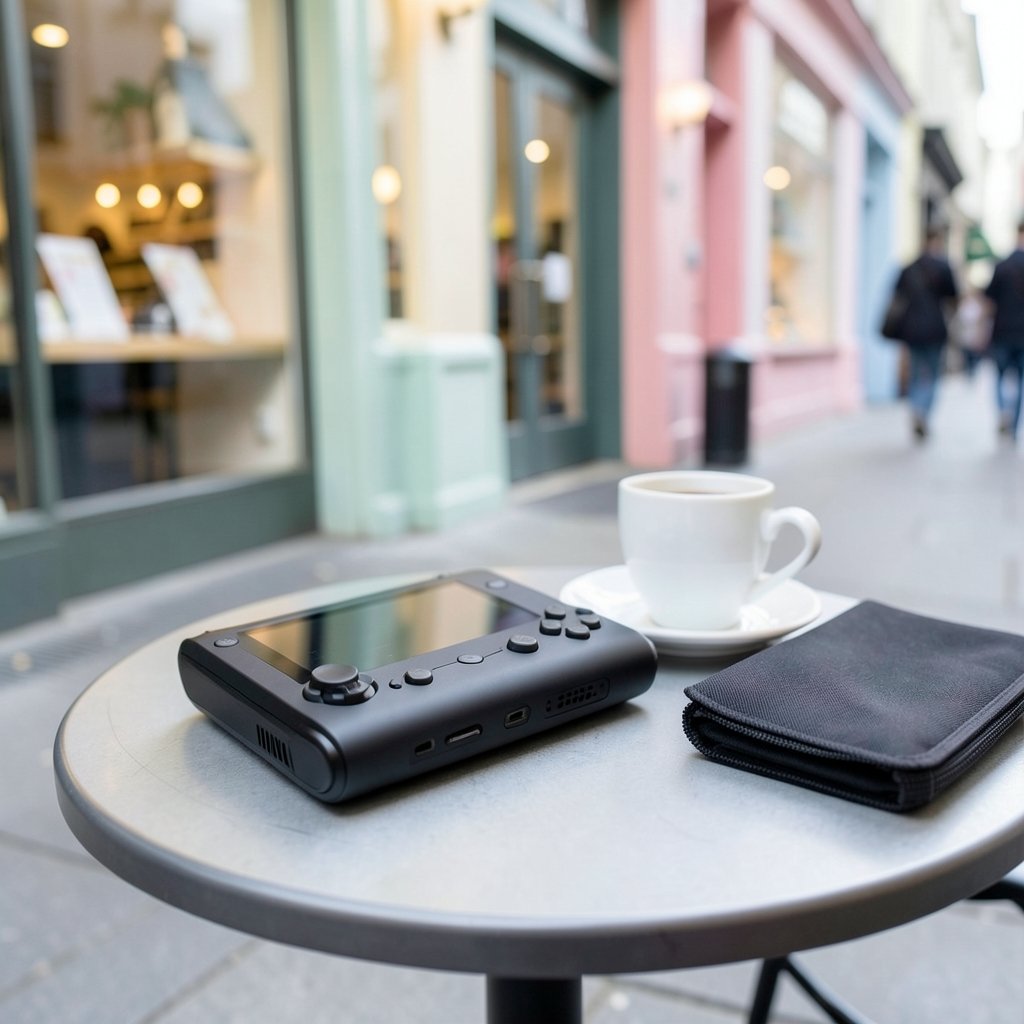
Here is a fact that surprises a lot of new owners: the Steam Deck’s AMD APU is designed to run at modest power levels on purpose. Valve built the machine around a 15-watt thermal envelope, and pushing beyond it rarely produces the dramatic gains people expect. Most “performance problems” on a Deck are actually settings problems, not hardware problems.
That is good news. It means a careful setup session, maybe twenty minutes with a coffee, can meaningfully improve how games feel without any risky system modification. The goal is not maximum frame rate. It is smooth, consistent frame pacing at a power draw your battery can live with.
Start with the Performance menu, not with mods
The single most important tool is the Performance overlay, reached by pressing the Quick Access button (the one with three dots) and navigating to the battery/performance tab. Everything below lives there.
TDP limit
The TDP limit caps how many watts the APU may draw. Lowering it saves battery and heat; raising it can help demanding titles. A common practical approach is to leave it at default first, watch the frame rate, and only then experiment in small steps. Many lighter indie games run beautifully at 5–8 watts, which can nearly double playtime.
GPU clock control
Manual GPU clock control lets you lock the graphics frequency. It is useful for older or less demanding games that otherwise let the GPU ramp unnecessarily. For most people, leaving it on auto is fine.
Frame rate limit and refresh rate
Capping frame rate is where the real magic happens. A stable 40 FPS on a 40 Hz refresh rate feels considerably smoother than a wobbly 45–60 FPS, and it costs far less power. The OLED model, with its 90 Hz panel, opens up additional options like 45 or 60 FPS caps with better motion clarity. If you are still deciding between hardware revisions, this Legion Go S vs Steam Deck comparison walks through how the panels and chips differ in practice. (Steam Deck)
FSR upscaling
FidelityFX Super Resolution (FSR) renders a game below native resolution and upscales the image. On a 7-inch screen, FSR at “Quality” is often hard to distinguish from native while buying you a solid frame rate boost. Enable it per game in the Performance menu and test each title individually.
In-game settings matter more than you think
A surprising number of Deck owners crank the global settings and forget the game’s own menu. In practice, the biggest wins usually come from inside the game:
- Drop shadow quality and volumetric fog first. They are expensive and barely visible on a small screen.
- Set textures to medium rather than low. Texture quality costs VRAM, not much GPU time, and low textures look muddy.
- Cap the in-game frame rate to match your SteamOS cap so the two do not fight each other.
- Disable motion blur and film grain. They hide frame drops poorly and cost performance.
- Test anti-aliasing options. FXAA is nearly free; MSAA is not.
If a game feels sluggish despite these changes, check whether it is actually a good fit for the hardware at all. Some modern AAA titles simply need compromises, and a Steam Deck vs Switch 2 breakdown can help set realistic expectations about what each platform targets.
Proton versions: the quiet performance lever
Every Windows game on Steam Deck runs through Proton, Valve’s compatibility layer. Switching versions is one of the most underrated tweaks available.
In your library, right-click a game, open Properties, go to Compatibility, and tick the box to force a specific Proton version. Proton Experimental often contains the newest fixes. Community builds like GE-Proton sometimes resolve stuttering or launch issues in specific titles. The Proton project itself is open source, and its GitHub repository documents releases and known issues.
The practical rule: change one variable at a time, play for ten minutes, and keep notes. Chasing five tweaks at once makes it impossible to know what helped.
Storage, shaders, and the microSD trap
Internal NVMe storage is meaningfully faster than a microSD card, and that difference shows up in load times, shader compilation, and texture streaming. A slow card can cause stutter in open-world games even when the frame rate looks fine on paper.
Practical guidance that actually works:
- Keep your most demanding, largest games on the internal drive.
- Use a reputable A2-rated microSD card for indie titles and emulation.
- Let shader pre-caching finish. Skipping it trades load time for in-game hitching.
- Leave a few gigabytes free on the internal drive; a completely full SSD behaves worse.
Storage economics also shape setup decisions. Buyers weighing capacities should look at the real Steam deck cost across models before deciding whether to upgrade the SSD later, and a current Steam deck price check prevents overpaying for storage you may not need. (Steam Deck)
The community tweaks: useful, but read the fine print
Search for Steam Deck performance tips and you will quickly meet CryoUtilities, a community script that adjusts swap file size and swappiness. It is genuinely popular, and some users report smoother performance in memory-hungry games. But the evidence is inconsistent, results vary by hardware revision, and the script modifies system files.
The honest position: treat claims of large, universal gains skeptically. If you try it, back up first, and be prepared to revert after a SteamOS update. The same caution applies to undervolting, which can reduce temperatures but risks instability.
Not every popular tweak deserves a place on your device.
Keep SteamOS updated, and know what changed
SteamOS 3.x updates have periodically altered default TDP behavior and added features like per-game performance profiles. After a major update, re-check your settings; a profile that worked last month may behave differently.
Per-game profiles are worth setting up deliberately. Save a tuned profile for each demanding title, and let lighter games run on defaults. This one habit removes most of the friction from daily use.
If you use plugins, updates can break them. When a plugin suddenly misbehaves after a system update, this guide to fixing a Decky loader not working Steam Deck issue covers the usual culprits and recovery steps.
A realistic settings table to start from
| Game type | TDP | Frame cap | FSR | Notes |
|---|---|---|---|---|
| Pixel art / indie | 5–7 W | 60 FPS | Off | Battery-first profile |
| 2D action / roguelike | 8–10 W | 60 FPS | Off | Usually runs native |
| Last-gen AAA | 12–15 W | 40 FPS | Quality | Cap at 40 Hz |
| Modern AAA | 15 W | 30 FPS | Balanced | Expect compromises |
| Emulation | 8–12 W | 60 FPS | Off | Varies by system |
Treat this as a starting point, not gospel. Every title behaves differently, and the panel on your specific model changes what feels smooth.
Common mistakes that quietly hurt performance
First, leaving the frame rate uncapped “for smoothness.” An uncapped frame rate that swings between 35 and 60 feels worse than a locked 40, and it drains the battery faster.
Second, raising TDP immediately when a game stutters. Stutter is often a shader, storage, or Proton issue, not a wattage issue.
Third, installing every recommended plugin at once. Each one adds overhead and update risk.
Fourth, ignoring thermals. Playing on a bed or blanket blocks the intake, and the Deck throttles. A hard surface is a performance setting too.
Finally, forgetting that the OLED and LCD models differ in refresh rate, battery, and screen. Advice written for one may not transfer cleanly. Owners comparing the premium models should read this Rog Ally X vs Steam Deck OLED analysis to understand where each device’s tuning philosophy diverges.
What about buying decisions and stock?
Performance setup sometimes intersects with availability. If a specific model is hard to find, this roundup of Steam Deck out of stock alternatives covers options that offer comparable tuning depth. The principle stays the same across devices: cap frames, manage power, and tune per game rather than globally.
Conclusion
Setting up a Steam Deck for the best performance is less about secret scripts and more about disciplined, one-change-at-a-time tuning. Start in the Performance menu with a TDP limit and a frame rate cap matched to the refresh rate. Adjust in-game settings before touching anything system-level. Switch Proton versions when a specific title misbehaves, keep demanding games on internal storage, and set per-game profiles so your work persists.
The community tweaks are optional garnish, not the meal. Consistency beats cleverness on handheld hardware, and a locked 40 FPS with a cool, quiet device will almost always feel better than a jittery 60. Spend twenty minutes, take notes, and revisit after each SteamOS update.
Frequently asked questions
Does raising the TDP limit always improve performance?
No. The APU has a thermal and power ceiling, and past a certain point extra watts produce heat and fan noise rather than frames. On many titles the default setting is already close to optimal, so test small increments and watch the frame time graph rather than the average frame rate.
Is 40 FPS really better than 60 FPS on a Steam Deck?
It can be, because 40 FPS on a 40 Hz refresh rate divides evenly and produces even frame pacing, while an unstable 60 fluctuates. A locked 40 also draws noticeably less power, which extends battery life. On the OLED model, 45 or 60 FPS caps are often viable alternatives.
Should I install CryoUtilities?
It is a personal call. The script adjusts swap settings and modifies system files, and reported benefits vary widely between games and hardware revisions. If you experiment, back up your data first and be ready to revert after SteamOS updates, since system changes can be overwritten.
Why does my game stutter even when the frame rate looks fine?
Stutter usually comes from shader compilation, slow storage, or a Proton compatibility issue rather than raw GPU power. Let shader pre-caching complete, move the game to internal storage, and try a different Proton version before adjusting TDP or clock settings.
Does a microSD card slow games down?
It can. Cards are slower than the internal NVMe drive, and open-world games that stream textures constantly may hitch. Use a reputable high-speed card for smaller titles and reserve internal storage for large, demanding games.
How often should I re-check my performance settings?
After every major SteamOS update, and whenever a game receives a significant patch. Defaults and per-game behavior can shift, and a profile tuned months ago may no longer be optimal. A quick five-minute review keeps things running smoothly.



