

Quick Answer: How do i set up vr headset for the best performance?
Getting the best VR performance comes down to matching your headset’s settings to your hardware instead of maxing everything out. The core moves are lowering render resolution or refresh rate to a level your GPU can hold steadily, using a wired link or a dedicated Wi-Fi 6/6E router on the 5 GHz or 6 GHz band for wireless PC VR, and keeping the headset cool, charged, and free of background apps.
Wired and wireless setups differ in what limits them: a cable removes compression and latency but restricts movement, while wireless streaming trades a little image quality for freedom. Standalone headsets have their own levers, mostly thermal and software-related.
Before changing anything, check your GPU tier, cable or router quality, refresh rate options, per-app resolution overrides, tracking lighting, and IPD fit.
Most people assume VR performance is about buying the most expensive headset. It is not. A $3,000 PC paired with a badly configured headset will stutter, blur, and make you queasy, while a mid-range rig tuned properly can feel smooth for hours. The difference is almost always setup, not hardware. (Virtual reality headset)
That is good news, because setup is free to fix. Whether you are running a PC-tethered headset, streaming wirelessly to a standalone device, or playing entirely on-device, the same handful of principles apply. Get those right and the experience transforms.
Start With the Connection: Wired vs. Wireless
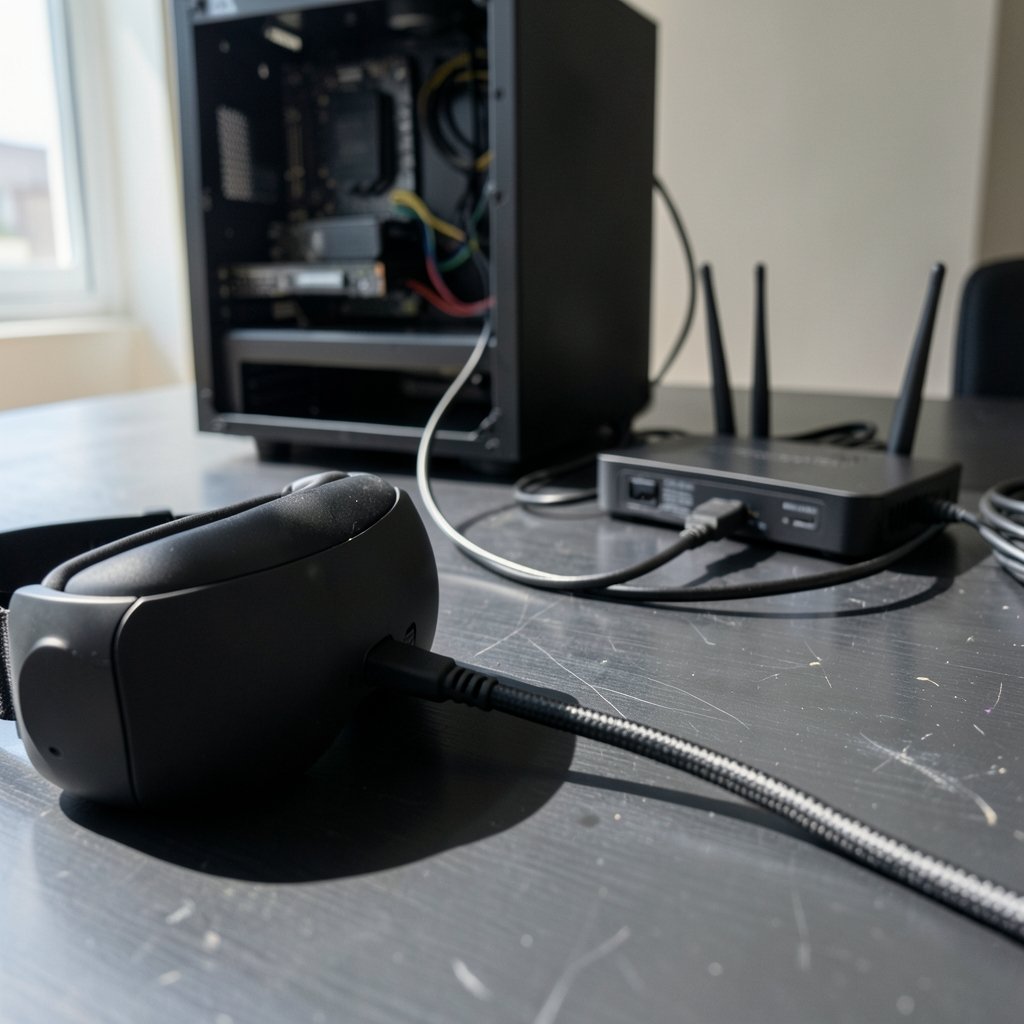
Before touching a single graphics setting, sort out how the headset talks to your PC. This is the foundation everything else sits on.
A wired DisplayPort or USB-C link to your GPU is still the most reliable path for PC VR. It avoids video compression entirely, which means no artifacts in fast motion and consistently lower latency. If you play seated sims, racing games, or anything where visual clarity matters most, wired is the safer bet.
Wireless PC VR through Link, Air Link, or a streaming app is genuinely excellent now, but only under specific conditions. The standard recommendation is a dedicated Wi-Fi 6 or 6E router on the 5 GHz or 6 GHz band, with the PC connected by Ethernet and the headset in the same room as the router. Skip any of those three and you will likely see stutter, macro-blocking, or latency spikes.
| Setup | Strengths | Weaknesses | Best For |
|---|---|---|---|
| Wired link | Lowest latency, no compression | Cable restricts movement | Sims, seated play, clarity |
| Wireless (dedicated router) | Freedom of movement | Sensitive to network quality | Room-scale, active games |
| Standalone | No PC needed | Limited by mobile chip | Casual, portable play |
A common mistake is trying wireless streaming on a shared household router with a dozen devices competing for bandwidth. It works sometimes, which is worse than not working at all, because you keep chasing phantom fixes.
Tune Render Resolution and Refresh Rate Together
These two settings are the main performance levers, and they interact. Push either too high and you get dropped frames; reprojection or motion smoothing can mask the drops, but it adds visual artifacts that many players find distracting.
Render resolution (often called per-eye resolution or supersampling) is the big one. Raising it above the headset’s native panel resolution improves clarity, but the performance cost scales roughly with the square of the scaling factor. A modest bump is usually fine; an aggressive one is a leading cause of frame drops that people blame on their GPU.
Refresh rate is the other dial. Dropping from 120 Hz to 90 Hz, or 90 Hz to 72 Hz, meaningfully reduces GPU load. On standalone headsets, lower refresh rates also reduce heat, which matters more than most guides admit.
The practical method that works: set everything to a comfortable baseline, then raise resolution in small steps until you notice instability, then back off one step. Do this per game, not globally. A stylized puzzle game and a dense open-world title have wildly different demands.
If you are also sorting out peripherals for a comfortable session, a stable, adjustable stand matters more than people expect for long play sessions, and the same ergonomic logic applies to your VR space.
Use Per-Application Overrides Instead of Global Settings
One of the most underused features in PC VR software is the per-application resolution override. Instead of forcing one global setting on every title, you assign each game its own resolution and smoothing profile.
This is where experienced users save themselves endless frustration. A demanding title gets a lower resolution and motion smoothing enabled; a lightweight title gets supersampling cranked up for crispness. The result is that every game runs at its own sweet spot rather than a compromise.
In practice, this means opening your runtime’s settings, finding the per-app section, and setting values game by game. Menu names shift between software versions, so expect to hunt slightly. The concept, though, is stable: tune per title, not per headset.
For standalone devices, the equivalent habit is checking each game’s in-app graphics options rather than relying on system defaults. Many titles ship with conservative defaults that leave performance on the table.
Manage Heat, Battery, and Background Load
Standalone headsets are small computers, and they throttle like small computers. Heat is the silent performance killer.
A few habits make a real difference. Clear background apps before launching a game, since every running process competes for the same chip. Keep the headset charged, because many devices reduce performance or brightness at low battery. And avoid charging while playing in a hot room if you can, since combined heat accelerates throttling.
Ventilation matters too. Playing in a stuffy room with the headset pressed against your face traps heat. A cooler room and short breaks between long sessions keep clocks higher for longer.
On PC, the equivalent housekeeping is closing overlays, browser tabs, and recording software. VR is unusually sensitive to background spikes because a single dropped frame is visible.
If you also game on other platforms, the same discipline of trimming background load applies, whether you are tuning wireless gaming headsets for a console or squeezing frames out of a handheld emulator setup like PPSSPP configuration.
Fix Tracking and Comfort Before Chasing Frames
Here is a mistake that shows up constantly: people blame “performance” for problems that are actually tracking or fit issues.
Inside-out tracking depends on visible features and adequate lighting. A dim room, a blank white wall, or bright sunlight streaming through a window all degrade controller and headset tracking. Even, indirect lighting works best.
IPD adjustment (the distance between your pupils) affects comfort and clarity, not frame rate. If the lenses do not line up with your eyes, everything looks soft and you get headaches, which many users misread as poor rendering. Set IPD properly before you touch resolution.
Fit and strap tension matter for the same reason. A headset that shifts during movement forces constant refocusing and breaks immersion, and it can trigger tracking corrections.
Think of it like setting up a physical game: you would not complain about a backgammon board playing badly if the pieces were misaligned. Same principle. Fix the physical setup first, then optimize the software.
Know When to Leave Defaults Alone
Not every default is a trap. Some modern rendering features exist because they genuinely help. (Cybersecurity)
Foveated rendering, whether fixed or eye-tracked, and dynamic resolution are increasingly on by default on standalone platforms. Disabling them in pursuit of “raw performance” often backfires, because they are designed to spend processing power where your eyes actually look.
The same caution applies to aggressive tweaks you find in forum threads. Settings that helped one headset on one firmware version can hurt another. Treat every “magic setting” as a hypothesis to test, not a rule.
A sensible rule of thumb: change one variable at a time, play for ten minutes, and judge. VR discomfort builds slowly, so a two-minute test tells you almost nothing.
Match the Headset to the Job
Different headsets reward different optimizations, and knowing yours saves time.
| Headset Type | Primary Bottleneck | First Fix |
|---|---|---|
| PC-tethered | GPU load | Lower per-eye resolution |
| Wireless streaming | Network stability | Dedicated router, Ethernet to PC |
| Standalone | Heat and chip limits | Clear background apps, lower refresh |
| Console-linked | Cable and firmware | Check link cable spec, update firmware |
Readers curious about gaming hardware and how accessories shape the experience can find resources on family racing game sets and similar products that show setup affects enjoyment across gaming categories, VR included.
Conclusion
The best VR performance rarely comes from the most expensive gear. It comes from matching settings to hardware: a stable connection, a render resolution your GPU can hold, a refresh rate that leaves headroom, per-game tuning instead of global brute force, and a cool, well-lit, properly fitted headset.
Work through it in order. Connection first, then resolution and refresh rate, then per-app overrides, then heat and tracking. Change one thing at a time and give each change a real test session. Do that, and most headsets will feel dramatically better than they did out of the box, without spending another dollar.
FAQ
Does a higher refresh rate always mean better VR performance?
No. A higher refresh rate can feel smoother, but only if your hardware sustains it. Running 120 Hz with constant dropped frames feels worse than a locked 90 Hz. Stability beats peak numbers every time.
Is wireless PC VR good enough to skip the cable?
It can be, under the right conditions: a dedicated Wi-Fi 6 or 6E router, the PC on Ethernet, and the headset in the same room. Without those, wired remains more consistent. Test before committing to a cable-free setup.
Why does my VR look blurry even when frames are smooth?
Blur usually comes from resolution, IPD, or lens position rather than frame rate. Check that your IPD is set correctly, that the headset sits properly on your face, and that render resolution is not set below native.
Should I turn off motion smoothing or reprojection?
Only if you can hold native frame rate without it. Motion smoothing masks drops but adds artifacts. If disabling it causes visible stutter, turn it back on and lower resolution instead.
How much does room lighting affect VR performance?
More than most people realize. Inside-out tracking relies on visible detail, so dim rooms, blank walls, and direct sunlight all degrade tracking. Even, indirect lighting gives the most reliable results.
Do I need to update firmware to get better performance?
Often, yes. Firmware and runtime updates frequently change defaults, fix performance bugs, and add codec support. Check for updates before deep-tuning, since a fix may already exist for the problem you are chasing.
Beyond the settings themselves, a few habits sustain performance over time. Restart the headset or PC before a long session rather than resuming from sleep, since memory leaks and stale drivers accumulate quietly. Keep an eye on storage: standalone devices slow noticeably when nearly full, so leave headroom for shader caches and updates. On PC, verify your runtime and GPU drivers are current, but avoid updating everything the night before a planned session; a fresh driver can shift performance in either direction, and you want time to test. Finally, note what you changed. A simple text file listing each game’s resolution and refresh settings saves you from re-tuning everything after a firmware update resets your profiles. Performance tuning is not a one-time task but a short routine you repeat whenever hardware, software, or your play habits change. With that discipline in place, your headset stays near its best without constant fiddling.
