
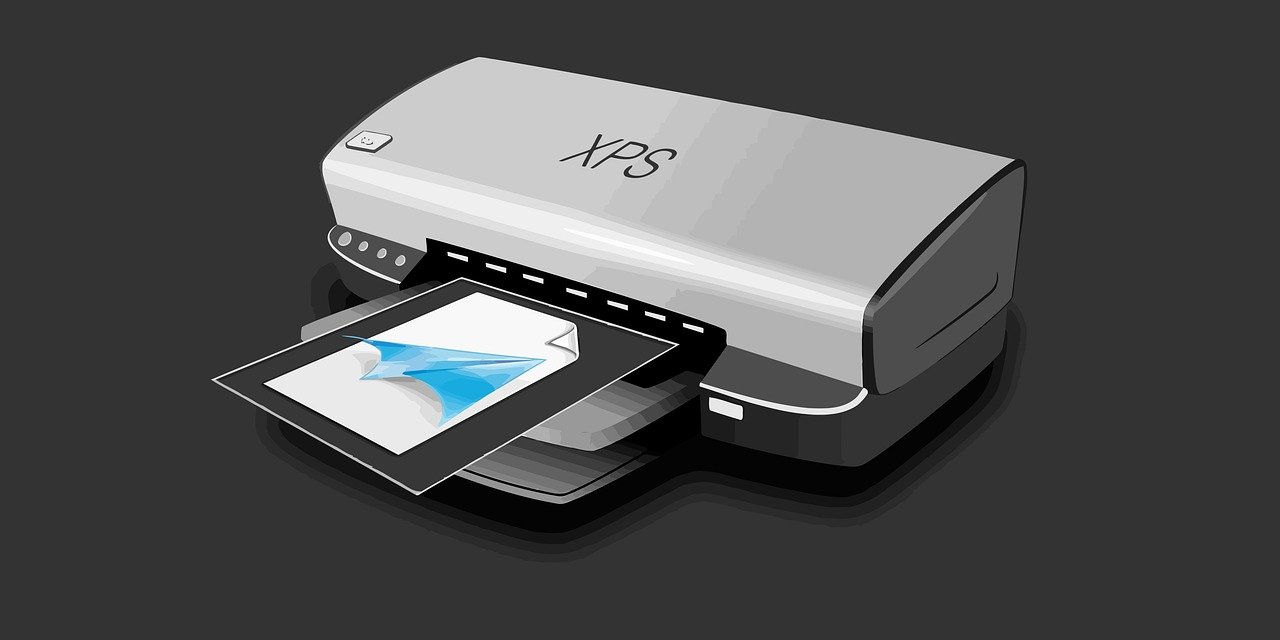
Few office tools inspire as much quiet rage as the printer. Printers are among the most frequently reported hardware problems in workplaces, and anyone who has watched a job stall at 2 a.m. knows why. The good news? Most printer failures fall into a handful of predictable categories, and nearly all of them have fixes you can try in minutes. This guide walks through the most common printer problems and the fixes that genuinely resolve them, from paper jams to phantom “offline” errors.
Why Printers Fail So Often
Printers are mechanical, chemical, and digital all at once. They pull paper through rollers, fuse toner with heat, and talk to your computer through drivers and networks. That means there are dozens of places for something to go wrong. A laser printer juggles heat, static, and precision rollers; an inkjet deals with wet ink, air bubbles, and print heads that dry out when idle.
Understanding which layer of the machine failed is half the battle. Is it mechanical (paper, rollers, fuser)? Consumable-related (toner, ink, drum)? Or digital (drivers, spooler, connectivity)? Once you know the layer, the fix usually follows.
Paper Jams: The Most Common Printer Problem
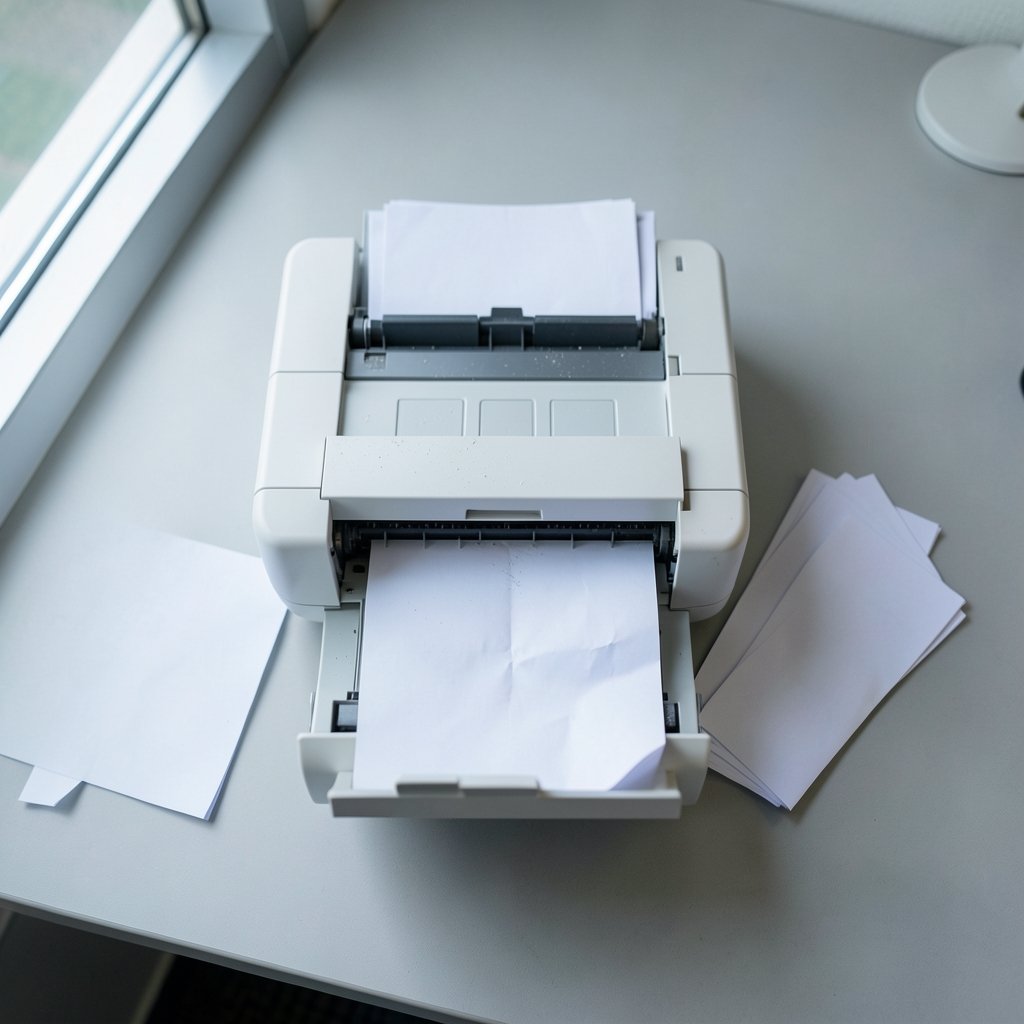
Paper jams top nearly every list of printer complaints, and for good reason. Worn pickup rollers, overfilled trays, damp paper, and debris are the usual suspects. There’s a reason printer manufacturers put so much emphasis on paper handling in their support documentation.
Here’s what actually works:
- Turn the printer off before pulling anything out. Yanking paper with the power on can damage rollers or tear sheets inside the mechanism.
- Pull the sheet in the direction of the paper path, not backward against it. Most printers feed from the tray toward the front or top.
- Check every access point — rear door, front panel, duplex unit. A scrap of paper hiding in the fuser area will cause repeat jams.
- Fan the paper stack before loading it. Sheets stuck together feed as doubles and jam.
- Don’t overfill the tray. Stay below the max-fill line; overloading is a leading cause of misfeeds.
Common mistake: People reload the same crumpled sheet. If paper is wrinkled, damp, or torn, recycle it. Reusing damaged sheets practically guarantees another jam.
Faded or Streaky Prints
If your pages come out pale, streaky, or patchy, the culprit is almost always a consumable or the drum. On laser printers, a low toner cartridge or an exhausted drum unit produces vertical streaks and light patches. On inkjets, clogged print head nozzles or low ink cause banding and missing colors.
Try these fixes in order:
- Run the built-in cleaning cycle. Most inkjets have a “clean print head” utility in the driver or on the printer panel. Run it once, print a test page, and repeat only if needed — over-cleaning wastes ink.
- Check toner levels in the printer’s status menu; the pop-up on your screen can lag behind.
- Gently shake a low toner cartridge side to side to redistribute the powder. This buys time, not a permanent fix.
- Inspect the drum unit for scratches or a visible wear line. A damaged drum shows up as a repeating mark at fixed intervals down the page.
- Print a nozzle check pattern on inkjets to pinpoint exactly which colors are failing.
A useful diagnostic trick: if the same streak appears at the same spot on every page, it’s mechanical (drum, roller, or fuser). If the problem moves around, it’s usually the cartridge or ink supply.
Smudged, Blurry, or Wet Prints
Smearing is a different beast from fading. On laser printers, smudging often points to a failing fuser — the heated roller that melts toner onto the page. If prints rub off easily or look glossy and wet, the fuser may not be reaching temperature. On inkjets, smudging usually means you’re printing on the wrong paper type or printing too fast for the ink to dry.
Fixes worth trying:
- Match the paper setting in the driver to the paper you actually loaded. Telling a laser printer it’s printing on plain paper when you’ve loaded cardstock changes the fuser temperature and feed speed.
- Use the correct paper for the job. Inkjet photo paper absorbs differently than copier paper. Printing photos on plain paper invites smears.
- Let inkjet pages dry before stacking them, especially on glossy media.
- Check for a fuser error code. If the printer reports a fuser problem, it usually needs service rather than a user fix.
The Dreaded “Printer Offline” Error
Few messages cause more confusion than “printer offline” or “printer not responding.” Here’s the reassuring part: this is almost always a connectivity or software issue, not broken hardware. The printer is fine — your computer just can’t reach it. (Best beginner 3d printer) (Printer (computing)))
Work through this checklist:
- Check the physical connection. For USB, reseat both ends and try a different port. For network printers, confirm the printer and computer are on the same Wi-Fi network.
- Power-cycle in the right order. Turn off the printer, restart the computer, then turn the printer back on. This forces both devices to renegotiate the connection.
- Clear the print queue. A stuck job can block everything behind it. Cancel all jobs and try a fresh test page.
- Restart the print spooler. On Windows, this service manages print jobs; restarting it clears many stalls. Microsoft’s support documentation covers the exact steps for stopping and starting the spooler service.
- Reinstall the driver from the manufacturer’s site for your exact model, rather than relying on a generic OS driver.
Common mistake: Assuming a new printer is needed. In practice, most “offline” printers come back to life after a spooler restart or driver reinstall. Before you shop for a replacement, it’s worth knowing what a genuinely good machine looks like — a modest, well-chosen model often beats a fancy one you can’t troubleshoot.
Print Jobs Stuck in the Queue
A job that never prints and never cancels is a classic spooler problem. The queue holds jobs in order, and one corrupted job can jam the whole line.
To fix it:
- Open the print queue and cancel all documents.
- If a job refuses to cancel, restart the print spooler service (Windows) or reset the printing system (macOS).
- Delete the stuck job from the spooler folder if it persists after a restart.
- As a last resort, remove and re-add the printer.
If jobs consistently stall on large files, check available disk space and memory — spooling big documents temporarily consumes both.
Poor Print Quality: Lines, Bands, and Blotches
Quality problems come in flavors. Horizontal bands usually mean a dirty or failing drum. Vertical lines often trace to a scratched drum or dirty corona wire. Blotches and ink pools suggest a leaking cartridge or a print head that needs cleaning. Ghosting — faint repeats of an image — points to the drum or fuser.
Practical steps:
- Run the printer’s built-in cleaning and alignment routines.
- Remove the cartridge and gently wipe the drum surface with a dry, lint-free cloth only if the manufacturer permits it. Many drums are light-sensitive and easily damaged.
- Check for a protective tape strip still attached to a new cartridge. It happens more often than people admit.
- Replace consumables that are past their rated yield.
Connectivity and Wireless Woes
Wireless printers are convenient until they aren’t. Common causes of dropped connections include router changes, IP address conflicts, and printers that go to sleep and fail to wake on the network.
Fixes:
- Assign a static IP address or a DHCP reservation so the printer’s address doesn’t change.
- Move the printer closer to the router or reduce interference from microwaves and cordless phones.
- Reconnect via WPS if your router supports it, or re-run the wireless setup wizard.
- Update the printer firmware — manufacturers periodically patch connectivity bugs.
If you’re troubleshooting a home setup with multiple devices, the same patience applies as when you’re setting up any new piece of equipment: take the connection one step at a time and confirm each stage before moving on. (How to Stop Snoring at Night Home Remedies: 8 Easy Fixes)
Driver and Software Conflicts
Drivers are the translator between your computer and the printer, and a bad driver causes bizarre behavior — garbled text, missing features, or jobs that vanish. Always download the driver directly from the manufacturer’s support page for your exact model and operating system. Generic drivers built into the OS often lack features like duplex printing or color management.
Also check for:
- Conflicting printer entries — your computer may have two versions of the same printer installed. Remove the stale one.
- Outdated operating system updates that break driver compatibility.
- Security software blocking the printer’s network port.
When to Repair and When to Replace
Not every printer problem is worth fixing. Use this rough guide:
| Symptom | Likely Fix | Repair or Replace? |
|---|---|---|
| Frequent paper jams | Clean or replace rollers | Repair |
| Faded prints | New toner or ink | Repair |
| Fuser error codes | Service or part replacement | Weigh cost vs. new unit |
| Persistent offline status | Spooler/driver/network fix | Repair |
| Physical damage, repeated failures | None | Replace |
As a rule of thumb, if a repair costs more than half the price of a comparable new printer, replacement usually wins — especially for low-cost inkjets.
Prevention: Stop Problems Before They Start
A little maintenance prevents most of the headaches above:
- Use quality paper and store it flat and dry.
- Print something weekly on inkjets to keep nozzles from clogging.
- Clean the printer — dust and paper fibers accumulate around rollers and print heads.
- Update firmware and drivers periodically.
- Keep the printer on a surge protector to protect sensitive electronics.
For anyone who juggles multiple devices at home, the discipline of routine upkeep mirrors what you’d do with any other piece of equipment: regular calibration and cleaning keep small issues from becoming expensive ones.
Conclusion
Most printer problems are not mysteries — they’re predictable failures with well-documented fixes. Paper jams come from worn rollers and overfilled trays. Faded prints point to consumables. Offline errors are almost always connectivity or spooler issues. Smudges trace back to paper settings or a tired fuser. Work through the layers — mechanical, consumable, digital — and you’ll solve the vast majority of problems without a service call. And when a printer truly gives up, the smart move is to replace it rather than pour money into a machine that’s already told you it’s done.
Frequently Asked Questions
Why does my printer keep jamming even after I clear it?
A hidden scrap of torn paper is the usual culprit. Check every access door, including the rear and duplex paths. If the mechanism is clear, inspect the pickup rollers — worn or glazed rollers fail to grab sheets cleanly and cause repeat jams. Cleaning the rollers with a lint-free cloth often helps; replacing them fixes it permanently.
Why is my printer showing offline when it’s turned on?
“Offline” almost always means a communication breakdown, not a dead printer. Confirm the USB cable or Wi-Fi connection, restart the print spooler, clear stuck jobs, and reinstall the driver from the manufacturer’s site. A power cycle in the right order — printer off, computer restarted, printer on — resolves many cases. (Best 3d printer for beginners) (HP Printer Support)
How do I fix faded or streaky prints?
Start with the consumables. Check toner or ink levels, run the print head cleaning cycle on inkjets, and inspect the drum unit for scratches. If the same streak appears in the same spot on every page, the drum or a roller is likely worn. If the fading is uniform, you probably just need a new cartridge.
Can a clogged print head be fixed permanently?
Often, yes — with regular use. Inkjet print heads clog when ink dries in the nozzles during long idle periods. Running a cleaning cycle clears most clogs, and printing at least a page a week keeps nozzles fresh. Severe clogs may need a deeper cleaning cycle or, in some models, a replacement print head.
Why are my printed pages smudged?
Smudging usually means the wrong paper setting or a failing fuser on laser printers, or printing too fast on the wrong paper type with inkjets. Match the paper setting in the driver to the paper you loaded, let inkjet pages dry before stacking, and watch for fuser error codes, which indicate a part that needs service.
Is it worth repairing an old printer?
It depends on the repair cost relative to a new unit. Simple fixes — rollers, cartridges, drivers — are almost always worth it. But if the repair exceeds roughly half the price of a comparable new printer, or the machine has repeated failures, replacement is the smarter investment.
