
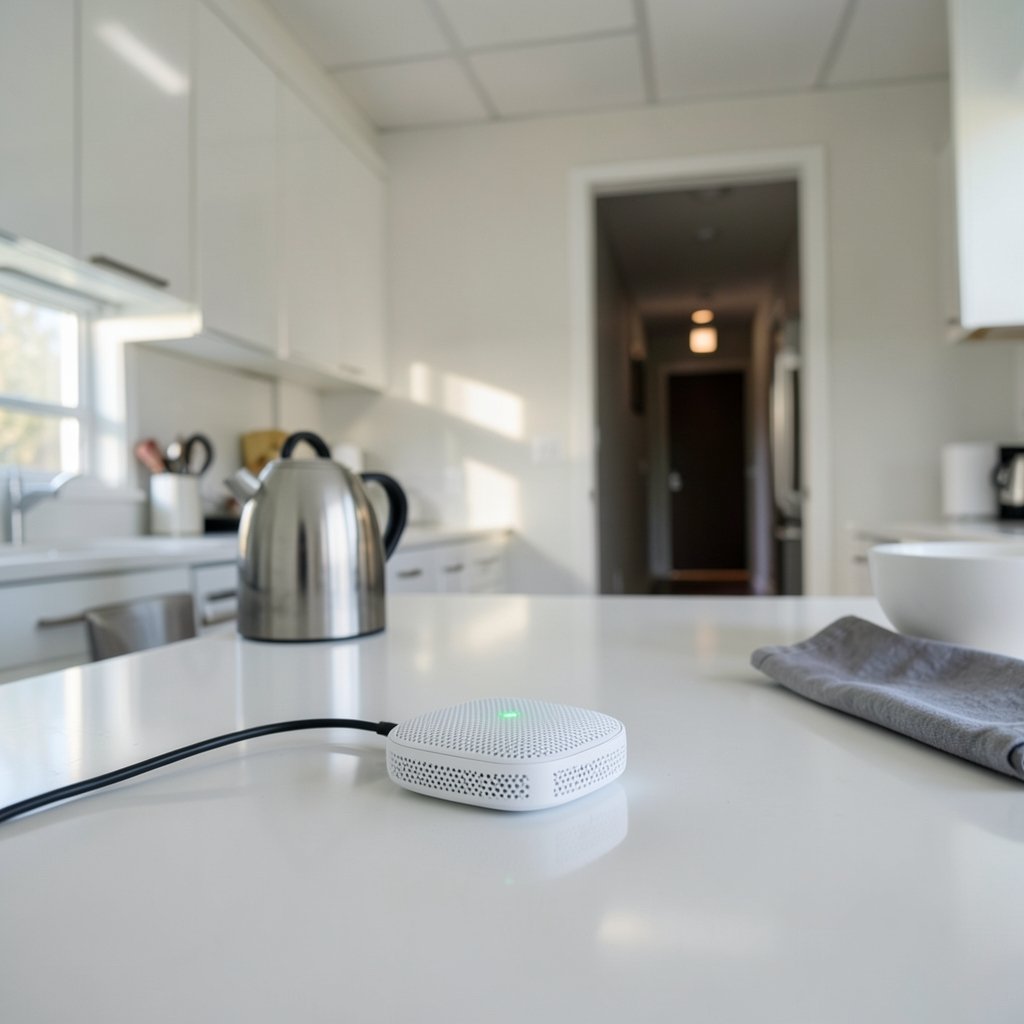
A mesh Wi-Fi system promises to blanket a whole home in fast, seamless coverage. The reality is often messier. One survey of broadband households found that more than half of people report at least one recurring home networking frustration, and dead zones and dropped connections top the list. The hardware is rarely the villain. In most homes, the problem is placement, backhaul, or a configuration detail nobody mentioned in the quick-start guide.
This guide walks through the failures people hit most often, why they happen, and the fixes that genuinely resolve them rather than just moving the problem to another room. (How to Stop Snoring at Night Home Remedies: 8 Easy Fixes)
Why mesh systems underperform even when the hardware is fine
A mesh network is a set of nodes that talk to each other over a backhaul link while also serving phones, laptops, and smart devices. That dual role is where trouble starts. If the backhaul between nodes is weak, every device attached to the far node inherits that weakness. The system still shows full bars, which is why so many people blame their internet provider instead of the mesh layout. (Mesh networking)
Understanding the difference between signal strength and actual throughput is the single most useful mental model here. A node can broadcast a strong signal to your phone while feeding that node over a terrible wireless hop. The bars lie; the speed test tells the truth.
Problem 1: Nodes placed too far apart
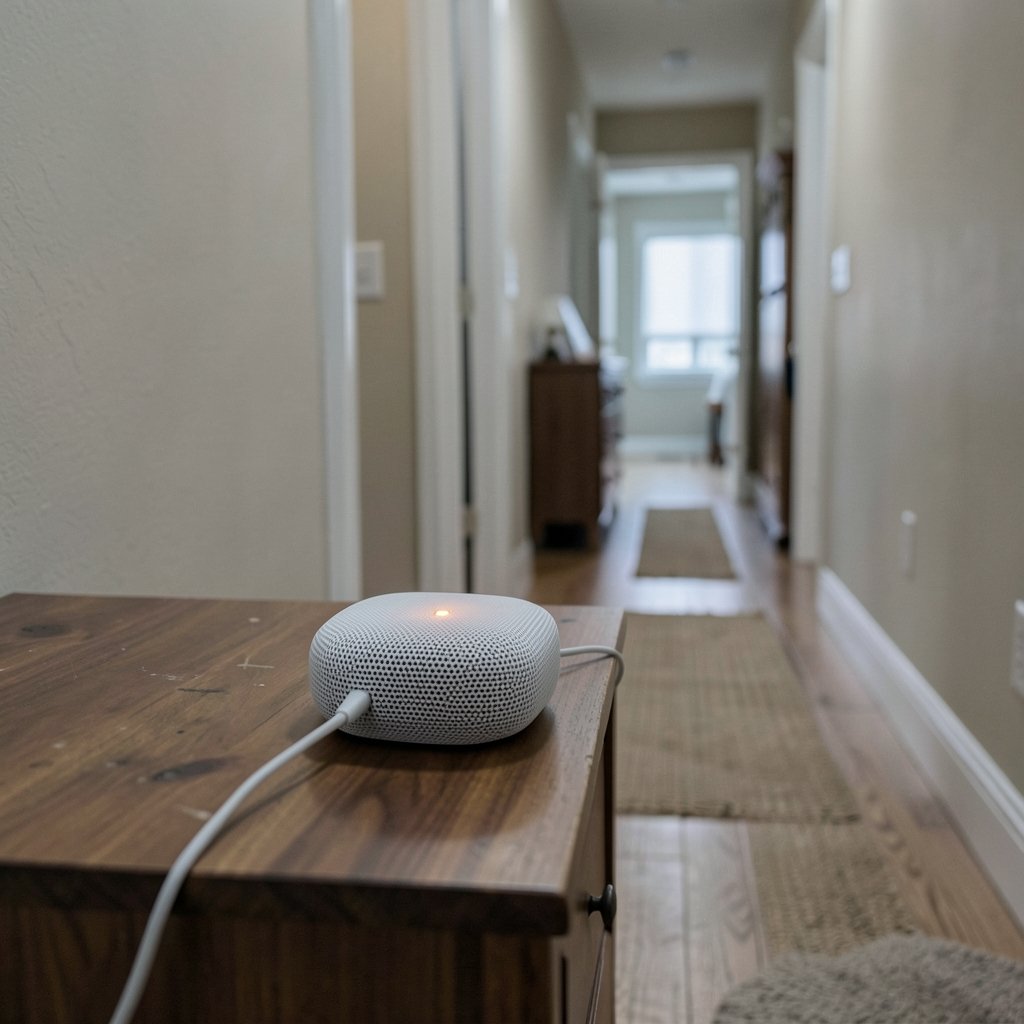
This is the most common mistake by a wide margin. People put one node in the living room and the second in the far bedroom because that is where the dead zone was. The result: the two nodes can barely hear each other, and the far node delivers a weak, unstable connection.
Vendors generally advise keeping nodes within one or two rooms of each other, ideally with as little wall and floor material between them as possible. Square-footage claims on the box assume open-plan conditions that almost no real home has.
The fix: Move the second node closer to the first, roughly halfway between the router and the problem area. Test the speed at the node itself before worrying about the devices beyond it. If the node’s own speed is poor, everything downstream will be poor too.
Problem 2: Wireless backhaul eating your bandwidth
Dual-band mesh systems split a single 5 GHz radio between talking to clients and talking to other nodes. Every hop through a wireless node roughly halves the available throughput. A three-node chain can leave the last node with a fraction of the speed the router receives.
Tri-band systems add a dedicated backhaul radio, which preserves client bandwidth. That is the main practical reason tri-band kits cost more, and for large homes or heavy users the difference is not subtle.
| Setup | Backhaul type | Typical effect on far-node speed |
|---|---|---|
| Dual-band, wireless | Shared 5 GHz radio | Noticeable drop, often half or worse |
| Tri-band, wireless | Dedicated radio | Modest drop, much more stable |
| Any system, Ethernet | Wired | Close to full router speed |
Problem 3: Not using Ethernet when it is available
Here is the fix that resolves the majority of throughput complaints, and it is the one people skip because it involves a cable. If nodes can be connected by Ethernet, most mesh systems detect the wired link automatically and switch to wired backhaul. The wireless spectrum is then freed entirely for client devices.
You do not need to run cable through walls to benefit. A single long Ethernet run along a baseboard to one strategic node often transforms a whole floor. MoCA adapters can reuse existing coaxial TV wiring, and powerline adapters work in some homes, though performance varies wildly with electrical wiring quality.
If you are already troubleshooting signal issues elsewhere in the house, the same placement logic applies to other wireless gear, whether that is a router or a streaming device on a congested channel.
Problem 4: Firmware mismatches between nodes
Mesh nodes are supposed to update together, but they frequently do not. A node that failed an update, or was added later from a different batch, can run older firmware than its siblings. The symptoms are frustratingly vague: nodes that randomly drop off, clients that refuse to roam, or the app showing a node as offline when it is clearly powered on.
The fix: Open the mesh app or admin panel, check the firmware version on every node individually, and update them all. Then power-cycle the whole system in order, starting with the main router. Repeat this after any firmware release, because mixed-version networks are a known source of roaming failures.
A related mistake is factory-resetting one node without resetting the others. If a node was previously paired to a different network, it may half-join and cause intermittent chaos. Remove it from the app, reset it, and add it back cleanly.
Problem 5: Sticky clients that refuse to roam
People expect mesh to hand devices between nodes like a cellular network. It does not work that way. Roaming is decided by the client device, not the mesh. Standards like 802.11k, 802.11v, and 802.11r, maintained by the IEEE, help clients make better and faster roaming decisions, but the final call belongs to the phone, laptop, or tablet and its driver.
This is why a laptop in the kitchen sometimes clings to the distant living room node at a crawl instead of hopping to the node two feet away. It is called sticky client behavior, and it is as much a client problem as a mesh problem.
The fix: Enable fast roaming and band steering in the mesh settings if available. Make sure both bands use the same network name so devices can move freely. For a stubborn device, toggling Wi-Fi off and on forces a fresh association. On older devices, updating the wireless driver genuinely helps.
Problem 6: Double NAT and ISP router conflicts
A common case: the mesh works, the app reports everything online, but some devices cannot reach the internet or smart home gadgets fail to pair. The cause is often two routers both handing out IP addresses. The ISP router and the mesh system both run DHCP, which creates double NAT.
The fix: Either put the ISP router into bridge mode so the mesh handles routing, or switch the mesh to access point mode and let the ISP box do the routing. Pick one. Running both as routers creates hard-to-diagnose failures.
Problem 7: 2.4 GHz interference and IoT dropouts
Smart plugs, bulbs, cameras, and robot vacuums usually support only 2.4 GHz. That band is crowded, shared with microwaves, baby monitors, cordless phones, and every neighbor’s network. In apartment buildings the 2.4 GHz band can be genuinely unusable at peak times.
The fix: Separate the 2.4 GHz and 5 GHz network names temporarily so you can force IoT devices onto the correct band during setup. Then scan for the least congested channel and set it manually rather than leaving it on auto. Keep the mesh node away from the microwave and away from the fish tank.
The same interference logic applies to naming and organizing your networks, which matters more than most people expect when you are juggling multiple bands and guest access. (Ps portal 2 wifi alliance filing 2026)
Problem 8: Region settings and imported hardware
Buying mesh hardware abroad to save money is a quiet trap. Regulatory limits on transmit power and allowed channels differ by country, and the U.S. Federal Communications Commission publishes the rules governing unlicensed wireless devices in Title 47. A node configured for the wrong region may use channels your devices cannot see, or transmit at reduced power, which looks exactly like a hardware fault.
The fix: Check the region setting in the admin panel and confirm it matches your location. If the hardware was imported, this may not be changeable, and returning it is usually the honest answer.
Problem 9: Too many nodes for the space
More nodes is not automatically better. In a small apartment, three nodes placed close together create excessive co-channel interference as they all shout on the same channels. Two well-placed nodes often beat four poorly placed ones.
The fix: Start with the minimum number of nodes needed and add only when a genuine dead zone remains. If you already own extras, space them out or reduce transmit power if the system allows it.
Problem 10: Expecting mesh to fix a bad internet plan
Mesh extends coverage inside the home. It cannot increase the speed arriving at the front door. If the connection itself is the bottleneck, no amount of node repositioning will help, and the speed test run directly at the main router will prove it.
A practical troubleshooting order that saves time
Working through problems in this sequence avoids the classic mistake of resetting everything at once and learning nothing.
- Run a speed test wired directly to the main router. This establishes the ceiling.
- Test at each node’s location, not at the far devices.
- Move any node whose own speed is below half the ceiling.
- Update firmware on every node and confirm versions match.
- Cable any node you can reasonably reach with Ethernet.
- Check for double NAT and resolve it in one direction only.
- Separate bands for IoT setup, then recombine if desired.
- Only then consider adding hardware.
The most common mistake people make is skipping straight to step eight. Buying a fourth node to fix a placement problem usually makes things worse and costs money. (Cybersecurity)
For anyone dealing with a household full of devices competing for airtime, the discipline of testing at the node rather than at the device is the habit that separates a quick fix from a week of frustration. The same principle of isolating one variable at a time applies to almost any home network tuning, whether you are chasing a dead zone or sorting out which network name belongs to which band. (Best name wifi)
When to replace rather than repair
Sometimes the hardware really is the problem. Consider replacing the system if it is more than five years old and lacks Wi-Fi 6, if it is dual-band and you rely on wireless backhaul through multiple walls, or if the manufacturer has stopped shipping firmware updates. Security patches matter as much as speed, and an abandoned mesh kit is a liability.
A cheaper middle path is to keep the existing nodes but wire them. Ethernet backhaul can extend the useful life of an older dual-band system considerably, often more than a new purchase would improve things in a difficult house.
Conclusion
Mesh Wi-Fi failures are overwhelmingly about physics and configuration, not defective hardware. Nodes placed too far apart, wireless backhaul splitting a single radio, mismatched firmware, double NAT, and sticky clients account for the vast majority of complaints. Each has a specific, testable fix. Start by measuring speed at the node rather than at the device, wire whatever you can reach, keep every node on identical firmware, and resist the urge to buy more hardware before you have moved what you already own. Do that, and most mesh systems perform far closer to their marketing claims than their frustrated owners ever expected.
Frequently Asked Questions
Why does my mesh Wi-Fi show full bars but load pages slowly?
Full bars only measure the link between your device and the nearest node. If that node’s own connection back to the main router is weak, every device on it inherits the slowdown. Test the speed at the node’s location to confirm, then move the node closer to the router or connect it by Ethernet.
How far apart should mesh nodes be placed?
Closer than most people assume. Vendors generally suggest one to two rooms apart with minimal wall and floor material between nodes. Ignore square-footage claims on the box, since they assume open-plan conditions. If a node’s own speed is poor, it is too far away.
Does mesh Wi-Fi eliminate dead zones completely?
Not reliably. Mesh reduces dead zones when nodes are well placed and backhaul is strong. In homes with thick stone walls, metal lath, or foil-backed insulation, even good mesh systems struggle, and wired backhaul or a dedicated access point becomes necessary.
Why do my smart home devices keep disconnecting from mesh Wi-Fi?
Most smart devices support only 2.4 GHz, which is crowded and prone to interference from microwaves, baby monitors, and neighboring networks. Temporarily separate the 2.4 GHz and 5 GHz network names, connect the devices to the 2.4 GHz band, and set a less congested channel manually.
Should I use the same network name for both bands?
Yes, for most households. A single network name lets devices move between bands and nodes freely, and band steering can guide capable devices to 5 GHz. The exception is during smart device setup, when temporarily splitting the names makes forcing a device onto 2.4 GHz much easier.
Is Ethernet backhaul really worth the effort?
For most homes with throughput complaints, yes. Wired backhaul frees the entire wireless spectrum for client devices and typically restores far-node speeds to near router-level performance. A single cable run to one strategic node often fixes an entire floor, and MoCA adapters can reuse existing coaxial wiring where running new cable is impractical.
