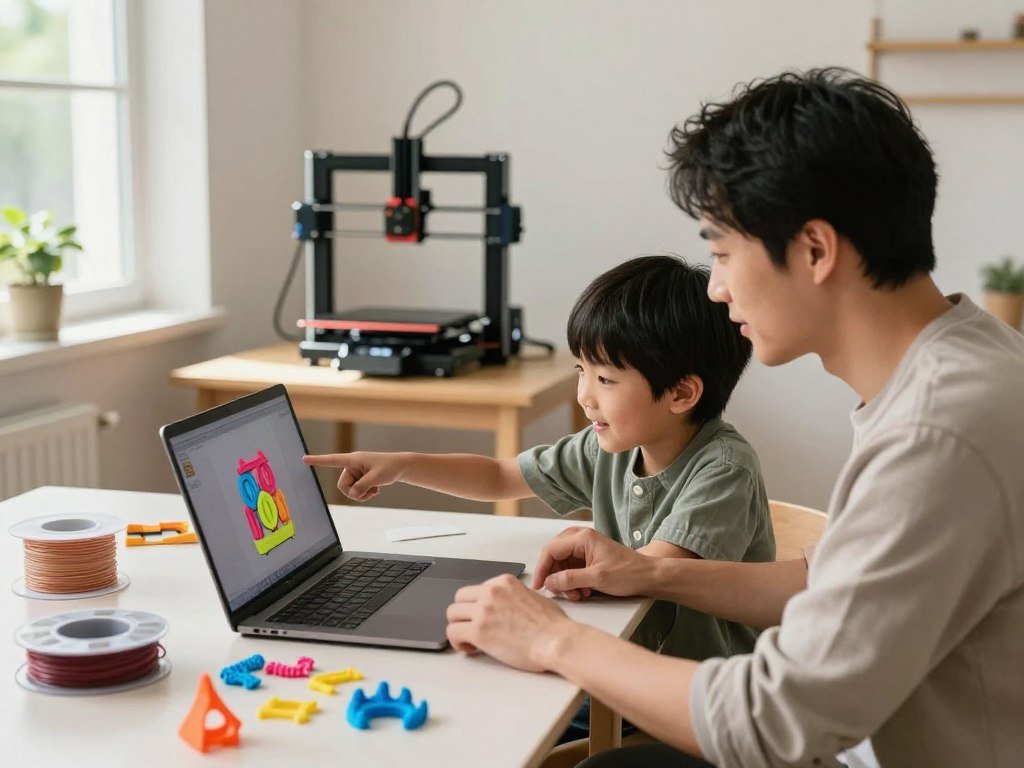
The best fit is usually the printer a child can use with realistic adult help, not the machine with the biggest speed claim. For a very young maker, a guided Toybox can make choosing and printing a toy feel simple. Older children may get more room to learn from the Bambu Lab A1 mini, a general-purpose printer that needs adult oversight.
FDM is a 3D-printing process that melts plastic filament and deposits it in layers to make an object. An enclosure or guided app can help with parts of the process, but “kid-friendly” does not mean safe for unsupervised use. Your child’s age, your comfort with supervision, and the room available all shape the right choice.
Key Takeaways
- Toybox offers a guided start for very young makers.
- The A1 mini suits older children with adult help.
- Enclosed designs can limit access to moving parts.
- Room setup and project size affect your choice.
- Compare guided, general-purpose, enclosed, and student-focused options.
Which Is the Best 3D Printer for Kids by Age?
For a young child who mainly wants to choose a toy and print it, Toybox is the simplest match; older beginners get more room to grow with the A1 mini. Those two options suit different needs: a guided catalog or a capable general-purpose machine used with supervision.
Age labels are starting points, not proof a child can operate a hot machine alone. Your child’s patience, reading skills, and willingness to follow adult directions matter as much as the number of birthdays.
| Best fit | Printer | Why it fits |
|---|---|---|
| Very young makers | Toybox | Guided model catalog |
| Older beginners and teens | Bambu Lab A1 mini | Full-featured general printer |
| Child-focused enclosed workflow | AOSEED X-MAKER JOY | Guided app-based use |
| Compact child interface | Kidoodle MiniBox A1 | Touchscreen and onboard models |
| Hands-on STEM learning | Prusa Mini+ | Assembly and machine learning |
Toybox is a good first choice when you want the printer to guide model selection. The Bambu Lab A1 mini fits a family that wants broader design and material options. Among the best printers for kids, the AOSEED X-MAKER JOY adds an enclosed, app-led workflow, while the Kidoodle MiniBox A1 gives children a touchscreen and onboard models.
The Prusa Mini+ offers a different path: your child can learn more about how a machine works, with an adult handling assembly and setup. It may suit an older child who enjoys building and problem-solving. Think of these options as starting points, not fixed age rules.
For many families, the best printer depends on the child’s first goal, not a feature list. A child who wants one small toy may need fewer choices than a teen who wants to design parts. Ask the child what they want to make, then choose the least complicated workflow that can deliver it.
What Should Parents Compare Before Choosing?
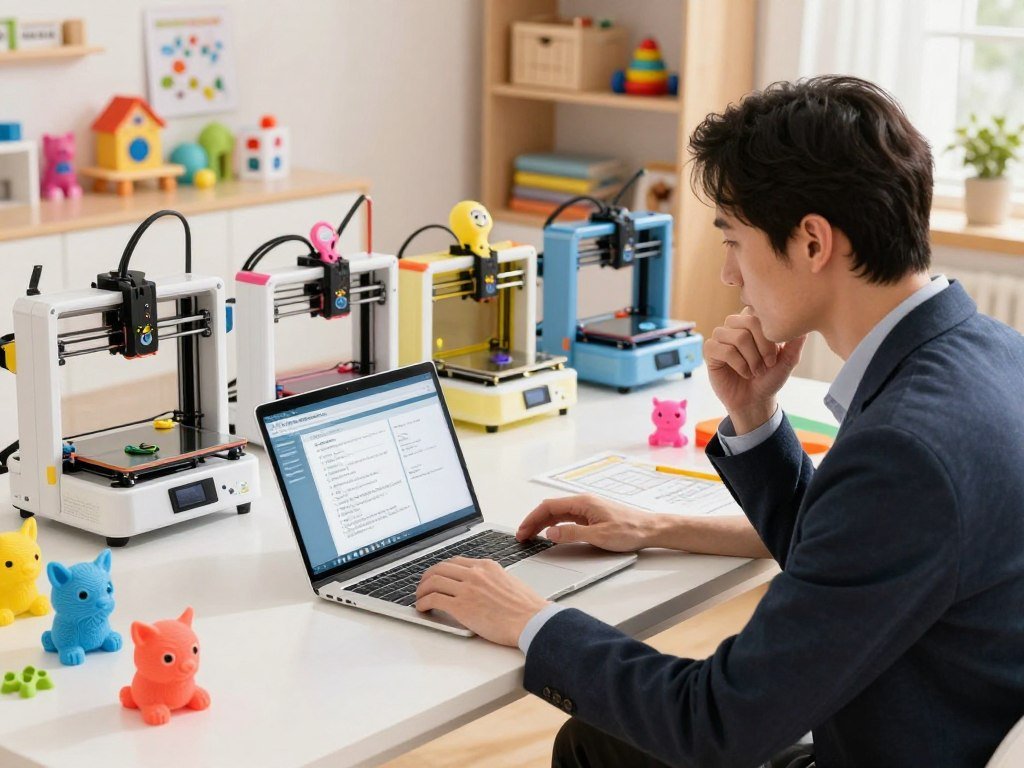
Start with the number of steps a child can complete without help, then consider the printer’s technical limits. A useful comparison weighs setup, software, project size, and upkeep alongside the advertised features.
Advertised speed alone says little about how much adult troubleshooting a machine needs. A fast printer can still ask you to solve software, bed, or filament problems before a child gets a finished model.
- Supervision burden: Decide which tasks an adult will handle every time.
- Setup and filament loading: Check how much preparation each print needs.
- Guided software and suitable model library: See if the child can find fitting designs.
- Build volume for intended projects: Match the printable space to planned objects.
- Support and routine maintenance: Consider who can fix common problems.
FDM and FFF are common names for filament-based material extrusion. ISO/ASTM 52900:2021 provides shared terms for additive manufacturing, which includes 3D printing. These names help when you compare product details that use different language.
A slicer turns a 3D model into toolpaths and movement instructions the printer can follow. Some printers guide you through this step, while others ask you to learn more software settings. Ask how the child’s model gets from screen to machine.
A model library can make a first session easier, but it may not include the exact design your child wants. A general printer may accept more kinds of files, though that freedom can bring extra setup decisions. Choose based on the projects your child will actually try.
Support matters after the first successful print, too. Look for clear instructions on loading filament, clearing a failed print, and routine care. Before buying, check whether the printer can make the child’s first three planned projects without a new software or maintenance hurdle.
Which Safety Features Matter at Home?
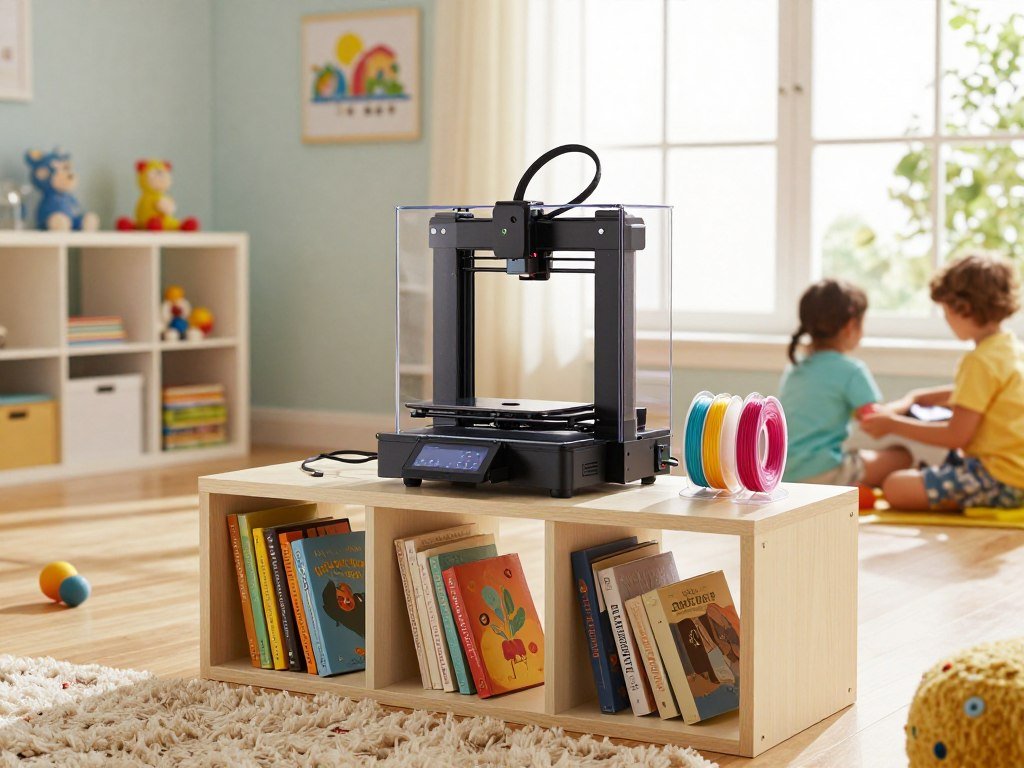
A printer’s enclosure can make it harder for small hands to reach hot or moving parts, but it does not replace adult supervision. Adult oversight remains essential during setup, printing, removal, and maintenance.
Keep children away from hot parts and moving mechanisms while the printer runs or cools. An adult should load filament, start early prints, remove stuck prints, and handle machine care.
Hot parts, moving parts and adult supervision
NIOSH gives typical FFF nozzle temperatures of about 190°C to 260°C. Heated platforms often reach about 55°C to 120°C, so a touch can burn.
Belts, gears, and other moving parts can catch fingers, hair, or loose clothing. Maintenance can add electrical and mechanical risks, especially when someone opens a machine or reaches inside.
Keep the printer in a place where an adult can watch the session. Do not let a child clear a jam or pull a stuck part free. A print can look finished while parts remain hot.
What an enclosure can and cannot do
An open-frame printer leaves more of its hot end and moving parts within reach. An enclosed model, such as the Bambu Lab P2S, puts a barrier around its 256 × 256 × 256 mm build volume.
An enclosure can block easy access, but it does not filter emissions by itself. A closed door also does not make the machine safe to leave with a child alone. Adults still need to manage the printer and the room.
- Keep hands out while printing or cooling.
- Keep pets and younger siblings away.
- Power off and let the printer cool before troubleshooting.
Place the printer on a steady surface, away from busy paths and curious pets. Choose a spot where cords and tools do not invite play. Keep the printer where an adult can see it and where children cannot reach the hot end during printing or cooldown.
Which Filament Should Kids Use?
PLA is the straightforward first filament for most children’s projects, while PETG is a possible step up for parts that need more toughness. PLA first keeps early settings and project choices simpler.
Use PETG only when an adult can manage its settings and handling. Neither material name alone proves that a finished print is suitable for every use.
PLA for first projects, PETG for tougher parts
PLA is the recommended first material in the Kidoodle MiniBox A1 product details. It works well for many small models and simple toys, so children can focus on the design.
PETG can suit tougher parts, but it is not ideal when a project needs a very easy first print. The adult should select the printer settings and guide handling, especially when the child is still learning.
PETG is not a default choice for drinkware or food contact. Layer lines can hold residue, and hygiene depends on the full material and printer setup. A printed cup should not be treated as suitable just because it uses PETG.
Emissions, ventilation and food-contact limits
PLA is still plastic, and a worn or broken print can shed small particles. Keep fragments and sanding dust away from children, and do not let them sand a print without adult control.
NIOSH defines ultrafine particles as smaller than 100 nm. The EPA says 3D printers can release particles in the 1-100 nm range. It recommends lower-emission materials, lower nozzle temperatures, less time near a running printer, and enclosure with local exhaust when appropriate.
A 2023 study exposed male rats to polycarbonate emissions at 592 μg/m³ for four hours daily, four days each week. After 30 days, researchers reported changes in hormone levels and cell-injury markers. Those rat findings do not establish effects on children.
Keep the printer in a ventilated shared area rather than a child’s bedroom. An adult can limit time near the running machine and choose lower-emission materials when possible. Use a ventilated shared area for prints and keep food, drink and sanding dust away from printed parts.
How Much Build Volume Does a Child Need?
A small build volume is enough for keychains and tiny figures, but larger projects need more space or separate parts. Project size should guide your choice more than a printer’s headline numbers.
Build volume is the maximum printable space, not a promise that every model fits whole. A design may need splitting or supports even when its listed size seems close.
| Printer | Build volume | Practical fit |
|---|---|---|
| Toybox | 75 × 80 × 90 mm | Small toy-scale prints |
| AOSEED X-MAKER JOY | 120 × 120 × 120 mm | Modest figures and classroom-sized projects |
| Kidoodle MiniBox A1 | 100 × 100 × 90 mm | Compact models |
| Bambu Lab A1 mini | 180 × 180 × 180 mm | Larger objects and more room for multi-part work |
The Toybox build volume suits small toy-scale prints, such as little figures and simple accessories. The AOSEED X-MAKER JOY gives more space for modest figures or classroom-sized projects.
The Kidoodle MiniBox A1 handles compact models, while the Bambu Lab A1 mini allows larger objects and more room for multi-part work. A bigger printable area can help an older child try designs that need several sections.
Remember that the printer’s maximum printable dimensions do not describe the size of every finished object. Parts can extend beyond the printable space only if the model is split and assembled later. Supports may also take room around a model.
Think about where the finished object will sit, too. A large print can take longer and need more storage than a small toy. Measure the largest object the child hopes to print before choosing a compact model.
What Makes Toybox a Good Fit for Younger Makers?
Toybox is a good match when a younger child wants to browse approved models and get to a first print with little software friction. Its guided workflow lowers the number of choices a child must make.
The tradeoff is less room for material experimentation than a general-purpose printer offers. A narrow workflow can be helpful early, though it may feel limiting as design skills grow.
Guided models and simple creation tools
Toybox’s free Creator Space includes a toy catalog and tools for making models. A child can browse available designs or try simple creation tools without starting with complex software.
The platform supports STL, OBJ, 3MF, and gCode files. This file support gives families ways to use more than catalog items, though the overall experience still centers on Toybox’s platform.
Printer Food is PLA, and the printer can also use other 1.75 mm PLA filament. That PLA-only approach keeps material choices focused, which can help a younger child avoid settings meant for other plastics.
The limits of a closed ecosystem
The guided system reduces setup decisions, but it may limit portability and material choices compared with a general-purpose machine. A family that wants to try many filaments or move between software tools may prefer a broader platform.
Toybox Pro is a separate optional subscription, not a requirement for using the free Creator Space. Its price belongs in your full cost comparison, especially if a child depends on its extra features.
Toybox’s US warranty lasts six months, and its printer return window is six months from delivery. Those terms can help with a purchase decision, but they do not change how the printer works day to day.
Think about what happens after the first few toy prints. A younger maker may be happy with familiar models, while an older child may want to design original parts. Check that the child’s favorite projects are available in the platform before choosing a guided system.
Is the Bambu Lab A1 Mini Right for Older Kids?
The A1 mini is a strong general-purpose pick for an older child who wants more than a curated toy catalog, provided an adult stays involved. Its wider range brings more room to learn than a tightly guided system.
Automatic calibration helps with setup, but it does not remove adult oversight or routine care. Children still need help with software, maintenance, and decisions about what to print.
The Bambu Lab A1 mini comes pre-assembled and takes about 20 minutes to set up for a first print. It calibrates bed leveling, Z-offset, vibration resonance, and nozzle pressure automatically.
Its 180 × 180 × 180 mm build volume gives a family more space for larger objects and multi-part projects. It supports PLA, PETG, TPU, and PVA, giving older beginners more ways to learn about filament.
The optional AMS lite enables four-color printing. It adds a fun way to make colorful models, though it also adds another feature for an adult to manage.
The maximum nozzle temperature is 300°C, and the build plate can reach 80°C. The machine has exposed hot and moving parts, so a child should not handle it alone.
The manufacturer lists operation at 49 dB. That figure can help with planning, but the sound may feel different in a small room or during a long print.
A monitoring camera supports timelapse recording, which can let a child watch a project take shape afterward. It does not replace an adult watching the printer during use.
The A1 mini suits a family that wants one machine for toys, school models, and more advanced experiments. Treat its automatic calibration as setup help, not permission for a child to operate the machine alone.
Does the AOSEED X-MAKER JOY Offer a Better Guided Workflow?
The X-MAKER JOY makes the most sense for a family that values a guided, child-focused workflow over broad material flexibility. Its enclosed design and app-led use set it apart from a more open-ended beginner printer.
Check the app and model library before choosing it for long-term use. A child’s interests may shift from ready-made designs to original models as their skills grow.
App-led use for younger children
The AOSEED X-MAKER JOY is an enclosed, child-focused printer with a PLA-oriented workflow. Its app-led approach aims to guide younger users through choosing and making designs.
That child-first setup differs from the A1 mini, which supports a broader range of materials and general-purpose projects. Families may value JOY’s guided path when they want fewer software choices at the start.
Before settling on an app-led printer, check which phones or tablets the app needs and how the printer connects over Wi-Fi. Make sure the devices your household already uses can run the workflow.
What to check before it becomes a long-term fit
Look closely at model access and the steps for bringing in a design from another tool. A child who starts with ready-made models may later want to learn more advanced design work.
Consider whether those later projects can fit the app and platform, or whether the child may outgrow the guided path. The answer matters more if the printer is meant to support several years of school and home projects.
The JOY’s limited warranty lasts 12 months from the original delivery date. Warranty coverage can help with certain problems, but it does not determine whether the everyday app and model workflow suits your household.
A guided system can make early choices feel manageable without being the right fit for every learner. Before choosing an app-led model, confirm that its connection and model-library workflow fit the devices your household already uses.
What Does the Kidoodle MiniBox A1 Do Differently?
Kidoodle’s main difference is a printer-side interface that lets a child browse and start simple jobs without relying only on a phone. The built-in controls make the first session easier to follow.
Its door-open pause and alert are useful safeguards, not permission to leave it unattended. An adult still needs to manage the print and stay close enough to respond.
The MiniBox A1 has a 4.5-inch color touchscreen, Wi-Fi, and USB connections. A child can use the screen to find models in its built-in library and start a simple job with adult help.
Automatic bed calibration can reduce one setup task, and a filament runout sensor can spot when the spool runs out. Those features help a beginner understand what the printer is doing without removing the need for adult support.
Opening the door pauses a print and sounds an alert. A child may understand that signal quickly, but an adult must still decide when it is safe to resume or troubleshoot the machine.
The printer’s maximum nozzle temperature is 250°C, and PLA is the recommended material. Its child-mode lock can help keep settings from changing by accident.
Tom’s Hardware lists the MiniBox A1 at $219 at Amazon. Price is only one part of the choice; the compact format may not suit every project a child has in mind.
Check the print size of the child’s likely projects against the compact bed before deciding that the interface is the priority.
Which Printers Work Best for Students and Teens?
A student printer should match the lesson: easy first prints, mechanical learning or room for larger classroom projects. Choose for the work, not just the machine’s size or speed.
A supervised student can start with the Ender 3 V3 SE, while hands-on learners may prefer the Prusa Mini+. Larger enclosed options can suit shared projects when an adult can maintain them.
Larger, faster and budget-minded options
These printers span lower-cost beginner choices, hands-on learning, and larger enclosed machines. Their build volumes help show which kinds of classroom projects may fit.
| Printer | Build volume | Best reason to consider |
|---|---|---|
| Creality SparkX i7 | 260 × 260 × 255 mm | Optional CFS Lite four-color printing |
| Creality Ender 3 V3 SE | 220 × 220 × 250 mm | Automatic leveling and filament loading; listed at $219 |
| Prusa Mini+ | 180 × 180 × 180 mm | Assembly can support STEM learning; listed at $539 at Amazon and $549 on Prusa Research |
| Elegoo Centauri Carbon | 256 × 256 × 256 mm | Enclosed Core XY printer with built-in camera; listed at $285 |
| AOSEED X-Maker | 150 × 150 × 150 mm | Child-focused option listed at $409 at Amazon and $355 at MatterHackers |
The SparkX i7 has an optional CFS Lite system for four-color printing. The Ender 3 V3 SE offers automatic bed leveling and filament loading, making it a budget-minded first printer for supervised student use.
The Prusa Mini+ can make assembly part of STEM learning, especially when an adult leads the build. It suits students who want to understand the machine as well as make models.
When assembly is part of the learning
The Elegoo Centauri Carbon is enclosed and offers a larger workspace for classroom projects. The enclosed Bambu Lab P2S has a 256 × 256 × 256 mm build volume, another option when a school needs more room.
For school use, keep students to PLA and PETG on the enclosed P2S and plan ventilation. An enclosure alone is not a fume filter.
A beginner can start with the Ender under supervision. A hands-on learner may prefer the Prusa, while a larger enclosed workspace may favor the Centauri Carbon or P2S.
For shared student use, select the machine the supervising adult can maintain reliably, not only the one with the largest build area.
What Can Kids Make as Their First Projects?
A useful first project is small enough to finish soon and simple enough to succeed without extensive cleanup. One-piece models make a good start because they avoid tricky joints and support removal.
For the first session, choose a simple design that needs no supports or delicate joints. A quick win can help a child stay interested while learning what a printer can do.
- A name tag or keychain with a short name.
- A small animal or simple figure from a model library.
- A spinning top with a sturdy shape.
- A beginner model, such as a US map or dice tower.
A name tag lets a child see a familiar design take shape. A small animal from a curated library can be even simpler, since the file may already be ready to print.
A spinning top gives the child a small object to test after it cools. A US map or dice tower can be a next step when the child wants a more detailed beginner model.
Some designs need supports, which are extra structures removed after printing. Others have thin joints or small pieces that can break during cleanup. Save those designs for a later session when the child understands how prints behave.
A 3D pen extrudes plastic by hand, while an FDM printer follows a model and deposits layers automatically. A pen can be a hands-on drawing tool, but it is not a substitute for a printer that makes a consistent, modeled object.
Let the child choose the first model, then have one backup ready in case the first file needs adjustment.
How Much Should Families Budget for a Kids’ 3D Printer?
Compare the printer’s complete first-use cost, including the filament and software a child will actually need. The listed price may not show the full cost of a bundle or an optional subscription.
Plan for the printer, first spool, and required accessories together. Replacement parts and tools can add to the initial outlay, even when a starter package includes some supplies.
| Option | Price | What is included or affects the total |
|---|---|---|
| Bambu Lab A1 mini | $199 listed; $219 typical | Filament and any added tools affect first-use cost |
| Toybox Alpha Four Pro Saver | $239 | One Printer Food roll, Toybox Pro, EZ-Peel bed, and 5,000 Bolts |
| Toybox Alpha Four Starter | $299 | One Printer Food roll |
| AOSEED X-MAKER JOY AI+ Starter Pack | $227.99 on October 24, 2026 | Magnetic build plate, starter PLA, and toolkit |
The A1 mini is listed at $199, with a typical price of $219. Compare the listed price with the usual price before setting a budget, and remember that filament may be a separate cost.
The Toybox Alpha Four Pro Saver bundle includes one Printer Food roll, Toybox Pro, an EZ-Peel bed, and 5,000 Bolts. The Alpha Four Starter includes one Printer Food roll.
Toybox Pro is optional and costs $18 per month when billed yearly, or $20 per month. The free Creator Space is separate, so families can choose whether the subscription fits their needs.
The AOSEED X-MAKER JOY AI+ Starter Pack was listed at $227.99 on October 24, 2026. It includes a magnetic build plate, starter PLA, and a toolkit.
Prices can change, and bundles do not all include the same supplies. Filament, replacement parts, and tools may add to the first-use cost. Set a spending limit that includes at least the first spool and any required accessories, not just the printer.
How Should You Set Up the First Print?
Make the first session short and predictable by having the model, filament and adult-selected settings ready before turning the printer on. A prepared start leaves the child free to choose and observe.
An adult should handle loading, settings, first starts, and troubleshooting. The child can help choose a model and watch the printer work without taking over machine tasks.
- Choose and screen a simple model for the first session.
- Confirm the adult-selected filament and printer profile.
- Check the bed and surroundings before starting.
- Stay nearby and let the part cool before removal.
FDM printing uses a spool of thermoplastic filament, a heated nozzle, and layer-by-layer deposition. The slicer turns a model into the toolpaths the printer follows.
For example, the Bambu Lab A1 mini takes about 20 minutes to set up for a first print. That is a model-specific estimate, not a promise that every printer will be ready in the same time.
Before starting, an adult can confirm the model, filament, and printer profile match. A child can point out what the finished object should look like and watch for changes as each layer appears.
Stay close through the first print, especially if the model stops or shifts. Let the machine cool before removing the part. Remove a finished part only after it has cooled, and keep scraping, cutting and sanding under adult control.
Are There Legal Limits on 3D Printing?
3D printing is not a blanket permission to make any object, and firearm-related rules are a clear reason to check the law first. Rules depend on both the item and where you live.
Check current federal, state, and local requirements before making or sharing a regulated item. Rules about 3D-printed firearms show why families should not assume every project has the same legal status.
Everytown Research reports that 17 states have adopted a policy regulating ghost guns. Its listed state requirements include prohibitions on 3D-printed guns in Colorado, Delaware, Hawaii, New Jersey, Rhode Island, Virginia, and Washington.
California’s listed requirements include a license to print a 3D gun and technology on printers sold in the state to stop 3D-printed guns. Those rules concern firearm-related projects, not ordinary toys or school models.
Legal limits can depend on what an object does, how it is made, and whether it is shared or sold. A family should not treat a printer’s ability to make an item as proof that making it is allowed.
- Colorado lists a prohibition on 3D-printed guns.
- Delaware lists a prohibition on 3D-printed guns.
- Hawaii lists a prohibition on 3D-printed guns.
- New Jersey lists a prohibition on 3D-printed guns.
- Rhode Island, Virginia, and Washington list prohibitions on 3D-printed guns.
- California lists licensing and printer-technology requirements.
State rules can change, and local rules may also apply. Adults should check the current requirements for the specific item before a child designs or shares it.
Keep children’s projects to ordinary toys, models and school objects unless an adult has confirmed the relevant rules.
Conclusion
The right choice is the one your family can use consistently and supervise comfortably. Toybox fits a guided first experience, while the A1 mini suits an older child with adult oversight.
Enclosed or student-focused options may suit families with different needs, from app-led use to hands-on STEM learning. Ask your child what they want to make, then check whether the printer’s workflow and room setup fit.
Plan a short, supervised first session before buying. Before ordering, choose one starter project together and confirm that the printer can make it in your available space.
FAQ
What’s the best 3D printer for a 10 year old?
The Bambu Lab A1 mini is a capable option for a 10-year-old who can follow adult guidance. It offers a general-purpose workflow for children ready to learn more than choosing a ready-made toy. Choose a guided Toybox workflow if simpler model selection matters more. An adult should handle setup and stay involved while the printer runs.
Is there anything illegal to 3D print?
Yes, some items face legal limits, and firearm-related rules are a clear example. Laws depend on the item and your location. Several states list prohibitions on 3D-printed guns, while California lists licensing and printer-technology requirements. Check current federal, state, and local rules before making or sharing a regulated item.
Which printer is best for student use?
The Ender 3 V3 SE is a budget-minded supervised starter for students. It includes automatic bed leveling and filament loading. The Prusa Mini+ suits hands-on STEM learning, since assembly can be part of the lesson. An enclosed classroom setup may help limit access to parts, but ventilation still matters because an enclosure is not a fume filter.
Is PLA or PETG better for kids toys?
PLA is the simpler first material for most children’s toys and projects. PETG can suit tougher parts when an adult manages its settings and handling. Neither material name alone proves that a finished print is suitable for every child or purpose. Choose the material based on the project and keep small or broken parts away from young children.
Is PETG ok to drink out of?
No, do not treat a PETG print as automatically suitable for drinking. Layer lines can trap residue, and hygiene depends on the full material and printer setup. A printed cup may be hard to clean well, even if the plastic itself seems sturdy. Use items made and labeled for food contact instead of assuming a home print is suitable.
Is PETG child safe?
The PETG name alone does not establish that a finished object is safe for a child. Consider the print process, additives, intended use, and whether small pieces can detach. A tough part may still have sharp edges or break into small fragments. An adult should check the finished object and match it to the child’s age and use.
What states are banning 3D printing?
There is no blanket state ban on 3D printing. Seventeen states have adopted ghost-gun policies, and listed 3D-printed-gun prohibitions apply in Colorado, Delaware, Hawaii, New Jersey, Rhode Island, Virginia, and Washington. California lists a license requirement and printer technology provisions. These rules concern firearm-related items, not ordinary models or school projects.
Does PLA give you microplastics?
PLA is plastic, and worn or broken prints can shed small particles. Keep fragments and sanding dust away from children, especially during cleanup or repair. A print’s surface can wear with use, so check toys and models for cracks or loose pieces. Do not let children sand prints without adult control and a suitable workspace.



