
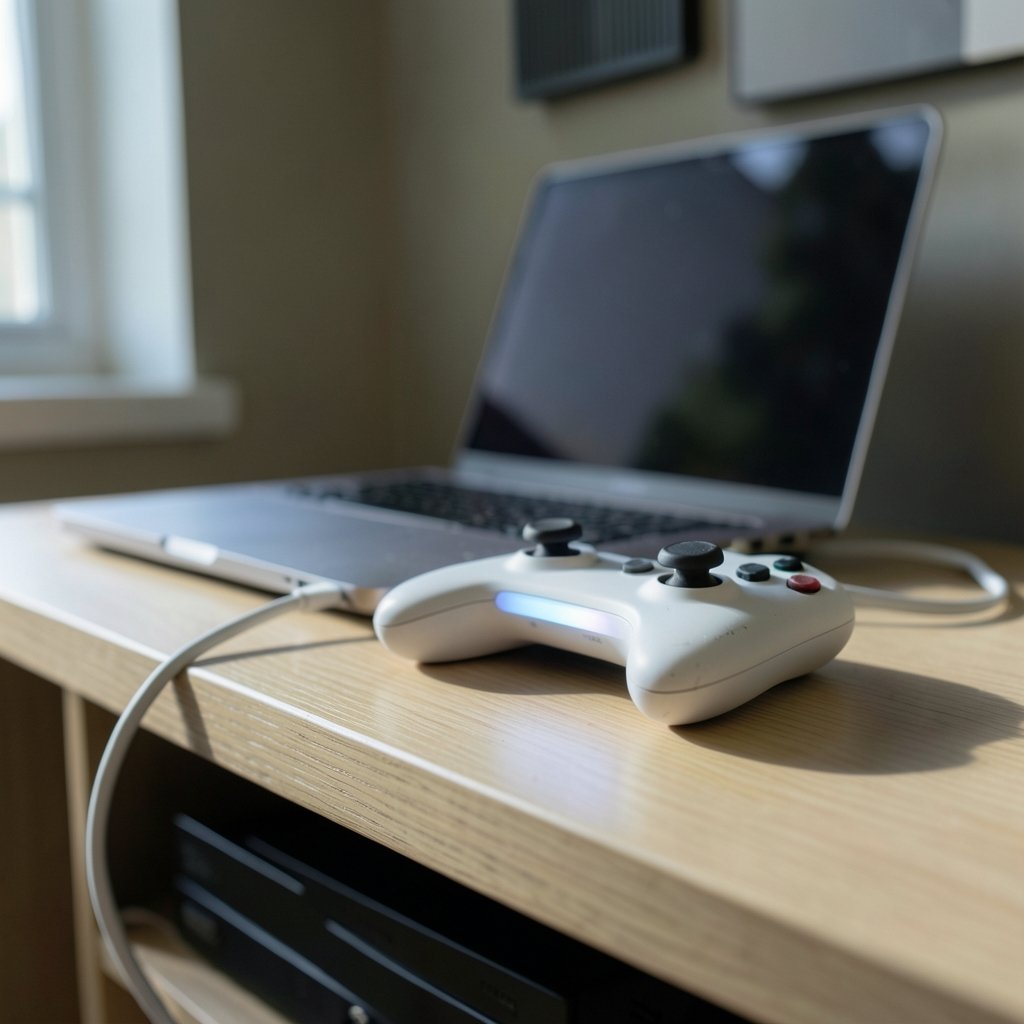
Ever grabbed your DualSense, plugged it into your laptop, and watched the light bar glow while absolutely nothing happened on screen? You’re not alone. The PS5 controller is one of the most comfortable gamepads ever made, and getting it working on a PC is usually a two-minute job. But “usually” is doing a lot of heavy lifting in that sentence.
This guide walks through both connection methods, the settings that actually matter, and the fixes that work when Windows plays dumb. No jargon walls, no guesswork.
Before You Start: What You Actually Need
The DualSense (the official PS5 controller) works on Windows 10 and Windows 11 with no special software for basic use. Here’s the short checklist: (Windows drivers overview)
- A USB-C cable that carries data as well as power. Many cheap charging cables only deliver electricity, which is why the controller lights up but never appears in Windows.
- For wireless: Bluetooth 4.0 or newer on your PC. Most laptops from the last several years have it built in. Desktop towers often don’t, and a cheap USB Bluetooth dongle solves that.
- Fully charged controller, or plugged in during setup.
One common mistake: people buy a “charging only” USB-C cable from a phone accessory bin and then spend an hour troubleshooting drivers. If the controller vibrates and charges but Windows never lists it, swap the cable first. That single step fixes more failed connections than any driver reinstall.
Method 1: Wired Connection (The Reliable Route)
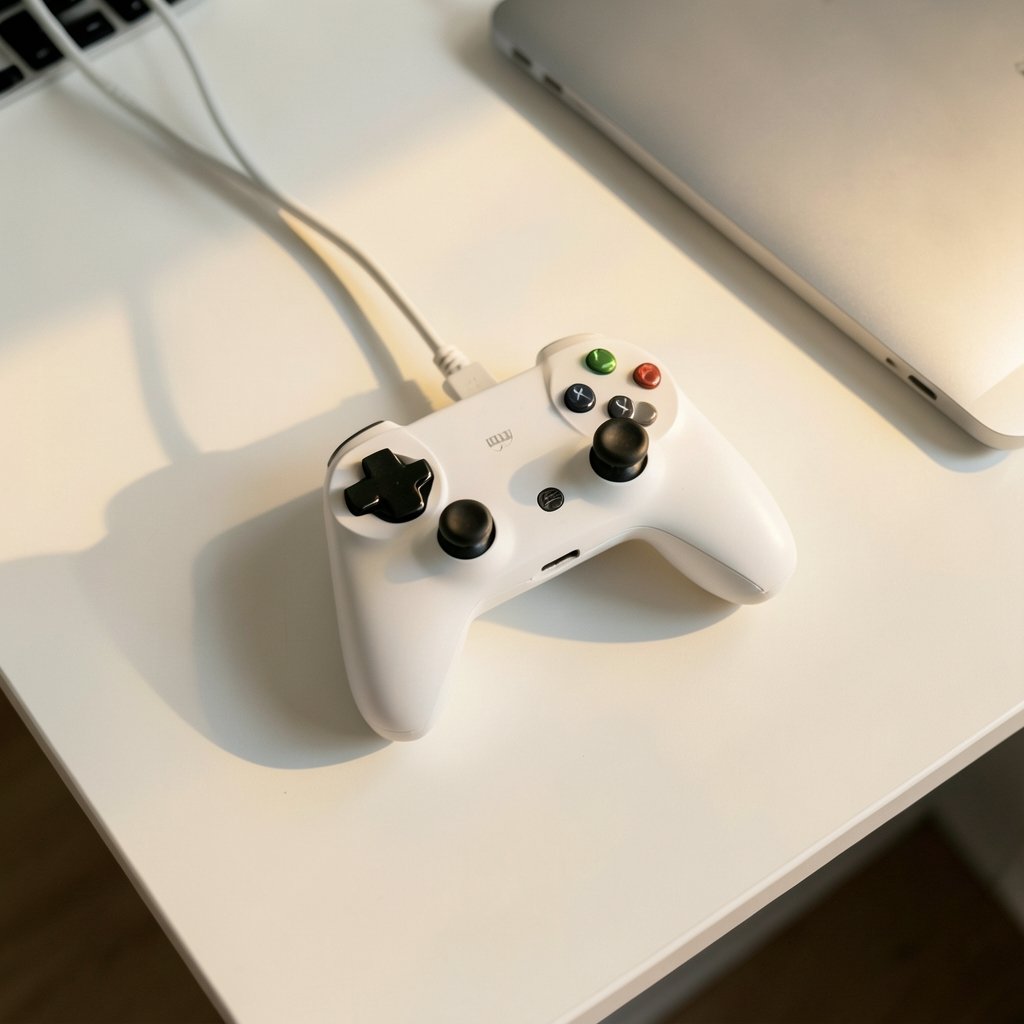
Wired is the boring answer, and boring is good. Plug one end of a USB-C data cable into the controller’s top port and the other into your PC. Windows 10 and 11 generally recognize the DualSense as a standard game controller and install it automatically, no driver hunt required.
Step-by-step
- Connect the controller directly to the PC. Skip USB hubs and monitor ports for the first attempt.
- Wait a few seconds. Windows should make its device-connected sound.
- Open Settings > Bluetooth & devices > Devices and confirm a controller entry appears.
- Test it: press the PS button (the logo button between the sticks). On many setups a small game bar overlay or Steam prompt appears.
- Launch a game and check that inputs register.
If you’re weighing controller options for PC gaming in general, this breakdown of Xbox vs PS5 controller PC compatibility features can help you decide which pad suits your hands and your library before you commit.
Wired mode also sidesteps the biggest wireless headache: latency and dropouts. Competitive players often stay wired on purpose, since USB avoids the occasional Bluetooth stutter.
Method 2: Bluetooth Pairing (The Clean Setup)
Wireless pairing on the DualSense uses a specific button combo, and this is where most people guess wrong. Holding the PS button alone puts the controller in a “wake the console” state, not pairing mode.
The pairing combo that works
- Make sure the controller is off. If it’s on, hold the PS button for about 10 seconds until the light bar fades.
- Press and hold the PS button and the Create button (the small button left of the touchpad, where Share used to be) at the same time.
- Hold for roughly 3 seconds. The light bar starts double-flashing rapidly. That flashing pattern means pairing mode is active.
- On your PC, open Settings > Bluetooth & devices > Add device > Bluetooth.
- Select Wireless Controller from the list.
- Wait for “Connected” to appear, then press the PS button once to confirm the link.
The controller remembers the last paired device, so if you also own a PS5, it may reconnect to the console instead. Pressing the PS button while the console is off avoids that tug-of-war.
If your PC has no Bluetooth
Desktop PCs frequently ship without a Bluetooth radio. A USB Bluetooth adapter costs very little and takes seconds to install. Look for one advertising Bluetooth 4.0 or later, since older 2.1 adapters can pair but often behave unreliably with modern controllers. The Bluetooth SIG’s overview of Bluetooth Low Energy explains why the newer standard matters for low-power accessories like gamepads. (Bluetooth)
Getting the Most Out of It: Steam and Sony’s Driver
A connected controller is only half the story. How games see that controller determines whether you get full features or a generic gamepad experience.
Steam Input does the heavy lifting
If you play through Steam, the platform has built-in DualSense support. Steam Input recognizes the controller, including the touchpad, gyro, and haptics in titles that support them, and it can present the pad to games as an Xbox controller when a title only speaks that language. Valve documents this controller configuration layer in its Steam Input documentation for developers, which is worth a skim if you want to understand what the remapping screens are actually doing.
Practical tip: enable PlayStation Controller Support in Steam’s controller settings. Without it, some games show Xbox button prompts or ignore the touchpad entirely.
Sony’s official driver and firmware
Sony distributes a DualSense Wireless Controller Driver for Windows through its support pages, mainly for firmware updates and certain features. Firmware updates matter more than people expect: Sony has shipped stability and feature fixes through these updates, and a controller that misbehaves on one PC but works on another is sometimes just running old firmware.
You can update the controller’s firmware from a PC using Sony’s updater app, or by connecting it to a PS5. If you’re deciding between console and computer as your main setup, this comparison of PS5 Pro vs gaming PC covers the trade-offs in more depth.
Why Some Features Don’t Work on PC
Here’s the honest part: adaptive triggers and haptic feedback are game-dependent on PC. They only work in titles that specifically implement DualSense support on Windows, which in practice means many Sony-published PC ports and a growing number of third-party games. In everything else, the controller behaves like a very comfortable standard gamepad with no trigger resistance.
That’s not a bug in your setup. It’s the game. Checking a title’s PC feature list before blaming your hardware saves a lot of pointless troubleshooting.
| Feature | Wired (USB-C) | Bluetooth |
|---|---|---|
| Basic inputs | Yes, plug and play | Yes, after pairing |
| Adaptive triggers | In supported games | In supported games |
| Haptic feedback | In supported games | In supported games |
| Touchpad | Yes | Yes |
| Latency | Lower | Slightly higher |
| Setup effort | Minimal | Pairing required |
Troubleshooting: When Nothing Works
Most failures fall into four buckets. Work through them in order.
The controller pairs but games ignore it
Close and reopen the game after connecting. Many titles scan for controllers only at launch. Also check that Steam Input is enabled if you’re launching through Steam, and that no other controller is set as the preferred device in Windows.
Pairing fails or the controller won’t appear
Remove the controller from Windows Bluetooth settings first, then retry pairing. If it still won’t show, reset the controller: there’s a small reset button recessed near the L2 trigger area that you press with a pin or paperclip for a few seconds. Recharge fully and pair again. The reset clears stale pairing data, which is often the real culprit.
Inputs lag or drop out
Move the controller closer to the PC, remove USB 3.0 hubs from the line of sight between them, and avoid pairing through a crowded wireless environment. USB 3 ports are known to emit interference around 2.4 GHz, which is exactly where Bluetooth lives.
Windows sees it as an audio device only
The DualSense includes a built-in speaker and headphone jack, so Windows sometimes registers the audio side without the input side. Check Settings > Bluetooth & devices for a separate controller entry, and try a different cable or port.
If you also game on an iPhone and want one controller for everything, the steps to connect a controller to your iPhone cover pairing on Apple’s side, which uses the same button combo.
Optional Tools and When to Skip Them
Community tools like DS4Windows and DSX add remapping and Xbox emulation for non-Steam games. They’re genuinely useful for older titles that refuse to see a PlayStation pad. But they’re third-party projects, not official software, and they add a background layer that can conflict with Steam Input.
The rule of thumb: try the game without any tool first. Add one only if a specific title misbehaves. Stacking DS4Windows on top of Steam Input on top of a game’s native support is how people end up with double inputs and phantom button presses.
Conclusion
Connecting a PS5 controller to a PC comes down to two paths: plug in a data-capable USB-C cable for instant, low-latency play, or hold PS + Create until the light bar double-flashes and pair over Bluetooth. Wired is more reliable; wireless is tidier. Either way, the controller works out of the box on Windows 10 and 11 for basic inputs.
The rest is about expectations. Adaptive triggers and haptics appear only in games built to use them, Steam Input fills the gaps for everything else, and a firmware update through Sony’s Windows app resolves a surprising number of stubborn issues. Start with the cable, confirm the controller in Windows settings, then let Steam handle the rest. If you’re still planning your setup, checking when the PS5 price might drop is worth a look before you buy accessories.
FAQ
Does the PS5 controller work on Windows without any software?
Yes. Windows 10 and 11 recognize the DualSense as a standard game controller over USB-C, and Bluetooth pairing works through the normal Windows Bluetooth menu. No driver download is required for basic play. Extra software only becomes useful for remapping or for games that refuse to detect PlayStation controllers.
Why won’t my PS5 controller connect to my PC via Bluetooth?
The most common cause is not holding the right buttons. Hold PS + Create until the light bar double-flashes; tapping the PS button alone will not work. If it still fails, remove the controller from Windows’ Bluetooth list, press the recessed reset button near the L2 trigger, recharge, and pair again.
Can I use the DualSense’s adaptive triggers on PC?
Only in games that implement DualSense support on Windows. In supported titles you get trigger resistance and haptic feedback; everywhere else the controller acts as a standard gamepad. The feature list depends on the game, not on your PC or cable.
Do I need a special cable to connect the controller?
You need a USB-C cable that carries data, not a charge-only cable. Many cables bundled with phones are power-only, which is why the controller lights up but never appears in Windows. If the controller charges but isn’t detected, try a different cable before touching any settings.
How do I update the PS5 controller’s firmware on a PC?
Sony provides a Windows updater app for DualSense firmware, available through its support pages. You can also update by connecting the controller to a PS5. Firmware updates can fix connection quirks, so it’s worth doing if the controller behaves oddly on one machine but fine on another.
Can I pair the controller with both a PS5 and a PC?
Yes, but the controller reconnects to the last device it paired with. If it keeps waking your console instead of your PC, turn the console off or unplug it while pairing, then reconnect to the PC. Pressing the PS button afterward links to whichever device is active.



