A smart TV can still feel slow or awkward to use, and an external player can offer a simpler way to reach the shows and apps you watch. A streaming device is hardware for accessing streaming apps, not a subscription that unlocks every channel. It connects to your TV and gives you another way to open services such as Netflix, Hulu, or YouTube. Your TV, internet connection, and paid app plans still shape what you can watch.
This guide compares devices for slow smart TVs, older non-smart TVs, 4K picture quality, and different budgets. It also covers platform styles, free local broadcasts, and paid live-TV apps. High dynamic range, or HDR, is a video format that expands the range of brightness and contrast a compatible TV can display. The right pick depends first on your TV, the services you use, and the features you’ll actually notice.
Key Takeaways
- A separate player can replace slow or outdated TV software.
- Your TV needs an HDMI input for most external players.
- 4K and HDR need compatible hardware and content.
- A streaming device does not include paid channel subscriptions.
- Local channels may come from an antenna, depending on reception.
When Does a Smart TV Need a Separate Streaming Device?
If your smart TV opens its apps quickly and supports the services you use, you can keep watching without adding a player. A separate device helps when the TV feels slow, lacks an app, or has no built-in streaming at all. You can choose among major platforms such as Roku, Fire TV, Apple TV, and Google TV.
A streaming device connects to an HDMI port and can bypass the TV’s slow or outdated built-in software. Popular platforms offer apps for Netflix, Hulu, YouTube, and many other major services. You still need separate subscriptions for paid apps, and one player does not grant access to every channel.
Streaming devices for a non-smart TV need an available HDMI input. Check that the TV has an open HDMI port before choosing any external device.
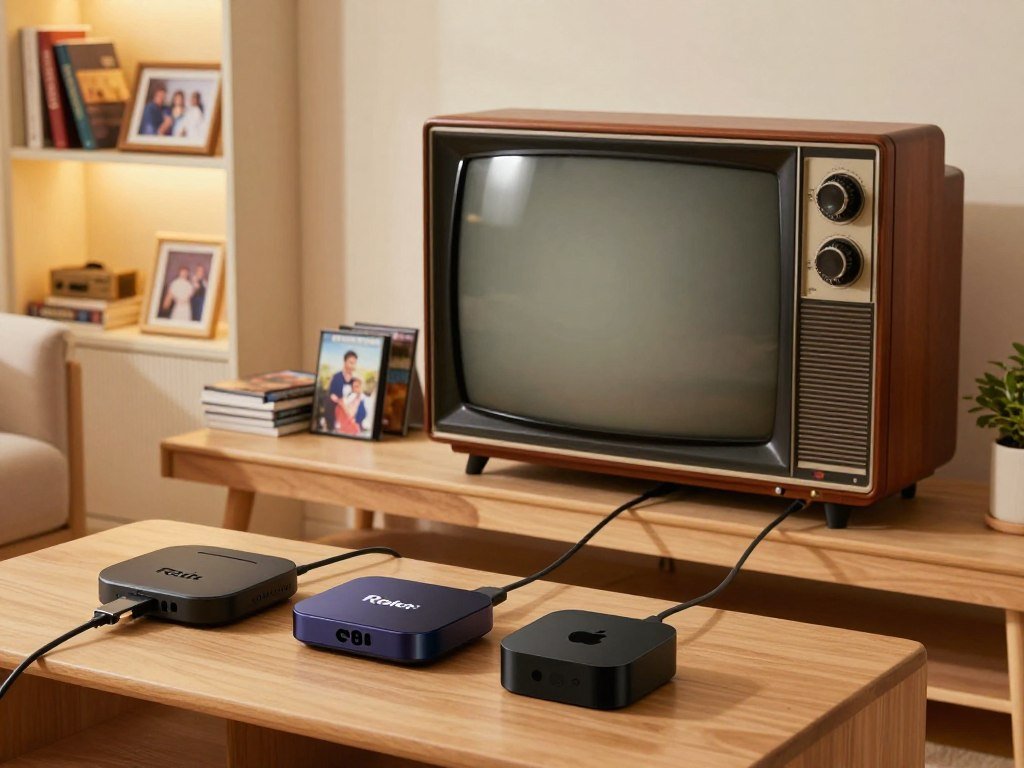
Three practical signs can tell you it is time to add a player:
- Sluggish menus make opening apps or searching feel like a chore.
- A missing or unsupported app blocks a service you want to watch.
- An older TV has no built-in streaming apps.
A non-smart TV can still work well with a separate player, as long as it has the right input. If your TV’s own apps already work smoothly, another remote and device may add clutter without improving your daily viewing.
How to Choose the Best Streaming Devices for Every TV
Start with the TV’s resolution, because a premium 4K player cannot make an HD panel display native 4K. The best streaming device for your setup should match the screen and the content you watch. A compatible chain of TV, HDMI port, cable, and video source matters more than a logo on the box.
4K only pays off when the TV and the video content also support 4K. HD video commonly uses 720p or 1080p, while 4K UHD has 3840 x 2160 pixels. A 4K device can still play HD content, but it cannot add detail that the source does not contain.
Match the player’s resolution to your TV
An HD TV can use an HD streaming device without losing its native picture quality. For 4K playback, Roku requires a compatible 4K TV, an HDMI HDCP 2.2 port, a High Speed HDMI cable, and 4K content. The player, TV, connection, and show must all agree on the format.
Check HDR and sound-format compatibility
HDR is a video format that expands the range of brightness and contrast a compatible TV can display. Dolby Vision is one type of HDR video; Dolby Atmos is an audio format for compatible sound systems. Dolby Vision needs compatible content and a compatible TV, while Dolby Atmos needs compatible content and a compatible sound system.
| TV or connection need | Matching streamer feature | What else must be compatible |
|---|---|---|
| HD TV | HD playback | 720p or 1080p content |
| 4K TV | 4K UHD playback | 4K content, HDCP 2.2 port, High Speed HDMI cable |
| HDR or Dolby Vision TV | HDR or Dolby Vision output | Compatible TV, HDMI HDCP 2.2 port, HDR content |
| Atmos-capable sound system | Dolby Atmos audio | Compatible sound system and content |
Roku’s 4K and HDR playback needs a compatible setup, including an HDMI HDCP 2.2 port. Confirm the TV’s input and the content format before paying more for a specific HDR logo.
Choose a stick or a box for your setup
A streaming stick plugs into HDMI and hides behind the TV. Some sticks can draw power from a TV USB port, which can reduce cable clutter. A streaming box connects through HDMI, generally needs a wall outlet, and may offer Ethernet for a wired network connection.
Boxes take shelf or cabinet space, so measure the spot near your TV before choosing one. A stick can be easier to tuck away, while Ethernet can help when Wi-Fi coverage is weak. Verify the TV’s HDMI port and the content format before paying extra for a specific HDR logo.
How Do the Top 10 Streaming Devices Compare?
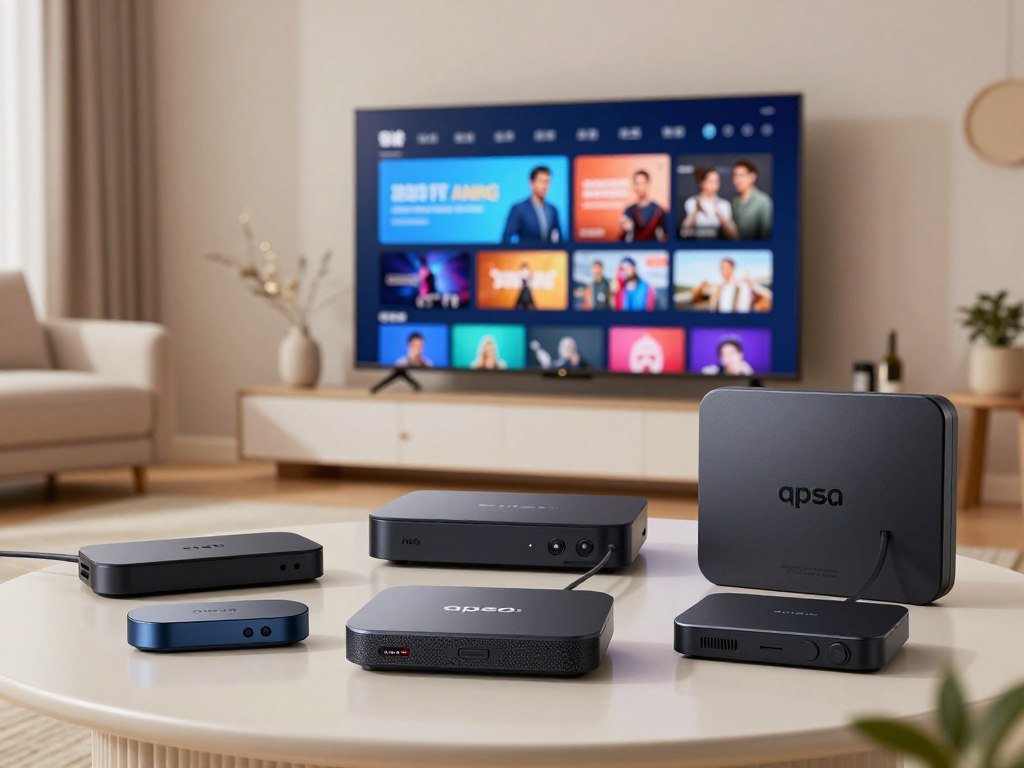
A useful shortlist spans inexpensive sticks, premium boxes, and players built around specific smart-home systems. The best streaming choice depends on whether you value a simple interface, fast access, or a feature tied to your home. The ten devices below cover different needs, not every channel or subscription.
No single streaming device has every channel by itself. The table compares five of the shortlist’s main options by platform and form. The names include model years where they help distinguish similar devices.
| Device | Platform | Form | Strongest fit |
|---|---|---|---|
| Roku Streaming Stick 4K | Roku OS | Stick | Simple 4K streaming |
| Amazon Fire TV Stick 4K Max (2023) | Amazon Fire TV | Stick | Fast app access |
| Apple TV 4K (2022) | Apple tvOS | Box | Apple households |
| Google TV Streamer | Google TV | Box | Google Home features |
| Onn Google TV 4K Pro | Google TV | Box | Lower-cost wired networking |
The rest of the shortlist includes five more streaming devices for narrower needs:
- Fire TV Stick 4K Plus suits buyers seeking a lower-priced 4K stick.
- Fire TV Stick HD (2026) fits an HD TV and a tight budget.
- Fire TV Cube (3rd Gen) adds hands-free Alexa and HDMI pass-through.
- Roku Streaming Stick Plus (2025) combines 4K with Apple AirPlay.
- NVIDIA Shield TV Pro suits Plex, local media, and game streaming.
The shortlist spans simple streaming, 4K, smart-home integration, and enthusiast features. App availability varies by platform, and subscriptions remain separate from the hardware. Use the chart to narrow the field, then compare the features that matter most in your room.
Which Roku Streaming Stick Fits a Simple Setup?
The Roku Streaming Stick 4K is the stronger match when Dolby Vision support is a priority, while the Streaming Stick Plus offers 4K and AirPlay. Choose based on your TV’s picture support and whether you cast from Apple devices. The content must support Dolby Vision, too, for that format to appear.
A TV and the content must both support Dolby Vision for Dolby Vision playback. Roku streaming sticks use the same basic idea, but the models differ in their picture and casting features. Listed retailer prices are specific to 2026 and can change.
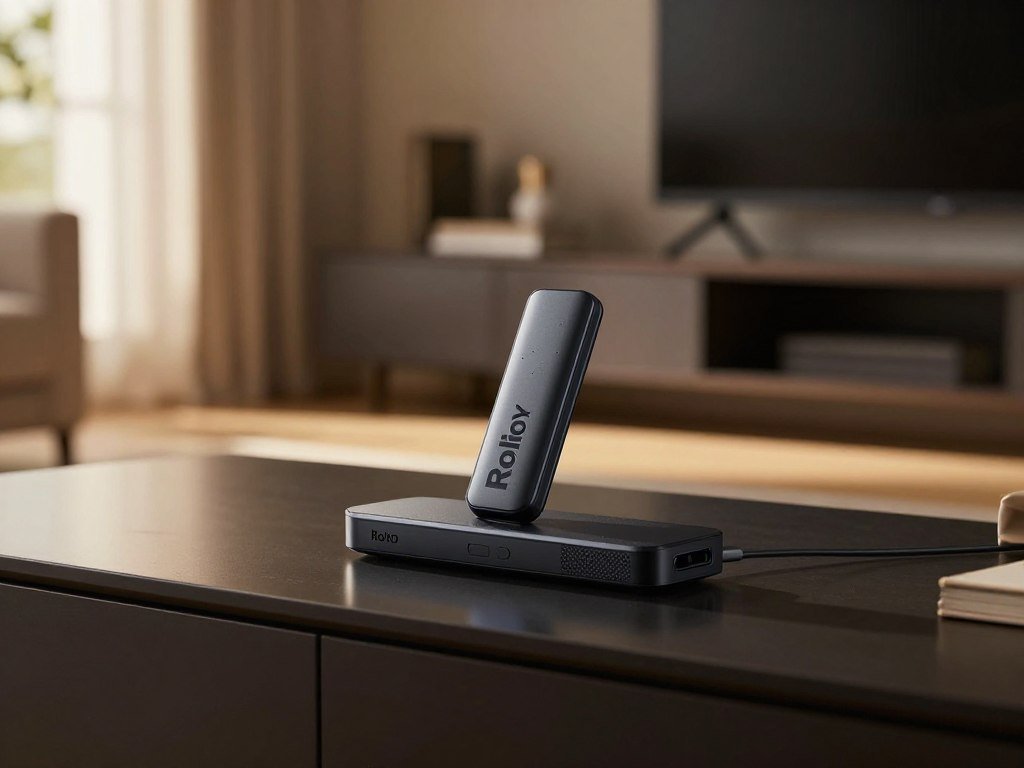
Roku Streaming Stick 4K for Dolby Vision
The Roku Streaming Stick 4K fits a viewer with a Dolby Vision TV who wants that HDR format in supported shows. CNET gave it a score of 9.0 in 2026. CNET listed the Roku Streaming Stick 4K at $50 at Walmart and $60 at Best Buy in 2026.
Those prices describe separate retailer listings, not a promise that every store will keep the same offer. The model makes more sense when your television can show Dolby Vision, rather than when you only want an inexpensive way to open apps.
Roku Streaming Stick Plus for AirPlay
The Roku Streaming Stick Plus (2025) supports 4K streaming and Apple AirPlay. PCMag listed the model at $59.00 at Amazon in 2026. AirPlay can help when you want to send video or other content from a compatible Apple device to the TV.
The Plus may suit you better if AirPlay matters more than Dolby Vision. Check the full model name when comparing Roku streaming stick listings, since similar names can hide different features. Match the Roku model to the formats your TV and the content you watch actually support.
Which Amazon Fire TV Stick Should You Buy?
Choose the Fire TV Stick 4K Max for 4K and faster app loading, or consider the HD stick if your TV does not need 4K. The Fire TV Stick range includes options for different budgets and screen types. Your best fit depends on resolution and how much you value quick app access.
The 4K Max is the Fire TV Stick choice for 4K buyers who prioritize fast app loading. CNET gave the Amazon Fire TV Stick 4K Max (2023) a score of 8.4 in 2026. It noted fast app loading and support for current playback standards.
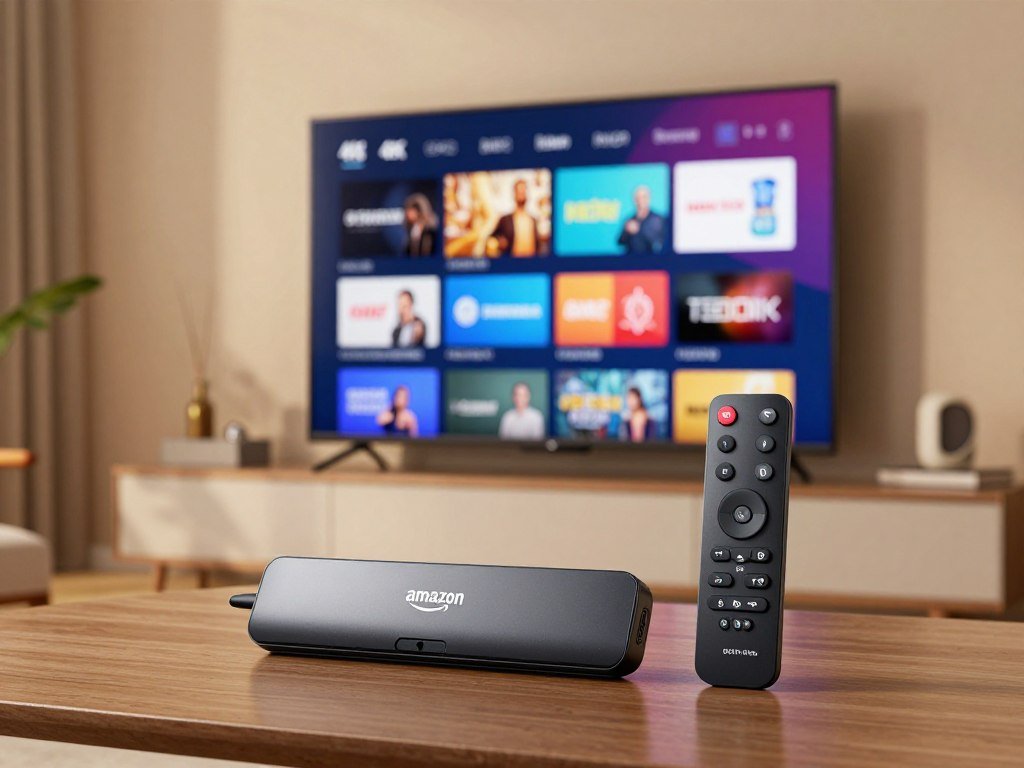
Fire TV Stick 4K Max for fast app access
CNET listed the Fire TV Stick 4K Max (2023) at $40 at Amazon and $53 at Best Buy in 2026. These are dated listings, not guaranteed current offers. The stick makes sense when you want a 4K player with brisk access to apps.
The Max name can make the range confusing, so check that the product listing names the exact model and year. A stick with 4K output is a poor match if your TV only has an HD panel and you do not plan to upgrade.
Fire TV Stick 4K Plus or HD for a tighter budget
PCMag listed the Amazon Fire TV Stick 4K Plus at $24.99 at Amazon in 2026 and noted Wi-Fi 6 support. It offers a lower listed price than the 4K Max while keeping 4K playback in the mix.
PCMag listed the Amazon Fire TV Stick HD (2026) at $19.99 at Amazon in 2026. The HD model supports Wi-Fi 6 and can draw power from a TV USB port. Check your TV’s resolution before choosing the HD model over a 4K stick.
Is the Apple TV 4K Worth Its Premium?
The Apple TV 4K makes the most sense when its fast A15 Bionic hardware and Apple integration matter in your household. It is a strong fit if you already use an iPhone, AirPods, iCloud, or other Apple services. The connected household gets more value from features that work across its devices.
The A15 Bionic chip supports responsive app navigation, and tvOS uses an app-focused interface. The Apple TV 4K (2022) received a CNET score of 8.0 in 2026. Its appeal comes from the mix of hardware and services, not just video playback.
CNET listed the Apple TV 4K (2022) at $130 at Best Buy and $130 at Apple in 2026. That is a snapshot of those listings, not a fixed price for every later sale. The box can feel easier to use when your household already relies on Apple devices.
AirPlay lets compatible Apple devices send content to Apple TV. AirPods can pair for private listening, while iCloud and Apple services connect with the same account. These links between devices may matter more to your routine than a long list of technical features.
For a home that uses Android phones and other platforms, some of those benefits may go unused. A premium box can be a good match when the ecosystem fits, but it is not a must-buy for every TV. If you will not use the Apple ecosystem features, compare the less expensive sticks before paying for this box.
Is Google TV the Right Fit for Your Smart Home?
The Google TV Streamer is the better fit for Google Home features, while the Onn 4K Pro offers a lower-priced Google TV box with wired networking. Choose between a deeper smart home link and a lower device cost. Both put Google TV at the center of the viewing experience.
The Google TV Streamer supports smart-home integration and cloud gaming. CNET gave it a score of 8.2 in 2026 and listed it at $150 at Amazon that year. Those features can suit a home that already uses Google Home devices.
Google TV Streamer for Google Home households
The Google TV Streamer can be useful when you want a streaming player that also connects with your smart-home setup. Its cloud gaming support adds another use beyond watching video. That blend fits best when you will use both features rather than only opening a few apps.
Google TV brings recommendations from different services onto its main screen. The service still needs an account or subscription when a title requires one. A home screen recommendation does not mean that the show is free to watch.
Onn Google TV 4K Pro for a lower-cost box
PCMag listed the Onn Google TV 4K Pro Streaming Device at $44.73 at Walmart in 2026. It noted 4K HDR, Dolby Vision, Dolby Atmos, Wi-Fi 6, and Ethernet. Those features give the box a strong set of connections and formats at its listed price.
Ethernet can help when a wireless signal struggles to reach the TV. The Onn device may suit you if you want Google TV and a wired network port without paying the Google TV Streamer’s listed price. Choose based on whether smart-home integration or a lower upfront device price matters more.
Which Streaming Device Suits Gaming and Home-Theater Fans?
The Fire TV Cube is the hands-free Alexa option, while the Shield TV Pro is for people who need enthusiast media and gaming features. Pick the specialized box only when you will use what makes it different. Ordinary app streaming rarely needs every advanced feature.
The Fire TV Cube combines hands-free voice control with HDMI pass-through and Wi-Fi 6E. PCMag listed the Amazon Fire TV Cube (3rd Gen) at $109.99 at Amazon in 2026. Its far-field microphones let you search, open apps, and control compatible smart-home devices without holding the remote.
Fire TV Cube for hands-free Alexa control
HDMI pass-through lets the Cube sit between a compatible device and the TV. That can help if you want Alexa voice control in a home-theater setup. The Cube is more useful when you often give voice commands from across the room than when you prefer a remote.
A review of the third-generation Amazon Fire TV Cube notes its hands-free Alexa features and Wi-Fi 6E support. The device also suits people who want a box rather than a stick hidden behind the television.
NVIDIA Shield TV Pro for Plex and game streaming
The NVIDIA Shield TV Pro platform dates to 2019. Its hardware includes a Tegra X1+ processor, 3GB RAM, 16GB storage, two USB 3.0 ports, and Ethernet. It supports Plex Media Server, GeForce NOW, and 4K upscaling.
Those features make it a more specialized device than most people need for app streaming. Consider the Shield if one of these three jobs matters to you:
- Running Plex Media Server for your household.
- Playing local media from attached or network storage.
- Using GeForce NOW for game streaming.
The Shield TV Pro’s ports and media tools can serve a home collection better than a basic stick. Its older platform is a trade-off, so choose it only if its Plex, local-media, or gaming capabilities solve a real need.
Which Streaming Platform Is Easiest to Live With?
The operating system shapes the everyday experience more than the basic job of opening a streaming app. Roku OS, Amazon Fire TV, Apple tvOS, and Google TV are the four major standalone platforms. The easiest interface is the one that matches how you browse and watch.
Platform preferences are personal, and major services have apps across popular systems. Roku offers straightforward app access and free ad-supported movies, shows, and live channels through The Roku Channel. Those free options include ads and do not replace paid services.
Fire TV gives Alexa a clear role and promotes Amazon content and advertising. That can feel helpful if you use Alexa or Prime Video often, though the home screen may emphasize Amazon’s own offers.
Apple tvOS uses an app-focused home screen. Google TV puts recommendations from different services together, which can save time when you are not sure what to play. These choices affect how you reach apps, not which subscriptions you own.
No platform grants subscriptions to paid apps. A service may appear in a recommendation row, but you still need a plan to watch its paid shows. Check that the apps you use most often are available on the platform you choose.
Some people want a quiet home screen, while others like seeing suggestions from several services. Try the interface at a store or on a device you already own, if possible. Pick the interface you are most comfortable navigating, rather than paying for features you will not use.
How Can You Watch Local Channels for Free?
An over-the-air antenna is the lowest-cost route to local broadcast channels because it has no subscription or monthly fee. It may receive ABC, CBS, NBC, Fox, PBS, The CW, MeTV, Univision, and other stations. Reception depends on your location and conditions, and an antenna does not provide every cable channel.
Most TV antennas have a practical range of about 70 miles because of Earth’s curvature. Equipment and local conditions can allow a longer reach, but distance alone cannot promise a clear picture. AirTV adds a way to stream antenna channels through the free Sling app.
| Option | What it receives | Extra hardware or account | DVR capability |
|---|---|---|---|
| Antenna directly to TV | Local broadcast channels | HD antenna | None listed |
| AirTV Anywhere | Antenna channels on four TVs | AirTV Anywhere and HD antenna | 1TB DVR included |
| AirTV 2 | Local antenna channels | AirTV 2, HD antenna, external hard drive to record | Records to external hard drive |
| AirTV with the free Sling app | Antenna channels through Sling | AirTV, HD antenna, free Sling app | Depends on AirTV model |
AirTV Anywhere streams antenna channels to four TVs and includes a 1TB DVR. AirTV 2 records local channels when you connect an external hard drive. Both need an HD antenna, and the channels you receive depend on your area.
An AirTV device and HD antenna let you watch local channels through the free Sling app without a paid Sling subscription. Supported devices include iPhone, iPad, Apple TV, Roku, Android, Android TV, and Amazon Fire TV.
- Use an antenna alone when you only need local broadcasts on one TV.
- Choose AirTV Anywhere when you want antenna channels on four TVs and built-in DVR storage.
- Choose AirTV 2 if you plan to connect an external drive for recordings.
- Use the free Sling app to stream AirTV antenna channels on a supported device.
AirTV recommends 25Mbps broadband for an optimal experience with its streaming setup. Check reception for your address before buying an antenna, since channel availability changes with location and conditions.
Which Live-TV Streaming Service Fits Your Channel Needs?
YouTube TV costs $83 per month, while the best lower-cost choice depends on whether you can get local broadcasts with an antenna. Compare local stations, sports, and monthly fees before choosing. Most live-TV streaming services other than Philo typically cost $45-$95 or more per month.
No streaming box has every channel by itself; what appears depends on your apps, subscriptions, and local availability. The table compares five popular services and the details that can change the fit. Channel lineups and sports fees can differ by area.
| Service or plan | Monthly price | Local-channel or sports detail | DVR or fee condition |
|---|---|---|---|
| YouTube TV | $83 | Larger channel selection than competitors at that price | Compare local lineup by area |
| Hulu + Live TV | $90-$100 | About 100 channels, including ABC, CBS, Fox, and NBC in more markets | Unlimited DVR and Hulu on-demand; price depends on ads |
| Sling TV Blue | $46 | Local channels beyond ABC, NBC, and Fox in only a few cities | Price varies by location |
| Philo | $33 | Fits viewers who get local broadcasts with an antenna | Local reception comes separately |
| Fubo Sports & News | $65 | Includes ABC, CBS, and Fox | Unlimited DVR; regional sports fee up to $17 |
Compare services by price and local-channel access
Hulu + Live TV costs $90-$100 per month, depending on ads. It offers about 100 channels, including ABC, CBS, Fox, and NBC in a growing number of markets. The plan also includes Hulu on-demand content and unlimited DVR.
Sling TV Blue costs $46 per month, with some location variation. Local channels beyond ABC, NBC, and Fox are available in only a few cities. Philo costs $33 per month and may fit if an antenna already supplies the local broadcasts you want.
Check sports fees, DVR, and regional coverage
Fubo Sports & News costs $65 per month and includes ABC, CBS, Fox, and unlimited DVR. Fubo may add a regional sports network fee of up to $17 per month, depending on your area.
DirecTV streaming plans cost $100-$204 per month, including applicable Gemini box lease and regional sports fees. DirecTV Entertainment costs $100 per month, including a $10 monthly Gemini box lease, and offers about 90 channels.
DirecTV Choice costs $95 per month before a $24 monthly regional sports fee and a $10 monthly Gemini rental. It offers about 125 channels. A Consumer Reports comparison of live-TV services also tracks price and lineup differences. Check local-channel lineups and all applicable sports or equipment fees before signing up.
What Connection and Setup Checks Prevent Streaming Problems?
A player can support 4K and still show a lower-quality picture if the TV, HDMI connection, content, or network is the limiting factor. Stable Wi-Fi is usually enough for ordinary streaming, while Ethernet can help when wireless coverage is weak. The weakest link sets what you see.
Roku 4K playback needs a compatible TV, HDMI HDCP 2.2 port, High Speed HDMI cable, and 4K content. HDR playback also needs a compatible HDR TV, HDMI HDCP 2.2 port, and HDR content. Dolby Vision and Dolby Atmos need compatible content and hardware.
Use this five-item setup checklist to catch common problems before settling in:
- Confirm broadband service and a stable Wi-Fi signal near the TV.
- Connect the player to the HDMI port that supports the needed format.
- Use an HDMI cable that matches the player and TV requirements.
- Select a resolution and HDR format the TV can display.
- Test playback with content that supports the chosen format.
For AirTV use, the company recommends 25Mbps broadband for an optimal experience. That advice applies to AirTV, not every streaming device or service. A wired connection can reduce wireless problems when the router and player have Ethernet ports.
Long coaxial cable runs can affect antenna reception as well. Runs longer than 100 feet can lose as much as 1/3 of the signal. That matters when an antenna signal travels from a distant outdoor location to a TV or AirTV device.
When video looks soft, check the source before blaming the player. A show may only be available in HD, even on a 4K screen. Test the actual app and content after setup instead of relying on the device’s feature labels alone.
A VPN service comparison for streaming explains that VPN routes can affect speed and cannot improve an internet connection that is already too slow. That matters if your viewing setup includes a VPN. Keep the actual app and content as the final test of picture quality.
Which Remote and Casting Features Make Daily Use Easier?
A comfortable remote and reliable sound control can matter more every night than a small difference in processor speed. Voice search can reduce typing, but button layouts and voice tools differ across remotes. Choose easy control over a feature you will rarely use.
HDMI-CEC can let a streaming remote control a connected soundbar or receiver. This feature can reduce the number of remotes on your coffee table. The TV and sound system must support the control feature for it to work.
Phone casting and mirroring can also change how you use a player. Apple TV and Roku support AirPlay, while Google TV supports Chromecast. Check that your phone supports the feature before counting on it for photos, video, or other content.
Most streaming devices support Bluetooth headphones. Roku Streaming Sticks and Express players can also use the Roku mobile app for private listening, which can help when you want to watch without waking someone nearby.
- Confirm the remote can control TV power and volume.
- Check phone compatibility for casting or mirroring.
- Verify Bluetooth headphone or private-listening support.
Remote layouts vary in ways that matter during daily use. A mute button, clear volume controls, and a voice button can save time if they match your habits. Before buying, confirm the control method works with both your TV and any connected sound system.
Can You Use Streaming Devices Across TVs and While Traveling?
A streaming stick is easy to pack, but hotel Wi-Fi sign-ins and service location rules can affect what works away from home. Roku, Fire TV, and Apple TV devices support captive-portal sign-ins on many hotel networks. Many hotels support the process, but not every network does.
A separate streaming device is usually needed for each TV where you want independent viewing. The TV’s own apps can remove that need, and a shared HDMI distribution system can send a signal to multiple screens. That setup may not allow each TV to play a different show.
Travel can also bring service limits that hardware cannot change. Hulu + Live TV use is tied to a primary residence, so a hotel connection does not make every service work like home. Check the rules for your paid plan before relying on it during a trip.
Use this short checklist before leaving:
- Pack the streaming stick and its remote.
- Confirm the device can handle hotel Wi-Fi sign-in pages.
- Check the service’s location rules for away-from-home viewing.
A VPN may change the IP address a website sees, but streaming services may block VPN addresses. A VPN does not guarantee access or override a service’s rules. Read a VPN guide for speed and privacy if you are weighing one for travel.
Free VPN plans can also set data or location limits, so they may not suit long viewing sessions. Compare free VPN alternatives and their limits before using one on a trip. Hotel network sign-ins and service rules can each stop playback for different reasons.
Check the hotel network and your service’s viewing rules before relying on a travel setup. A device that works at home may still face a sign-in or location limit on the road.
Conclusion
A good streaming setup is the one that fits your TV, your favorite apps, and the way you actually watch. Choose a platform that feels right for your household’s habits. Pay for video or smart-home features only when your TV and routine can use them.
Your next step is simple: check the TV’s HDMI port and resolution, then confirm the apps and local channels you need. That quick check can prevent buying a device that misses a key feature or input. Check your TV’s ports and the channels or apps you need, then choose the simplest device that meets those needs.
FAQ
What is the best overall streaming device?
The Roku Streaming Stick 4K is a straightforward pick for most viewers who want a simple way to stream. Apple TV 4K suits households already using Apple devices, while Google TV Streamer fits homes that value Google Home links. Choose NVIDIA Shield TV Pro when Plex, local media, or GeForce NOW matters. Your TV’s resolution and app needs should guide the final choice.
What are the best streaming services for regular TV?
YouTube TV costs $83 per month and offers a larger channel selection than competitors at that price. Hulu + Live TV costs $90-$100 per month, depending on ads, and includes about 100 channels in a growing number of markets. The better fit depends on your channel needs, local availability, and interest in Hulu’s on-demand shows.
Do I need a streaming device for each TV?
Usually, yes, if you want independent streaming on a TV without built-in apps. A separate player lets each screen open its own apps and show different content. A shared HDMI distribution setup is an exception because it can send one player’s output to more than one TV. The screens may then show the same program rather than separate shows.
What is the cheapest way to get all TV channels?
No single free option provides every local broadcast and cable channel. An antenna can receive local stations without a subscription, depending on your location and reception. It does not include cable channels, and paid live-TV services still have gaps in their lineups. Pairing an antenna with a paid service can cover more needs, but adds costs.
Is there a subscription that has all streaming services?
No single subscription includes every streaming service. Bundles combine selected services, but other apps remain separate and may still need their own plans. Check which shows you actually watch before paying for a bundle, since a lower bundle price does not help if it leaves out your must-have service.
Where can I stream ABC, NBC, and CBS for free?
An antenna may receive local ABC, NBC, and CBS affiliates without a monthly fee, depending on your location and reception. An antenna-connected AirTV can stream received channels to supported devices through the free Sling app. The stations available depend on the broadcast signals your antenna can pick up in your area.
What is the cheapest streaming service that has ABC?
Fubo Sports & News costs $65 per month and includes ABC, CBS, and Fox. Local channel access depends on your market, so the lineup may differ by address. Fubo can also charge a regional sports network fee of up to $17 per month, depending on your area.
What is the best website to watch TV channels online for free?
The Roku Channel is one free option for ad-supported movies, shows, and live channels. Free streaming apps do not promise access to every local broadcast station or cable network. For local broadcasts, an antenna may receive stations in your area without a monthly fee, but reception depends on location and conditions.
Can you get ABC, CBS, and NBC with a Fire Stick?
A Fire Stick alone does not guarantee access to local ABC, CBS, or NBC stations. Local availability depends on your market and the apps or services you use. An HD antenna connected to AirTV can send received antenna channels through the free Sling app to supported Fire TV devices.



