What actually happens when you plug a capture card in, open OBS, and try to record a session at 11 p.m. on a deadline? That question separates a good capture card from a great one. Spec sheets love big numbers, but the workflow is where these three devices live or die. The Elgato 4K X, the AVerMedia family of capture devices, and the Razer Ripsaw each promise a smooth path from console or camera to stream. In practice, they take three very different routes to get there. (Airtable vs notion workflow differences understand 2027)
This comparison looks at the workflow differences that matter in 2027: how each device connects, what software it depends on, how it handles common traps like HDCP, and which type of user each one actually suits. No marketing spin, just the practical stuff that decides whether your recording session runs clean or turns into a troubleshooting evening.
The Three Devices at a Glance
Before digging into workflows, it helps to know what each device actually is, because they are not direct equivalents.
The Elgato 4K X is a USB capture device announced in 2024. It is built around 4K60 passthrough and high-refresh-rate passthrough, with launch materials citing refresh rates up to 144 Hz at 1440p. It is a UVC-class device, which means it works without vendor drivers on both macOS and Windows.
AVerMedia does not sell one capture card; it sells a lineup. The Live Gamer Ultra and Live Gamer 4K families span USB and PCIe form factors. The USB models are cross-platform, while the PCIe cards are Windows-only internal devices. That single fact reshapes the entire workflow.
The Razer Ripsaw exists in two generations: the original from 2016 and the Ripsaw HD from 2019. The Ripsaw HD is a USB 3.0 device with 4K60 passthrough but 1080p60 capture. It is not a 4K capture device, and any 2027 comparison has to say that plainly.
| Feature | Elgato 4K X | AVerMedia (USB models) | AVerMedia (PCIe models) | Razer Ripsaw HD |
|---|---|---|---|---|
| Connection | USB, UVC-class | USB | Internal PCIe slot | USB 3.0 |
| Driver needed | No | Sometimes, for extras | Yes, Windows only | Vendor software for extras |
| Capture ceiling | 4K-class capture | Varies by model | Varies by model | 1080p60 |
| Passthrough | 4K60, high refresh at 1440p | 4K60 on higher models | 4K60 on higher models | 4K60 |
| OS support | macOS and Windows | macOS and Windows | Windows only | macOS and Windows |
| First-party software | 4K Capture Utility, Stream Deck | RECentral, CamEngine | RECentral, CamEngine | Razer Synapse |
Why UVC Changes the Elgato Workflow
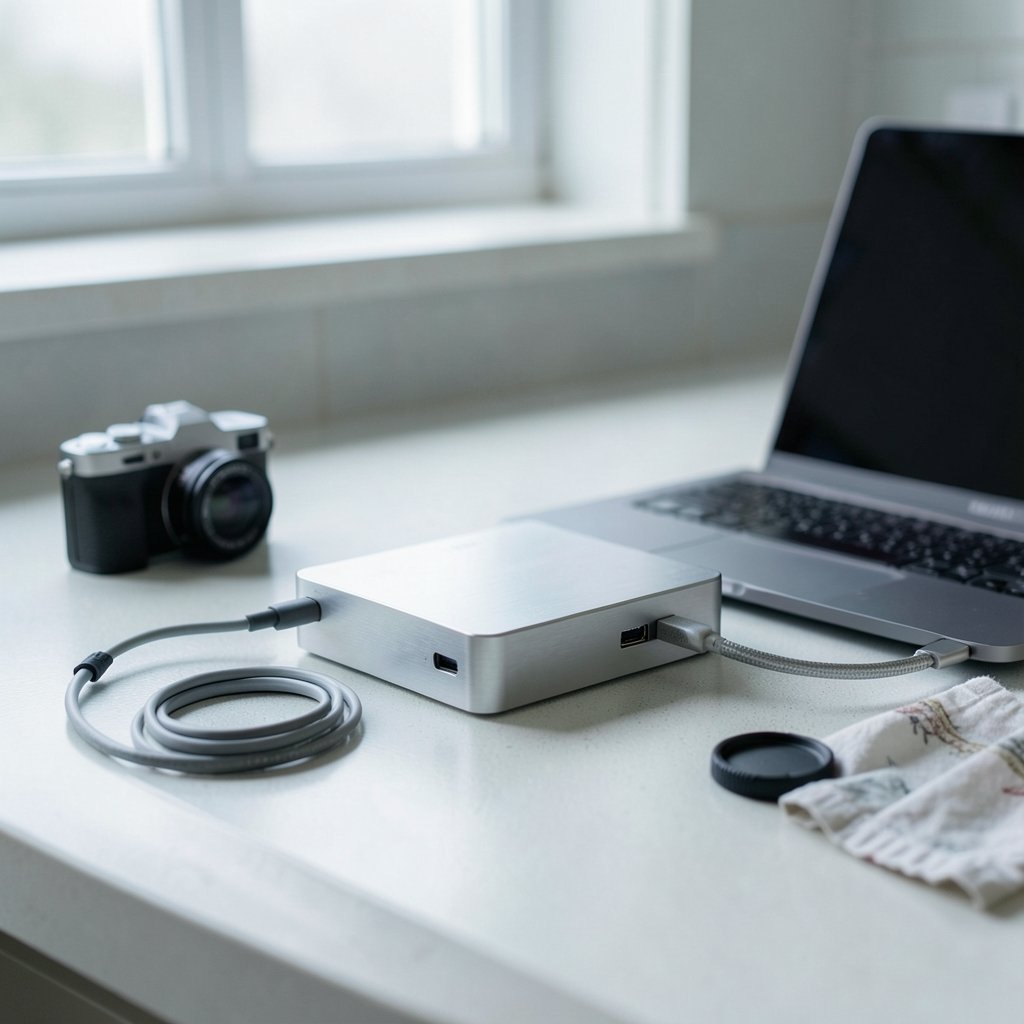
The USB Video Class standard is the quiet hero of the Elgato 4K X workflow. UVC is the specification that lets a capture device show up as a webcam without any driver installation. Plug it in, open your app, pick the source, and you are recording.
That sounds minor until you have spent an hour chasing a driver mismatch before a live show. Devices that rely on proprietary drivers can expose extra features, but they also add a dependency: the vendor’s software has to be installed, updated, and compatible with your OS version. When it is not, the device may not appear at all.
The practical upside of a strictly UVC device is portability across operating systems. A creator who edits on a Mac and streams from a Windows PC can move the same capture device between machines without reinstalling anything. For laptop-based workflows, that flexibility is worth more than a marginal spec bump.
The trade-off is real, though. Features like firmware updates or HDR toggles may only be reachable through vendor software. So even with a driverless device, it pays to keep the first-party app installed for housekeeping, even if you never use it to capture.
Form Factor Decides More Than Specs
Here is the workflow difference people underestimate most: where the device physically lives.
A USB capture device sits on the desk, plugs into a port, and moves with your laptop. A PCIe card lives inside a desktop tower and never moves. The PCIe route typically offers lower latency and avoids USB bandwidth contention, because the card talks directly to the motherboard instead of sharing a USB controller with your keyboard, mouse, and webcam. But it locks the user to a desktop with a free slot, and in AVerMedia’s case, to Windows.
If your workflow involves traveling to events, recording at a friend’s place, or switching between a laptop and a desktop, USB wins by default. If your setup is a permanent desk with a tower under it and you want the cleanest possible signal path, PCIe has genuine advantages.
This mirrors a pattern seen across creative tools generally, where the integration path matters as much as raw capability. The same logic shows up in workflow comparisons between productivity platforms, where the “better” tool depends entirely on how it fits the way someone already works. Hardware is no different. The fastest card in the world is useless if it does not fit your slot, your OS, or your app.
Software Ecosystems: The Real Friction Point
Vendor software is where most workflow friction is born. Each brand pushes its own app, and each app has its own quirks.
Elgato’s workflow centers on 4K Capture Utility and Stream Deck integration. The Stream Deck tie-in is a genuine workflow advantage for anyone who already uses one: switching scenes, muting audio, and triggering recordings becomes a physical button press instead of an alt-tab. (Kiro vs cursor workflow differences understand 2027)
AVerMedia’s ecosystem runs through RECentral and CamEngine. These apps bundle useful features, but they are also the gatekeepers for firmware and settings on models that need them.
Razer’s approach leans on Razer Synapse plus third-party apps like OBS. Synapse is primarily a peripheral management tool, so the capture workflow often ends up living in OBS anyway.
The lesson for buyers is simple: test each device in OBS and in a second app, not just in the vendor’s own software. If a card only behaves well inside its first-party app, that is a workflow constraint you will feel every single session. The same principle applies to software stacks in general: the tool you can bend to your habits usually beats the one with the longer feature list.
HDCP: The Trap That Catches Everyone
HDCP is the copy protection built into HDMI. Capture devices generally will not capture HDCP-protected HDMI unless the source disables it. This affects all three vendors the same way, but the error behavior and documentation differ, and that difference costs time.
A console or streaming box that outputs HDCP-protected signal will typically hand the capture card a blank or black frame. New users often assume the card is broken. It is not. The fix is usually a source-side setting, a splitter, or accepting that certain content simply is not capturable.
Practical tips that save headaches:
- Check the source device’s HDCP setting before troubleshooting the capture card.
- Document which of your sources output protected signal so you stop re-learning it.
- Keep a known-good HDMI cable and test source for isolating problems.
- Update firmware before a big session, not during one.
The common mistake is buying a capture card expecting it to defeat protection. It will not, and no vendor advertises otherwise once you read the fine print.
Bandwidth, Resolution Ceilings, and Refresh Rates
USB 3.x devices share controller bandwidth with other peripherals. Add a webcam, an external drive, and a USB audio interface to the same controller, and something has to give. PCIe cards avoid this entirely.
For 2027 workflows, the useful question is not “which is fastest” but “which fits the user’s slot, OS, and app.” A 4K60 passthrough with high refresh support at 1440p, as the Elgato 4K X markets, matters for gamers who want to play at high frame rates while capturing at a sane resolution. The Ripsaw HD’s 1080p60 capture ceiling is fine for many streamers but rules it out for anyone archiving 4K footage.
If you are weighing capture and editing tools that lean on similar trade-offs, the same lesson applies to development tooling: capability ceilings shape day-to-day decisions long after the purchase. The pattern repeats: pick the ceiling that matches your actual output, not the one that looks best on a box.
Common Mistakes and What Actually Works
A few patterns show up again and again in real setups.
Mistake one: buying for specs, not ports. A PCIe card in a laptop workflow is dead on arrival. Check your machine before you check the spec sheet.
Mistake two: skipping the second app test. If OBS does not see the device cleanly, the workflow is broken no matter how good the first-party software is.
Mistake three: ignoring firmware. Vendor software exists partly to push firmware updates. Skipping them can leave features locked or bugs unfixed.
Mistake four: blaming the card for HDCP. Covered above, but it bears repeating because it is the single most common false alarm.
What actually works is boring and effective: match the form factor to your machine, confirm UVC or driver support for your OS, test in two apps, and keep firmware current before important sessions.
Which Device Fits Which Workflow
For a traveling creator who edits on a Mac and streams from a Windows laptop, the Elgato 4K X’s driverless UVC design is the least friction. For a desktop-bound Windows user who wants the cleanest signal path and does not mind a slot, an AVerMedia PCIe card fits better. For someone recording 1080p console gameplay who already lives in Razer’s ecosystem, the Ripsaw HD remains serviceable, provided they accept the capture ceiling.
The broader point is that capture hardware is one node in a chain. The chain includes your OS, your app, your storage, and your data layer. Even database choices follow this rule: the right pick depends on the shape of the work, not a leaderboard.
Conclusion
The Elgato 4K X, AVerMedia’s capture lineup, and the Razer Ripsaw are not three versions of the same product. They represent three workflow philosophies: driverless portability, form-factor specialization, and ecosystem loyalty. In 2027, the winning choice is the one that removes steps from your session, not the one with the biggest number on the spec sheet. Check your ports, test in your real apps, respect HDCP, and keep firmware current. Do that, and any of these devices will serve you well. Skip it, and even the best card will feel like a puzzle piece from the wrong box.
FAQ
Is the Elgato 4K X really driver-free?
Yes, it is marketed as a UVC-class device, which means it works without vendor drivers on macOS and Windows. You may still want the first-party software for firmware updates and extra settings, but basic capture does not require it.
Can the Razer Ripsaw HD capture in 4K?
No. The Ripsaw HD offers 4K60 passthrough but captures at 1080p60. If 4K capture is a requirement, it is the wrong device, and any comparison should state that asymmetry clearly.
Why does my capture card show a black screen?
The most common cause is HDCP protection on the source. Capture devices generally will not record HDCP-protected HDMI unless the source disables it. Check the source device’s settings before assuming the card is faulty.
Do PCIe capture cards work on laptops?
Generally no. PCIe cards require an internal slot, which laptops do not have. AVerMedia’s PCIe models are also Windows-only, so laptop users should look at USB models instead.
Should I test a capture card only in the vendor’s app?
No. Test it in OBS and in at least one other app. Vendor software is the main source of workflow friction, and a card that only behaves well inside its first-party app is a constraint you will feel every session.
Which capture device is best for a traveling creator?
A USB, UVC-class device like the Elgato 4K X is usually the best fit. It moves between machines without reinstalling drivers, which matters more on the road than a marginal spec advantage.