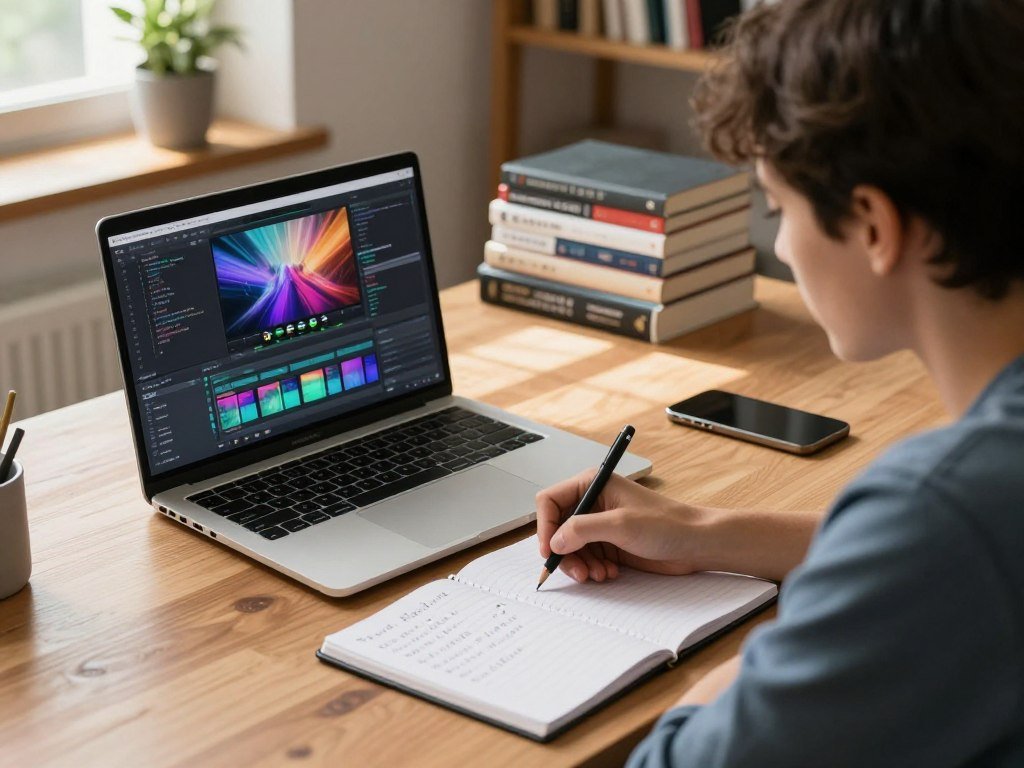
You can make a first AI video by describing a shot or animating an image, then refining the generated clip. You do not need filming skills or a technical background to begin. A clear goal helps you make something useful, whether you want a product teaser, a class example, or a short social post.
A beginner can follow a simple workflow: choose a starting point, create one short shot, review it, and shape it for sharing. You can start with text, a portrait, or footage you already have. Keep the first attempt small, so you can learn what the tool handles well before planning a longer video.
Key Takeaways
- Begin with one shot and one clear goal.
- Choose text, an image, or footage as your starting point.
- Use a specific prompt to guide the model.
- Review the whole clip before refining it.
- Check platform rules before sharing realistic synthetic content.
Start with one short shot and a clear purpose, not an entire film.
How to Create AI Videos With the Right Starting Point
If you already have a photo or clip you want to preserve, start by animating or transforming that asset instead of asking the model to invent everything. Your starting point depends on your goal and the material you have. Text-to-video creates a scene from written text, image-to-video animates an uploaded image, and video-to-video transforms or extends uploaded footage.
A visual anchor is an image or video supplied to guide a generated clip’s composition and appearance. Text-to-video suits a new idea, while image-to-video gives the model a visual anchor. Video-to-video works well when existing footage needs a new look or a longer ending.
Plan one shot before you open a generator. A focused clip is easier to judge and revise than a whole story.
To create AI videos as a beginner, name your audience and goal, then choose one shot. Decide whether you already have a useful image or footage. A long article or document needs a concise video script, not a full copy-paste.
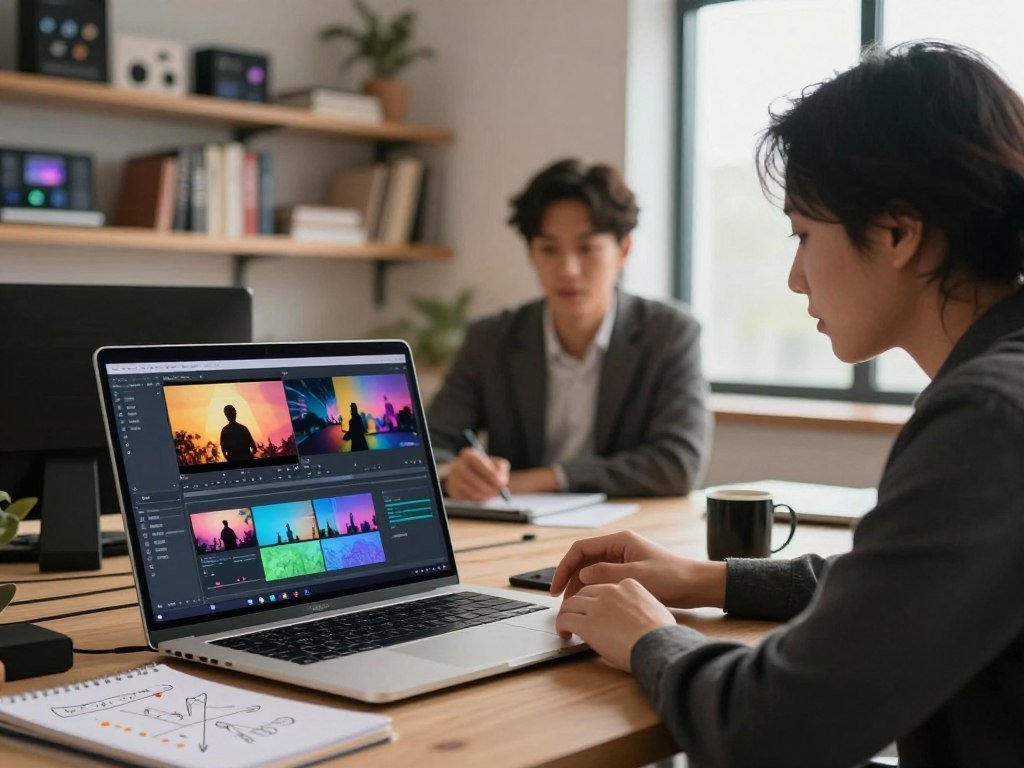
- Audience: Who should understand or enjoy the clip?
- Purpose: Should it teach, sell, explain, or entertain?
- Format: Is this a single scene, a story, or a presenter-led video?
- Reference asset: Do you have an image or footage worth using?
Generated clips typically run 3-30 seconds, so a longer story may need several shots. Google Research describes text-to-video, image-to-video, and video continuation in its VideoPoet model overview.
Set the aspect ratio for the intended platform before generating, so the first draft is framed for its destination. The aspect ratio is the frame’s width-to-height shape: 16:9 suits YouTube, while 9:16 suits TikTok and Instagram Reels.
Which AI Video Tool Fits Your Goal and Budget?
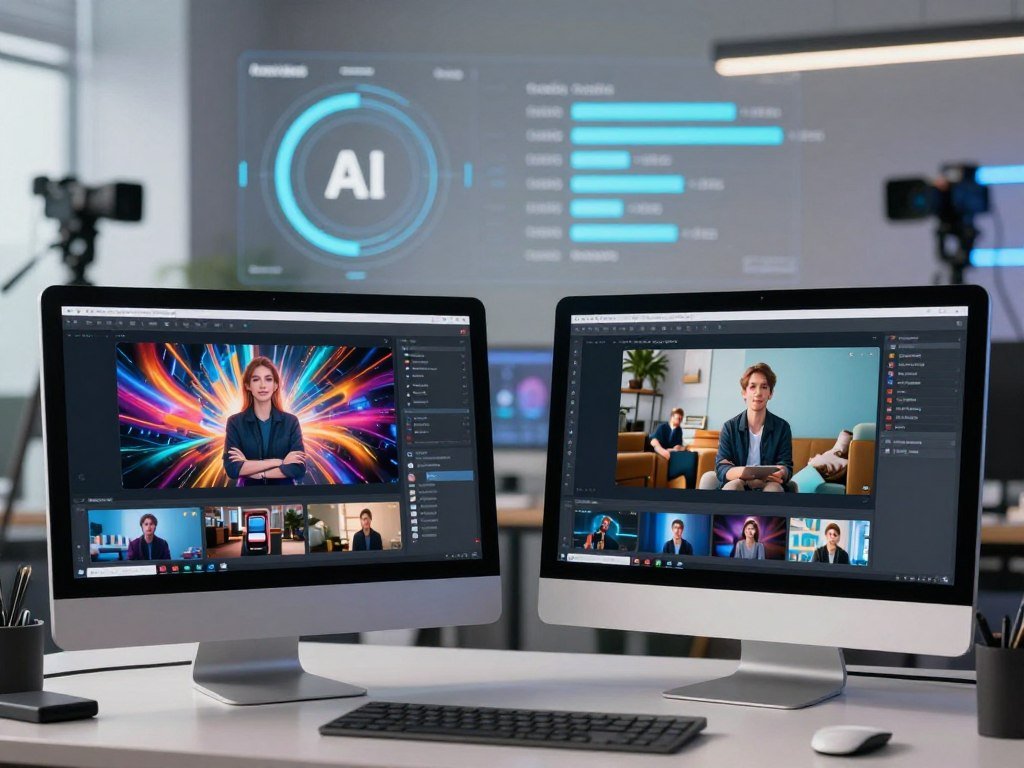
A creator making a presenter-led lesson needs a different workflow from someone turning a product photo into a cinematic clip. Match the tool to the task, then compare its free limits. A free label does not promise usable generations, enough credits, private creations, or watermark-free exports.
Match a tool to the kind of video
For broad scene creation, consider Google Veo; Runway fits filmmaking workflows, while LTX Studio offers shot-by-shot creative control. Adobe Firefly is an option for commercially safer outputs, but check the plan terms for your use.
Other video tools suit specific jobs: Descript edits video from scripts, Filmora helps polish clips, and OpusClip pulls short clips from longer footage. Synthesia makes digital-avatar videos, Vyond makes animated-character videos, and InVideo AI creates prompt-based social videos.
Open-ended scenes, script editing, avatars, animation, and footage repurposing call for different tools. The 2026 comparison of AI video generators also groups tools by workflow. For more options, see this comparison of video tools by use case.
Compare free plans before spending credits
Free plans can have very different credit rules, output limits, and privacy settings. These listed allowances show why the plan name alone tells you little:
| Tool | Free allowance | Video access or limit | Watermark or privacy condition |
|---|---|---|---|
| PixVerse Basic | 60 initial credits; 30 reset daily | Output up to 540p | Watermark-free export is paid |
| Runway Free | 125 one-time credits | Gen-4 Turbo image-to-video; no Gen-4 Video | Watermark-free output is paid |
| Pika Free | 0 recurring monthly credits | Sign-up alone includes no generations | No recurring free generation allowance |
| Leonardo.Ai Free | 150 fast tokens daily | Video generation access; Auto-only models | Creations are public |
PixVerse lists daily-reset credits and 540p output. Leonardo.Ai may suit tests that can use public creations, while Runway’s Standard plan costs $12 per month and adds credits, watermark-free output, and higher export quality.
OpenAI discontinued the Sora API on September 24, 2026, and shut down the Sora app on April 26, 2026. Check both credit resets and export conditions before building a recurring workflow around a free tier.
What Should You Put in an AI Video Prompt?
A specific shot description gives the model more useful direction than a mood word such as “cinematic.” Describe what appears, what changes, and how the camera moves. A useful prompt names the subject, action, setting, and camera movement.
Keep the first prompt to one shot, not a complete finished story. Add a wide shot, close-up, or tracking shot when framing matters. Include lighting or details that must stay fixed, especially when an image guides the result.
Build a prompt around one shot
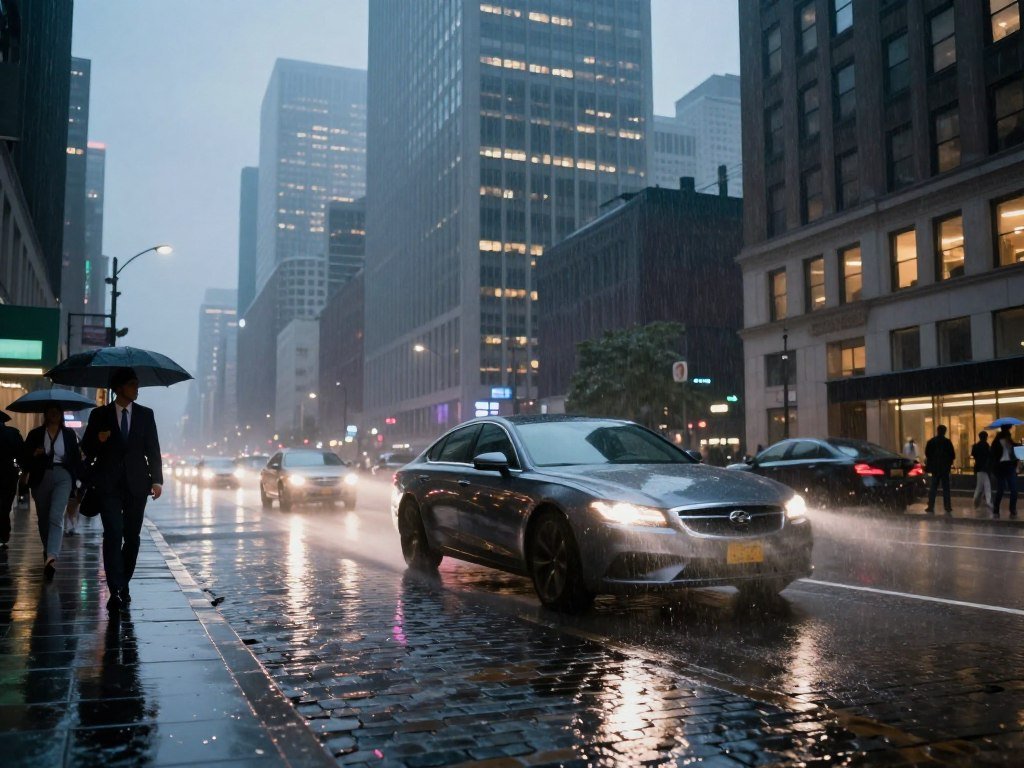
“A cool city scene” gives the model little to work with. Try: “A rain-slicked city street at night, neon reflections on the pavement, and a slow forward camera move.” That prompt sets a place, light, and motion.
Text-to-video starts without an image, so the model invents the scene from your words. Image-to-video starts with an uploaded image and uses it as a visual anchor. Choose the method that gives you the control your shot needs.
The image-to-video workflow stresses clear source images and a main motion. For product footage, name details that should remain unchanged, such as a label or package shape.
Animate yourself with a reference image
To create AI videos of yourself, begin with a clear portrait you have permission to use. Try a simple prompt: “I turn toward the window and smile as the camera slowly moves closer.” A clear self-image gives the model a stronger visual anchor than text alone.
If text-only results miss your appearance, generate or upload a still first, then animate it. Use only images and footage you own or have permission to use, including pictures of other people.
Change one prompt element at a time during early tests so you can tell which instruction improved the result.
How Do You Refine and Assemble Generated Clips?
Watch the whole generated clip before deciding whether it has failed, since an awkward opening frame may settle into a usable shot. Review the complete result before making changes. A generated clip commonly takes about 30 seconds to 2 minutes.
One strong short shot is often more useful than a single prompt aimed at a long-form video. Long scenes can drift, with details changing as the footage continues. A few accepted clips can make a steadier finished video.
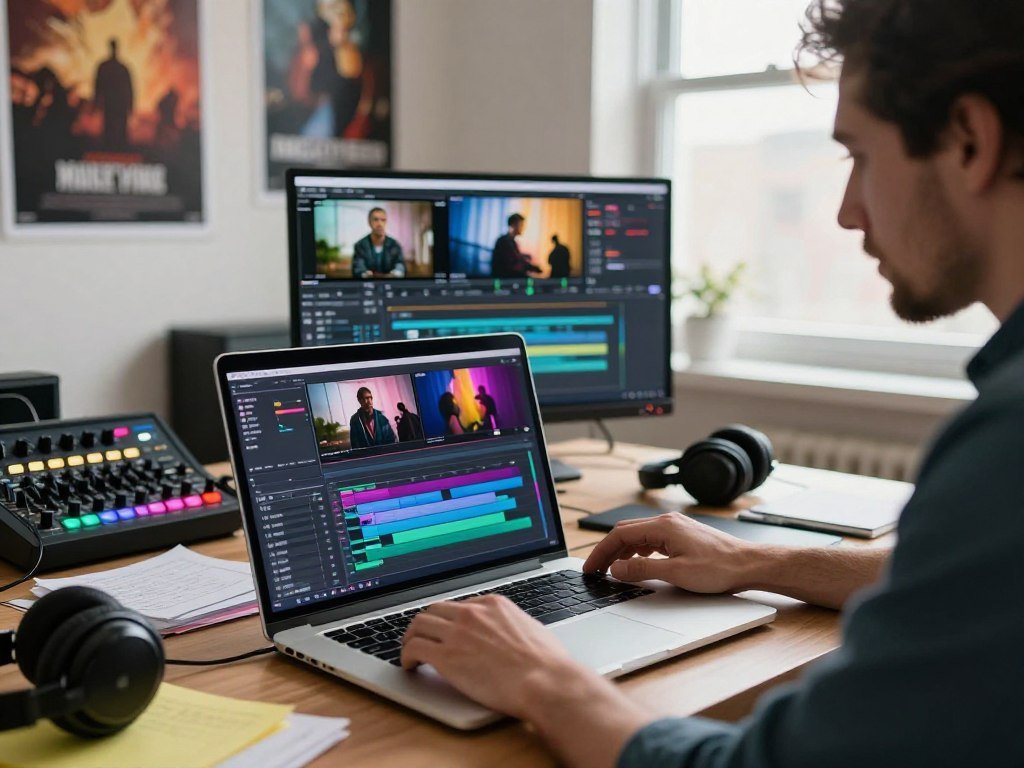
Review the full clip before changing anything
Use this editing checklist to keep each revision focused:
- Watch the complete clip from its first frame to its last.
- Identify one specific problem, such as a warped hand or shifting label.
- Regenerate with one adjustment to the prompt or reference asset.
- Sequence accepted clips in story order.
Changing one issue at a time makes it easier to tell whether the new generation helped. Keep a usable version before testing another change, especially when a model gives you only a few attempts.
Assemble scenes and polish the export
A single clip may need no editing at all. A video editor becomes useful when you stitch scenes together or add music, voiceover, captions, or transitions.
MP4 is a common downloadable export format. Bring the file into CapCut or Premiere to assemble multiple clips, adjust timing, and add sound. Keep each scene brief if its details begin to drift.
Check that the final export’s aspect ratio and resolution match the destination before uploading.
What Should You Check Before Publishing AI Videos?
A realistic synthetic scene deserves a disclosure check before it is uploaded, even when it looks like an ordinary video. Realistic content needs care because viewers may mistake invented scenes for real events. YouTube requires disclosure for realistic AI-generated or meaningfully altered content that could mislead viewers.
This includes realistic events that never happened, changed footage of real places or events, and real people shown saying or doing things they did not. YouTube’s upload flow has an “AI use” setting. Minor edits and non-realistic AI content do not require disclosure.
Disclose realistic synthetic content
YouTube disclosure also covers AI-generated music when music is the video’s main focus. Photorealistic AI content or AI music may receive a prominent player label. YouTube can add labels through its own AI tools, C2PA metadata, or internal detection.
Disclosure alone does not lower audience reach or remove monetization eligibility. Repeated failure to disclose can lead to labels, removal, or suspension from the YouTube Partner Program. The YouTube AI disclosure rules explain the upload setting and exceptions.
Check platform eligibility before counting on earnings
YouTube has two Partner Program tiers, and each has its own viewing threshold. The early-access tier adds fan-funding features; the full tier adds ad revenue.
| Tier | Subscriber and upload requirements | Viewing threshold | Unlocked earning features |
|---|---|---|---|
| Early access | 500 subscribers; 3 public videos | 3,000 public watch hours or 3 million Shorts views in 90 days | Fan funding |
| Full tier | 1,000 subscribers | 4,000 public watch hours or 10 million valid Shorts views in 90 days | Ad revenue |
TikTok Creator Rewards requires age 18 or older, 10,000 followers, and 100,000 video views in the past 30 days. It rewards only videos at least 60 seconds long. Facebook expects disclosure of photorealistic video and realistic-sounding audio; new video uploads are treated as Reels in 2026.
There is no universal 30% threshold that makes AI content safe to publish or exempt from disclosure. The production steps for YouTube or Facebook are to generate and edit the video, then disclose realistic content when the platform requires it.
Avoid nonconsensual likeness and intimate imagery
The federal TAKE IT DOWN Act criminalizes knowingly publishing or threatening to publish nonconsensual intimate imagery through an interactive computer service. It covers authentic and AI-generated imagery. Consent to create or privately share an intimate image does not mean consent to publish it.
Starting May 19, 2026, covered platforms must remove content within 48 hours of a valid request and make reasonable efforts to remove known copies. As of August 5, 2026, 33 states had laws on deepfakes in political communications. By August 2026, 48 states had laws addressing sexually explicit deepfakes; Ohio and New Mexico were exceptions.
The TAKE IT DOWN Act overview explains the federal removal process. Get permission before using another person’s likeness, voice, or intimate imagery, and consult a lawyer about a specific legal dispute.
How Much Do AI Video Tools Cost, and What Can You Use Free?
Free access can make a first experiment possible, but the plan’s credit allowance and export conditions determine whether the finished video is usable. Free plans vary in credits, watermarks, and export quality. Check those limits before choosing a tool for regular work.
Compare starter tiers and free allowances
These options range from a small number of free generations to recurring monthly credits. Google Veo offers free credits monthly; its Plus plan costs $4.99 monthly for 200 credits, while Pro costs $19.99 monthly for 1,000 credits.
| Tool | Free access | Paid plan or price | Key limit or benefit |
|---|---|---|---|
| Google Veo | Free credits monthly | Plus $4.99/month; Pro $19.99/month | Plus has 200 credits; Pro has 1,000 |
| LTX Studio | Free trial with credits | Lite $12/month | Lite gives higher monthly credits |
| Adobe Firefly | 2 complimentary video generations | Standard $9.99/month | Credits and full AI access; IP indemnification needs the proper plan |
| Veed | Free plan | Creator $12/month | Free has a watermark; Creator removes it and raises export quality |
| OpusClip | Monthly credits | Starter $15/month | Free has a watermark; Starter removes it and adds advanced tools |
A free AI video generator can be enough for testing, but private or public creations may affect whether it fits your project. InVideo AI starts at $10 per seat monthly when billed annually; its $30-per-seat monthly plan unlocks frontier AI models.
Build a free AI story video for YouTube
Divide a short script into scenes, then use available free credits for a small number of clips. A story with a few clear moments can fit limited generation better than a long script with many shots. Check YouTube’s disclosure rules before posting realistic synthetic content.
HeyGen Free includes 3 videos monthly, up to 3 minutes each, 720p export, and downloads; watermark removal requires a paid plan. Synthesia Basic Free includes 1,200 credits monthly, up to 10 minutes of video monthly, 9 AI avatars, and 1 editor; downloads and logo removal are on Starter.
Canva Free exports without a watermark when you use free templates and elements. A Pro asset adds a watermark to the export, so check each element in your design.
Make AI videos on an iPhone
VideoGPT AI Video Generator App is listed for iPhone only as free with in-app purchases. That listing describes its price model, not a promise that every feature or export is free.
A free trial is a test, not a production plan. Count the clips you need before deciding that a no-cost tier will cover a full project.
Before subscribing, estimate how many clips you will generate and confirm that the plan permits the export and rights your project needs.
Conclusion
A polished AI video starts with a manageable shot, not a perfect first generation. A specific prompt or strong reference asset makes each revision easier to judge. Publishing checks matter when a clip looks or sounds real.
Draft one single-shot prompt, choose a format, and make a test generation within the free allowance you have. Keep the first result small enough to review closely. Write one shot idea now, choose text or an image as its starting point, and make a test clip.
FAQ
Which app is easy to make videos?
An all-in-one editor is often easiest when you want to write, arrange, and polish a video in one place. If you already have a photo, choose an image-to-video tool that animates uploaded images. Compare the free export rules before committing, since some apps add watermarks or limit resolution. Your easiest choice is the one that matches your starting material and final format.
How do you AI your own video?
Use a clear image or footage of yourself as the reference asset, then describe the movement you want. A portrait might show you turning toward a window while the camera moves closer. Image-to-video can keep your appearance closer to the supplied image than a text-only prompt. Use only material you own or have permission to use, including images that show other people.
How does YouTube AI work?
YouTube’s upload “AI use” setting lets creators disclose realistic AI-generated or meaningfully altered content. It applies when realistic scenes or people could be mistaken for real events or actions. Minor edits and clearly non-realistic AI content do not need disclosure. YouTube can also add labels through its own AI tools, metadata, or internal systems, even when a creator has not added one.
Can ChatGPT generate videos?
OpenAI’s Sora app shut down on April 26, 2026, and its Sora API was discontinued on September 24, 2026. Those products are not available for new video generation. Use an available video-generation tool instead, and check whether it creates scenes from text, animates images, or transforms footage. That distinction helps you pick a service that fits the material you already have.
What is currently the best free AI video generator?
Leonardo.Ai is a useful choice for daily tokens and video access, while PixVerse offers credits that reset daily and output up to 540p. The better fit depends on whether public creations or lower resolution work for you. Runway and other tools have different credit rules. Compare watermarks, privacy, and output limits before you build a project around any free plan.
Is making AI videos legal?
Making AI videos is not automatically illegal, but the content and use matter. Consent, image and music rights, realistic impersonation, platform disclosure rules, and the purpose of the video can all affect the risks. Rules also vary by state and type of content. Avoid using a real person’s likeness or voice without permission, especially in a misleading or intimate scene.
Can I sue someone for making AI videos of me?
You may have a claim, but the answer depends on the video, how it was shared, and the law where you live. Nonconsensual intimate imagery may trigger federal or state law, including rules for AI-generated images. Other concerns can involve impersonation, privacy, or harm to reputation. Save copies of the content and ask a lawyer to assess your specific case.
Are AI videos free to make?
Yes, some tools offer free credits or a limited number of generations. Free plans may still add watermarks, restrict export quality, limit access to models, or make creations public. A test clip may cost nothing, but a regular workflow can need paid credits or features. Check what the plan lets you download and how you may use the result.