
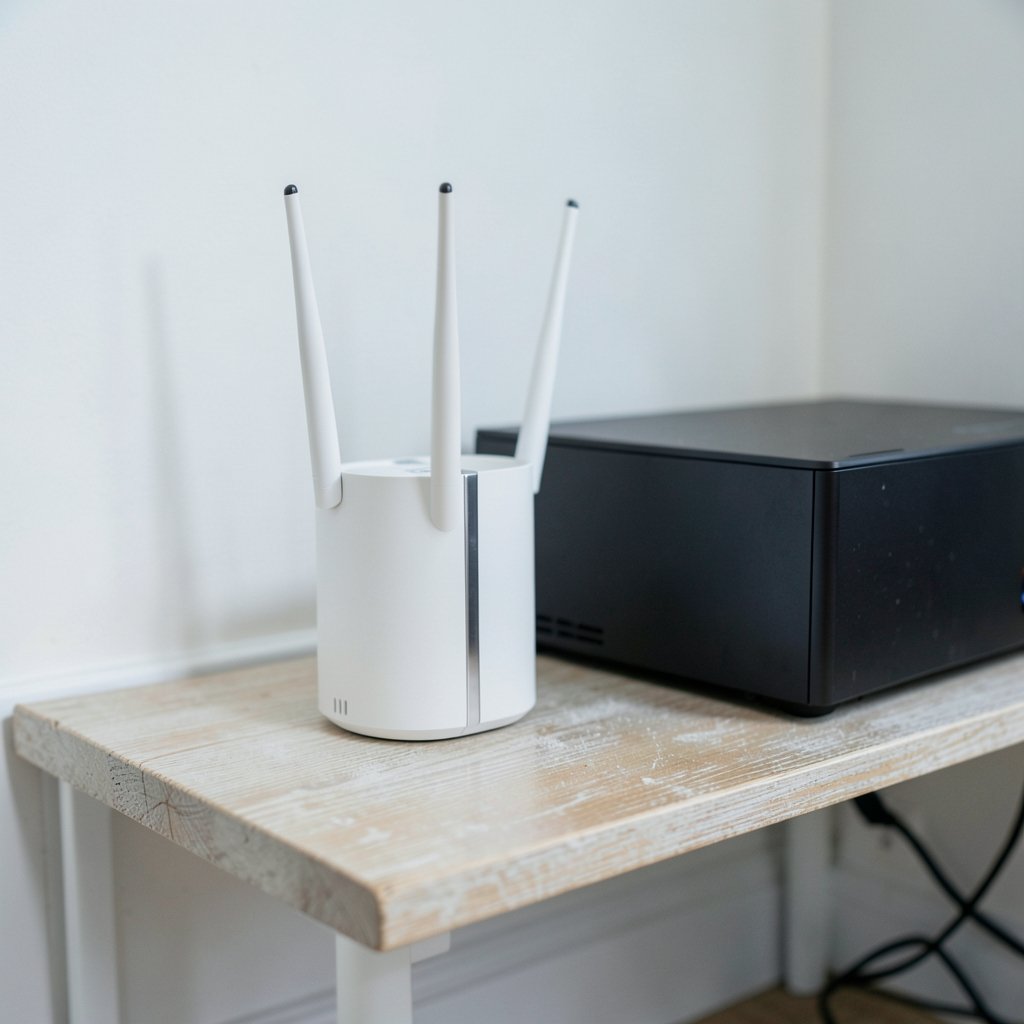
What if the biggest cause of your in-game lag isn’t your internet plan at all, but the box sitting in the corner of your room collecting dust? That question trips up a lot of players. They upgrade to a faster plan, buy a new console or graphics card, and still watch their character rubber-band across the screen. The router is usually the last thing anyone thinks about, yet it quietly decides how stable every match feels. Picking the right one isn’t about buying the most expensive box with the most antennas. It’s about matching the hardware to your home, your connection, and the way you actually play.
Quick Answer: How do I choose gaming routers?
Choosing a gaming router comes down to fixing your real bottleneck rather than chasing the biggest spec sheet. Start with a wired connection where possible, then pick a router with strong quality-of-service (QoS) controls, modern Wi-Fi standards, and a long firmware support window.
A cheap router with good queue management often beats an expensive one with none. Wi-Fi 6E and Wi-Fi 7 add useful headroom, but they only help if your devices support those bands.
Before buying, compare wired port speed, QoS and SQM features, Wi-Fi generation and band support, processor and RAM, firmware update history, and the number of devices in your home.
Why the Router Is Rarely the Whole Story
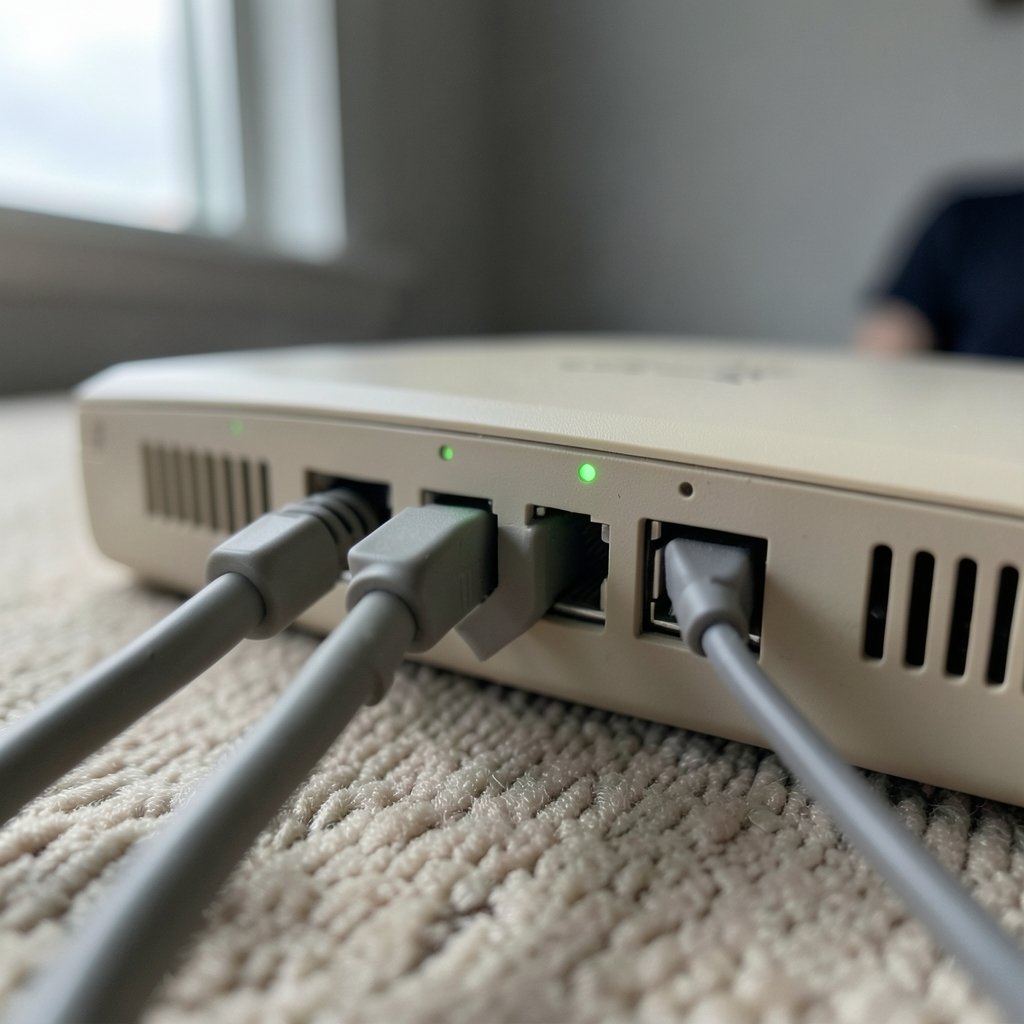
Here’s the uncomfortable truth most shopping guides skip: in a typical setup, the biggest chunk of your latency comes from the path between your home and the game server, not from the router itself. The router shapes what happens inside your home. It decides how fairly traffic gets queued, how stable the Wi-Fi signal is, and whether one person streaming 4K video can wreck everyone else’s match.
That distinction matters because it changes what you should look for. A router can’t shorten the distance to a server or fix a congested ISP route. What it can do is stop your own network from sabotaging you. Bufferbloat is the classic villain here: when the router’s queues fill up under load, latency spikes even though your raw speed looks fine. Routers with smart queue management (SQM) using algorithms like fq_codel keep those queues short, so your ping stays flat while someone else downloads a game update.
So the honest framing is this: buy a router to control your side of the connection. Don’t expect it to perform miracles on the ISP’s side.
Start With the Wire, Not the Wi-Fi
If there’s one piece of advice that consistently outperforms every marketing feature, it’s this: plug in. A wired Ethernet connection avoids Wi-Fi contention and airtime sharing entirely. For competitive gaming, moving from Wi-Fi to Ethernet is the single biggest latency reduction most people can make, and it costs the price of a cable.
This is where people make their first mistake. They buy a premium router, set it up in the hallway, and keep gaming on Wi-Fi from three rooms away. Then they blame the router. In practice, a mid-range router with a cable run to the desk will feel better than a flagship model fighting through two walls.
When you shop, check the LAN ports. Newer routers increasingly offer 2.5GbE or even 10GbE ports. You don’t need multi-gig ports for a standard broadband line, but they matter if you run a NAS, do lots of local transfers, or have a multi-gig plan. Also count the ports: a console, a PC, and a streaming box can eat three ports fast.
If you genuinely can’t run a cable, then Wi-Fi quality becomes the priority, and that’s a different buying decision. The same logic applies to other gear choices, like figuring out which gaming monitor matches the panel you actually play on rather than buying whatever has the brightest box.
Read the Wi-Fi Labels Before You Pay for Them
Wi-Fi naming is confusing on purpose. The Wi-Fi Alliance certifies products under labels like Wi-Fi 6, 6E, and 7, and those labels map to IEEE standards. Wi-Fi 6 (802.11ax) was finalized in 2021, Wi-Fi 6E extends it into the 6 GHz band, and Wi-Fi 7 (802.11be) was finalized in 2024. A “Wi-Fi 7” badge means the router passed certification, not that every feature is switched on out of the box.
| Generation | Band access | What it realistically gives you |
|---|---|---|
| Wi-Fi 5 | 2.4 and 5 GHz | Fine for casual play, weaker under heavy load |
| Wi-Fi 6 | 2.4 and 5 GHz | Better efficiency in crowded homes, OFDMA and MU-MIMO |
| Wi-Fi 6E | Adds 6 GHz | Cleaner spectrum, less interference from neighbors |
| Wi-Fi 7 | 2.4, 5, and 6 GHz | Multi-Link Operation and wider channels, client-dependent |
Two features get oversold. MU-MIMO and OFDMA improve throughput when many devices are active, but they don’t directly cut per-packet latency for a single gaming client. Useful? Yes. A magic ping button? No.
Multi-Link Operation (MLO) on Wi-Fi 7 can use multiple bands at once to reduce latency, which sounds great. The catch is that it only helps if your phone, console, or laptop also supports it. Early reviews have been mixed, so treat MLO as a bonus rather than a reason to spend extra.
The practical move: buy one generation above what you need if the price gap is small, and skip the upgrade entirely if your devices are all older. Spending on a band your hardware can’t use is the most common wasted dollar in router shopping.
QoS, SQM, and the Features That Actually Matter
Quality of service (QoS) lets the router prioritize game traffic over bulk downloads. SQM goes further by actively managing queue length so latency stays low when the link is saturated. Together, these are the features most likely to change how your games feel.
The catch is that QoS benefits are modest and depend entirely on where your bottleneck sits. If your line is 500 Mbps and nobody else is home, game prioritization does almost nothing. If you share a 50 Mbps line with three streamers, it can be transformative. Independent lab testing of “gaming” modes has historically shown mixed results, so look for recent reviews rather than trusting the box.
A few other features are worth checking:
- Dedicated gaming ports prioritize a specific LAN port. Handy, but a manual QoS rule does the same job.
- NAT type and UPnP matter for console and peer-to-peer multiplayer. Strict NAT breaks matchmaking; open NAT fixes it. Sony and Microsoft both publish official explanations of NAT types, and they’re worth reading before you blame the router.
- Device limits and RAM decide whether the router stays stable with 30 smart-home gadgets attached.
- Firmware support is the quiet long-term factor. A router that stops receiving security patches becomes a liability, so check the vendor’s update history before buying.
If you’re building out a whole setup, the same fit-first thinking applies to peripherals. It’s the logic behind choosing a mechanical or membrane keyboard based on how you game every day, and it applies to routers too.
Match the Router to Your Home, Not the Hype
Room layout and building materials change everything. A single router that covers a studio apartment will struggle in a long, thick-walled house. Before buying, walk your space and count the walls between the router and your gaming spot.
Three setups cover most people:
- Small apartment, one or two gamers. A solid Wi-Fi 6 router with good QoS is plenty. Put it central and high.
- House with dead spots. A mesh system with a wired backhaul between nodes beats one overpowered router. Wireless backhaul works but adds latency.
- Competitive player with a desk setup. Wired connection to a router with SQM, plus Wi-Fi for everything else.
Common mistakes show up again and again. People mount the router in a closet or behind a TV, then wonder why 5 GHz drops. They leave the default channel settings in a crowded apartment block. They buy a mesh kit and place the satellites too far apart, so the nodes talk to each other over a weak link. And they never update firmware, missing both security patches and performance fixes.
A quick practical checklist that costs nothing: place the router centrally and off the floor, use the 5 GHz or 6 GHz band for gaming devices, set a fixed channel if your neighborhood is crowded, and enable QoS or SQM if your router offers it. Those four steps often do more than a hardware upgrade.
Budget matters too. You don’t need flagship hardware to get a stable connection, and the same restraint pays off elsewhere, like finding gaming laptops under 1000 that actually fit your budget instead of overspending on specs you’ll never use.
A Practical Buying Checklist
When you’re comparing models side by side, run through this list in order. It keeps you from getting distracted by antenna counts.
- Confirm your actual bottleneck. Run a bufferbloat test and a wired speed test first. If your ping spikes under load, prioritize SQM.
- Check the WAN and LAN port speeds. Match them to your plan and any local hardware.
- Verify QoS and SQM support, including whether it works with your connection type.
- Pick the Wi-Fi generation your devices can use. Don’t pay for 6 GHz if nothing in your home supports it.
- Look at processor and RAM if you have a busy smart home.
- Read the firmware update history for the last two years.
- Check the return window. Router performance is house-specific, so buy where you can test and return.
That last point is underrated. Reviews can’t predict your walls, your neighbors’ interference, or your ISP’s routing. Testing in your own home for a week tells you more than any spec sheet.
Conclusion
Choosing a gaming router is really an exercise in diagnosing your own network. The players who end up happy are the ones who wired what they could, bought for their actual Wi-Fi generation, and prioritized queue management over flashy badges. The ones who end up frustrated bought the biggest number on the box and plugged it into the same crowded corner as before.
Start with the cable, then the QoS, then the Wi-Fi standard. If you get those three in the right order, almost any well-supported router in your budget will feel fast. And if you’re still weighing related gear decisions, the same fit-first approach works when you’re deciding between a gaming monitor and a TV as your room lighting changes the viewing experience.
FAQ
Do I need a “gaming” router specifically?
Not necessarily. The label usually means QoS presets, a dedicated gaming port, and aggressive styling. A standard router with strong SQM and a wired connection often performs just as well for less money. Buy the features, not the badge.
Will a new router fix my high ping?
Only if the router is the cause. If your latency comes from the ISP path or a distant server, a new router won’t help. Test first: if ping spikes only when the network is busy, a router with SQM can genuinely help. If ping is high all the time, the problem is upstream.
Is Wi-Fi 7 worth it for gaming right now?
It depends on your devices. MLO can reduce latency, but only client hardware that supports Wi-Fi 7 benefits. If your console, PC, and phone are older, a good Wi-Fi 6 or 6E router will serve you better for the money. Buy Wi-Fi 7 when your devices can use it, not before.
How much should I spend on a gaming router?
Enough to cover your home’s size and your device count, and no more. A mid-range router with SQM and solid firmware support covers most households. Spending more mainly buys faster ports and newer Wi-Fi bands, which only matter if you have hardware to match.
Does QoS actually reduce lag?
It can, but only when your connection is the bottleneck. QoS and SQM keep queues short so latency stays stable while other devices download or stream. On an idle, fast line, the difference is minimal. On a shared or slower line, it’s often the most noticeable upgrade you can make.
Should I use mesh or a single router for gaming?
A single router is simpler and usually lower latency if it covers your space. Mesh wins in large homes with dead spots, especially with a wired backhaul between nodes. Avoid wireless backhaul for your main gaming device if you can run a cable instead.



