
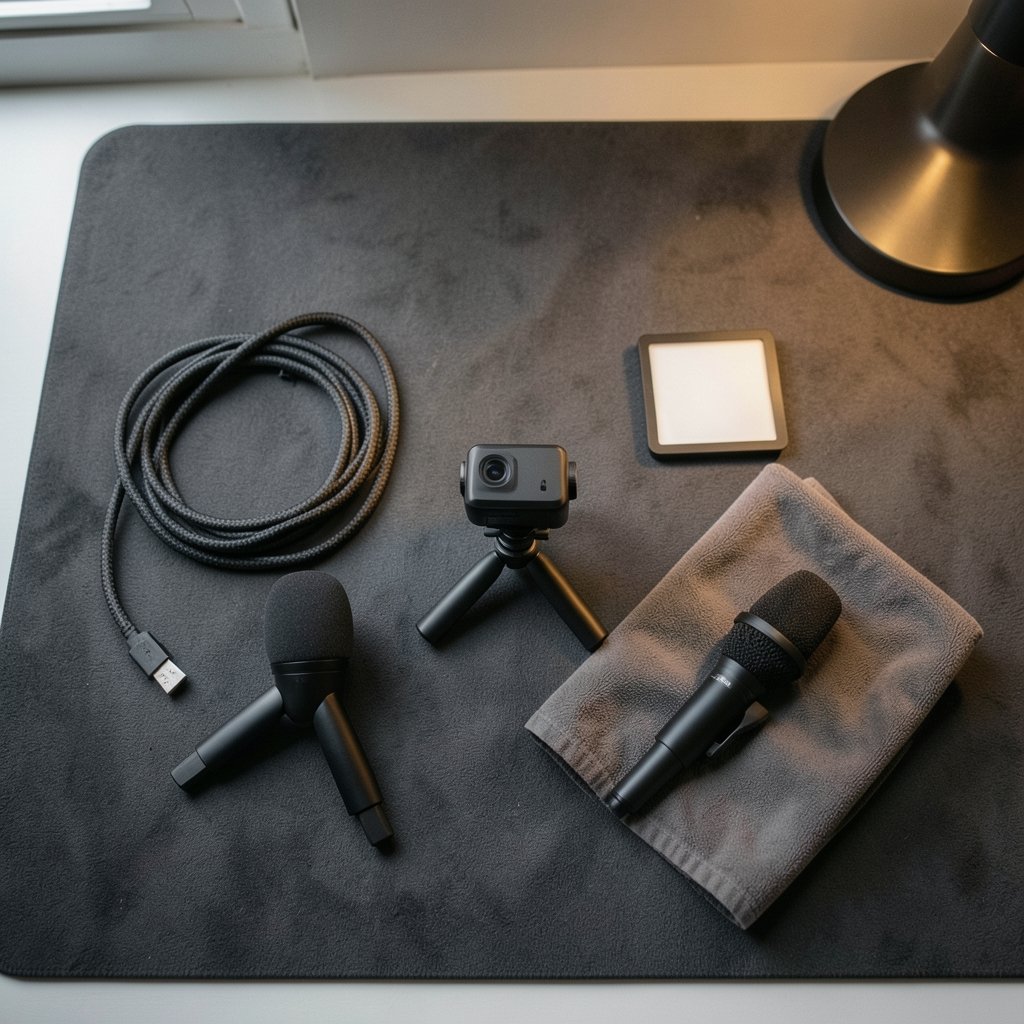
Quick Answer: What are the best streaming webcams for new streamers?
The best streaming webcam for a new streamer is one that delivers clean 1080p at 60 fps over USB 3.0, handles average room light without turning into a noisy mess, and leaves room in the budget for decent lighting and a separate microphone. You can act on that in three places: a budget tier for first setups, a mid-range tier for people who stream several times a week, and a “skip it” tier for anything that only does 1080p at 30 fps with a tiny sensor.
The distinctions matter because two cameras with identical resolution numbers can look wildly different on a live stream. A 4K model that drops to 30 fps and needs USB 3.0 bandwidth is not automatically better than a solid 1080p60 camera, and a webcam with a great sensor but a weak mic still needs audio help.
Before buying, compare resolution and frame rate, USB connection type, sensor size, field of view, autofocus versus fixed focus, microphone quality, and whether the mount fits your monitor.
Why the webcam is rarely the real problem
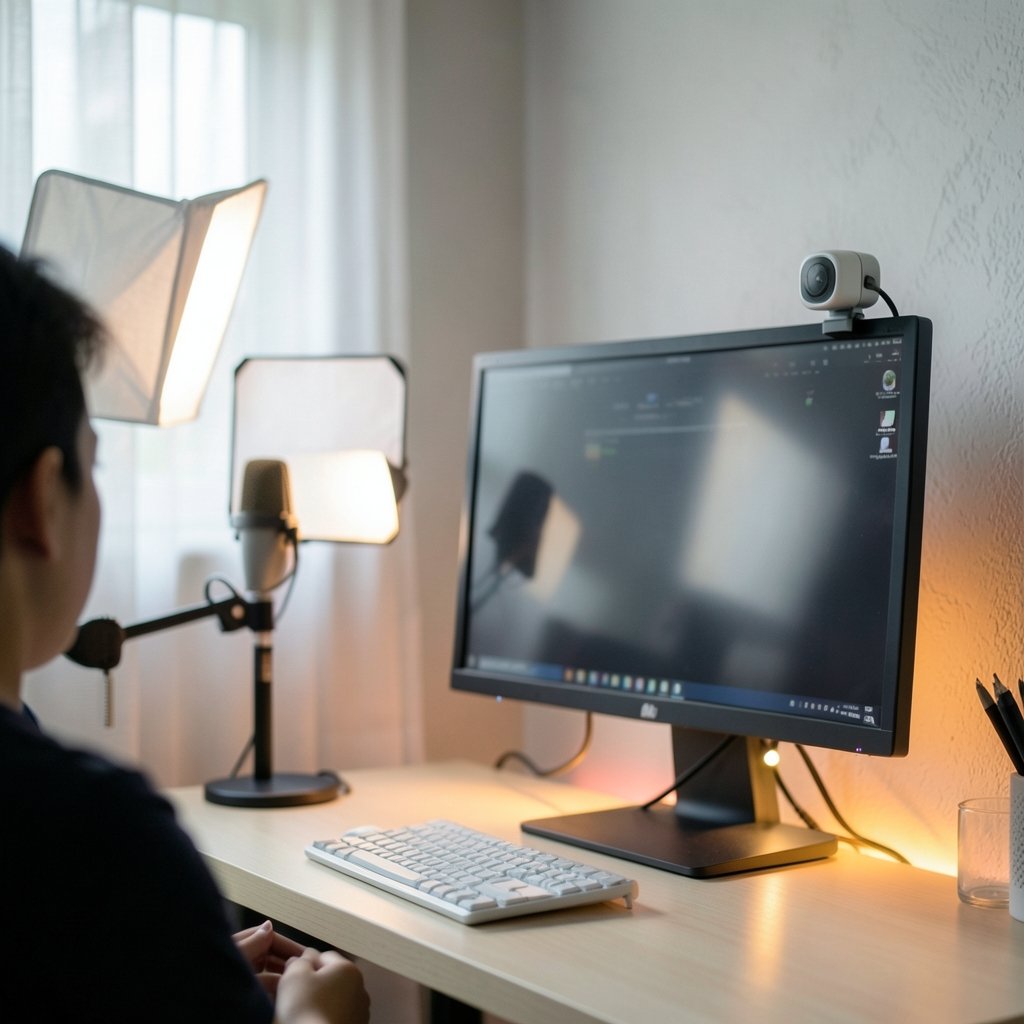
Here is the uncomfortable truth that experienced streamers repeat constantly: lighting beats camera upgrades. A mid-range webcam in a well-lit room will look better than a premium camera in a dim corner every single time. New streamers tend to buy the camera first and the light last, which is exactly backwards.
The second uncomfortable truth is audio. Viewers will forgive a soft image. They will close the tab the moment your voice sounds like it is coming through a paper cup. Most built-in webcam microphones are fine for a casual call and not fine for a stream. Budget for a dedicated USB mic, or at minimum test your webcam mic in a recording before you go live.
So treat the webcam as one part of a system. The camera, the light, the mic, and the USB port all push against each other. Get the boring parts right and a modest camera will carry you for a year or more.
The specs that actually decide image quality
Resolution and frame rate
Most consumer webcams marketed for streaming output 1080p at either 30 fps or 60 fps. That frame rate gap matters more than most buyers expect. At 30 fps, fast movement smears and hand gestures look slightly ghostly. At 60 fps, motion stays crisp, which is why 1080p60 is the sweet spot for gaming, reaction content, and anything with movement.
4K webcams exist, but many drop to 30 fps when recording at 4K and demand USB 3.0 to move that much data. For a new streamer, a clean 1080p60 signal is a better investment than a 4K number on the box.
USB bandwidth is not a footnote
This is the mistake almost everyone makes once. Uncompressed 1080p60 video can exceed what USB 2.0 can carry. USB 2.0 tops out at 480 Mbps theoretical, while USB 3.0 pushes 5 Gbps. Plug a 60 fps webcam into an old USB 2.0 port, or into a cheap unpowered hub, and the camera quietly falls back to 30 fps or drops frames. You will blame the camera. The port is the culprit.
Practical fix: plug the webcam directly into a USB 3.0 port on the machine, ideally one on the rear panel of a desktop rather than a front-panel extension. If you must use a hub, use a powered one. If your setup involves a laptop dock, test the camera through the dock before you trust it on stream.
Sensor size and low light
Larger sensors generally perform better in low light than smaller ones. Many budget webcams use small sensors and struggle the moment the room dims, producing grain and muddy color. If you stream in the evening with a single desk lamp, sensor size deserves more of your attention than megapixel counts.
The trade-off is cost. Bigger sensors cost more, which is why the honest advice for tight budgets is: buy a modest camera and spend the difference on light. A cheap softbox or a decent key light will do more for your image than doubling the camera budget.
Field of view
Webcams typically offer roughly 60 to 90 degrees diagonal field of view. Wider shows more of your room and works well for setups where you want to display objects or a second person. Narrower keeps the frame tight on your face. At close range, very wide fields distort faces, so a 90-degree camera mounted a foot from your nose will make you look strange. Check the FOV against where your monitor actually sits.
Autofocus versus fixed focus
Many webcams under $100 use fixed focus. That is fine if you always sit the same distance away. It is miserable if you hold up a product, lean in to read chat, or move around. Autofocus models handle that better, though some hunt and breathe audibly on stream. If your content involves showing things to the camera, autofocus is worth prioritizing.
Driver-free operation
Most webcams are UVC-compliant, meaning they work without drivers on Windows, macOS, and Linux. That is a quiet blessing. It also means you can test a camera on a friend’s laptop before committing. If a camera needs proprietary software for basic function, treat that as a warning sign for a streaming setup.
A practical tier table
| Tier | What you get | Who it suits | Watch out for |
|---|---|---|---|
| Entry | 1080p30, small sensor, fixed focus, basic mic | First month of streaming, casual chat content | Weak low light, 30 fps motion smear |
| Mid-range | 1080p60, larger sensor, autofocus, privacy shutter | Regular streamers, gaming, reaction content | Needs USB 3.0 and decent lighting |
| Premium | 4K or large-sensor 1080p60, strong low light | Creators who stream daily or record separately | Cost, bandwidth, marginal gain without lighting |
Prices shift constantly, so treat tier names as shorthand for capability rather than a dollar figure. The right question is never “which camera is best” but “which capability do I actually need this year.”
Setups beyond the plain webcam
A webcam is not the only path, and new streamers sometimes overlook the alternatives.
If you already own a recent iPhone or Android phone, it likely has a far better sensor than any budget webcam. Phone-as-webcam apps turn it into a surprisingly strong camera, though you will deal with mounting, battery, and occasional connection quirks. For a first stream, this is often the smartest free upgrade.
If you stream console or cloud content, the camera conversation changes. Cloud handheld streaming has matured to the point where a handheld plus a capture setup can replace a PC entirely, which is why the Playstation portal cloud streaming 2026 actually works now discussion matters for anyone building a couch-based setup. Similarly, if you run Android games through an emulator, the rendering and capture chain affects what your camera feed sits next to, and the Bluestacks vs gameloop vs memu obs streaming workflows 2027 comparison covers how those pipelines behave in OBS.
For people who stream sports commentary or watch-alongs, the camera is secondary to the source feed. Understanding how a Vipbox inside sports streaming site everyone asks about style aggregator fits into your layout, or where to watch Dallas Cowboys vs New York Giants TV streaming when the season rolls around, tells you more about your overlay design than about your webcam.
And if your streaming happens in hotels or dorms, the Roku hotel wi fi setup getting your streaming stick online guide is a reminder that network plumbing breaks setups more often than cameras do. The best webcam in the world cannot fix a captive portal. (Bluestacks vs gameloop vs memu obs streaming workflows 2027)
Common mistakes new streamers make
Buying the camera before the light. This is the single most common error. A $60 light and a $70 camera beat a $200 camera in the dark.
Ignoring the USB port. Plugging into USB 2.0 or a passive hub silently caps frame rate. Check the port before you blame the hardware.
Trusting the built-in mic. Record a two-minute test. If it sounds hollow or picks up keyboard clatter, fix audio before anything else.
Mounting the camera too low. A camera sitting below eye level looks up your nose. Raise it to eye level, even if that means a small tripod.
Setting field of view too wide in a small room. Wide angles show your laundry and stretch your face. Narrow it down.
Never testing the actual stream. Record locally in OBS at your planned settings for five minutes. Watch it back on a phone. That test catches more problems than any spec sheet.
Assuming a webcam upgrade fixes everything. If your stream looks flat, the fix is usually light placement, not a new sensor.
What about privacy and software?
Many webcams built in the 2020s include physical privacy shutters. It is a nice feature, not a standard, so check before assuming. If privacy matters to you, a shutter or a lens cap is a five-dollar problem with a five-dollar solution.
On the software side, most streaming tools pick up UVC cameras without fuss. That means you can switch between a webcam and a phone camera in the same scene without reinstalling anything. Keep your scene simple at first: camera, game or screen, and an alert box. Complexity is a later problem.
One more practical note: best webcams 2026 actually matters when you buy is a phrase worth keeping in mind, because the market moves. A model that was the obvious pick two years ago may be discontinued or outclassed. Check availability and current specs at the moment of purchase rather than trusting a list written in a previous season.
Conclusion
The best streaming webcam for a new streamer is not the most expensive one on a shelf. It is a 1080p60 camera with a sensor that survives your actual room lighting, connected to a real USB 3.0 port, paired with a light and a microphone that cost less than you feared. Get those four pieces right and your stream will look and sound better than most channels with twice the gear budget.
Start modest. Test locally. Fix lighting before hardware. Upgrade the camera last, when you can name exactly what your current one fails to do.
FAQ
Do I need a 4K webcam to look professional on stream?
No. Most streaming platforms compress video heavily, and viewers watch on phones and laptops. A clean 1080p60 signal with good lighting reads as more professional than a 4K feed at 30 fps in a dim room. 4K also demands more bandwidth and often drops frame rate, which hurts motion.
Is 60 fps really better than 30 fps for streaming?
For anything with movement, yes. Hand gestures, gaming, and reaction content all look smoother at 60 fps. For a static talking-head stream, 30 fps is acceptable, but the difference is visible the moment you move. Just confirm your USB port can carry 60 fps.
Can I use my phone as a webcam instead of buying one?
Often yes, and it can look better than a budget webcam because phone sensors are larger. The trade-offs are mounting, battery drain, and occasional connection drops. For a first stream it is a genuinely good option, especially if you already own a recent phone.
Why does my webcam drop to 30 fps when it says 60?
Almost always bandwidth. Uncompressed 1080p60 can exceed USB 2.0 capacity, so the camera falls back. Plug directly into a USB 3.0 port, avoid passive hubs, and test through any dock you use. Cable quality matters too; a worn cable can cause the same symptom.
Do I need a separate microphone if my webcam has one built in?
For casual calls, no. For streaming, yes, or at least plan for one soon. Webcam mics tend to sound thin and pick up room echo and keyboard noise. Viewers tolerate soft video far more readily than bad audio, so audio is usually the better second purchase.
How much should a new streamer spend on a webcam?
Think in terms of the whole setup rather than the camera alone. A modest camera plus a light plus a basic USB mic usually beats spending the entire budget on one premium webcam. Set a total figure, allocate most of it to light and audio, and let the camera take what remains.



