
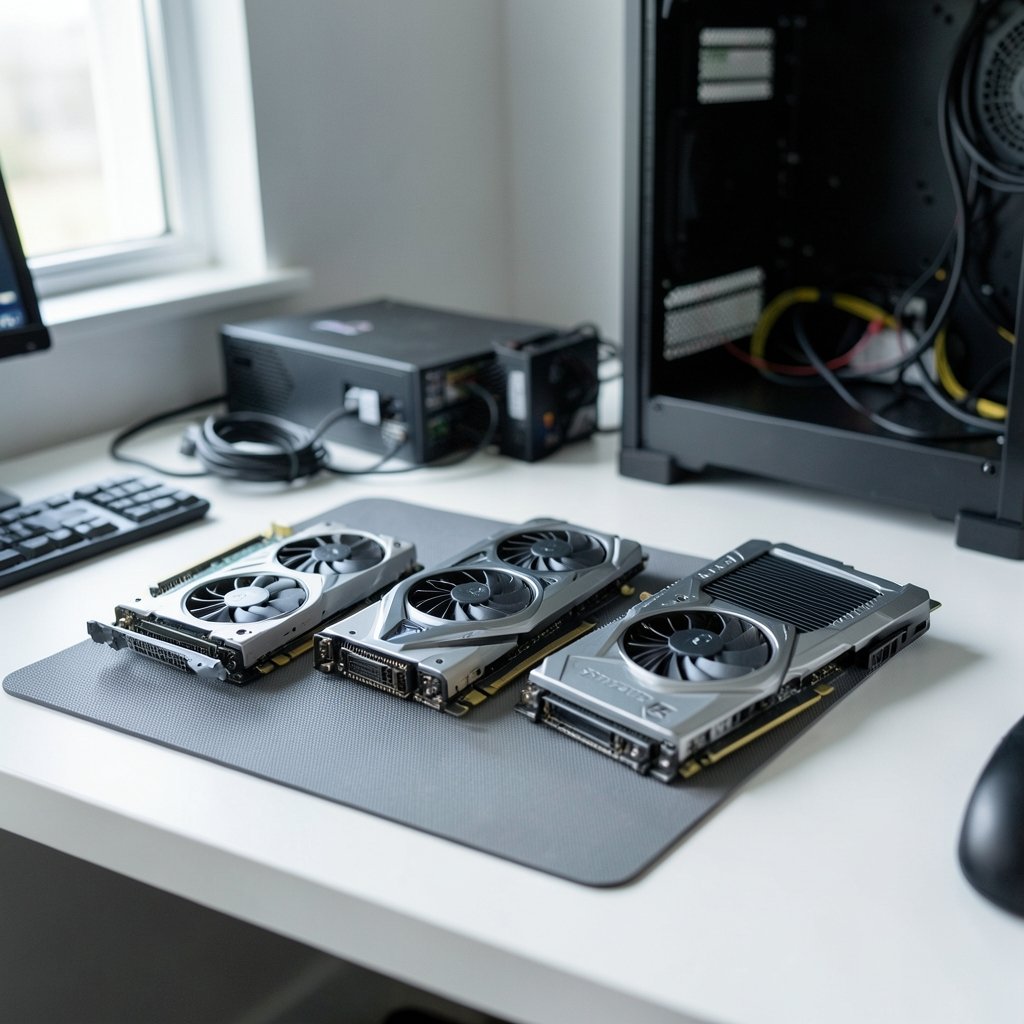
Quick Answer: How do I choose gaming graphics cards?
Choosing a gaming graphics card means matching the GPU to your monitor’s resolution and refresh rate first, then checking that your power supply, case, and CPU can support it. In practice, buyers compare benchmark results at 1080p, 1440p, and 4K, confirm VRAM capacity, and verify connector and wattage requirements before paying.
Cards differ by chip class, cooler design, and warranty, even when they share the same GPU model name. Some buyers prioritize ray tracing performance, others value upscaling support or raw raster speed per dollar.
Before acting, check resolution and refresh rate, VRAM and memory bus, PSU wattage and connector type, case clearance, CPU balance, upscaling and ray tracing support, and price-to-performance against independent benchmarks.
Why the Monitor Decides More Than the Card

Walk into any forum thread asking how to pick a GPU and you will see the same mistake repeated: someone buys the fastest card they can afford, then plugs it into a 1080p 60 Hz panel and wonders why nothing looks different. The monitor sets the ceiling. A graphics card can only render frames the display can actually show.
Resolution is the biggest lever. Going from 1080p to 1440p increases the pixel count by roughly 78 percent, and 4K roughly quadruples it compared with 1080p. That is why reviewers benchmark cards separately at each resolution instead of publishing one headline number. A mid-range card that looks brilliant at 1080p can struggle at 4K, while a flagship card’s advantage shrinks at lower resolutions where the CPU becomes the bottleneck. If you are still deciding on a display, it helps to choose a gaming monitor that matches the panel you actually play before you commit to a GPU tier, because the two purchases lock each other in.
Refresh rate matters just as much. A 144 Hz or 240 Hz monitor rewards a card that can push high frame rates consistently, rather than only spiking to high numbers briefly. Frame-time consistency, the smoothness between frames, often matters more than the average frame rate shown in a bar chart.
Start With a Realistic Budget Split
The GPU is usually the single most expensive part of a gaming build, but it should not swallow the whole budget. A practical split for a mid-range build puts roughly 30 to 40 percent of the total into the graphics card, with the rest covering CPU, motherboard, memory, storage, power supply, and case.
Here is where beginners trip up: they spend everything on the GPU and then pair it with a weak power supply or a CPU that cannot keep up. That produces stutter and wasted money. A balanced build beats a lopsided one almost every time.
| Budget Tier | Typical Target | What to Expect |
|---|---|---|
| Entry | 1080p, 60–100 Hz | Solid high settings in most titles, some compromises in demanding games |
| Mid-range | 1080p high refresh or 1440p, 60–100 Hz | Strong 1080p performance, comfortable 1440p at high settings |
| Upper mid-range | 1440p, 100–165 Hz | High frame rates at 1440p, entry-level 4K with upscaling |
| Enthusiast | 4K, 100 Hz+ | Maximum settings at 4K, heavy ray tracing with upscaling |
Prices shift constantly with supply, demand, and regional tariffs, so treat any tier table as a shape, not a quote. Check live retailer prices and recent independent reviews on the day you buy. If you want a broader starting point, this guide on graphics cards worth buying for beginners and everyday use covers the sensible entry points without the hype.
VRAM and Memory Bus: The Spec Buyers Ignore Until It Hurts
VRAM is the card’s own memory, and it holds textures, geometry, and frame buffers. When a game needs more than the card has, performance does not degrade gracefully. It falls off a cliff, with stutter, blurry textures, and frame drops that no settings tweak fully fixes.
As a working rule of thumb, 8 GB is tight for 1440p in demanding modern titles, and 12 to 16 GB is commonly recommended for 1440p and 4K. These thresholds move as game engines evolve, so treat them as guidance rather than a standard. The memory bus width matters too, because it determines how much data the GPU can move per second. A wide bus with fast memory handles high-resolution textures better than a narrow bus with a large but slow pool.
Ray tracing and frame generation also consume VRAM, which is why cards that looked fine at launch can feel cramped two years later. Buying a little headroom is usually cheaper than upgrading early.
Power, Connectors, and Physical Fit
This is the least glamorous part of the decision and the one that causes the most return shipments.
Modern high-end cards often need 12VHPWR or 12V-2×6 connectors and power supplies rated around 750 W or more, while most mid-range cards run happily on standard 8-pin PCIe connectors. Before ordering, check three things: your PSU’s wattage, how many PCIe connectors it has, and whether it meets the newer ATX 3.x standard if the card demands it. A quality unit matters more than a big number on the box.
Then measure. Card length, slot thickness, and clearance for power cables are all real constraints. Some triple-fan cards exceed 330 mm and block drive bays. Cable bend radius near a side panel can be a genuine safety issue with the newer 12V-style connectors, so leave room.
Also confirm your monitor ports. An older HDMI version may cap refresh rate at your target resolution, which quietly wastes the card you just bought. Once the card is in, a proper setup pass matters: follow this guide to set up your graphics card for best performance so you are not leaving frames on the table through a wrong driver setting or a power limit.
Reading Benchmarks Without Getting Fooled
Manufacturer spec sheets tell you almost nothing about real gaming performance. Two cards with similar core counts can differ by 30 percent in games because of architecture, memory subsystem, and driver maturity.
Independent benchmark data is the answer. Compare frame rates at your exact resolution in the games you actually play, not in a synthetic suite. Pay attention to 1 percent low figures, which reveal stutter that averages hide. And check the date on the review, because driver updates can shift results meaningfully over a card’s life.
A few practical habits separate confident buyers from regretful ones:
- Find three independent reviews of the exact model, not the GPU chip alone.
- Look for benchmarks in two or three games you play regularly.
- Compare price-to-performance across at least two competing cards at your resolution.
- Check whether the specific board partner model has known cooler or coil whine issues.
- Confirm warranty length, which varies by board partner even for identical chips.
That last point surprises people. The same GPU sold by different partners can carry different coolers, factory overclocks, and warranty terms. The chip is not the whole product.
Upscaling, Ray Tracing, and Feature Lock-In
Upscaling renders a game at a lower internal resolution and reconstructs it at your display’s resolution. It has become the single biggest performance lever in modern gaming, often adding 30 to 60 percent frame rate at a modest image-quality cost. The catch is that implementations are vendor-specific: DLSS requires NVIDIA RTX hardware, while FSR is generally more widely supported across GPUs, and XeSS sits somewhere in between. Feature support changes with every game release, so check the specific titles you care about rather than trusting a general compatibility claim.
Ray tracing performance varies significantly between vendors and generations. Some cards handle it well; others take a large frame-rate hit for a visual improvement you may or may not notice mid-firefight. Check benchmarks for your games rather than spec sheets.
PCIe generation is less important than forum arguments suggest. For x16 cards, PCIe 4.0 versus 5.0 rarely limits gaming performance today, though it can matter for x8 or x4 cards on older motherboards.
The CPU Balance Nobody Warns You About
A fast GPU paired with an aging CPU produces a bottleneck: the graphics card finishes its work and then waits. At 1080p this is pronounced, because the CPU has to prepare more frames per second. At 4K it mostly disappears, since the GPU becomes the limiter.
If you are upgrading an older system, be honest about the rest of the platform. A brand-new flagship card in a five-year-old machine with a mid-tier CPU will disappoint. Sometimes a cheaper GPU plus a CPU upgrade delivers more playable frames than the expensive card alone. This is also why a full install walkthrough is worth reading before you start, so you know what you are getting into: this GPU upgrade and graphics card install guide covers the physical steps and the driver cleanup that prevents weird conflicts.
And if something does go wrong after installation, black screens and driver crashes usually have identifiable causes. This rundown of common graphics card problems and how to fix them saves a lot of unnecessary panic.
New, Used, or Waiting?
Three paths, each with trade-offs.
Buying new gets you a warranty, current drivers, and the latest features. You pay a premium, especially near launch.
Buying used can stretch a budget considerably, particularly one generation back. The risks are real: cards used for mining, missing warranty transfer, and no way to verify history. If you go this route, test under load, check temperatures, and insist on seeing it running.
Waiting for the next generation is tempting and usually a trap. There is always a next launch. If a card meets your needs at your resolution today at a fair price, buy it and play. The exception is when a launch is weeks away and prices on current stock are already falling.
Whatever you choose, verify the card fits your case and PSU before it ships. Returns are annoying; a card that physically cannot install is worse.
Conclusion
Choosing a gaming graphics card comes down to matching, not maximizing. Start with your monitor’s resolution and refresh rate, set a budget that leaves room for the rest of the build, confirm VRAM headroom and power requirements, then validate the choice against independent benchmarks in the games you actually play. The fastest card on the market is the wrong purchase if your display cannot show its output or your power supply cannot feed it. Get the match right, and every dollar you spend turns into frames you can see.
Frequently Asked Questions
How much VRAM do I need for 1440p gaming?
Twelve to 16 GB is the commonly recommended range for 1440p in demanding modern titles, while 8 GB is tight and increasingly risky as games add high-resolution textures and ray tracing. These figures are guidance rather than a fixed standard, since engine requirements shift over time. Buying modest headroom usually costs less than upgrading early.
Is a more expensive graphics card always better?
No. Price reflects chip class, cooler design, brand, and market conditions, not performance in your games alone. A cheaper card that matches your resolution and refresh rate can deliver a better experience than an expensive one bottlenecked by your CPU or capped by your monitor. Compare benchmarks at your target resolution before assuming price equals value.
Can I use a new graphics card with my old power supply?
Sometimes, but check the wattage, the number of PCIe connectors, and whether the card needs a newer 12VHPWR or 12V-2×6 connector. High-end cards often call for 750 W or more, while mid-range models usually run on standard 8-pin connectors. An undersized or low-quality PSU causes instability and can damage components, so it is rarely worth stretching.
Does PCIe 5.0 matter for gaming graphics cards?
For x16 cards, PCIe 4.0 versus 5.0 rarely limits gaming performance today. The difference becomes more relevant for cards that run at x8 or x4 on older motherboards, where bandwidth is tighter. Most buyers should treat PCIe generation as a low-priority factor compared with VRAM, power, and benchmark results.
What is the difference between DLSS, FSR, and XeSS?
All three are upscaling technologies that render at a lower internal resolution and reconstruct the image at your display’s resolution, boosting frame rates. DLSS requires NVIDIA RTX hardware, FSR is generally the most widely supported across GPUs, and XeSS sits in between. Support varies by game, so check the specific titles you play rather than relying on general claims.
Should I buy a used graphics card to save money?
It can work well, especially one generation back, but the risks are real: cards used for continuous mining, warranty that does not transfer, and no verifiable history. Test the card under load, check temperatures and fan behavior, and see it running before paying. If the seller resists a live test, walk away.



