
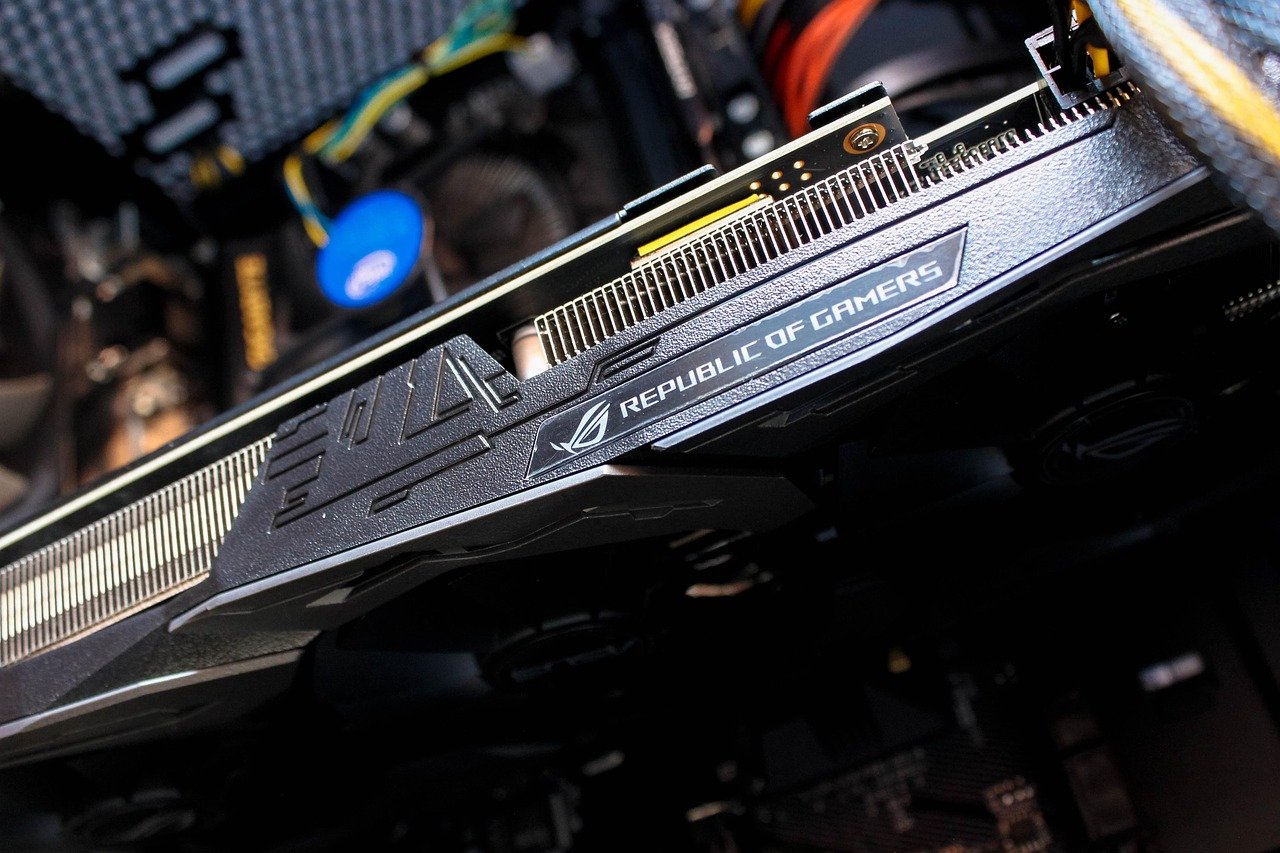
Quick Answer: What should I check before paying for gaming graphics cards?
Before paying for a gaming graphics card, match the card to your monitor’s resolution and refresh rate, then confirm your power supply, case clearance, and motherboard can actually support it. Most buying mistakes happen because shoppers fixate on the GPU name and skip the boring compatibility checks around it.
Two cards with the same chip can behave very differently. Factory overclocks, cooler size, power limits, and warranty terms vary between brands, and a used or ex-mining card carries risks a new one does not. Online buyers in the EU and UK also get a cooling-off window, which changes how risky a purchase really is.
Check VRAM and bus width, PCIe generation and lane count, PSU wattage and connector type, physical dimensions and slot thickness, warranty coverage in your region, return rights, and driver support life before you commit.
Why the GPU Name Is the Least Interesting Part of the Decision
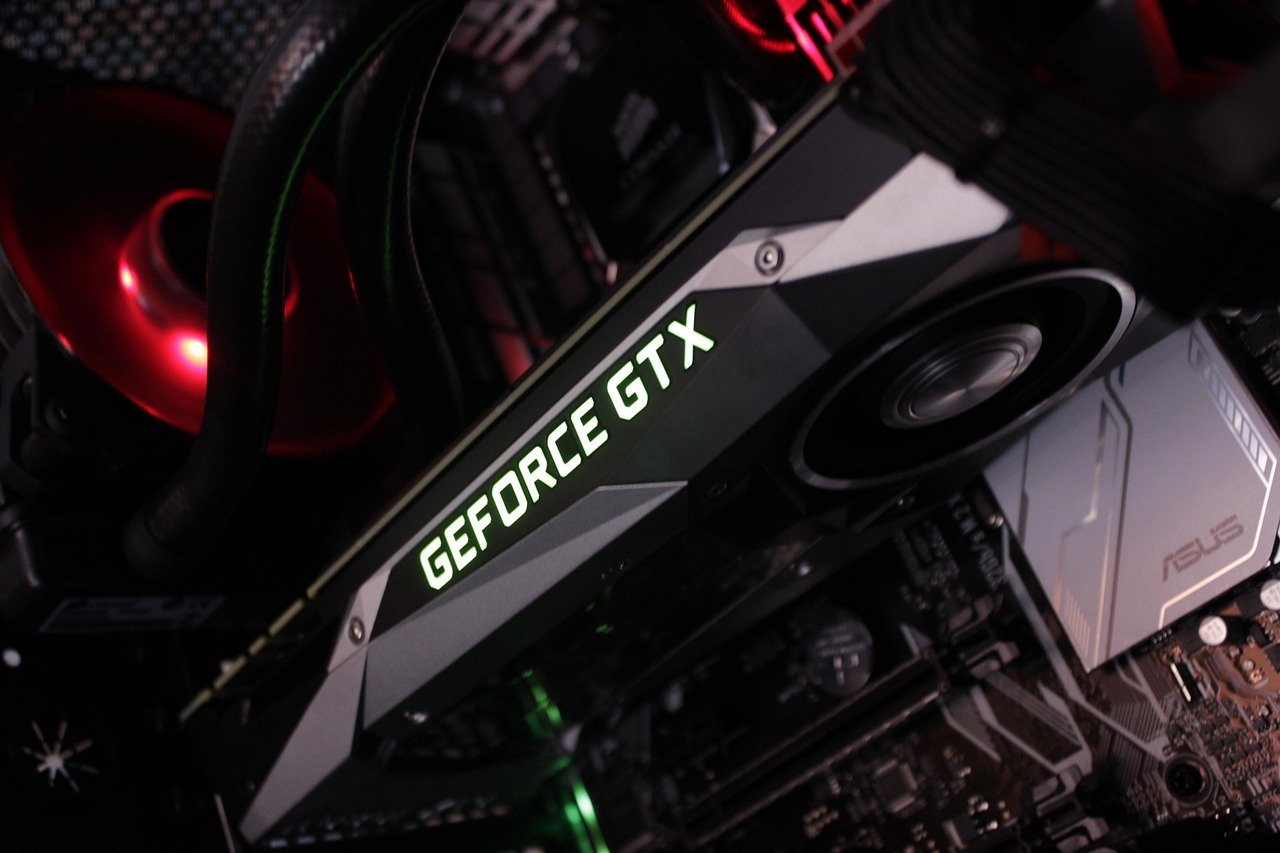
A graphics card purchase feels simple. Pick the fastest chip you can afford, add it to the cart, done. In practice, the chip is only half the story. The other half lives in spec sheets nobody reads until something goes wrong.
Here is the pattern that plays out constantly. Someone buys a card that reviews brilliantly, installs it, and discovers three things in the first week: the case side panel will not close, the power supply trips under load, and the card runs on eight PCIe lanes instead of sixteen. None of those problems show up in a benchmark chart.
The fix is boring but effective. Treat a GPU purchase like buying a used car. Check the engine, yes, but also check the fit, the paperwork, and whether the seller will still answer the phone in six months.
Start With Your Monitor, Not the Card
The single most useful question is this: what resolution and refresh rate is the monitor actually running? A card that is overkill for 1080p at 60Hz wastes money. A card that is underpowered for 4K disappoints on day one and keeps disappointing.
| Target setup | What matters most | Where money gets wasted |
|---|---|---|
| 1080p, 60-144Hz | Efficient mid-range chip, 8-12 GB VRAM | Paying for flagship silicon |
| 1440p, 144Hz+ | Strong raster performance, 12-16 GB VRAM | Skimping on VRAM for longevity |
| 4K, 120Hz+ | Top-tier chip, 16 GB VRAM or more, wide bus | Buying a cut-down card to save |
| VR and sim setups | Consistent frame times, driver maturity | Chasing peak fps over stability |
Price per frame is a rough but honest way to compare. Take benchmark results at your target resolution, divide the card’s price by the average frame rate, and compare across models. It is not perfect, but it stops you from paying a premium for performance you will never see on your own screen.
One more thing worth checking: whether the games you actually play lean on upscaling and frame generation. If they do, raw raster performance matters slightly less than it used to.
VRAM and Bus Width: The Numbers That Age Your Card
VRAM capacity gets all the attention, and for good reason. Cards with 8 GB on a narrow 128-bit bus have drawn sustained criticism for aging poorly at 1440p and above. The mid-to-upper tier has largely moved to 12-16 GB, and that shift is not marketing fluff.
The memory bus width is the quieter half of the story. A wide bus moves more data per clock, which helps at high resolutions and with heavy textures. Two cards with identical VRAM but different bus widths can diverge sharply a few years down the line.
Be careful with hard rules here. Exact VRAM thresholds for “future-proofing” are genuinely contested, and they shift as game engines and upscaling techniques evolve. Treat any specific number as a rule of thumb, not a standard. If you plan to keep the card for four or five years, leaning toward more VRAM is the safer bet.
PCIe Generation and Lane Count: The Compatibility Trap
This one catches people who upgrade an older system. A card may be wired for PCIe 4.0 x8 rather than x16. On a modern motherboard that is fine. On a PCIe 3.0 board, the reduced lane count and older generation can combine to cost real performance in some titles.
Before paying, look up two things: the card’s PCIe interface and your motherboard’s PCIe version. If your board is a generation or two behind, check reviews that specifically test the card at the older standard. Most cards lose a little performance; a few lose more than you would expect.
If you are also weighing a broader platform upgrade, it is worth reading up on how CPU and motherboard choices interact with GPU performance, such as this breakdown of AMD vs Intel CPU compatibility before an upgrade. A GPU that outruns your processor by a wide margin will sit idle in CPU-heavy games.
Power Supply Headroom and the Connector Question
High-end cards can pull 300-450W under load, and transient spikes go higher than the rated figure. Check three things before you buy:
- Your PSU’s continuous wattage and its 80 Plus rating.
- How many PCIe power cables it has, and their type.
- Whether the card needs a 12VHPWR or 12V-2×6 connector, and whether your PSU includes one or needs an adapter.
The 12VHPWR connector arrived with the RTX 40 series in 2022, and reports of melting connectors followed through 2022 and 2023. The naming and safety status of the standard have changed since then, so verify the current designation rather than trusting an old forum thread. If your PSU is borderline, budget for a replacement. A cheap PSU protecting an expensive card is a bad trade.
Measure Before You Buy: Size and Slot Thickness
Partner cards vary wildly in size. The same chip might ship as a compact two-slot card or a four-slot brick with a triple-fan cooler. Grab a tape measure and check:
- Length from the rear bracket to the front of the case, minus any front fan or radiator.
- Height clearance to the side panel, especially in smaller cases.
- Slot thickness and whether the card blocks your other PCIe slots.
- Cable clearance, because a stiff 12VHPWR cable needs bend room.
This is also where peripheral purchases sneak in. If you are rebuilding a desk setup around a new card and want audio to match, the practical advice in this guide to the best gaming headsets of 2026 covers what genuinely matters before you spend.
New, Used, or Ex-Mining: Know What You Are Buying
Used cards can be excellent value. They can also be misrepresented. Counterfeit and re-flashed GPUs have been reported repeatedly between 2021 and 2024, where a card’s firmware claims one model but the silicon is something else entirely.
Practical safeguards that actually work:
- Ask for a screenshot of the card’s real identity readout from a diagnostic tool before paying.
- Check the serial number against the manufacturer’s records where possible.
- Look at seller history and whether they accept returns.
- Inspect for heavy dust, discolored PCBs, or replaced fans, which hint at mining or long service.
If the seller resists any of this, treat it as an answer in itself.
Warranty, Returns, and Regional Rights
Warranty length is typically two to three years, but the details matter more than the number. Is it transferable if you sell the card later? Is it honored in your country, or must the card be shipped abroad? Some brands handle regional service well; others route you through the retailer.
Online buyers in the EU generally have a 14-day cooling-off right under the Consumer Rights Directive 2011/83/EU, and the UK has an equivalent under the Consumer Contracts Regulations 2013. That window is a genuine safety net: you can test the card in your own system and return it if the coil whine is unbearable or the fit is wrong.
This kind of pre-purchase scrutiny is a habit worth applying elsewhere too, whether you are reading BMG Money reviews before signing a financial agreement or checking a school calendar before booking family plans. The principle is the same: read the terms before money moves.
Driver Support Life and the Specific Model
Two cards with the same GPU can perform differently because of factory overclocks, cooler design, and power limits. Read reviews of the exact card model rather than the GPU chip alone. A well-cooled card with a generous power limit can hold higher clocks for longer, and a weak cooler can throttle in a cramped case.
Then check driver support. Vendors eventually drop older architectures from their main driver branches. If you are buying a card that is already a generation or two old, confirm it still receives current drivers. A card that loses optimization updates early will age faster than its hardware suggests.
Where the Money Actually Goes
It helps to see the purchase as a stack of costs rather than one number:
| Cost layer | Typical surprise | How to avoid it |
|---|---|---|
| The card itself | Paying flagship prices for mid-range needs | Match to monitor resolution |
| Power supply | Existing PSU too weak or wrong connector | Check wattage and cables first |
| Case and cooling | Card does not fit or runs hot | Measure length, height, slots |
| Cables and adapters | Extra spend on adapters | Confirm what ships in the box |
| Returns and shipping | Restocking fees or return postage | Read the policy before paying |
Add those layers up and the “cheap” card sometimes is not cheap. Conversely, a slightly more expensive model with the right connector and a better cooler can save money overall.
A Practical Pre-Purchase Checklist
Run through this before you hit pay:
- Confirm your monitor’s resolution and refresh rate.
- Look up the card’s VRAM, bus width, and PCIe interface.
- Check your motherboard’s PCIe generation.
- Verify PSU wattage, PCIe cables, and connector type.
- Measure case length, height, and slot clearance.
- Read reviews of the exact partner model.
- Confirm warranty coverage in your region.
- Understand the return window and who pays return shipping.
- For used cards, verify identity and serial number first.
If you are also shopping for a VR headset alongside the card, the compatibility questions overlap more than people expect, as this comparison of Steam Frame vs Meta VR glasses compatibility makes clear. And if you are weighing subscription-style AI tools against one-time hardware spending, the same logic in this look at AI chatbot lifetime deals buyers should check applies: the headline price rarely tells the whole story.
Conclusion
Buying a gaming graphics card is a compatibility exercise dressed up as a performance decision. The chip matters, but the purchase only works when the VRAM, bus width, PCIe lanes, power supply, physical clearance, warranty, and return rights all line up with your actual setup.
The good news is that none of this takes long. An hour with spec sheets, a tape measure, and your PSU’s label will save you from the three most common regrets: a card that does not fit, a system that cannot feed it, and a warranty that does not cover you. Do that homework first, and the card you buy will still feel like the right choice two years from now.
FAQ
Is 8 GB of VRAM still enough for gaming in 2026?
It depends heavily on resolution and settings. At 1080p with moderate textures, 8 GB can still work. At 1440p and above, 8 GB on a narrow 128-bit bus has drawn sustained criticism for aging poorly. If you plan to keep the card for several years, 12-16 GB is the safer range, though exact thresholds are contested and shift as engines and upscaling evolve.
Can I put a PCIe 4.0 card in a PCIe 3.0 motherboard?
Usually yes, because PCIe is backward compatible. The catch is performance. A card wired for PCIe 4.0 x8 on a PCIe 3.0 board runs at reduced bandwidth, and in some titles that costs measurable frame rate. Check reviews that test the specific card on older PCIe generations before assuming the loss is negligible.
How many watts does a high-end graphics card need?
High-end cards can draw 300-450W under load, with transient spikes above the rated figure. Rather than matching the card’s number exactly, leave headroom: account for the CPU, drives, and fans, and check your PSU’s continuous wattage rather than its peak marketing figure. If your PSU is borderline or lacks the right connectors, budget for a replacement.
What is the difference between 12VHPWR and 12V-2×6?
Both are high-power GPU connectors introduced to replace multiple older PCIe power cables. The 12VHPWR standard arrived with the RTX 40 series in 2022 and drew attention after reports of melting connectors in 2022 and 2023. The naming and safety status have since been revised, so verify the current designation on the card and PSU rather than relying on older discussions.
How can I tell if a used graphics card was used for mining?
There is no single test, but several signals help. Heavy dust in the fins, discolored PCB areas, replaced fans, and a seller who resists providing a real hardware identity readout are all warning signs. Ask for a diagnostic screenshot, check the serial number, and confirm the seller accepts returns before paying.
Do I lose the right to return a graphics card if I open the box?
In the EU and UK, online purchases generally carry a 14-day cooling-off right under distance-selling rules, and opening the box to inspect or test the item does not automatically cancel it. That said, retailer policies vary, and some charge restocking fees or require original packaging. Read the specific return terms before checkout rather than after.



