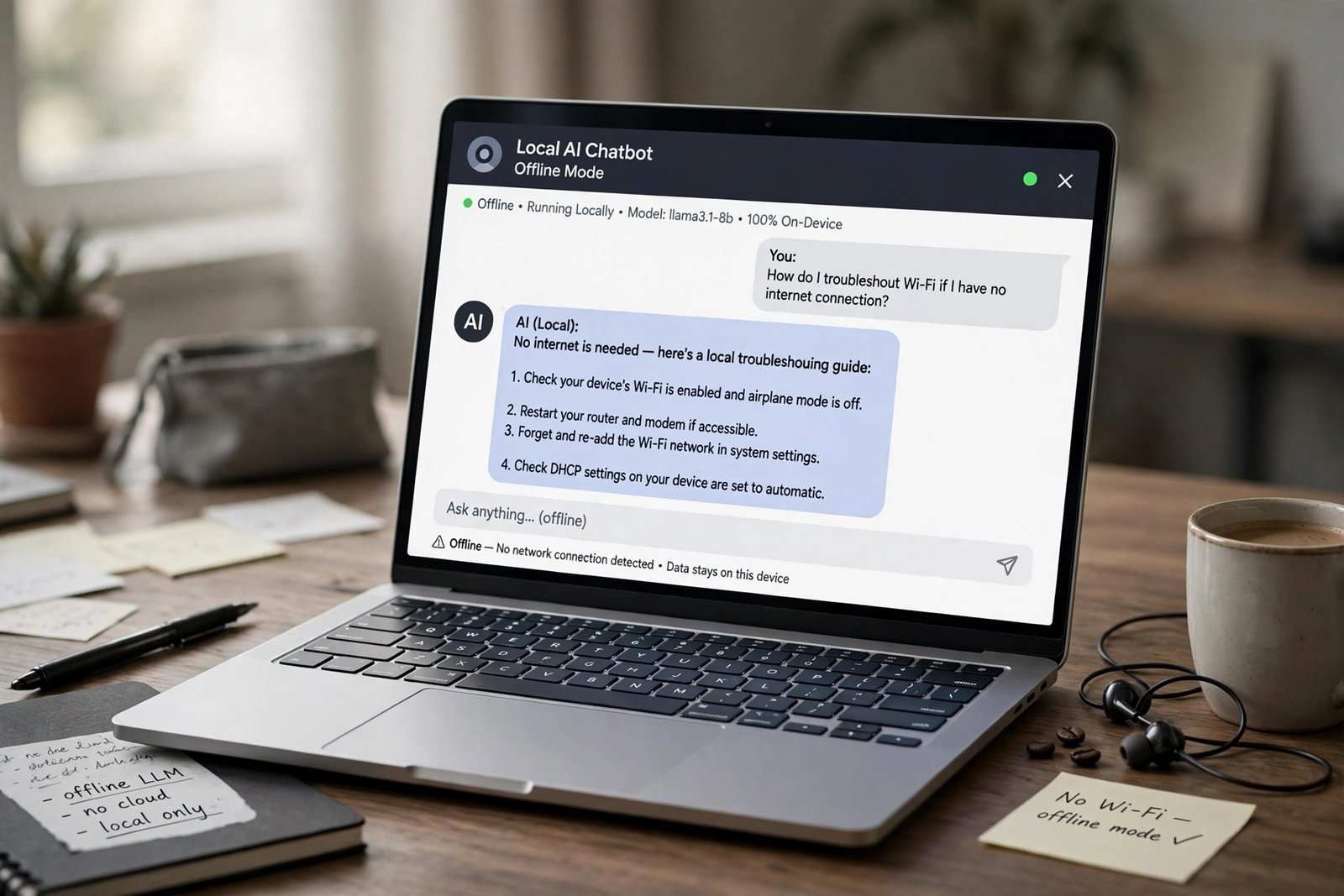
What is local AI? It is an AI model that runs entirely on your own computer, with no cloud server involved: your prompt is processed by your processor or graphics card, the answer generated on the same machine, and nothing travels to a data centre.
That is why local AI has moved from hobbyist curiosity to a serious option in 2026: a chatbot that works on a plane and costs nothing per message. The trade-off is capability — laptop-sized models are smaller than the frontier models behind ChatGPT or Claude, and they cannot browse the web unless you add that yourself.
Key takeaways:
- Local AI runs an open-weight model on your computer, offline once downloaded.
- Ollama is the quickest start, LM Studio the friendliest app, llama.cpp the engine underneath both.
- Memory decides what runs: a 7–8B model at Q4 needs about 5 GB, a 70B model about 43 GB.
- Local models are frozen at their training date, cannot browse the web, and can still hallucinate.
- Local AI is not automatically private: keep cloud features switched off.
What local AI actually is
Local AI, also called on-device AI, means the model file lives on your hardware and the computation happens there. A language model is a large file of numbers — its weights — loaded into memory to do arithmetic on your prompt. In the cloud, that happens on a provider’s servers. Locally, it happens on your CPU, GPU or neural processing unit. The difference is the path your data takes: with a cloud chatbot, your prompt leaves your machine for a data centre; with a local model, it never leaves your device. It matters most for sensitive work, such as legal drafts and medical notes, and for control: no subscription, no per-token bill, no sign-in.
How local AI differs from cloud AI
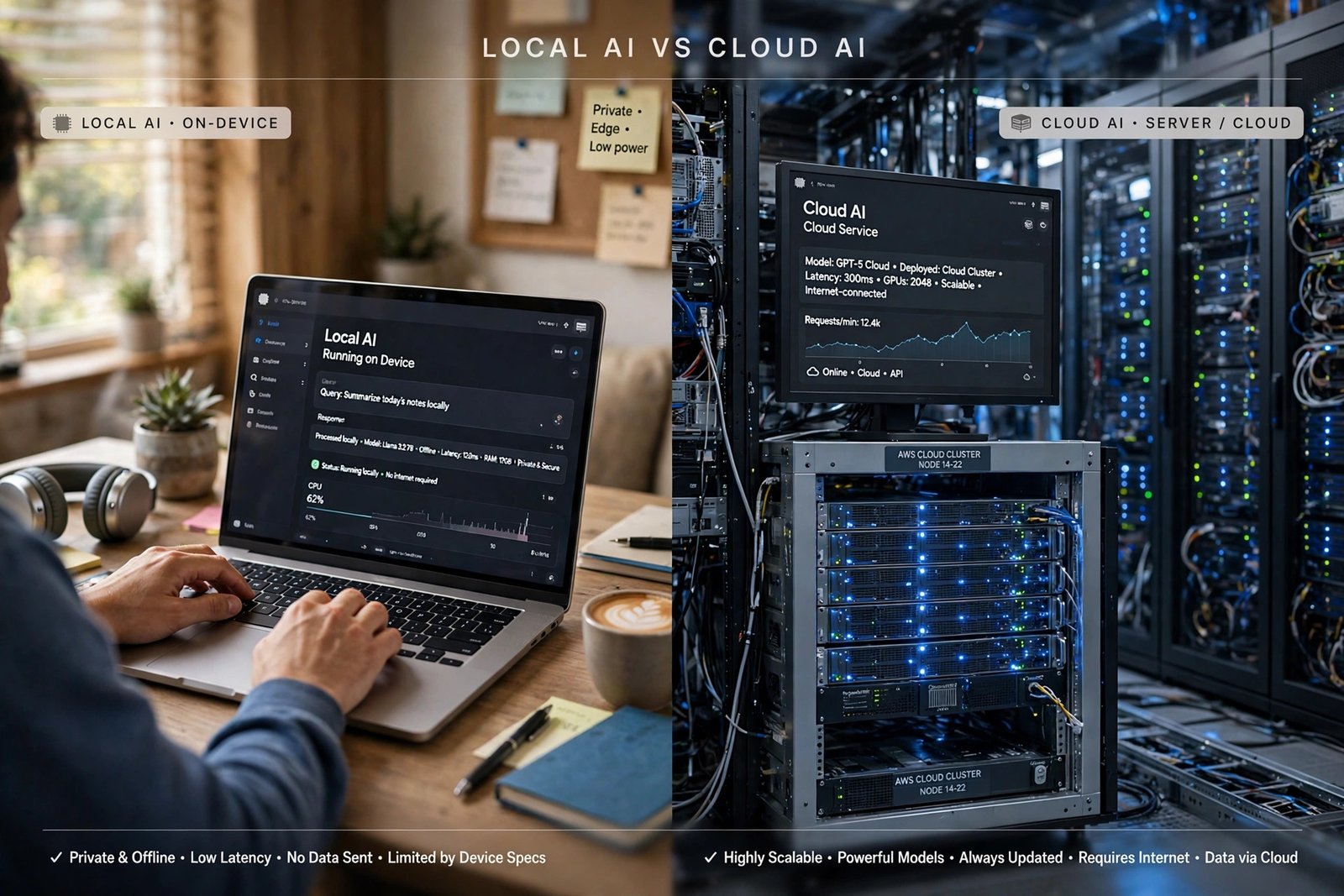
Cloud AI gives you the largest models, constantly updated and connected to live web search. Local AI gives you privacy, offline use and zero running cost, with smaller models frozen at their training date. Most people use both: local for private or offline work, cloud for everything else.
The three tools that matter
Almost every local AI setup uses one of three tools. All three run GGUF model files and, since mid-2026, share an engine: Ollama uses upstream llama.cpp’s server, and LM Studio runs llama.cpp too, with Apple’s MLX on Apple Silicon Macs. The choice is about interface, not capability.
Ollama: the quickest start
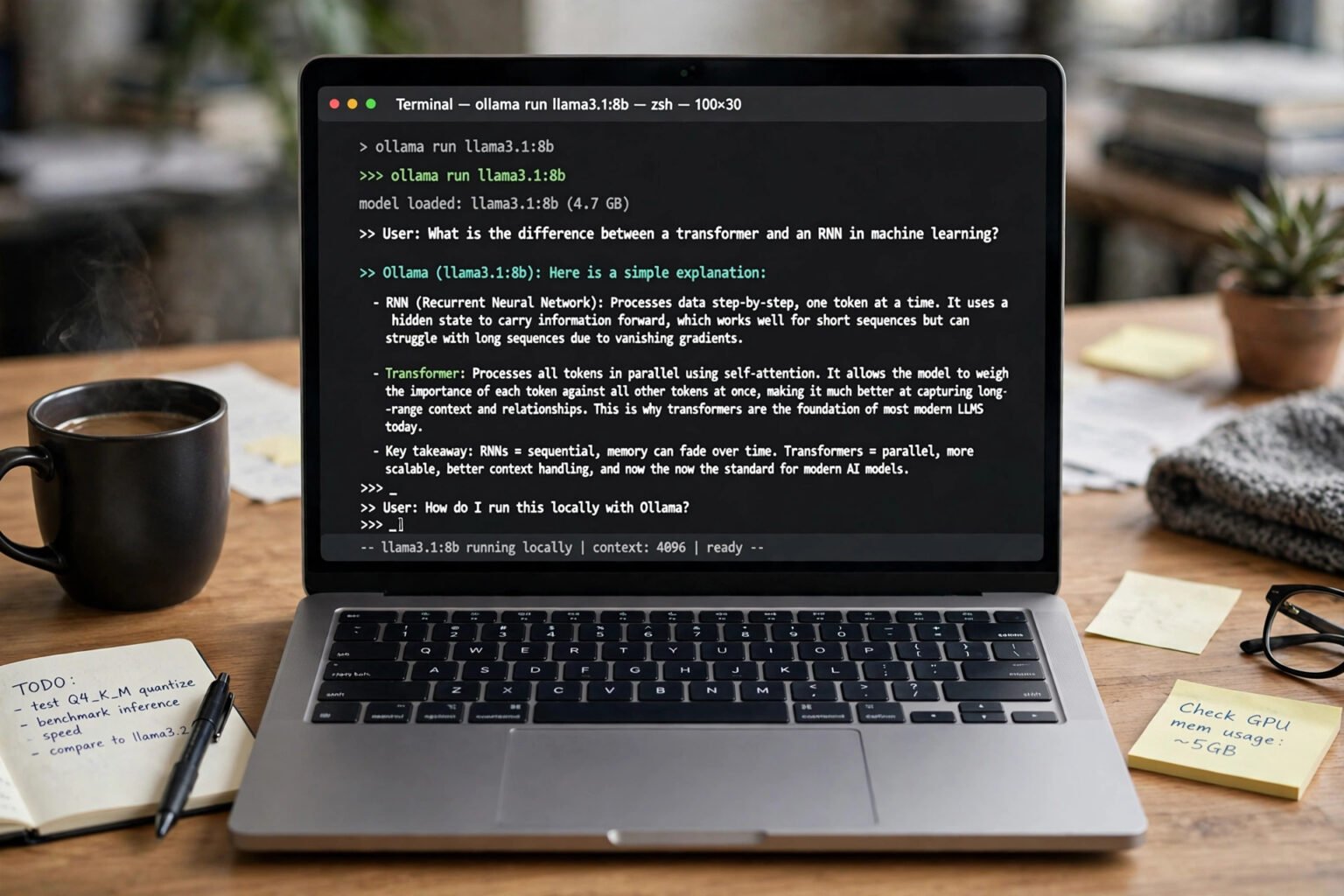
Ollama is the simplest route to a working local model: one command, ollama run qwen3:8b, downloads a model and starts a chat. Other apps can call it through a local API at localhost:11434. It is MIT-licensed, runs on macOS, Windows and Linux, and its FAQ states it does not see your prompts when a model runs locally. Note that recent versions can also call Ollama’s cloud models, which are not local. Best for: most people, and app developers using the local API.
LM Studio: the friendliest desktop app
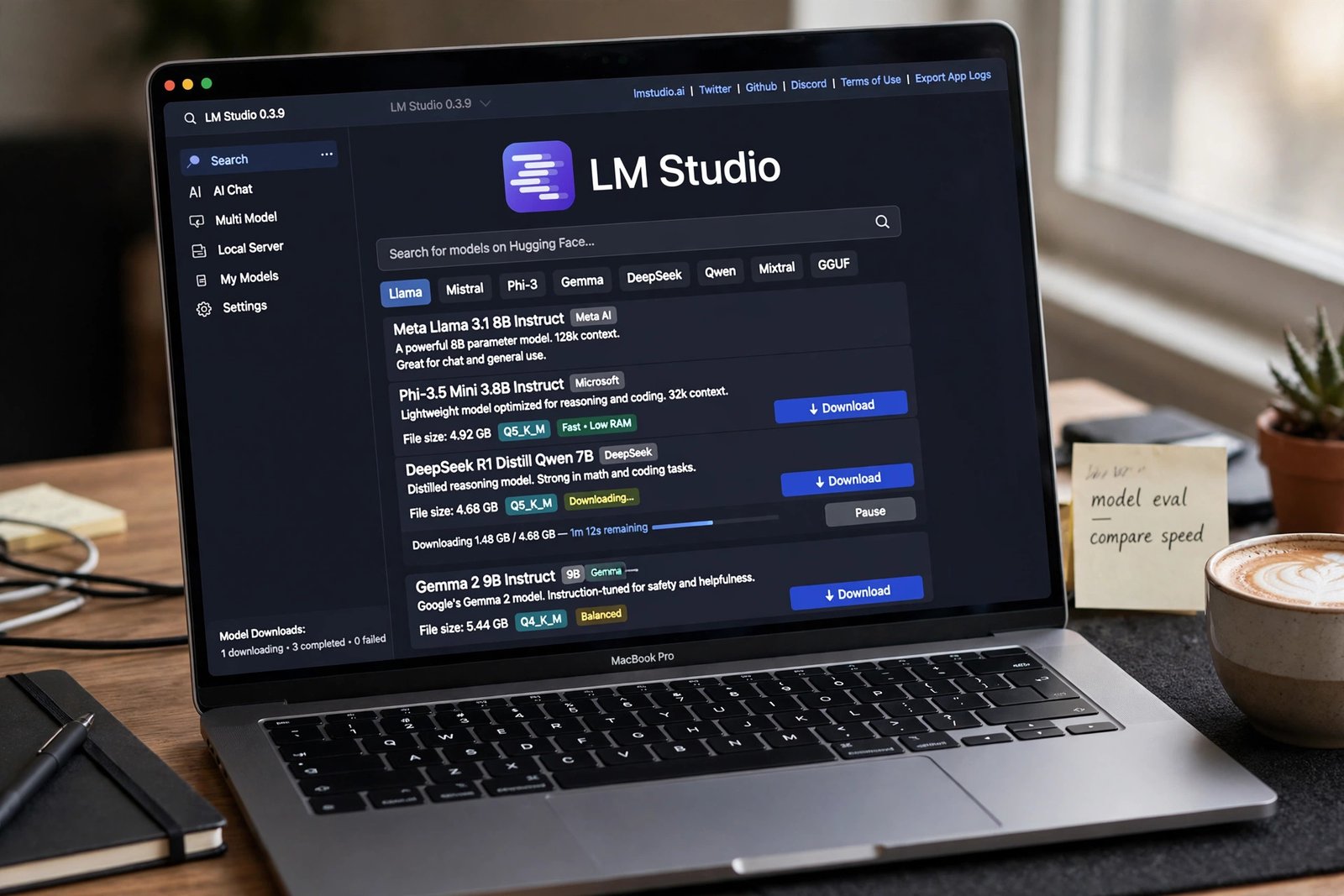
LM Studio is a desktop app with a chat window, a model browser that searches Hugging Face, and a local server, typically on port 1234. You download a model, load it with a click, and chat. Its documentation states that nothing typed into the app leaves the device once a model is downloaded. Best for: beginners who prefer a graphical interface to a terminal.
llama.cpp: the engine underneath
llama.cpp is the open-source C/C++ inference engine behind much of the local AI world. Used directly, it gives you a command-line chat and an HTTP server with a built-in web interface, plus the widest hardware support — Apple Silicon, NVIDIA, AMD, Vulkan and plain CPU. Its founding team, ggml.ai, joined Hugging Face in February 2026. Best for: tinkerers and unusual hardware, with the newest features first.
What hardware do you need?
Memory is the deciding factor. A model must fit in RAM or video memory, and the size it needs scales with its parameter count and compression. That compression is called quantisation: at Q4, the usual default, a model needs roughly half a gigabyte per billion parameters, plus headroom for the context window that holds your conversation. Ollama’s rule of thumb is 8 GB of RAM for a 7B model, 16 GB for 13B, and 32 GB for 33B. Concretely, Llama 3.1 8B takes 4.9 GB at Q4, Phi-4 takes 9.1 GB, Gemma 3 27B takes 17 GB, and Llama 3.3 70B takes 43 GB. Apple Silicon is a special case, with RAM and video memory in one shared pool — a 16 GB MacBook can run a 14B model at Q4 with no separate graphics card.
| Hardware you have | What runs well at Q4 | What to expect |
|---|---|---|
| 8 GB RAM, no GPU or basic GPU | Qwen3 8B, Llama 3.1 8B, Gemma 3 4B | Works, but slow on CPU; fine for short chats |
| 16 GB RAM or an 8 GB GPU | Qwen3 14B, Gemma 3 12B, Phi-4 14B | Comfortable daily use |
| 24 GB GPU or 32 GB RAM | Qwen3 32B, Gemma 3 27B, Qwen3-Coder 30B | Strong reasoning, fast replies |
| 48 GB+ memory or a high-end Mac | Llama 3.3 70B, gpt-oss 120B | Closest to a frontier cloud model |
Which local models fit which machine: memory, not processor speed, is the limiting factor.
Which model should you download first?
The families that matter in 2026 are Llama (Meta), Qwen (Alibaba), Gemma (Google), Mistral, Phi (Microsoft) and gpt-oss (OpenAI) — all open-weight, and all in the Ollama and LM Studio libraries. Qwen3 8B is the best all-round first download: good chat, reasoning and tool use in about 5 GB. Llama 3.1 8B is the well-supported default for writing, also about 5 GB. Qwen3-Coder is the coding specialist; DeepSeek-R1 distills handle reasoning, if you have 12–24 GB to spare. Llama 3.3 70B is the workhorse for anyone with 48 GB or more — the closest a home machine gets to frontier quality. Start small: download an 8B model first and only move up when you know you need more. A bigger model spilling into system RAM feels slower than a smaller one that fits on your GPU.
How to run AI offline, step by step
Setup takes about fifteen minutes, plus the download — after that, the model works offline.
- Check your memory: how much RAM, and how much video memory your graphics card has. Match it against the table above.
- Install Ollama or LM Studio. Both are free. Pick LM Studio for a graphical app, Ollama if you are comfortable with a terminal.
- Download a model: in Ollama run
ollama run qwen3:8b; in LM Studio, search for Qwen3 8B in the Discover tab. Expect a file of around 5 GB. - Test it offline. Turn on airplane mode and ask the model a question. If it answers, your setup is genuinely local.
- Turn off anything cloud-shaped: do not sign in to Ollama’s cloud models, or enable cloud features and telemetry in LM Studio.
That airplane-mode test is worth doing once — the simplest proof your prompts stay on your machine.
The privacy promise, and its limits
Local AI’s privacy advantage is real, but it has edges. First, the model is local, but the app around it may not be: an app can send telemetry, check for updates, or offer a cloud feature that routes prompts elsewhere. Ollama’s cloud models are the clearest example — only the local ones keep your data on your machine. Second, local AI does not protect you from your own machine: chats are stored on your disk, so anyone with access to your computer can read them. The privacy gain is about the network, not the device. Third, local models can still be wrong. A model on your laptop can invent a plausible-sounding fact just as readily as a cloud model, with no live source to check against — so the same discipline still applies. If you use AI for work, the safety habits that keep private data out of cloud tools still matter, and knowing how to spot a hallucinated answer matters even more with no web search to catch it. Local AI changes where your data goes, not whether the answer is true.
What local AI is genuinely good for
Local AI is at its best in four situations: private drafting — letters, notes, journal entries, anything you would rather not send to a server; sensitive documents — contracts, medical notes, internal reports summarised without uploading them anywhere; offline work — writing and coding on planes and trains, where a cloud chatbot does not exist; and cost — no subscription and no per-message charge once the model is downloaded. It is weakest where freshness or frontier reasoning matters. If you keep a cloud chatbot alongside your local setup, turning off AI training on your cloud accounts is the single most useful privacy step you can take there.
A checklist before you rely on local AI
Use this framework when you set up local AI, and again whenever you change tools or models.
- Is the model actually running locally? Have I tested it in airplane mode?
- Are cloud features off? Have I avoided cloud models, syncing and telemetry?
- Does the model fit my memory? Is it loading fully onto the GPU, not spilling into system RAM?
- Do I know its knowledge cut-off? Am I treating anything after its training date as unknown?
This list is short on purpose: a setup you cannot verify in a minute is a setup you will stop trusting.
Frequently asked questions
Is local AI really private?
Yes, with one condition: the model and the app around it must both stay offline. A model in Ollama or LM Studio processes your prompt on your own machine — but enable a cloud feature, sign in to a cloud model, or sync chats, and that privacy no longer holds. Test in airplane mode to be sure.
Can I run AI offline on a normal laptop?
Yes. An 8 GB laptop can run an 8B model such as Qwen3 8B or Llama 3.1 8B, though slowly without a GPU. 16 GB is the practical floor for comfortable use, and Apple Silicon laptops do particularly well. You need the internet once, to download the model; after that it works offline.
Is local AI as good as ChatGPT or Claude?
Not yet. The largest cloud models run on hardware no laptop can match, stay connected to the internet, and are updated constantly. A good local model is strong at drafting, summarising and coding help, and weaker at the hardest reasoning and anything needing current information. For private or offline work, that trade is often worth it.
Does local AI still hallucinate?
Yes. A local model can invent facts just as confidently as a cloud model, with no web access to check itself against. Treat its answers the same way: fine for drafting and ideas, but verify anything factual, numerical or contractual against a source you trust.
The bottom line
Local AI is a simple idea with a real payoff: a model that runs on your computer, answers without the internet, and never sends your words to anyone. It will not replace a cloud chatbot for the hardest questions or the latest news, and it asks a little more of you in setup and maintenance. But for private drafting, sensitive documents and offline work, it is the most control you can have over an AI tool. Start this week. Install Ollama or LM Studio, download Qwen3 8B, and run the airplane-mode test. If it answers with the Wi-Fi off, you have built yourself a private AI.