Learning how to run AI models locally with Ollama starts with one download and one command. You can run a capable AI model on your own computer, without a subscription and without sending your prompts to a cloud provider, if your machine has enough memory for the model you choose.
Can an ordinary laptop actually do this? Yes, for smaller models. A machine with 8GB of RAM can run a 3B model comfortably and a 7B or 8B model with care, while larger models need far more memory. This guide covers the install, the first model, and the hardware check.
Key takeaways:
- Ollama is a free, open-source tool that runs open-weight models on your own Mac, Windows or Linux computer.
- Start small: Llama 3.2 3B or Phi-3 Mini will run on most modern laptops; Llama 3.1 8B needs about 8GB of RAM.
- Install it, then run
ollama pull llama3.2followed byollama run llama3.2. - Your prompts stay on your machine once the model is downloaded, but local is not automatically safe — keep sensitive files out of prompts.
- Pick the model for the job and the hardware you have, not the largest model you can download.
What Ollama does, in plain terms
Ollama is a free, open-source application for running large language models on your local machine. It handles downloading the model, loading it into memory, and giving you a simple chat prompt in the terminal. You need no account, and pay nothing per prompt.
Think of Ollama as the engine, and the model as the fuel. Ollama itself is small. The model you choose — Llama, Mistral, Gemma, Phi or Code Llama — is the large file that does the answering, and you can keep several installed and switch between them with one command.
Once a model is downloaded, you can chat with it offline. No connection is needed for the conversation itself, only for the first download. That is the main appeal: drafts, summaries and coding help without a monthly fee, and without prompts leaving the device. It also appeals to anyone who wants to use AI safely at work without sharing private data.
Before you install: will your machine cope?
Ollama itself needs almost nothing. The model decides everything. A model compressed to 4-bit precision — Ollama’s default Q4_K_M format — needs roughly 0.6GB of memory per billion parameters, plus working memory. A 3B model needs about 4GB, a 7B or 8B model about 8GB, a 13B model about 16GB, and a 70B model roughly 48GB to 64GB. Ollama’s own guidance is plain: allow at least 8GB of RAM for 7B models, 16GB for 13B models, and 32GB for 33B models. That is system RAM, or video memory (VRAM) with a graphics card. A dedicated GPU makes answers much faster, because the whole model should fit in VRAM. Apple Silicon Macs use unified memory through Metal, Nvidia cards use CUDA, and AMD cards use ROCm on Linux.
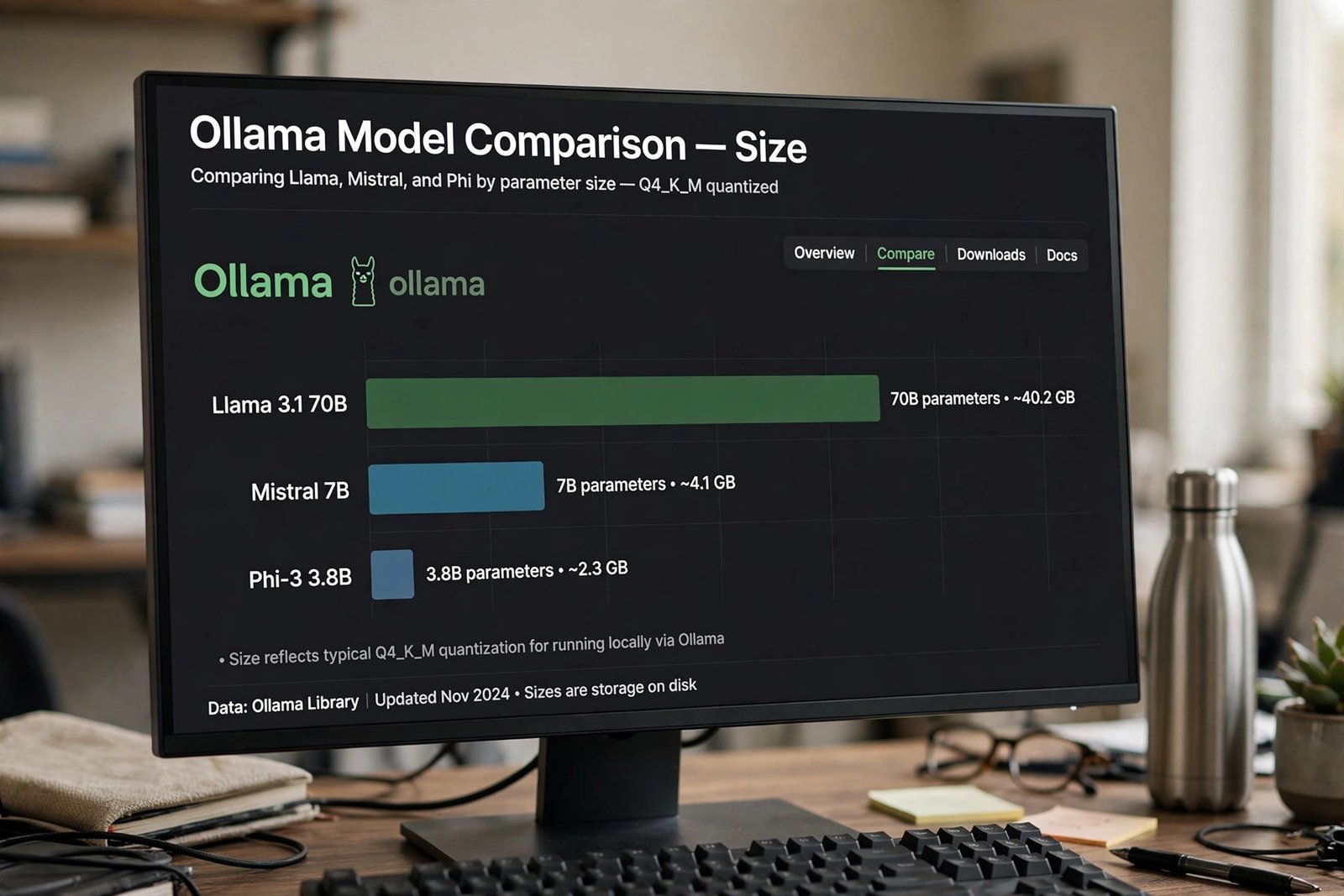
Speed is the trade-off. On a modern CPU alone, a 7B or 8B model typically produces roughly 8 to 15 tokens per second — readable, but unhurried. A mid-range graphics card can push the same model several times faster. Check first: at least 8GB of RAM, 20GB of free disk, and a stable connection. Model files range from about 1.3GB for Llama 3.2 1B to about 40GB for Llama 3.1 70B.
How to install Ollama
Installation takes a few minutes on Mac, Windows or Linux. Download from ollama.com/download, or use the terminal method for your system.
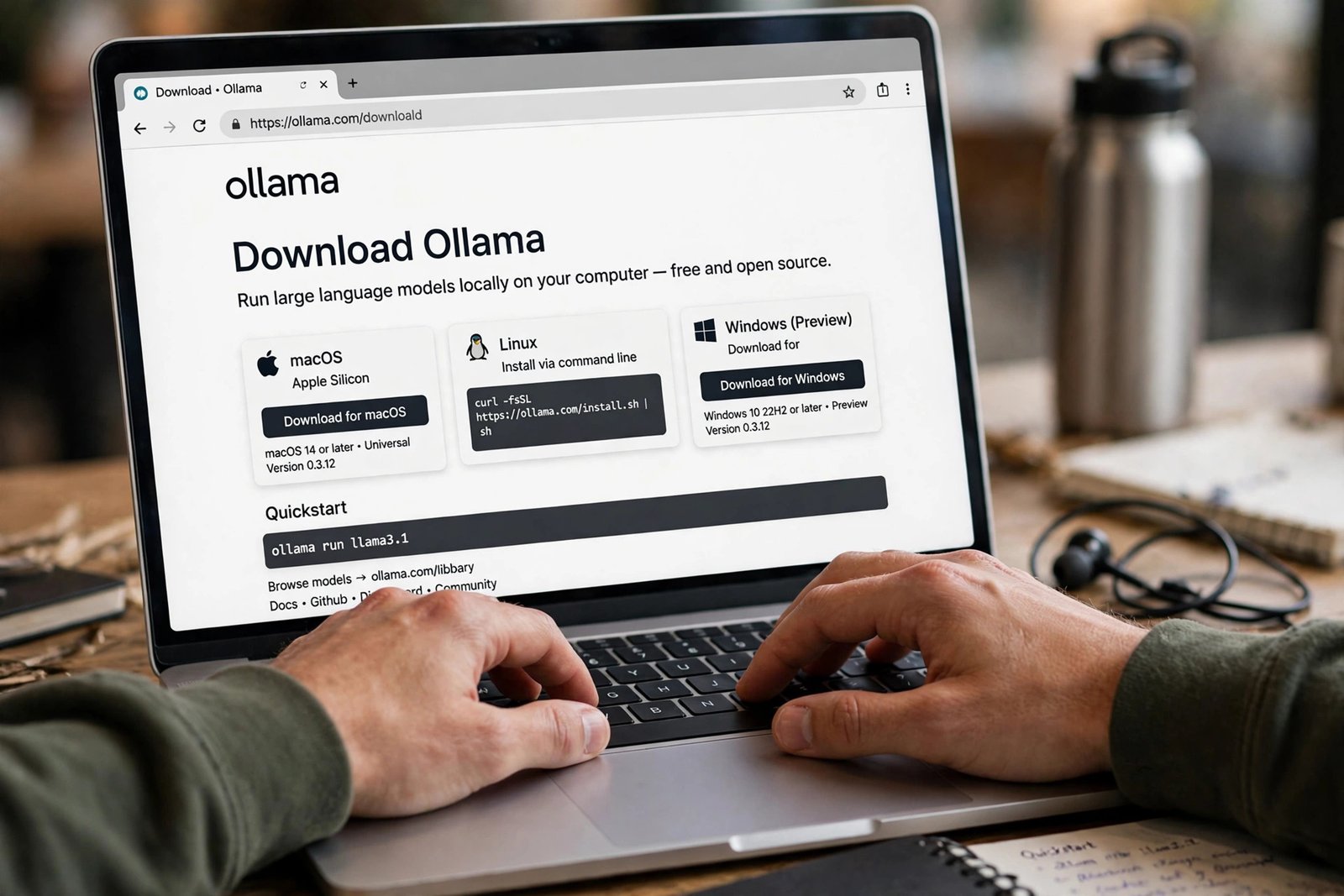
macOS: Download the installer from ollama.com and run it like any other app. It runs as a background service in the menu bar. With Homebrew, run brew install ollama instead.
Windows: Download the Windows installer from ollama.com and run it; Ollama is added to your PATH automatically. In PowerShell, the official command is irm https://ollama.com/install.ps1 | iex. Windows 10 or later is required.
Linux: In a terminal, run curl -fsSL https://ollama.com/install.sh | sh, then start the service with sudo systemctl enable ollama and sudo systemctl start ollama. Verify with ollama --version. If the command is not found, close and reopen the terminal — a PATH refresh fixes most first-install failures.
Run your first model in three commands
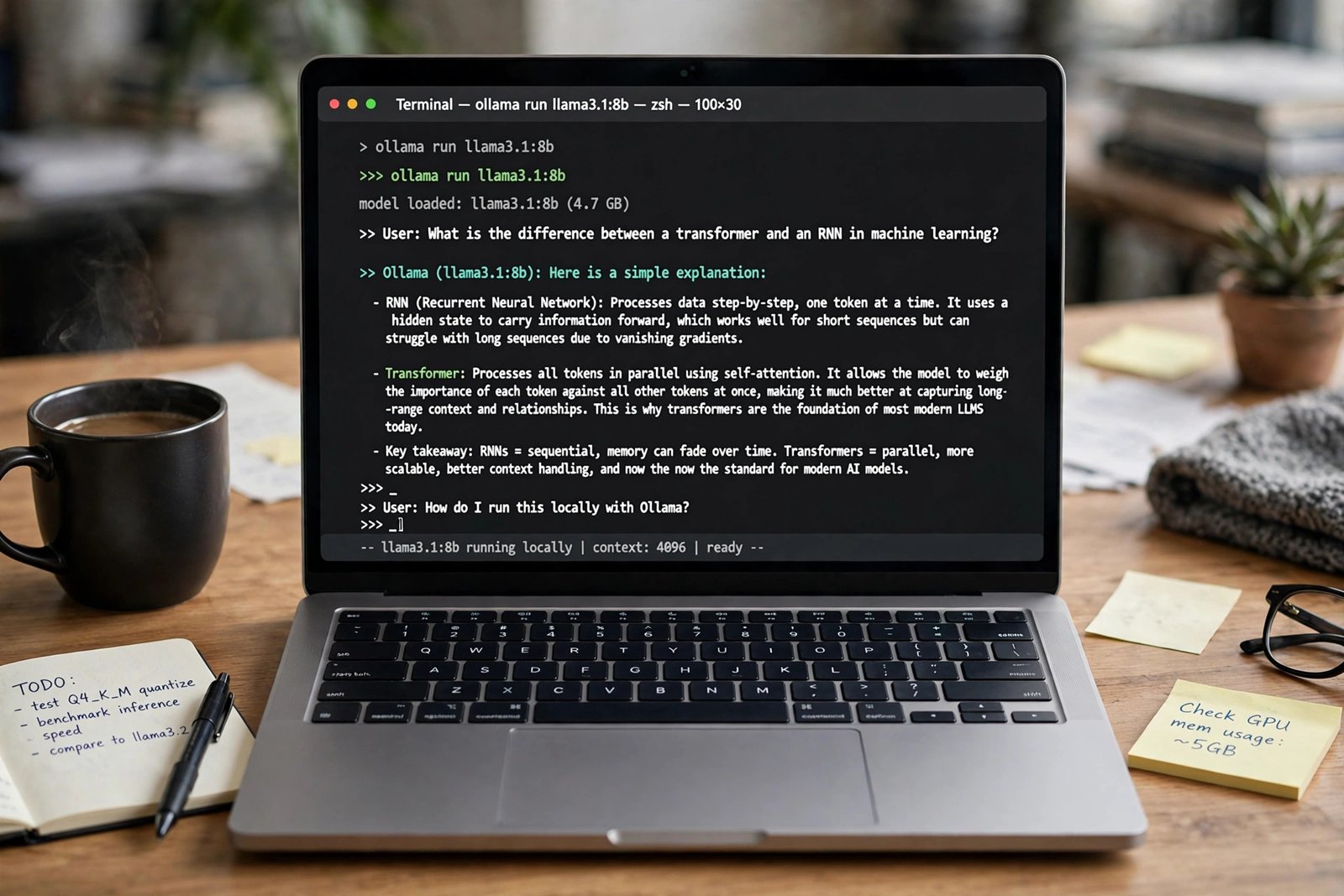
Pick a small model first. Llama 3.2 3B is a sensible starting point: it downloads in about 2.0GB and runs on most hardware. In your terminal, run ollama pull llama3.2 to download it, then start a chat with ollama run llama3.2. Type a prompt and press Enter. Type /bye to leave. That is the whole workflow — pull downloads, run starts the chat.
Try a real task next, not just a greeting. Ask it to summarise a paragraph, draft a polite email, or explain a concept in plain English, then ask a follow-up question. Local models work best when you refine the answer rather than accepting the first draft.
Which model should you choose?
The Ollama library lists dozens of models, but beginners only need a shortlist. Size, shown as billions of parameters (B), is the main trade-off: larger models usually answer better, but need more memory and run more slowly. Sizes below are from the Ollama library, and change as models are updated.
| Model | Size | Download | Best for |
|---|---|---|---|
| Llama 3.2 1B | 1B | 1.3GB | Older, low-memory machines |
| Llama 3.2 3B | 3B | 2.0GB | General chat on most laptops |
| Phi-3 Mini | 3.8B | 2.3GB | Fast answers, modest hardware |
| Mistral 7B | 7B | 4.1GB | Capable general-purpose chat |
| Llama 3.1 8B | 8B | 4.7GB | Chat and reasoning, 8GB+ RAM |
| Gemma 2 9B | 9B | 5.5GB | Google’s open general model |
| Code Llama 7B | 7B | 3.8GB | Code generation and review |
| Llama 3.1 70B | 70B | 40GB | Powerful desktops only |
For most beginners, Llama 3.2 3B or Phi-3 Mini is the right first model. Mistral 7B and Llama 3.1 8B are the next step up with 16GB of RAM or a graphics card with 6GB to 8GB of VRAM. Code Llama is the pick for code work. Llama 3.1 70B is not a beginner model: at about 40GB it needs a powerful desktop. Model names include tags such as llama3.2:1b and llama3.1:8b. Type ollama run llama3.1 without a tag and Ollama pulls the default 8B version. Check the library page before pulling a large model.
Everyday commands worth learning
You only need a handful of commands. ollama list shows every model you have downloaded. ollama ps shows which models are loaded in memory. ollama pull mistral downloads Mistral 7B, and ollama run mistral starts a chat with it. ollama show llama3.2 shows a model’s details, ollama rm phi3 removes a model to free disk, and ollama stop llama3.2 unloads a model before you load a larger one. Inside a chat, /bye exits and /help lists the session commands. If answers feel slow, try a smaller model — a 3B model that answers promptly beats an 8B model that stalls. Ollama also runs a local server on http://localhost:11434, with an OpenAI-compatible API, useful later with a chat interface such as Open WebUI. You do not need the API for your first week.
What local AI does — and does not — fix
Running a model locally solves one problem well: your prompts are not sent to a cloud provider while you chat. That is a real privacy gain for drafts that mention clients, health or finances. It does not solve every privacy problem. A local model still has the limits of any AI tool. It can get facts wrong, invent details, and repeat confident-sounding errors. It knows nothing after its training date unless you give it fresh information, and it cannot browse the web on its own. Check important claims against a source before you publish or send them to a client.
Security still matters. Keep Ollama updated, do not expose its local server to the internet, and do not paste passwords, API keys or full customer records into any chatbot. If you are weighing cloud tools against local ones, read how to turn off AI training on ChatGPT, Claude and Gemini as well.
A beginner’s checklist: is Ollama right for you?
Use this framework before you download a large model.
- Memory? At least 8GB of RAM for a 3B model, 16GB for an 8B model, or a GPU with 8GB of VRAM. If not, start with
llama3.2:1b. - Disk? At least 20GB free for starter models, and 50GB or more to keep several.
- The job? General chat points to Llama 3.2 or Mistral; code points to Code Llama; fast answers on weak hardware point to Phi-3 Mini.
- Do I need the cloud? If you need the latest facts, web search, or the strongest reasoning, a cloud chatbot may still be better.
- Can I check the answer? If the output matters — a client email or a published claim — is there a source or a person to check it against?
- Is it private? Are passwords, keys and full personal records out of the prompt, even though the model runs locally?
If you can answer yes to the first three and you have a check for the last three, Ollama is a good fit. More background is in the AI Atlas, alongside other practical explainers.
Frequently asked questions
Is Ollama free?
Yes. Ollama is free and open source, with no account or subscription needed. You pay only for your own hardware and electricity.
How much RAM do I need to run Ollama?
It depends on the model. Allow at least 8GB of RAM for 7B models, 16GB for 13B models, and 32GB for 33B models. A 70B model needs roughly 48GB to 64GB.
Can I use Ollama without the internet?
Yes, once the model is downloaded. The first download needs a connection, but the chat itself runs entirely on your machine.
Which Ollama model is best for beginners?
Llama 3.2 3B is the safest first choice for most laptops, with Phi-3 Mini as a fast alternative. Move to Mistral 7B or Llama 3.1 8B only when you have the memory to run them well.
Is running AI locally private?
Your prompts stay on your machine while you chat with a downloaded model, which is more private than sending them to a cloud service. It is not a guarantee: keep sensitive material out of prompts and keep Ollama updated.
Can Ollama run on a laptop without a GPU?
Yes. Ollama runs on CPU alone, and Apple Silicon Macs use their built-in graphics automatically. CPU-only answers are slower, so a 3B model is the better choice without a GPU.
The bottom line
Learning how to run AI models locally with Ollama is less about mastering a new tool than about matching a model to the machine you already own. Install Ollama, pull a small model such as Llama 3.2 3B, and have a real conversation with it before you chase a larger download. Start today: run ollama run llama3.2 and ask it to summarise something you wrote this week. If the answer is useful and the speed is acceptable, you have a private AI assistant on your own laptop. If it feels slow, drop to the 1B model.