Learning how to free up storage on Android is one of those small skills that pays off the moment your phone warns you it is almost full. The camera refuses to save a photo, an app update stalls, and a routine task suddenly feels urgent. The fix is rarely a factory reset. In most cases, a focused clear-out of photos, videos, downloads, cached data and apps you no longer use recovers several gigabytes in under half an hour, and it leaves your messages, contacts and settings untouched.
Key takeaways
- Start with the built-in storage view in Settings, so you can see whether photos, apps, system files or downloads are taking the most room.
- Back up photos and videos before you delete them, then use the free-up-space option to remove copies already backed up.
- Clear cached data for heavy apps first, but leave app data alone unless you are happy to sign in again.
- Remove unused apps, large downloaded files and offline media before you consider a reset or a new phone.
- Keep at least a few gigabytes free afterwards, because Android needs working room for updates and temporary files.
Find out what is actually using the space
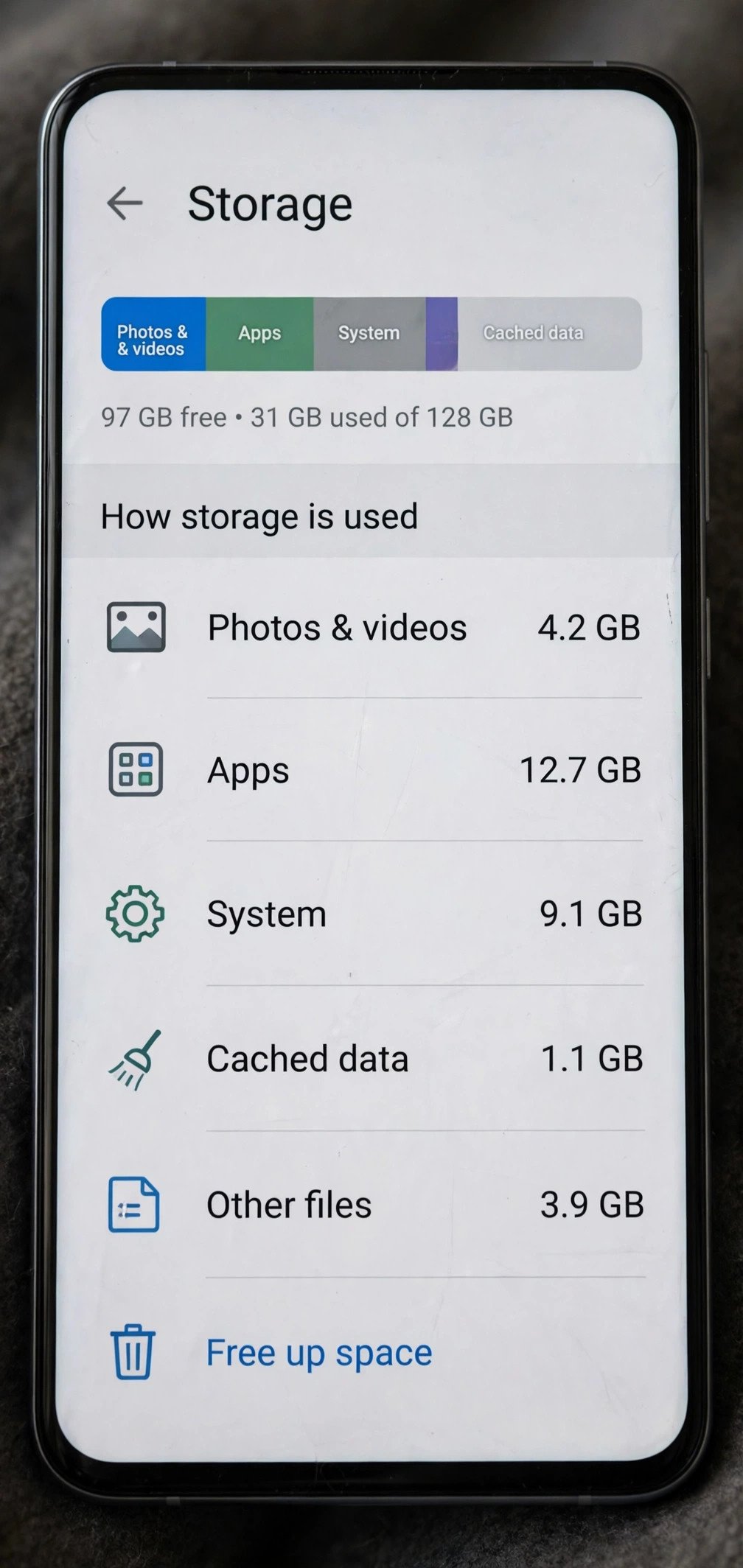
Open Settings, then Storage, and give the screen a moment to calculate. Android groups usage into categories such as Apps, Photos and videos, Audio, Documents and System, and the order tells you where to start. If photos dominate, the answer is a photo clear-out. If apps dominate, the answer is app management.
Tap through the largest category before you delete anything. A single video, a downloaded film or a game can account for more space than hundreds of small files. Google Files, which is preinstalled on many Android phones, offers a similar breakdown and adds suggestions for junk files, duplicate files and large files.
Back up photos and videos first
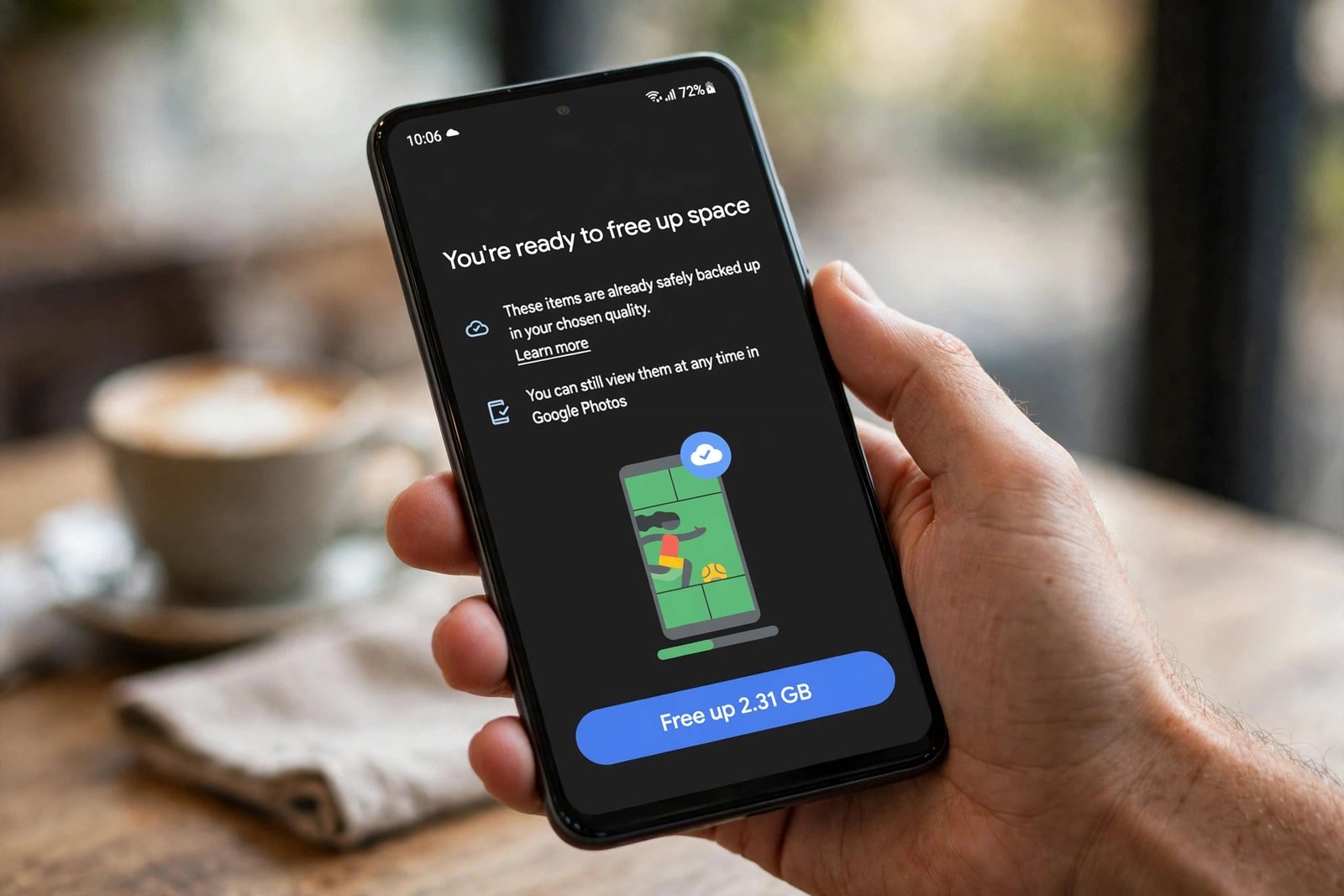
Photos and videos are usually the largest single category, and they are also the easiest to move safely. Open Google Photos, check that backup is switched on, and confirm that recent photos show a backed-up status before you delete anything from the device. If backup is off, switch it on over Wi-Fi and wait for the upload to finish.
Once backup is complete, use the free-up-space option in Google Photos to remove device copies that are already stored in the cloud. This is the single fastest safe win on most phones. Also review screenshots, screen recordings and burst photos, and delete the duplicates you will never use.
Clear the cache safely
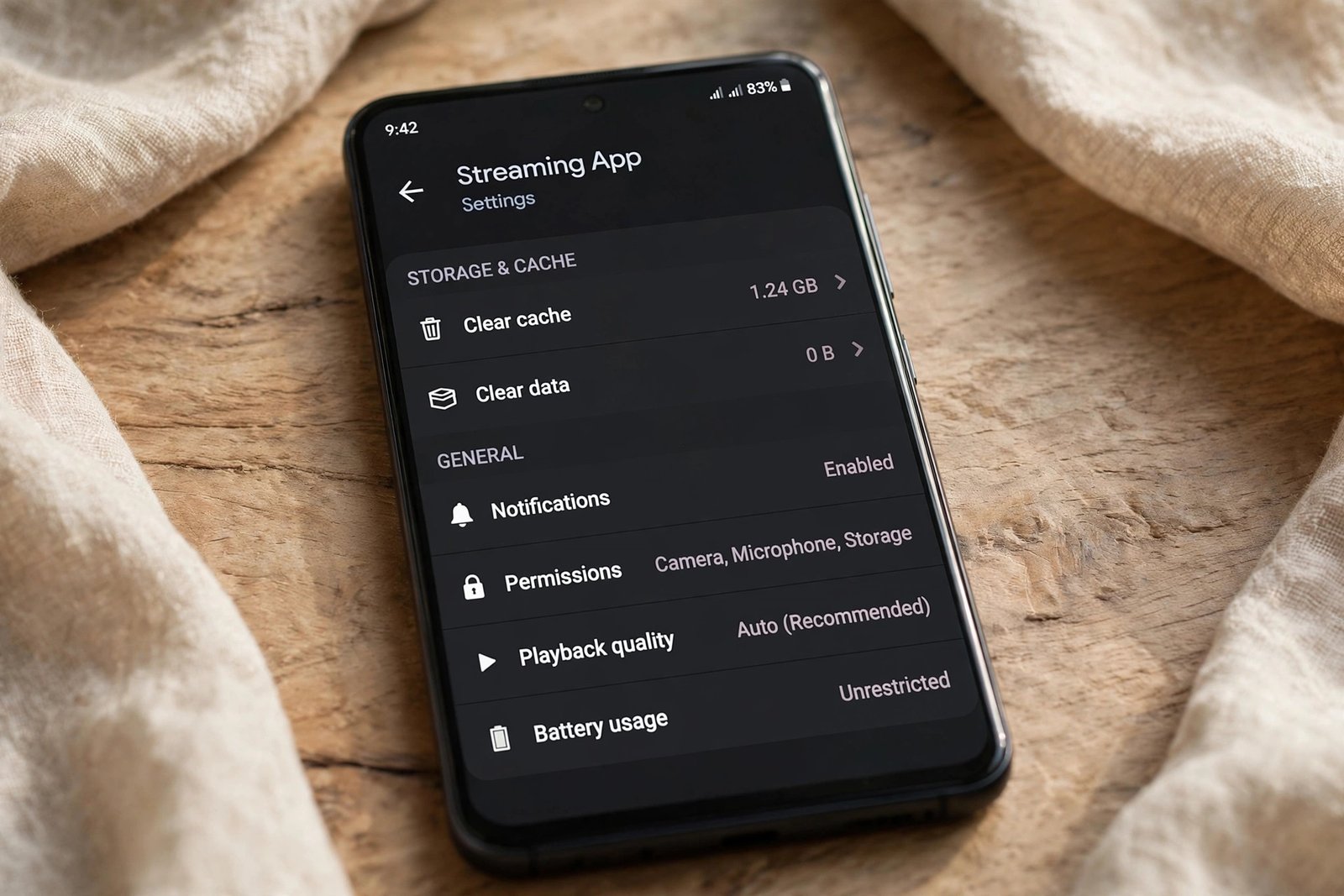
Start with the apps that use the most storage. In Settings, open Apps, choose an app, then open Storage and cache. You will see separate figures for app size, user data and cache. Tap Clear cache to remove temporary files without signing out or losing saved content. Do this first for browsers, streaming apps, social apps and shopping apps.
Do not tap Clear storage, or Clear data, unless you understand the consequence. That option removes accounts, settings, downloaded content and saved progress for that app, and you will need to set it up again. It has a place with an app that keeps misbehaving after a cache clear, but it is not a routine storage step.
Remove apps and files you no longer need
Open the app drawer and be honest about what you actually open. Games you finished, travel apps from a single trip, duplicate photo editors and free trials you never converted are all candidates for removal. In Settings, open Apps and sort by size if your phone offers that option, because a rarely used app that takes up two gigabytes matters more than five small apps you open occasionally.
Check for large downloads next. Open Files, then Downloads, and sort by size. Installation files, PDF manuals, shared videos and old attachments accumulate quietly, and many can be deleted once you have read or watched them. Do the same for offline media: a single downloaded series can use more space than every app on your phone combined.
Comparison table
| Method | Typical space recovered | Risk | Best for |
|---|---|---|---|
| Remove backed-up photos and videos | Several gigabytes | Low, once backup is confirmed | Phones full of photos and videos |
| Clear app caches | Hundreds of megabytes | Low, no sign-out needed | Browsers, streaming and social apps |
| Uninstall unused large apps | Hundreds of megabytes to gigabytes | Low, apps can be reinstalled | Games and apps no longer opened |
| Delete downloads and offline media | Hundreds of megabytes to gigabytes | Medium, check files first | Old PDFs, videos and downloads |
| Clear app data | Varies by app | High, signs you out and resets settings | A single misbehaving app only |
| Factory reset | Most user storage | High, erases everything without a backup | A last resort after a full backup |
Table: The fastest ways to free up Android storage, ranked by typical space recovered and risk.
The 15-minute storage checklist
Work through this list in order, and stop as soon as you have enough free space. There is no prize for emptying the phone completely.
- Check Settings, then Storage, and note the largest category before deleting anything.
- Confirm Google Photos backup is complete, then use free-up-space to remove backed-up copies.
- Delete old screenshots, duplicates and screen recordings you no longer need.
- Clear the cache for your three largest apps, starting with the browser and streaming apps.
- Uninstall two or three large apps you have not opened in the past month.
- Delete large files in Downloads, then remove finished offline films, playlists and podcasts.
- Restart the phone, recheck Storage, and confirm at least a few gigabytes are free.
If the phone is still nearly full after that pass, repeat the photo and app steps rather than reaching for a reset.
Keep storage free without constant clear-outs
Set Google Photos to back up over Wi-Fi and free up space monthly, rather than waiting for a warning. Turn off automatic downloads in messaging apps, so shared videos and photos do not fill the phone by default. In WhatsApp, you can change media auto-download settings and review large files in storage settings before they become a problem.
Review new apps after a month. If you installed an app for one task and never opened it again, remove it while you still remember why you installed it.
When a clear-out is not enough
Some phones ship with 32GB or 64GB of storage, and on those models the system itself can leave very little room for apps and media. If you have removed photos, apps and downloads and still have less than a gigabyte free, check for a system update, restart the phone, and look for a single app using an unusually large amount of data.
A factory reset is the last option, not the first. It erases apps, accounts and files, and it only helps if you restore selectively afterwards. Before you consider it, back up photos, messages, contacts and files, and list the apps you actually need.
For a related performance problem, a slow phone is often a storage problem in disguise, and the same clear-out helps there too. If your phone still feels sluggish after freeing space, read why your Android phone is slow to check the other common causes. If overheating is part of the picture, the charging and heat guidance in how to fix a phone that overheats while charging is a useful next check. And if you are weighing a replacement, how to choose a smartphone will help you pick a model with enough storage to avoid the same squeeze.
FAQs
Will clearing the cache delete my photos or messages?
No. Clearing the cache removes temporary files only, and your photos, messages, contacts and saved files stay in place. Clearing app data is different: that option can sign you out and remove saved settings.
How much free space should I keep on Android?
Aim for at least a few gigabytes free, and more if you record video often. Android needs working room for system updates, app updates and temporary files.
Why does my storage fill up again so quickly?
Messaging apps, cameras and streaming apps are the usual causes. Shared photos and videos download automatically, new photos are large, and offline playlists and films add up. Turn off automatic media downloads and back up photos regularly.
Is it safe to delete the Downloads folder?
It is safe if you check the files first. The folder often holds installation files, PDFs and shared videos you no longer need, but it can also hold a ticket, a form or a document you still need.
Should I use a cleaner app to free up space?
The built-in tools in Settings and Google Files are usually enough, and they do not need extra permissions. Third-party cleaner apps can help in some cases, but many show ads, request broad access or promise more than they deliver.
Conclusion
Freeing up storage on Android is a practical job, not a technical one. Check what is using the space, back up your photos before you delete them, clear caches, remove the apps and files you no longer need, and restart to confirm the result. Most phones recover several gigabytes from those steps alone. Make it a monthly habit, and keep a few gigabytes free, so the next storage warning never catches you out.