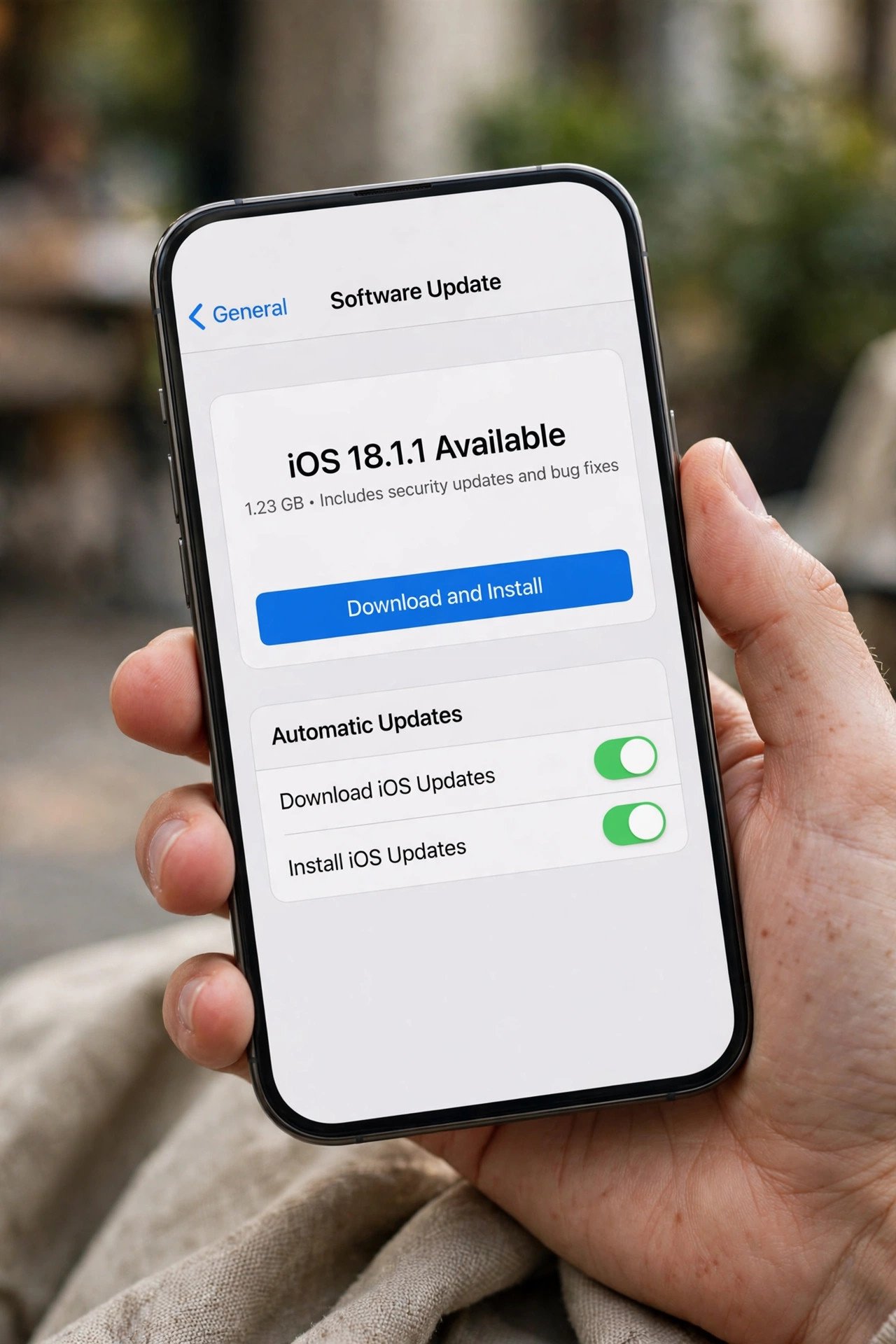
Your iPhone says an update is available, you tap Download and Install, and then nothing happens — or the progress bar freezes halfway. Learning how to fix iPhone not updating to latest iOS usually starts with a simple cause, not a broken phone. In most cases the answer is storage, Wi-Fi, battery, or a setting that quietly blocks the download, and you can fix it in under half an hour.
That is the reassuring part. Apple designs updates to fail safely rather than install halfway, so a stuck download is the phone protecting itself. Find which check is failing, clear it, and try again in the right order, stopping as soon as the update succeeds.
Key takeaways
- Check the basics first: your iPhone needs a supported model, enough free storage, stable Wi-Fi, and at least 50% battery or a charger.
- Free space is the most common fix: updates need several gigabytes free, even though the download itself may look smaller.
- A restart solves more than you expect: it clears temporary glitches that block downloads and verification.
- Updating with a computer is the best fallback: if over-the-air updating fails, a Mac or Windows PC can install the same update reliably.
- Back up before the bigger fixes: a backup means a reset or restore is an inconvenience, not a disaster.
Why your iPhone will not update
Apple separates an update into three stages: download, preparation, and installation. If the download will not start, the cause is usually Wi-Fi, storage, or Apple’s servers. If it downloads but will not prepare, storage or a corrupted file is likely. If it fails during installation, battery, a beta profile, or a deeper software fault is more likely.
Age matters too. Apple supports each iPhone model for a set number of years, and eventually a model stops receiving major iOS versions, though it may still receive security updates. Check your model and version in Settings, under General and then About.
Server load is another quiet factor. On the day a major release arrives, millions of people download it at once, and the update may crawl or fail, then work perfectly the next morning.
Before you start: the five-minute checks
Check your connection. Updates download over Wi-Fi by default, and a weak or captive network — the kind in hotels and offices that asks you to sign in on a web page — can stall the download. Switch to a strong home Wi-Fi network and stay near the router.
Check your battery. Your iPhone will not install an update on low battery. Plug it in, or make sure it is above 50% before you begin. A phone that dies halfway through installation is one of the few ways a routine update can turn into a real problem.
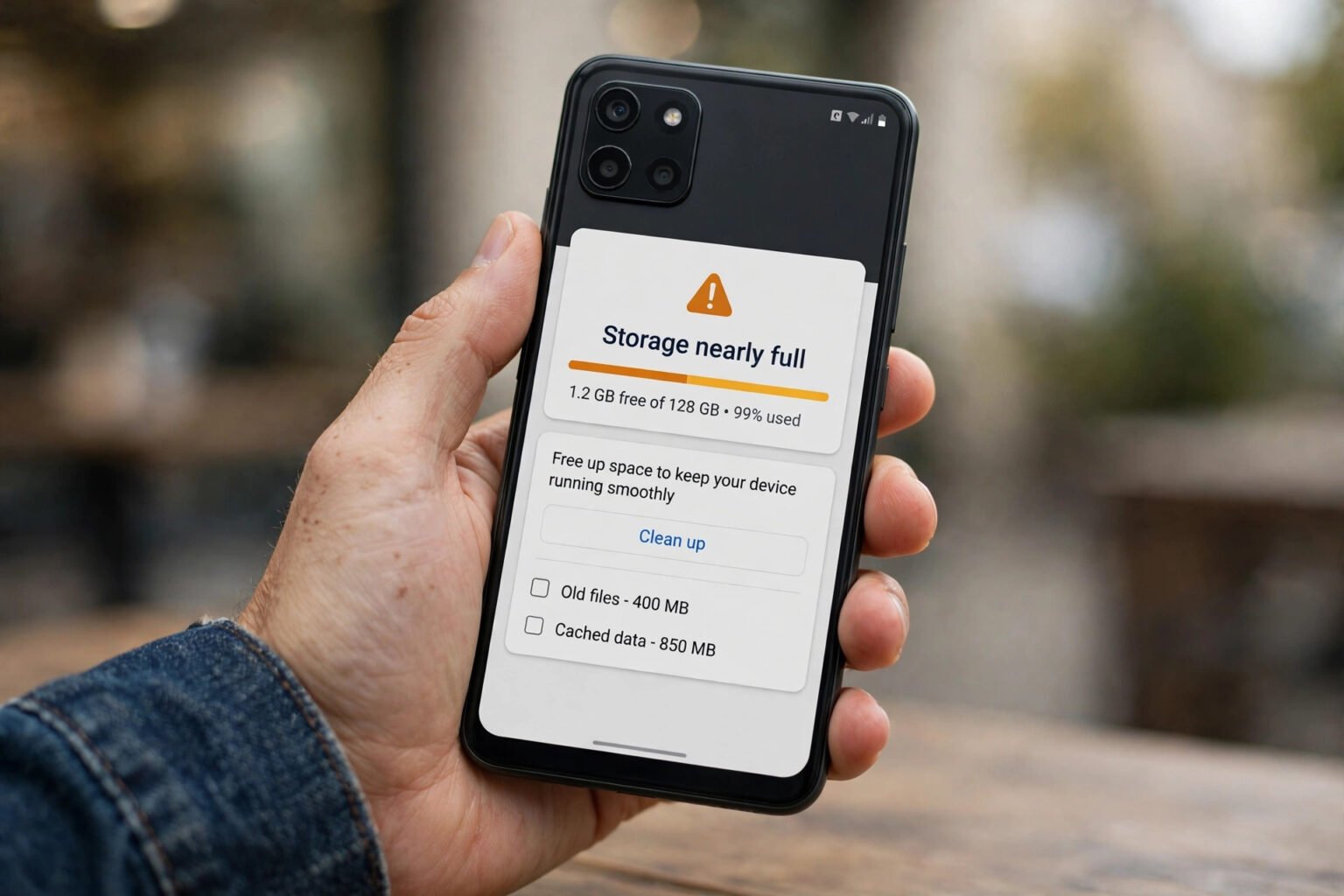
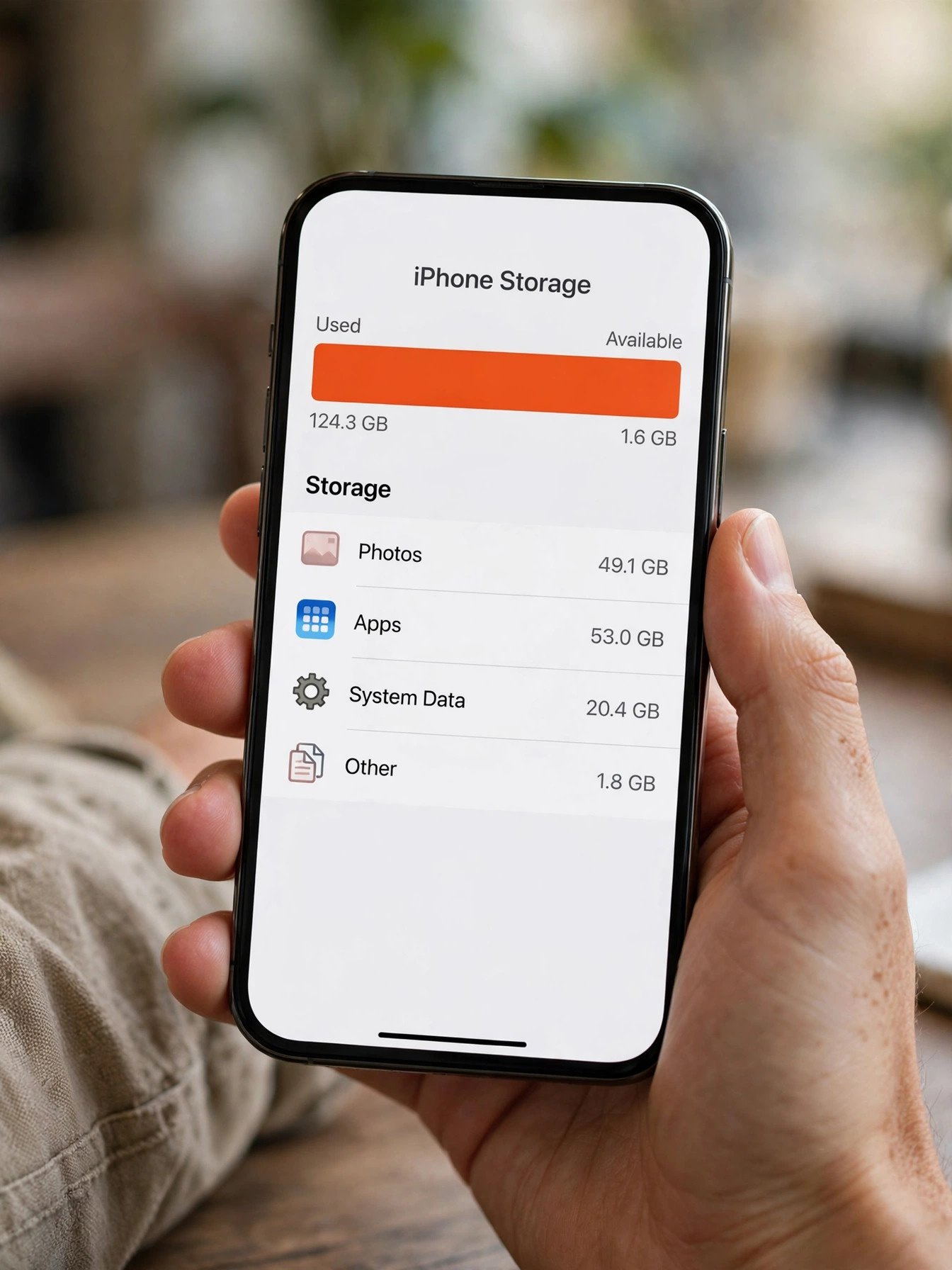
Check your storage. Go to Settings, then General, then iPhone Storage. The update needs free space well beyond the download size, because iOS unpacks and verifies the files first. Aim for at least 6GB free. The storage screen suggests the biggest wins: offloading unused apps, deleting old downloads, and clearing large message attachments. For a fuller tidy-up, see our guide to clear cache on iPhone.
Check the date and time. An incorrect date or time can stop an update from verifying. Make sure Set Automatically is switched on under Settings, then General, then Date and Time.
The fixes, in order
Work through these one at a time. Try the update again after each step, and move on only if it still fails.
1. Restart your iPhone
A restart clears temporary files that can interfere with a download. On iPhones with Face ID, press and hold the side button and either volume button, drag the slider, wait 30 seconds, then hold the side button until the Apple logo appears. On iPhones with a Home button, hold the side button until the slider appears instead.
2. Delete the update and download it again
Sometimes the downloaded file itself is corrupted. Go to Settings, then General, then iPhone Storage, find the iOS update, tap it, and choose Delete Update. Then return to Software Update and download it again over stable Wi-Fi.
3. Free up more space
Photos and videos are usually the biggest occupiers, followed by apps you have not opened in months. Offloading an app removes the app but keeps its data, so you can reinstall it later. Delete downloaded films and podcasts you have already watched, and check Messages for threads full of photos and videos.
Battery health plays a part too: a badly degraded battery may shut down during installation. If yours struggles to hold a charge, check how to check iPhone battery health before you blame the update itself.
4. Check for a VPN, beta profile, or restriction
A VPN can slow or block Apple’s servers, so turn it off temporarily while the update downloads. If you once installed an iOS beta profile, your phone may be looking for beta software instead of the public release. Check under Settings, then General, then VPN and Device Management, and remove the profile to return to the normal update path.
5. Update using a computer
If over-the-air updating keeps failing, a computer is the most reliable fallback. Connect your iPhone to a Mac, open Finder, select your iPhone, and click Check for Update. On Windows, or on older Macs, use the Apple Devices app or iTunes the same way. The computer downloads the full update and installs it over the cable, avoiding Wi-Fi problems entirely.
Make a backup first if you have not already — a Finder or iTunes backup takes a few minutes and gives you a safety net. If you ask an AI assistant for troubleshooting help, keep private details such as passcodes and serial numbers out of the conversation, as our guide to how to use AI safely at work without sharing private data explains.

6. Reset network settings
If the update downloads slowly or fails partway, resetting network settings can clear a corrupted configuration. Go to Settings, then General, then Transfer or Reset iPhone, then Reset, and choose Reset Network Settings. This erases saved Wi-Fi passwords, so make sure you know yours first. Reconnect to Wi-Fi and try again.
7. Restore as a last resort
If nothing else works, a restore reinstalls iOS from scratch. Connect to a computer, back up first, then choose Restore iPhone in Finder or iTunes. If a restore also fails, or the computer cannot recognise the phone, the problem is more likely hardware — visit Apple Support or an authorised service provider.
Which fix fits your symptom?
| Symptom | Most likely cause | Try first | Time needed |
|---|---|---|---|
| Update will not download, or is very slow | Weak Wi-Fi, busy servers, or a VPN | Strong Wi-Fi, VPN off, try later | 5–15 minutes |
| "Not enough storage" or stuck on Preparing Update | Too little free space | Free at least 6GB, delete the update and retry | 10–20 minutes |
| Update button greyed out or no update shown | Unsupported model, beta profile, or restriction | Check compatibility and profiles | 5 minutes |
| Update downloads, then fails | Corrupted download | Delete update, restart, reset network settings | 15–30 minutes |
| Phone freezes during installation | Low or degraded battery | Charge fully, update with a computer | 30–60 minutes |
| Nothing works, including a computer update | Software fault or hardware issue | Back up, then restore; seek support | 1–2 hours |
Table 1: Common iPhone update symptoms, their likely causes, and the fix to try first.
Checklist: get your iPhone ready to update
- Model supported: your iPhone appears on the compatibility list for the iOS version you want.
- Storage free: at least 6GB free, checked in Settings, then General, then iPhone Storage.
- Wi-Fi strong: connected to a reliable home network, close to the router, VPN switched off.
- Battery charged: above 50%, or plugged into a charger for the whole process.
- Backup done: backed up to iCloud or a computer, so a reset is safe if it comes to that.
- Update file fresh: any old, half-downloaded update deleted from iPhone Storage.
- Date and time automatic: Set Automatically switched on, so verification can succeed.
- No beta profile: no iOS beta profile installed, unless you meant to be on the beta.
- Time allowed: at least an hour set aside, with the phone left alone while it installs.
If you cannot tick the storage box, free space first — the update will usually follow. If you cannot tick the model box, keep the phone on the latest version it does support.
Frequently asked questions
Why does my iPhone say there is not enough storage?
The update needs more free space than the download size, because iOS unpacks and verifies the files first. Aim for at least 6GB free.
How long should an iPhone update take?
Most updates download in 10–30 minutes and install in another 15–30 minutes. A major release on launch day can take considerably longer.
Can I update my iPhone using mobile data?
Some iPhones allow updates over 5G, depending on settings and carrier. Wi-Fi is still the safer choice for large updates.
Will updating delete my photos and apps?
No, a normal update should leave everything in place. Back up first anyway, so a restore can bring everything back if something goes wrong.
What if my iPhone is stuck on the Apple logo after an update?
Leave it for at least 30 minutes, then force-restart it. If it is still stuck, connect it to a computer and update or restore it there.
A calm way forward
Start with storage, Wi-Fi, and battery, restart the phone, and delete and re-download the update if you need to. Those steps fix the great majority of cases; a computer update handles most of the rest. Check your storage and battery now, plug the phone in, and try once more on strong Wi-Fi. If it still fails after a computer update and a restore, book a support appointment.