Learning how to back up WhatsApp chats on iPhone takes about two minutes, and it is the only thing standing between your messages and a lost, broken or replaced phone.
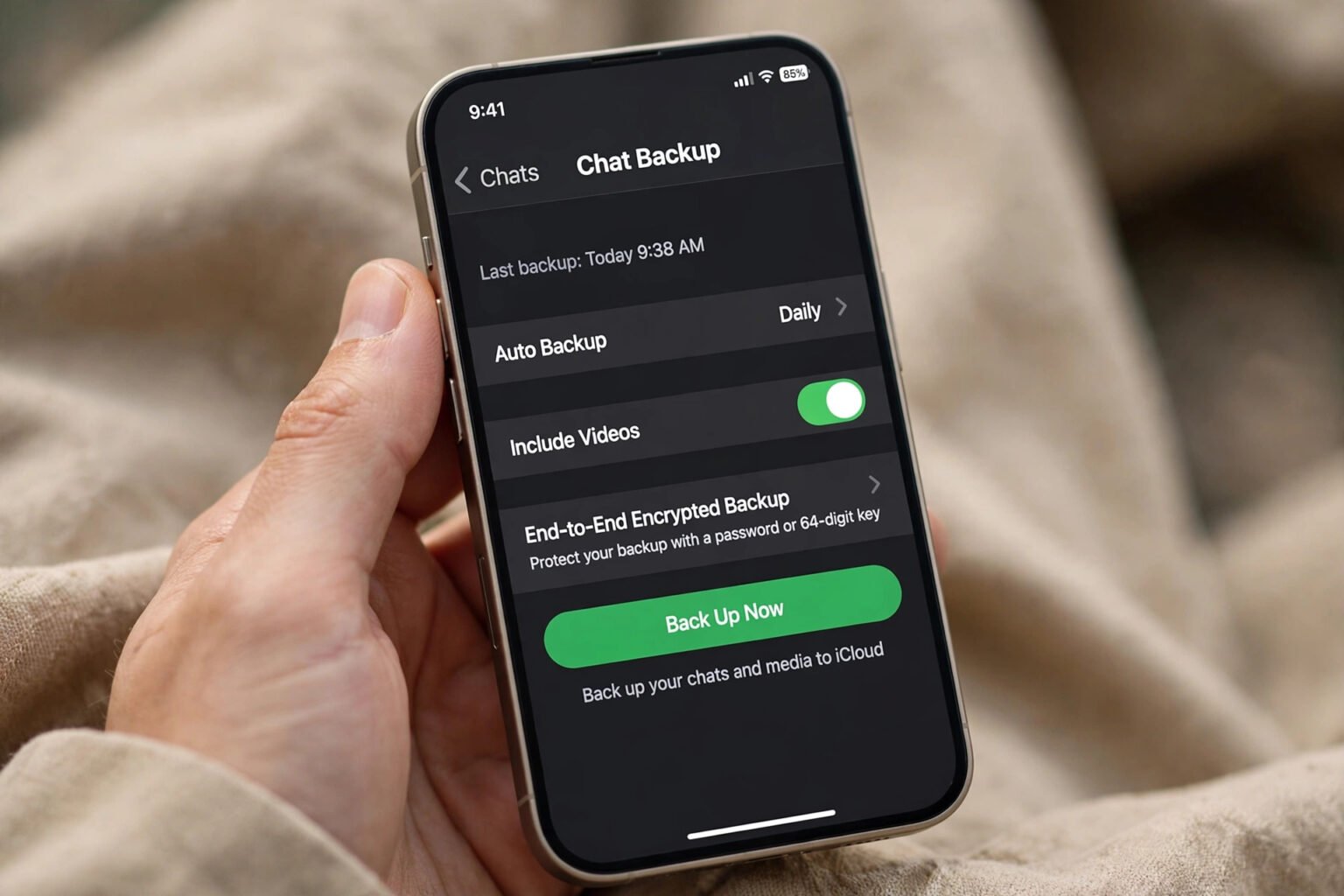
WhatsApp on iPhone backs up to iCloud: switch it on inside WhatsApp under Settings, then Chats, then Chat Backup. Tap Back Up Now, and your messages — and your photos and videos, if you choose — are copied to iCloud, ready to restore when you reinstall WhatsApp.
Key takeaways
- WhatsApp on iPhone backs up to iCloud, not to WhatsApp’s own servers — you need iCloud on and enough free storage.
- Turn it on in WhatsApp under Settings, then Chats, then Chat Backup, and tap Back Up Now.
- A backup includes your messages and media — but videos only if you switch on Include Videos.
- Restoring only works with the same phone number and Apple ID, on a phone signed in to iCloud.
- Most failed backups come down to three things: no free iCloud space, no Wi-Fi, or iCloud Drive switched off.
How WhatsApp backup works on iPhone
WhatsApp does not store your chat history on its own servers. Once a message is delivered, it lives on your phone — and on iPhone, the backup copy goes to iCloud.
A backup captures your chats, including text, photos, voice messages and documents. Videos are the exception: they are excluded unless you switch on Include Videos, because video files are large and can fill a small iCloud plan quickly.
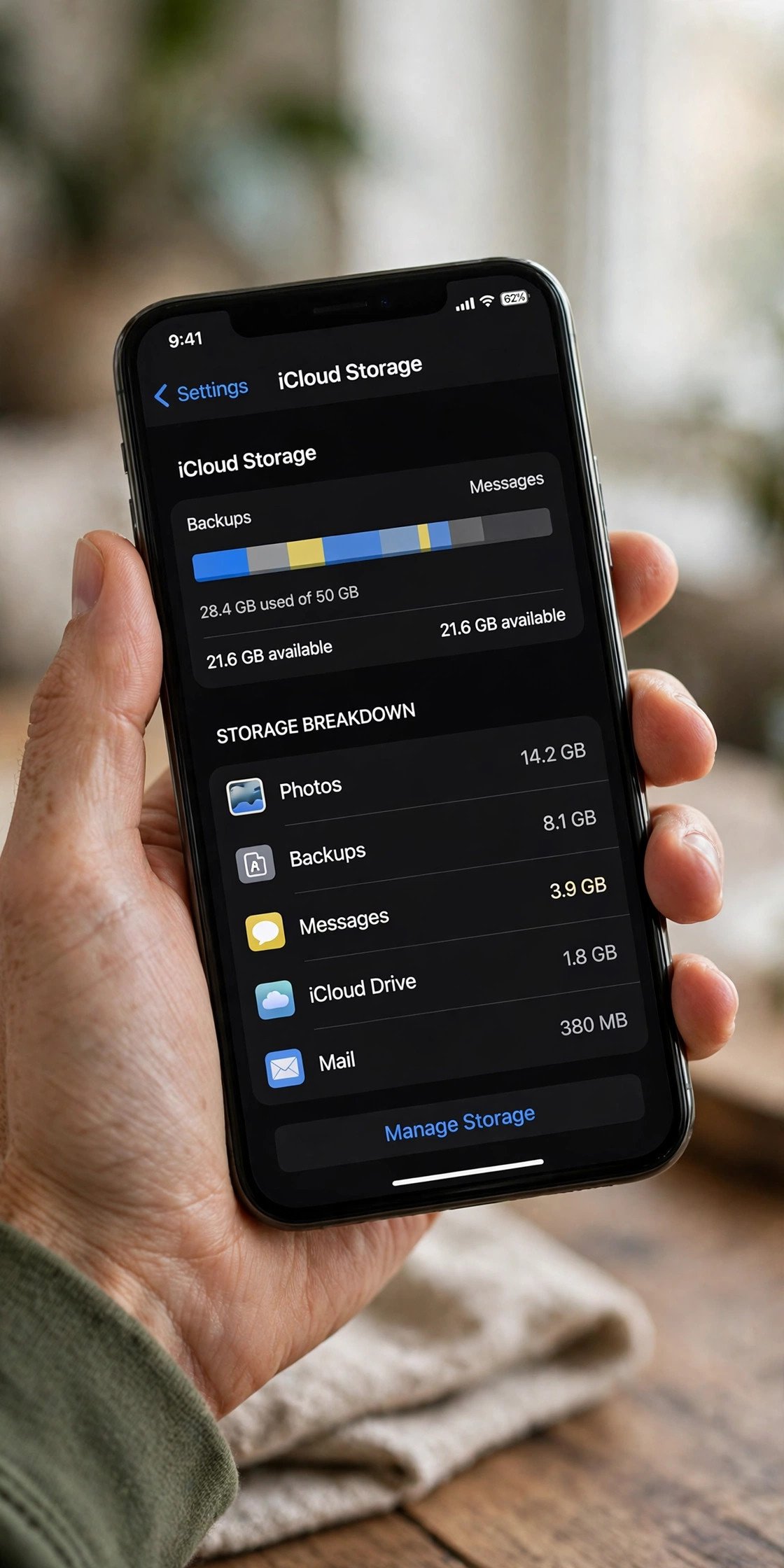
Apple gives every iCloud account 5 GB of free storage, and a WhatsApp backup counts against it. A light user may use only a few hundred megabytes, but a heavy user with years of photos and videos can need several gigabytes — and if the backup is larger than your free space, it will fail.
You can back up manually, or set WhatsApp to back up automatically: daily, weekly or monthly. Automatic backup is safer, because a manual backup only protects you up to the last time you remembered to tap the button.
A backup does not move your chats to a new phone on its own. It stores a copy in iCloud; you still need to restore it when you set up WhatsApp on the new phone, using the same phone number and Apple ID.
How to back up WhatsApp chats on iPhone
The whole process takes a few minutes, plus the upload time. Do it over Wi-Fi, with the phone plugged in if the backup is large.
1. Check iCloud is switched on
Open Settings, tap your name, then iCloud, and make sure iCloud Drive is switched on and WhatsApp may use iCloud.
You need to be signed in with the Apple ID you want the backup tied to — a backup can only be restored with the same account.
2. Check you have enough iCloud storage
In the same iCloud screen, your storage usage is shown at the top — compare it with your backup size, shown on the Chat Backup screen.
If you are short of space, free some up, or consider a paid iCloud plan, sold by Apple as a monthly subscription.
3. Switch on the backup in WhatsApp
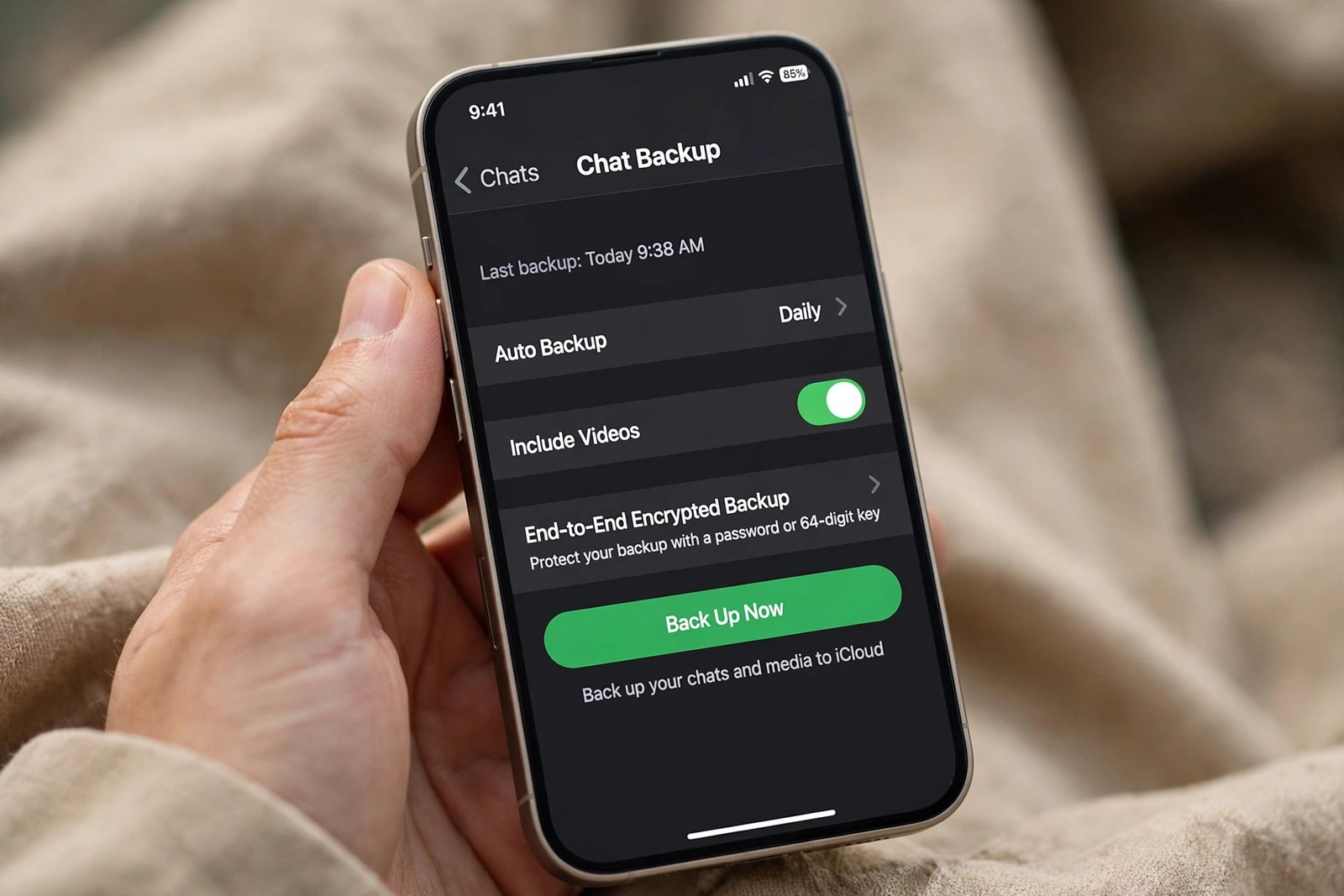
Open WhatsApp, tap Settings, then Chats, then Chat Backup. Here you will see the date and size of your last backup, if there is one.
Tap Back Up Now to start a backup straight away. Leave WhatsApp open and the phone on Wi-Fi until it finishes — closing the app can interrupt the upload, and a partial backup is no use to anyone.
4. Turn on automatic backup
On the same screen, tap Auto Backup and choose Daily, Weekly or Monthly. Daily is best, because it limits what you can lose to a single day.
Decide about videos at the same time. Switch on Include Videos only if you have the iCloud space; if storage is tight, leave videos off.
What a WhatsApp backup includes — and what it does not
Not everything in WhatsApp is covered. This table sets out what you would get back.
| Item | Included in backup? | Notes |
|---|---|---|
| Text messages | Yes | All chats, including group chats |
| Photos | Yes | Included by default |
| Voice messages | Yes | Included with their chat |
| Documents and files | Yes | Included, within iCloud storage limits |
| Videos | Only if switched on | Turn on Include Videos |
| WhatsApp call history | No | Calls are not part of the chat backup |
| Settings and preferences | Partly | Some restore; others need setting up again |
| Chats on another phone | No | Restores only to the same number |
| Deleted chats | No | Only chats that existed when it ran |
Table: What an iPhone WhatsApp backup includes
The last row matters most. A backup is a snapshot of the moment it ran: if you delete a chat and then back up, the deleted chat is gone from the backup too. If you are trying to recover something already deleted, our guide to recovering deleted messages on iPhone explains what is still possible — and what is not.
How to restore a WhatsApp backup on iPhone
Restoring is straightforward, but it only works at one moment: when you first install WhatsApp. There is no way to restore a backup into an existing installation without deleting the app and starting again.
First, check that the phone is signed in to iCloud with the same Apple ID and the same phone number. A backup is tied to both, and a mismatch means WhatsApp will not find it.
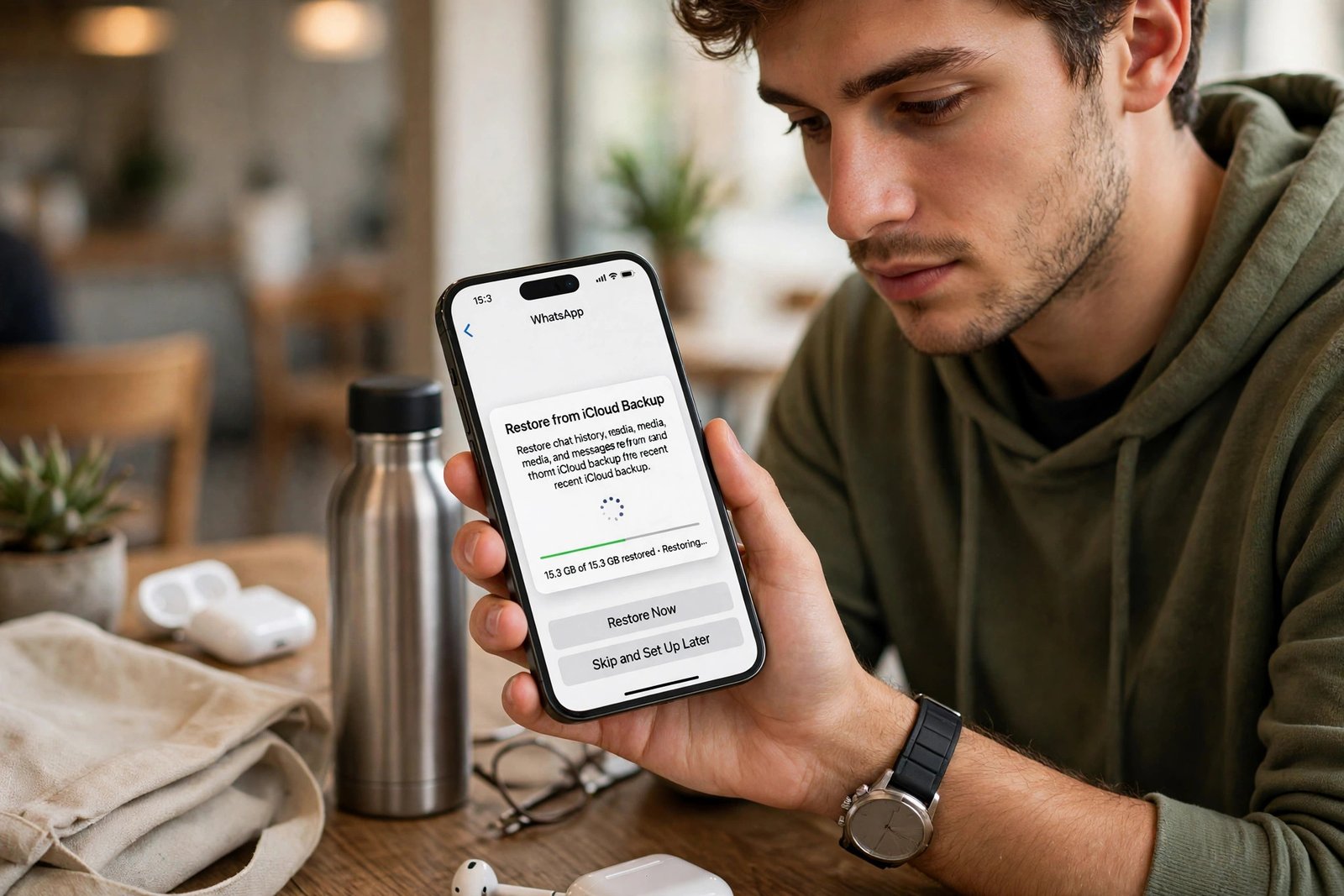
Install WhatsApp, open it, and verify your phone number. WhatsApp will look for a backup in iCloud and offer to restore your chat history — tap Restore Chat History and wait. Messages come back first, and media follows in the background.
Do not start chatting before the restore finishes. Give it time, especially on a large backup, and keep the phone on Wi-Fi until the media has finished downloading.
Moving between phones is different: moving from Android to iPhone uses WhatsApp’s transfer feature, and our guide to transferring WhatsApp from Android to iPhone walks through it step by step.
When a backup fails: the common causes
A backup that will not run is frustrating, but the cause is almost always one of a handful of problems — work through them in order.
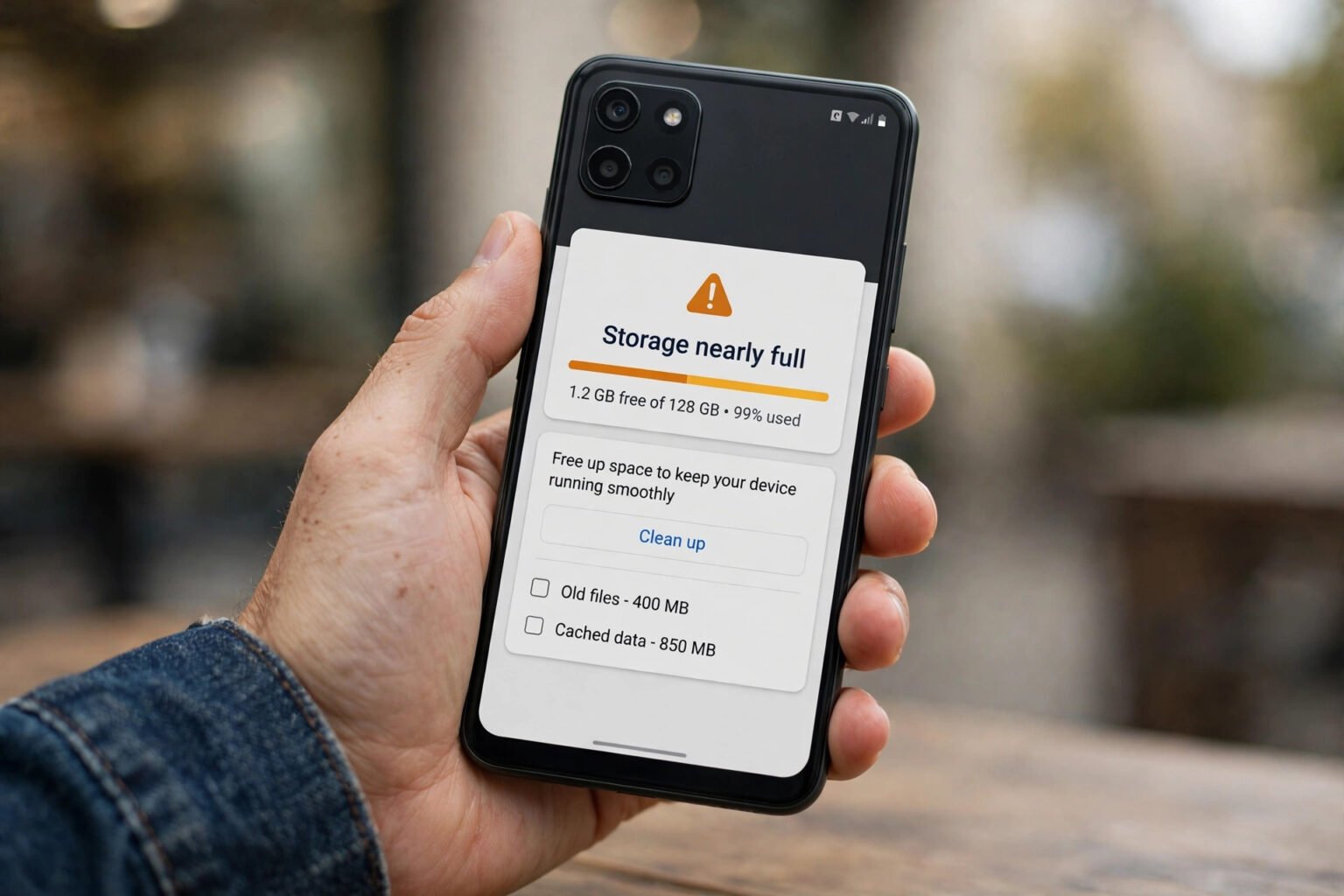
The most common is storage: if your iCloud is full, the backup stops. Free up space, or check for an old device backup using gigabytes you have forgotten about.
The second is connection. WhatsApp backups need Wi-Fi, and a weak connection will stall the upload. Try a different network. Large backups can also take an hour or more, so one that looks stuck may simply be slow.
The third is iCloud Drive. If it is switched off, or WhatsApp may not use iCloud, the backup has nowhere to go. Check both under your name, then iCloud.
If the backup still fails, restart the iPhone and try again. If it fails on one network but works on another, the network is the problem. And if the backup size is far larger than you expect, look for a group chat full of videos — one busy group can account for most of it.
Making your backup private: encryption
A standard iCloud backup is protected by Apple’s account security, but WhatsApp also offers end-to-end encrypted backup: with it switched on, the backup is locked with a password or a 64-digit key that only you hold, and neither WhatsApp nor Apple can read it.
Switch it on in WhatsApp under Settings, then Chats, then Chat Backup, then End-to-end Encrypted Backup. WhatsApp will ask you to create a password or generate a key — choose the password option, and store it safely. If you forget it, the backup cannot be restored, and nobody can recover it for you.
This matters most if your chats include work or sensitive personal information: a backup is a copy of your conversations sitting in a cloud account. If work messages are involved, our guide to using AI safely at work without sharing private data makes the same point in a wider context — treat anything that leaves your phone as a deliberate privacy decision.
For most people, the standard backup is enough. Encryption is worth it if your chats contain anything you would not want read by someone with access to your iCloud account.
The backup checklist: set it up once, check it twice a year
A backup you never check is one you cannot rely on. Use this checklist to set it up properly, then repeat the checks every six months.
- ☐ iCloud Drive is switched on, and WhatsApp is allowed to use iCloud.
- ☐ You have enough free iCloud storage for the backup.
- ☐ Auto Backup is set to Daily or Weekly — not Off.
- ☐ Include Videos is set the way you want it, based on your storage.
- ☐ A manual backup has completed successfully at least once.
- ☐ You know which Apple ID the backup is tied to, and you can sign in to it.
- ☐ If encryption is on, the password or key is stored safely.
- ☐ The date of the last backup is recent — within the past week.
The last item is the one to check most often. Open WhatsApp, go to Settings, then Chats, then Chat Backup, and look at the date. If it is older than you expect, something has stopped the automatic backup.
Frequently asked questions
How do I back up WhatsApp chats on iPhone without iCloud?
There is no built-in alternative on iPhone: WhatsApp backs up only to iCloud. You can export individual chats as files, but that is a one-off export, not a backup you can restore from.
Can I restore a WhatsApp backup to a different phone number?
No. A backup is tied to the phone number it was made with, and to the Apple ID signed in to iCloud. If you change your number, use WhatsApp’s Change Number feature first, so the backup moves with the new number.
Why is my WhatsApp backup stuck or taking so long?
The usual reasons are a large backup, a slow Wi-Fi connection, or iCloud running low on space. Leave the phone on Wi-Fi with WhatsApp open and give a large backup an hour or more.
Does WhatsApp back up automatically on iPhone?
Only if you switch it on. Go to Settings, then Chats, then Chat Backup, tap Auto Backup, and choose Daily, Weekly or Monthly.
What happens to my WhatsApp backup if I delete the app?
The backup stays in iCloud, tied to your phone number and Apple ID. Reinstall WhatsApp, verify the same number, and you will be offered the chance to restore it. It is only lost if you delete it from iCloud, or if a newer backup made after the chats were deleted replaces it.
The bottom line
Backing up WhatsApp on iPhone is a two-minute job that protects years of messages, photos and memories. Switch on iCloud Drive, open Chat Backup, tap Back Up Now, and set Auto Backup to daily.
The one mistake to avoid is assuming it is already working. Open the Chat Backup screen now and check the date of the last backup. If it is old — or if there has never been one — run a manual backup today, on Wi-Fi and plugged in. That single check takes ten seconds.