Learning how to fix laptop keyboard not working starts with one simple test: does an external keyboard type normally? A laptop keyboard that has stopped responding is often fixable at home, and the cause is usually software rather than a broken keyboard. Corrupt drivers, an accessibility setting, a wrong language layout, or debris under a key account for most failures. The short answer is this: restart the laptop, plug in an external keyboard to isolate the fault, check Filter Keys on Windows or Slow Keys on Mac, reinstall the keyboard driver, and clean the keys gently.
Key takeaways
- Test with an external keyboard first. If it types, the operating system can still accept input.
- Restart properly. A full shutdown and restart clears more than sleep or closing the lid.
- Filter Keys on Windows and Slow Keys on Mac can make a healthy keyboard seem dead.
- Reinstalling the keyboard driver in Device Manager fixes many Windows failures after an update.
- If keys fail in BIOS or UEFI as well as in Windows or macOS, the fault is probably hardware.
First, isolate the fault in two minutes
Plug in a USB keyboard and type in a text field. If the external keyboard works, your operating system and USB ports are functioning, and the fault is isolated to the built-in keyboard. If it also fails, the problem is broader, and a restart or a driver check is the better place to start. Open the on-screen keyboard so you can keep working: on Windows, search for On-Screen Keyboard; on a Mac, turn it on in System Settings, then Accessibility, then Keyboard. Finally, check Num Lock, Fn Lock and the language or input source. A switched layout can make familiar keys produce unfamiliar characters, which looks like a fault when it is only a setting.

Test the keyboard outside the operating system
Restart the laptop and enter its firmware settings — BIOS or UEFI — using the key shown on the startup screen, often F2, Delete or Esc. Try the arrow keys to move around the menu. If the keys respond in BIOS or UEFI but fail inside Windows or macOS, the keyboard hardware is alive. The fault sits in a driver, a setting or a background app, and the software fixes below should resolve it. If no keys respond in firmware either, cleaning and software tweaks rarely help. That points to a physical connection fault or a failed keyboard, and a repairer is the sensible next step. Note the pattern too: all keys failing points to a driver or a setting, while a few dead keys in a row may point to debris or liquid.
Fix 1: Restart properly and close interfering apps
A full restart — power off, then power on again — clears temporary system states and restarts the keyboard controller. Do not use sleep or hibernate for this test. Shut the laptop down completely, wait a few seconds, and start it again. While you are at it, close apps that remap keys or capture shortcuts. Game overlays, keyboard remapping tools, macro software and some accessibility utilities can intercept keystrokes before they reach the app you are typing in. Quit them one at a time and test after each one.
Fix 2: Turn off Filter Keys and Slow Keys
Windows Filter Keys ignores brief or repeated keystrokes, which can make a working keyboard seem unresponsive or slow. It is easy to switch on by accident, often by holding the Shift key for several seconds. On Windows 11, open Settings, then Accessibility, then Keyboard, and turn Filter Keys off. Turn Sticky Keys off in the same place. On Windows 10, the path is Settings, then Ease of Access, then Keyboard. On a Mac, open System Settings, then Accessibility, then Keyboard, and turn Slow Keys off. Slow Keys delays a keystroke until the key has been held down, which feels exactly like a dead keyboard if you do not know it is on.
Fix 3: Reinstall the keyboard driver on Windows
A keyboard that stopped working after a Windows update is often a driver problem. Reinstalling the driver forces Windows to load a clean copy. Use the on-screen keyboard or an external keyboard to navigate. Right-click the Start button and choose Device Manager. Expand Keyboards, right-click the keyboard device — usually listed as HID Keyboard Device or Standard PS/2 Keyboard — and choose Uninstall device. Restart the laptop. Windows reinstalls the default driver during startup. If that does not work, try updating instead: in Device Manager, right-click the same device and choose Update driver, then Search automatically for drivers.
Fix 4: Run the troubleshooter and check system files
Windows includes a built-in keyboard troubleshooter. Open Settings, then System, then Troubleshoot, then Other troubleshooters, and run the Keyboard troubleshooter. If the troubleshooter finds nothing, run the System File Checker: search for Command Prompt, right-click it, choose Run as administrator, type sfc /scannow, and press Enter. Let the scan finish before you restart and test again. On a Mac, check for a macOS update, and restart in Safe Mode if the fault persists. A keyboard that works in Safe Mode points to a login item or third-party app.
Fix 5: Clean the keyboard safely
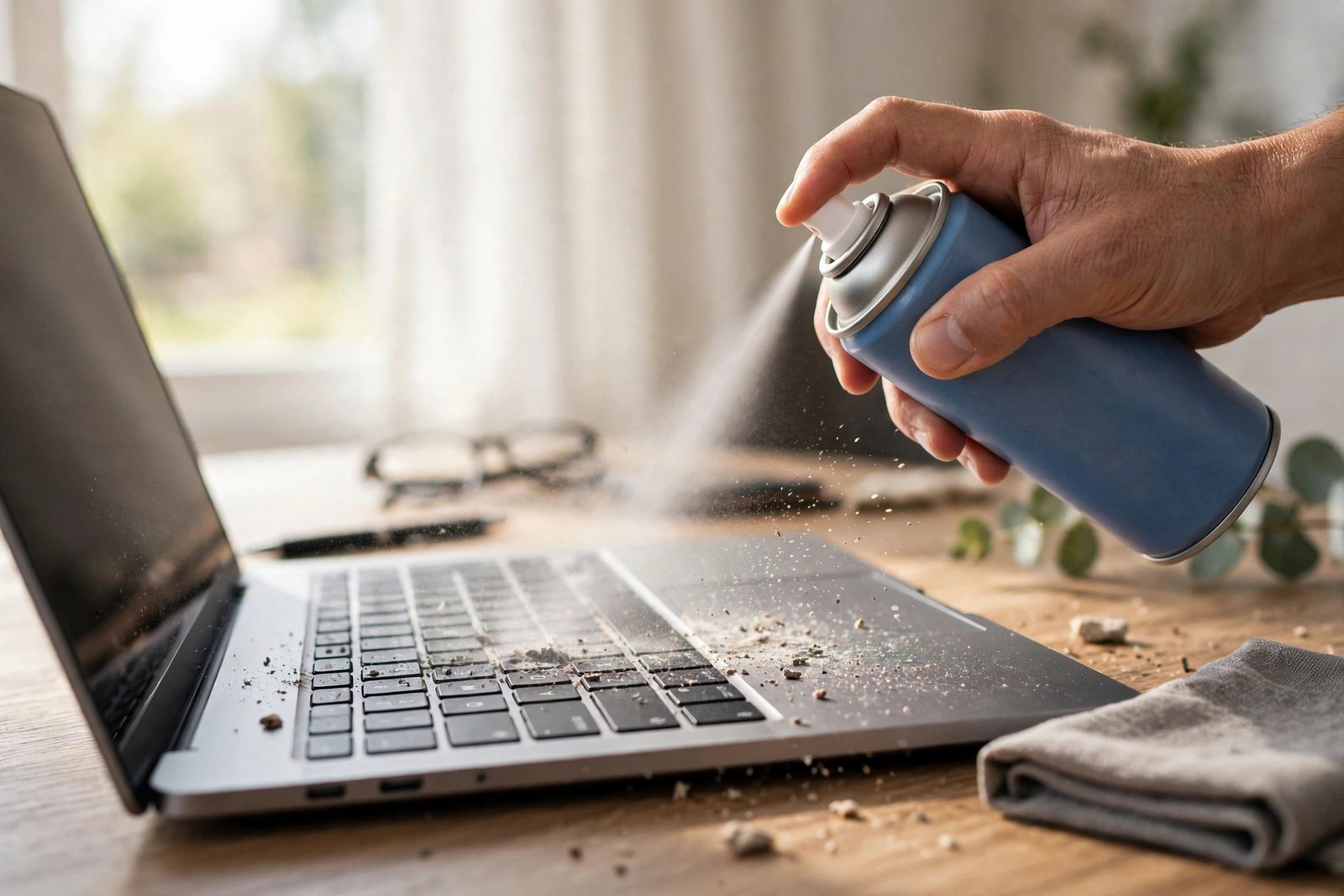
Debris under a key is a common cause of single-key failure. Shut the laptop down completely and hold it at a slight angle so gravity helps debris fall out rather than deeper in. Use short bursts of compressed air across the keys, holding the can upright, and follow with a soft brush. Do not spray liquid cleaner directly onto the keys. For a single stuck key, press it gently several times and try compressed air around its edges. Do not prise the keycap off unless you know how your model is built: the small scissor mechanism beneath it snaps easily. If a spill caused the failure, shut the laptop down at once, unplug it, and do not switch it back on. Leave liquid damage to a repairer.
Fix 6: Mac keyboard checks
Open System Settings, then Keyboard, and confirm the input source matches your language and layout. A US layout on a UK keyboard, or the reverse, swaps several characters and makes typing feel wrong. Check the function-key behaviour in the same pane. For an Intel Mac, an SMC reset can resolve unusual keyboard behaviour when other steps have failed. On older models, shut down, then hold the left Shift, Control and Option keys with the power button for ten seconds. On 2018 and later models with a T2 chip, hold left Control, left Option and right Shift for seven seconds, then add the power button for seven more. Apple silicon Macs have no SMC reset; shut down, wait 30 seconds and restart instead.
What each failure pattern usually means
| What you notice | Likely cause | What to try first |
|---|---|---|
| No keys work, external works | Built-in keyboard fault or driver | Restart, reinstall driver, test in BIOS |
| Keys work in BIOS, fail in OS | Driver, Filter Keys or app conflict | Turn off Filter Keys, reinstall driver |
| Only some keys fail | Debris, liquid or a damaged key | Clean gently with compressed air |
| Keys type the wrong characters | Wrong language or input layout | Switch the layout in Settings |
| Keys lag or repeat letters | Repeat-rate setting or debris | Adjust repeat settings, then clean |
| Keyboard died after an update | Driver conflict | Reinstall driver, check for maker update |
| Nothing works, even in BIOS | Physical connection or keyboard failure | Book a repair; do not open laptop |
Table: Match the failure pattern to the likeliest cause before replacing any hardware.
A practical decision checklist
Work through this list in order, and note the result at each step. The point where typing returns tells you what was wrong.
- Laptop restarted fully, not from sleep.
- External keyboard tested.
- On-screen keyboard enabled for navigation.
- Num Lock, Fn Lock and input language checked.
- Keyboard tested in BIOS or UEFI.
- Filter Keys off on Windows, or Slow Keys off on Mac.
- Remap tools, game overlays and macro apps quit.
- Keyboard driver uninstalled in Device Manager, laptop restarted.
- Windows keyboard troubleshooter run, and
sfc /scannowcompleted. - Keys cleaned gently with compressed air, with no liquid used.
- macOS or Windows updated, and Safe Mode tested on a Mac.
If the keyboard works in BIOS but not in the operating system, keep going through the software steps. If it fails in BIOS as well, stop and book a repair. Do not open the laptop to reseat the cable yourself. If the fan has also become loud, the guide to stop laptop fan noise covers the cleaning behind both problems. If the repair quote makes you weigh a replacement, choose a laptop for video editing sets out what to look for. Once typing is back, how to use Copilot in Excel and Word for beginners shows how to get more from the laptop you already own.
Frequently asked questions
Why did my laptop keyboard suddenly stop working?
The most common causes are a driver fault after an update, Filter Keys or Slow Keys switched on by accident, a background app capturing keystrokes, or debris under the keys. Restart first, test with an external keyboard, and check accessibility settings.
How do I fix a laptop keyboard that is not typing?
Restart the laptop, turn off Filter Keys on Windows or Slow Keys on Mac, and reinstall the keyboard driver in Device Manager. Clean the keys gently with compressed air if only some keys fail.
Why do some keys on my laptop keyboard not work?
Single-key failure is often debris, a stuck key mechanism, or liquid under that key. Clean around the key with compressed air and press it gently several times. If a whole row has failed, the cause may be a damaged membrane or a loose connection.
How do I know if my laptop keyboard is a hardware or software problem?
Test it in BIOS or UEFI. If the keys work there but not in the operating system, the fault is software. If they fail in BIOS as well, the fault is probably hardware.
Can I fix a laptop keyboard after a spill?
Shut the laptop down at once, unplug it, and do not switch it back on or try to dry the inside yourself. Liquid can corrode the keyboard and the board beneath it. Take it to a repairer as soon as you can.
Should I replace the keyboard or buy a new laptop?
Replace the keyboard if the laptop is otherwise in good health and the repair cost is a small share of a replacement. Consider a new laptop if the machine is old, the battery is failing, or the repair quote approaches the price of a comparable replacement.
The bottom line
A laptop keyboard that will not type is frustrating, but it is rarely the end of the machine. Test the fault, restart properly, check the accessibility settings, reinstall the driver, and clean the keys gently. Those steps resolve most failures, and the BIOS test tells you quickly whether you are dealing with software or hardware. Your next step is the external keyboard test: if it types, work through the checklist above.