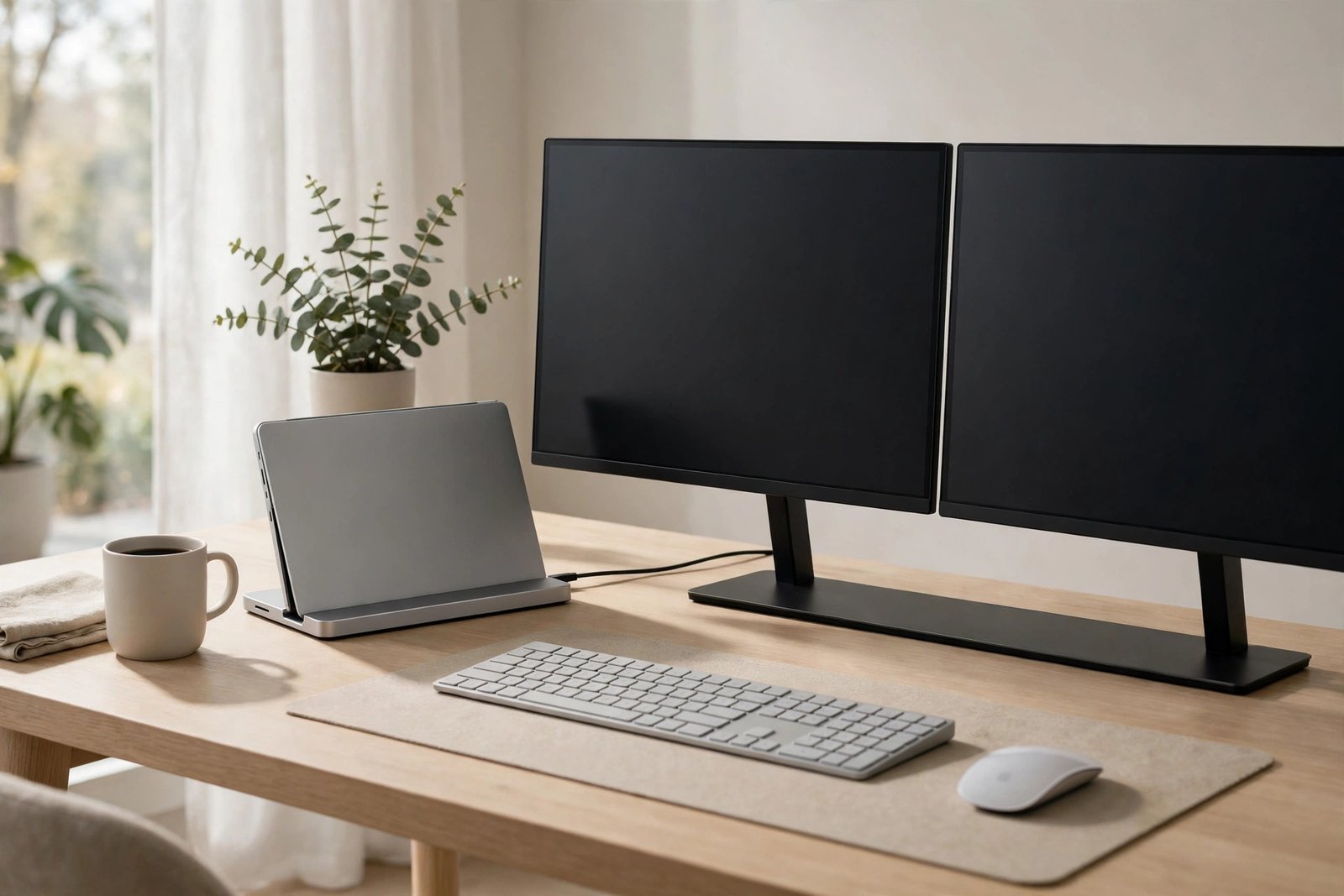
The best laptop docking stations in 2027 turn one cable into a full desk setup. Plug in a single lead and your laptop connects to monitors, a keyboard, a mouse, speakers, storage and power, all at once. If you want a single answer, the CalDigit TS4 is the best all-round docking station for most people, offering a wide range of ports, strong laptop charging and reliable dual-monitor support in one well-made unit.
That assumes you work at a desk most days and want two monitors. If you only need one screen, a simpler and cheaper dock may serve you just as well. This guide compares five leading docks and explains the difference between Thunderbolt and USB-C.
Key takeaways
- The CalDigit TS4 is the best all-round docking station for most desk setups, with broad port choice and strong charging.
- Anker’s 777 Thunderbolt dock is the best alternative for MacBook owners who want a clean, compact hub with plenty of ports.
- The Dell WD22TB4 suits Windows offices best, especially workplaces that already standardise on Dell laptops and monitors.
- Plugable’s TBT4-UD5 is the best value Thunderbolt 4 dock for dual-monitor setups on a tighter budget.
- The Kensington SD5700T is the best choice for shared desks and hot-desking, thanks to its wide compatibility and dual video outputs.
- Check your laptop’s ports before you buy: a Thunderbolt dock needs a Thunderbolt port, while a USB-C dock works with more laptops but offers less bandwidth.
Thunderbolt or USB-C: what is the difference?
Every docking station in this guide connects to your laptop with a single cable, but the type of cable matters. Thunderbolt 4 docks offer far more bandwidth than standard USB-C docks, which means they can drive two high-resolution monitors, transfer files quickly and charge a laptop at the same time without slowing down. They cost more, and they need a Thunderbolt port on your laptop to work at full speed.
USB-C docks are cheaper and work with almost any modern laptop with a USB-C port. They can usually drive one or two monitors, but may struggle with two high-resolution displays at once, and their charging power is often lower. For a single monitor, a USB-C dock is perfectly adequate.
The practical rule is simple: with a Thunderbolt port and two monitors, buy a Thunderbolt dock. With only USB-C, or a single monitor, a USB-C dock will do the job for less money. Check your laptop’s specifications first, because the port symbols are easy to misread.
Best laptop docking stations compared
| Dock | Best for | Connection | Monitors | Price band |
|---|---|---|---|---|
| CalDigit TS4 | Best all-round dock | Thunderbolt 4 | Dual 4K | Premium |
| Anker 777 | MacBook owners | Thunderbolt 4 | Dual 4K | Premium |
| Dell WD22TB4 | Windows offices | Thunderbolt 4 | Dual 4K | Premium |
| Plugable TBT4-UD5 | Best value Thunderbolt 4 | Thunderbolt 4 | Dual 4K | Mid-range |
| Kensington SD5700T | Shared and hot desks | Thunderbolt 4 | Dual 4K | Premium |
Caption: Five leading laptop docking stations compared by connection, monitor support and price band.
CalDigit TS4
Best for: The best all-round docking station for most desk setups.
The CalDigit TS4 has become the default recommendation for a Thunderbolt 4 dock, and for good reason. It offers a generous set of ports on the front and back, including multiple USB-A and USB-C ports, an SD card reader, Ethernet and audio connections. The front ports are easy to reach for a phone cable or a USB drive, while the rear ports suit devices that stay plugged in permanently.
Charging is strong enough for most large laptops, including 15-inch and 16-inch models, so a single cable genuinely replaces the laptop chargeger. Dual-monitor support covers two high-resolution displays. It is a premium dock, but it is the one to buy if you want a dock that handles almost any desk setup without compromise.
Anker 777 Thunderbolt Docking Station
Best for: MacBook owners who want a compact, well-designed dock.
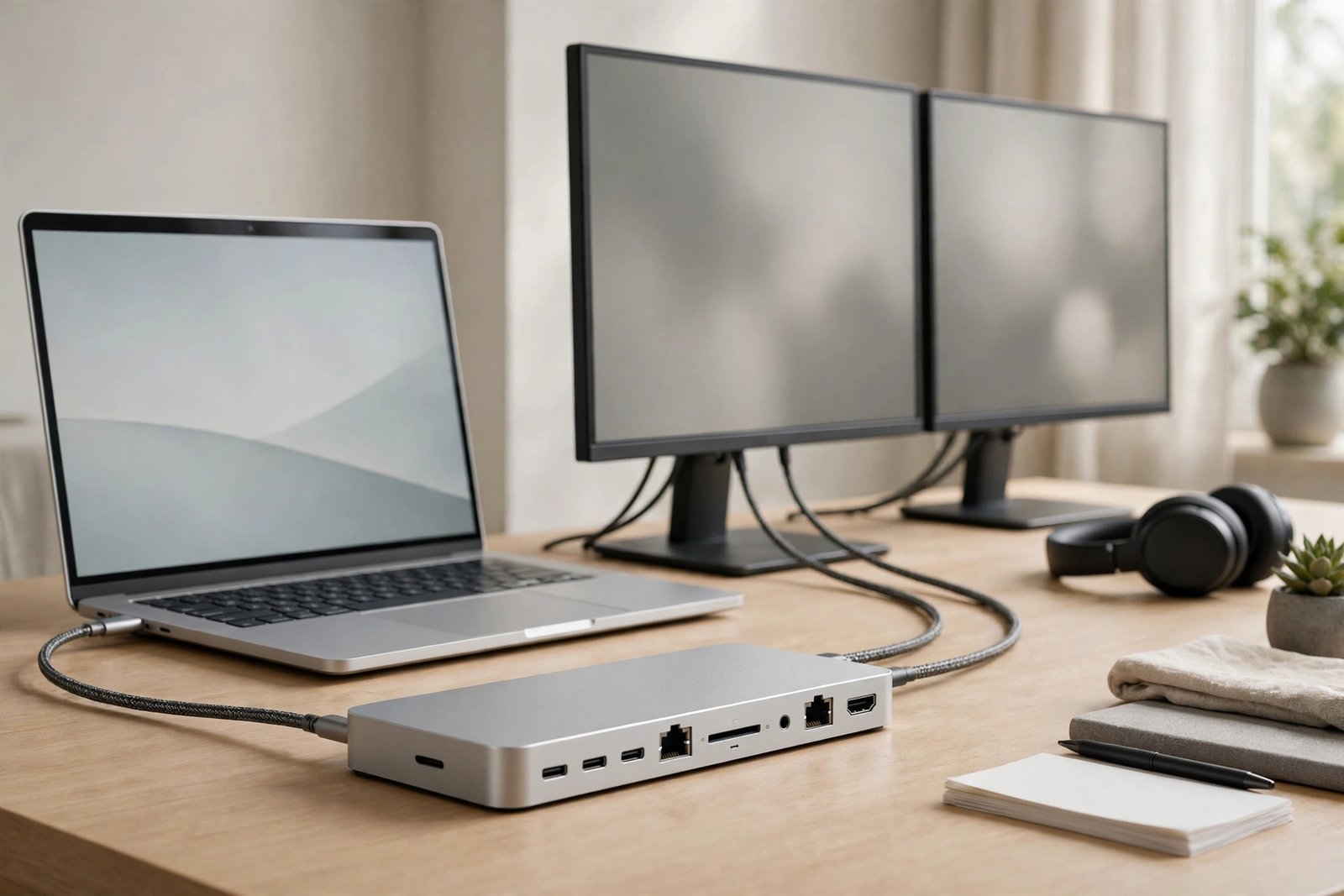
Anker’s 777 is a Thunderbolt docking station aimed squarely at MacBook users, though it also works with Windows laptops that have Thunderbolt ports. It provides a wide range of connections in a slim, upright design that takes up little desk space. Multiple USB ports, HDMI and DisplayPort outputs, Ethernet and an SD card reader cover the needs of most desk setups.
The design is cleaner than many rivals, with a dark finish that matches Apple hardware well. Charging power is strong enough for a MacBook Air or a 14-inch MacBook Pro. Anker’s reputation for reliable charging accessories counts in its favour, since a dock is a device you rely on every working day.
Dell WD22TB4
Best for: Windows offices and Dell laptop users.
The Dell WD22TB4 is a Thunderbolt 4 dock designed for business use, and it shows in its build and its features. It supports dual monitors, offers a full set of USB ports, Ethernet and audio, and charges a laptop through the same cable that carries data and video. Dell laptops can also benefit from features such as powering on from the dock, though this depends on the model.
In an office where Dell laptops and monitors are standard, this dock makes sense because it is tested and supported as part of that system. For a home office with a single Dell laptop, it is a solid if unexciting choice.
Plugable TBT4-UD5
Best for: Best value Thunderbolt 4 dock for dual monitors.
Plugable’s TBT4-UD5 does the core job of a Thunderbolt 4 dock — two monitors, a full set of USB ports, Ethernet and strong laptop charging — at a lower price than its premium rivals. The design is plain, with a simple horizontal body and ports arranged front and back. There is little here to admire, but there is also little missing.
Dual-monitor support covers the displays most owners use, and charging handles mainstream laptops comfortably. If your budget is tight and you need Thunderbolt 4 rather than a basic USB-C dock, this is the sensible choice.
Kensington SD5700T
Best for: Shared desks, hot-desking and mixed laptop fleets.
Kensington has supplied office accessories for decades, and the SD5700T is designed for desks that different people use on different days. It supports dual monitors, offers a wide range of ports and charges a laptop through a single Thunderbolt cable. Compatibility is broad, covering Windows and Mac laptops with Thunderbolt ports, which matters when a dock is shared.
The design is practical rather than stylish, with a sturdy body and ports that are easy to reach. A lock slot adds security in a shared office. For a single-person home office, the SD5700T is more dock than most people need. For a shared workspace, it is the most sensible option here.
Before you buy: a quick checklist
- Check your laptop’s port. A Thunderbolt dock needs a Thunderbolt port; a USB-C dock works with a wider range of laptops.
- Count your monitors. One monitor needs far less bandwidth than two, and a single-monitor setup can use a cheaper dock.
- Check the resolution. Two 4K monitors need a Thunderbolt dock; two 1080p monitors may work fine on USB-C.
- Check charging power. Make sure the dock supplies enough watts for your laptop, especially if you use a 15-inch or 16-inch model.
- List your peripherals. Count USB devices, Ethernet, card readers and audio, and make sure the dock has the ports you actually use.
- Think about the future. If you plan to add a second monitor or a faster external drive, buy a dock with spare ports and bandwidth now.
A dock also changes how you work away from the desk. If you draft documents from a laptop alone, read our guide on how to use AI in Google Docs and Sheets. For privacy when you move between home and office, see what local AI is and how to run it offline on your computer. And when you do leave the desk, your laptop still needs protection in your bag — see our guide to the best laptop sleeves for MacBook Air.
Frequently asked questions
Do I need a Thunderbolt dock or will USB-C do?
With a Thunderbolt port and two high-resolution monitors, buy a Thunderbolt dock. With one monitor, or only USB-C, a USB-C dock is cheaper and will do the job. Check your laptop’s port type first, as the two look identical from the outside.
Can a docking station charge my laptop?
Most modern docks charge a laptop through the same cable that carries data and video, so you can leave the laptop charger in a drawer. Check the wattage, though: a dock that powers a 13-inch laptop may charge a 16-inch model slowly in heavy use.
Will a docking station work with a MacBook?
Yes, Thunderbolt docks work with MacBooks that have Thunderbolt ports, including MacBook Air and MacBook Pro models. Some docks support two external monitors on Apple silicon Macs, while others are limited by the Mac itself, so check the dock’s Mac compatibility notes and your Mac model’s monitor support before you buy.
Can I use a docking station with two monitors?
Most Thunderbolt docks in this guide support two monitors, usually at 4K resolution. USB-C docks can also drive two monitors, but often at lower resolutions. Check both the dock and your laptop, as the laptop’s graphics determine how many displays it can drive.
Is a docking station worth it for a home office?
If you connect and disconnect a laptop from monitors, a keyboard and a charger every day, a dock saves time and reduces cable clutter. If you use a laptop alone and rarely connect anything else, a dock is an unnecessary expense.
Conclusion
The best laptop docking station matches your monitors, your laptop and your working pattern. For most people, the CalDigit TS4 is the right starting point, handling dual monitors, strong charging and a full set of ports without fuss. For a MacBook, the Anker 777 is the best alternative; if budget matters, the Plugable TBT4-UD5 delivers the same core setup for less.
Before you order, check your laptop’s port, count your monitors and list every peripheral you need to connect. Get those three decisions right and any of the five docks above will give you a tidier, faster desk setup. Your next step is simple: check your port type, choose the dock that fits your monitors, and reclaim your desk from its tangle of cables.